What Is Huawei HiSuite & How to Use It
Using Huawei HiSuite to manage your device data and system is easy and convenient. Learn how to download and install Huawei HiSuite to back up and transfer files from Huawei to your computer.
As a Huawei device owner, managing your files, backing up precious data, and keeping your system updated are essential tasks. While cloud services offer convenience, sometimes you need a more robust, direct connection to your computer. That’s why Huawei HiSuite comes in. This article will serve as your complete guide to understanding, downloading, and using Huawei HiSuite. Moreover, an alternative is introduced if you want better Android management. Keep reading!
You may also like: How to fix Huawei HiSuite not connecting
What Is Huawei HiSuite?
Huawei HiSuite is the official desktop manager software developed by Huawei for its range of Android-based smartphones and tablets running EMUI and HarmonyOS. It’s like Apple’s iTunes or Samsung’s Smart Switch, but tailored specifically for the Huawei ecosystem. It is available to use on Windows or macOS computers, allowing you to manage, transfer, and back up your device’s content.
The primary purpose of HiSuite is to give users greater control over their device data beyond what is possible on the phone itself. By establishing a secure connection via a USB cable, HiSuite enables deep-level access to your files, contacts, messages, and system settings, making complex tasks like full device backups or system restoration straightforward and reliable. It is an indispensable tool for anyone who wants to ensure their data is safe, organized, and easily accessible from their computer.
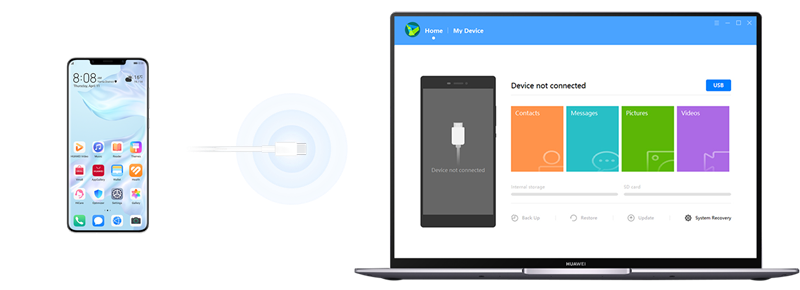
Huawei HiSuite
Main Features of Huawei HiSuite:
Huawei HiSuite is more than just a simple Android file transfer utility. It’s packed with a variety of features designed to cover all aspects of device management. Here are its main functions:
1. Data Management: View, import, export, and delete data on your Huawei device directly from your computer’s larger screen. The supported data includes: contacts, messages, pictures, videos, and apps.
2. Backup and Restore: Create a complete backup of your device’s data on your computer. This backup can include contacts, messages, call logs, photos, videos, audio, app data, and system settings. If you get a new phone or need to factory reset your Huawei, you can use the “Restore” function to bring all your data back in one go. You can even encrypt your backups with a password for added security.
3. System Update: Check for the latest official version of EMUI or HarmonyOS for your specific device model and guide you through the update process. This is particularly useful if you’re not receiving OTA updates or if you prefer the stability of a wired connection for large system installations.
4. System Recovery: If your device fails to turn on, gets stuck in a boot loop, or experiences a system crash, HiSuite’s System Recovery feature can help. It can download the appropriate firmware and attempt to reinstall the operating system to bring your device back to a working state.
5. Outlook Synchronization: For professionals who rely on Microsoft Outlook, HiSuite can synchronize contacts and calendar events between your Huawei device and your Outlook client on the PC, ensuring your schedule and contact list are always aligned across platforms.
How to Download & Use Huawei HiSuite
You can download Huawei HiSuite directly from its official website. Mac users can also install it from the App Store. Before installing, you can check the Huawei HiSuite system requirements as follows:
System Requirements for Huawei HiSuite:
| Windows | Mac |
| Windows 11/10/8.1/8/7 (32-bit or 64-bit) | macOS Catalina (10.15) macOS Mojave (10.14) macOS High Sierra (10.13) macOS Sierra (10.12) OS X El Capitan (10.11) OS X Yosemite (10.10) OS X Mavericks (10.9) OS X Mountain Lion (10.8) |
| RAM: A minimum of 1 GB of memory is required.
Available Disk Space: At least 500 MB of free hard disk space is needed for installation and operation. Display: A monitor with a screen resolution of 1024×768 and 16-bit color depth or higher. |
Minimum requirements for running the respective macOS version itself. |
Steps to manage Huawei data with Huawei HiSuite:
Step 1. Navigate to the official Huawei Consumer support website. Then download and install the proper version on your computer.
Step 2. Go to Settings on your Huawei device, then follow Security>More settings path. Toggle on the “Allow HiSuite to use HDB” option. It will enable a specific setting called HDB (HiSuite Database) to allow HiSuite to communicate with your phone.
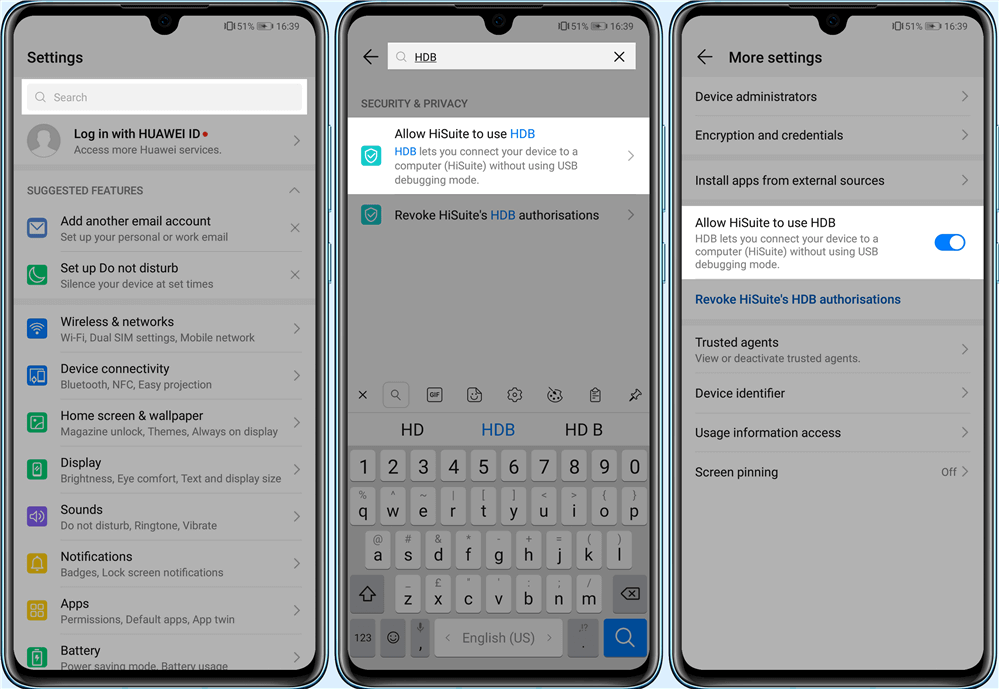
Turn On the HDB Mode
Step 3. Launch Huawei HiSuite and connect your device with a USB cable. Choose “File Transfer” or “Photo Transfer” when it asks you to select the USB connection mode.
Step 4. Once connected, the HiSuite dashboard will display an image of your device and its storage information. You can now access all the features. Choose Back up, Restore, or Manage files according to your needs. HiSuite will finish the tasks in a few minutes.
Best Huawei HiSuite Alternative
While Huawei HiSuite is excellent for Huawei users, it’s limited to the specific brand. Besides, HiSuite doesn’t offer a solution to recover lost data on Android, which is necessary for some users. DroidKit, as an alternative tool for Huawei HiSuite, provides better data management on Android devices besides Huawei. It is a complete Android toolkit that goes far beyond simple data management. It’s designed to solve a wide array of Android problems and works with over 20,000 device models, including Huawei, Samsung, Google, OnePlus, and more.
Key features of DroidKit:
- Back up, transfer, and restore data from Android in easy steps.
- Transfer data from iPhone/Android to Android in one click.
- Recover lost data from Android without a backup.
- Manage WhatsApp data in a flexible way.
How to manage Huawei/Android data with DroidKit:
Step 1. Download and install DroidKit on your computer.
Free Download * 100% Clean & Safe
Step 2. Launch DroidKit and connect your device with a USB cable.
Step 3. Once connected, you can choose the target feature on the main page and follow the instructions to finish data management.

Choose Data Manager
FAQs About Huawei HiSuite
1. Is Huawei HiSuite free to use?
Yes, Huawei HiSuite is completely free software provided by Huawei for its customers. There are no fees, subscriptions, or hidden costs associated with downloading or using its features.
2. How do I connect my Huawei to my computer without HiSuite?
If you only need to transfer files like photos and documents, you don’t need HiSuite. You can use the standard USB file transfer method directly.
3. Why is my Huawei not connecting to HiSuite?
The reasons for Huawei not connecting to HiSuite may include: HDB is not enabled, a damaged cable, incorrect USB mode, or outdated software. You should check them one by one and find what the problem is.
Conclusion
Huawei HiSuite stands out as an essential and powerful tool for every Huawei device owner. It provides a secure and comprehensive platform for managing contacts, messages, and media, and more importantly, for creating full data backups for ultimate peace of mind. While connection can sometimes require careful setup, its robust feature set makes the effort worthwhile. For users seeking broader compatibility or an even wider range of functions, a versatile tool like DroidKit presents a compelling alternative. Download Huawei HiSuite today to take full control of your device’s data, ensuring it’s always safe and organized.
Free Download * 100% Clean & Safe



Senior writer of the iMobie team as well as an Apple fan, love to help more users solve various types of iOS & Android-related issues.
Product-related questions? Contact Our Support Team to Get Quick Solution >
