7 Ways to Troubleshoot Smart View Not Working
Smart View not working can be caused by a poor network connection, software glitch, or device incompatibility. To fix Samsung Smart View not working issues, you can try checking WiFi connection status, software update, device information, etc. You can also use a third-party screen mirror tool for stable connection without effort.
Ever tried to watch a movie on your Smart TV’s big screen by connecting your Samsung phone through the Smart View feature, only to find Smart View not working? It’s annoying when the feature stops working when you need it the most.
The Smart View feature makes mirroring easy. But sometimes minor glitches get in the way. On the good side, most issues have simple solutions. Problems such as Wi-Fi settings or outdated software can be addressed with just a few simple steps. When Smart View continues to fail you, there is another set of highly reliable tools that you can rely on instead. In this blog, we’ll explain what Smart View does, why it may not work, and the best ways to fix it in 2025.
You may also like: How to fix Apple TV stuck on AirPlay screen
What Does Samsung Smart View Do?
Samsung Smart View is a built-in feature on Samsung’s mobile, tablet & PC’s that mirrors the screen of your device on Samsung Smart TV. You can view pictures, movies, or run apps on a larger pixel display screen. It makes streaming wireless and straightforward, eliminating the need for cables. The feature also supports playing music or sharing presentations. It turns your TV into an extension of your device. Smart View can quickly be installed with a couple of taps. The connection is even easier to work with. With Smart View, your small screen instantly becomes big and more enjoyable.
Why Is Smart View Not Working?
Smart View may stop working for simple reasons. Mostly, the issue is easy to fix. Here are some common causes:
- Different Wi-Fi Networks: Smart View requires your phone and television to be on the same Wi-Fi. It will not work with other networks.
- Outdated Software on TV or Phone: Old software often causes errors. Updating both devices usually troubleshoots the issue.
- Weak Wi-Fi Signal: A poor internet connection can break the link. Smart View works best on strong, stable Wi-Fi.
- Smart View Disabled on TV: The feature will not turn on if the option is disabled on your TV. Make sure that screen mirroring is on.
- Unsupported Devices: Older TVs or phones may not support this feature. Check your device compatibility.
- Temporary Glitches: Minor issues can interrupt the connection. A Routine restart of your devices can clear the issue.
- Too Many Devices on Wi-Fi: The network can be slow when there are a lot of connected devices. Disconnecting extras may help Smart View run smoothly.
Knowing the possible reasons for Smart View not working issue, let’s move to the next part and learn how to fix the problem in 7 proven ways.
How to Fix Smart View Not Working
Fixing smart view not working is easy with the 7 methods mentioned below. Let’s discuss each of them in detail.
Method 1. Connect Your Samsung and TV on the Same Network
Connecting your smart TV and Samsung phone to the same network is a must. To match your phone and your TV, share the same Wi-Fi network, follow these steps:
Step 1: From your Samsung phone’s settings, open Connections.
Step 2: Now, choose Wi-Fi.
Step 3: Here, you can make sure your phone is connected to the same network. If not, change it.
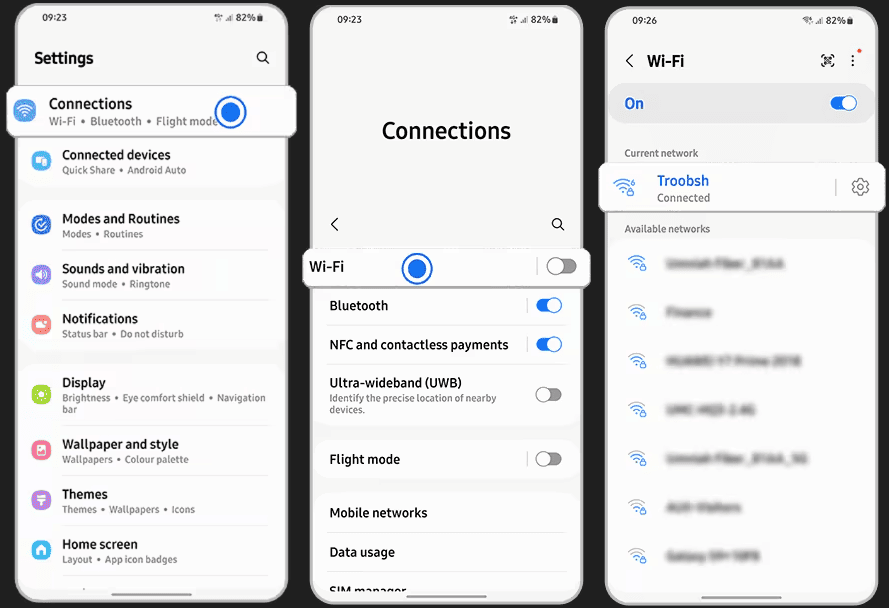
Check Samsung Network Connection
Step 4: Similarly, check your TV’s Wifi by going to the Settings in Smart Hub from the Home button of the remote.
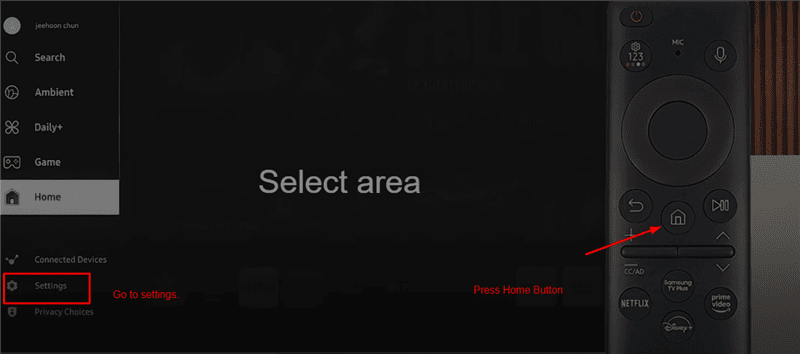
Go To the Settings on TV
Step 5: Go to Connection in All Settings and select Network.
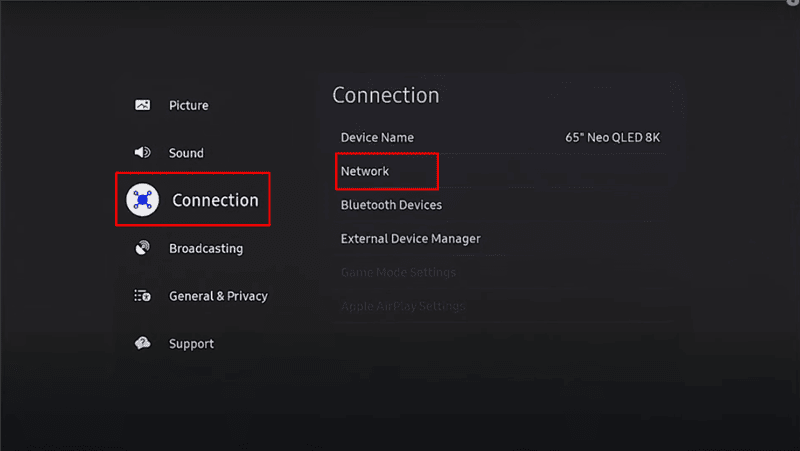
Check Network on TV
Step 6: In the Network, choose Open Network Settings and select Wireless. You will find your connected WiFi there. Ensure that the names on your TV and the phone are the same.
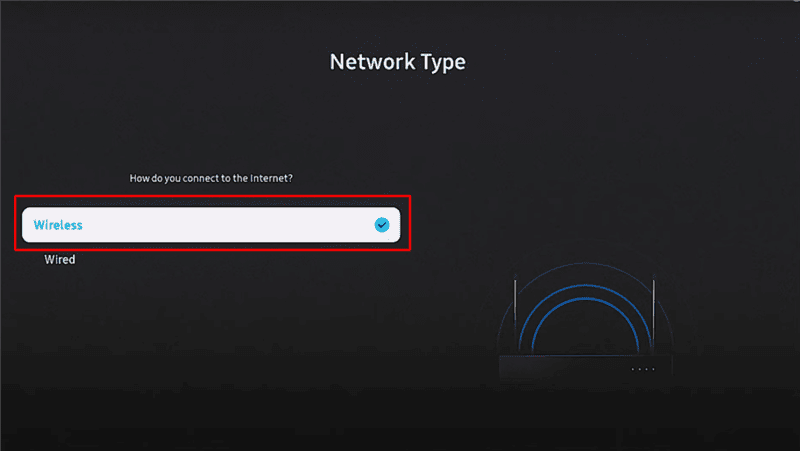
Choose Wireless Connection on TV
Method 2. Grant Smart View Permissions to the TV
Another method to fix the issue of Smart View not working is to turn on the screen mirroring on your TV. Here is how to allow Smart View permission to the TV.
Step 1: Go to the Settings menu of your TV. Select General > External Connection Manager.
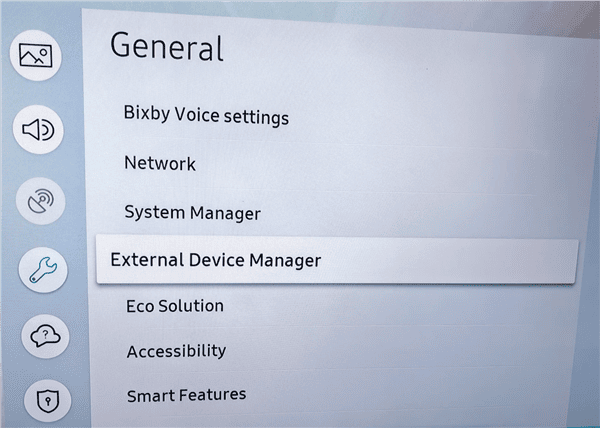
Choose External Device Manager on TV
Step 2: Now select Device Connection Manager.
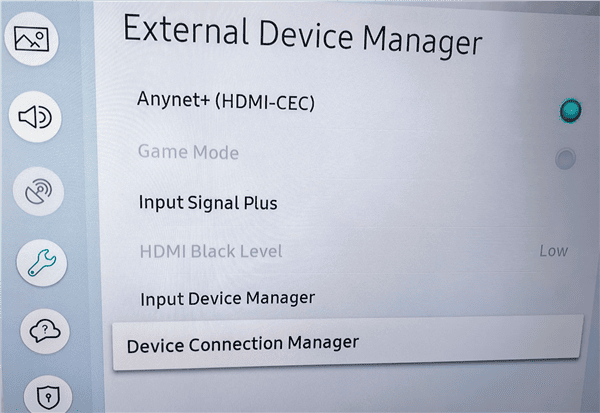
Choose Device Connection Manager on TV
Step 3: Select the Device list and click the smartphone you want to connect. Select Allow.
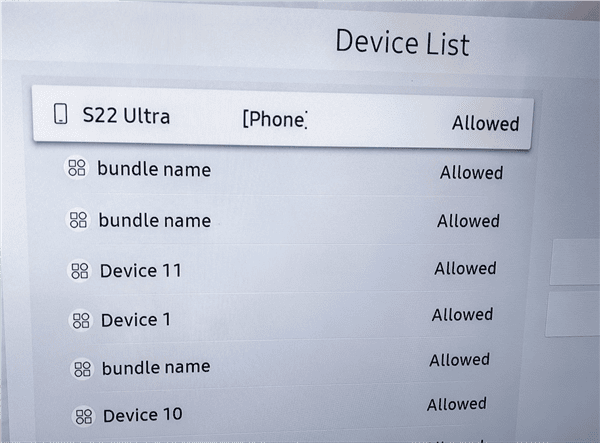
Allow Phone Connection on TV
Method 3. Restart Your Samsung Device
The simple way to fix the Smart View feature not working is to restart your Samsung phone. And the simplest way to do it is to turn your phone off and then on. Use the Power icon in the Quick settings panel of your phone or the Side and Volume down buttons to turn your phone off. Once it’s powered on, connect it to Wi-Fi and turn on the Smart View feature.
Method 4. Update Samsung Software
Updating your Samsung phone is another fix to resolve the issue of Smart View not working. Samsung periodically releases new software updates. Updates also add security to your device and new features. Before updating your Samsung device, it is worth noting to back up your valuable data.
Step 1: Go to Settings on your Samsung phone > tap Software Update.
Step 2: Click Download and Install.
Step 3: When an available software update is found, you can choose to install it by clicking on Install now, Schedule install, or later.
With the newer version of the software, the interface will be as follows.
Method 5. Update the Smart TV System
Outdated software can also cause Smart View not working. To fix the problem, update the software in your Samsung smart TV as follows.
Step 1: From Support, choose Software update.
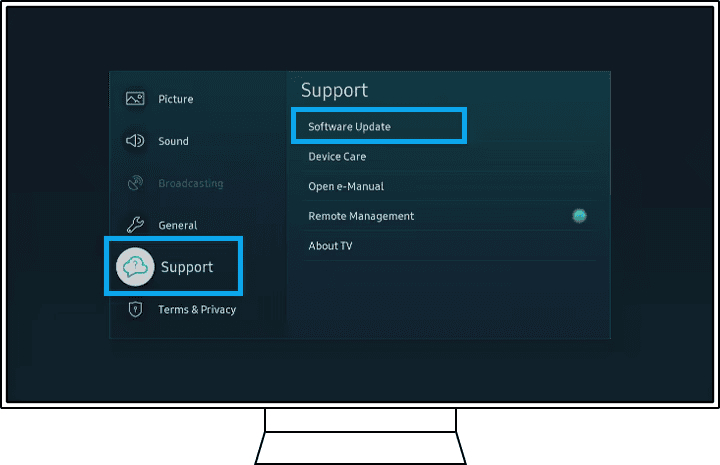
Update Smaet TV System
Step 2: Select Update Now.
Step 3: The updates will be downloaded and installed on your TV if there are new updates. When you have no new updates, click OK to exit.
Do not switch off your smart TV before the update is over. When this is done, your TV will reboot.
Method 6. Factory Reset Your Smart TV
If the above methods don’t help to fix the Smart view not working issue, you have to factory reset your smart TV. The factory reset of the television will restore it to the default mode and delete the programs previously operating in it. Go to Settings > General > Reset on your Samsung TV.
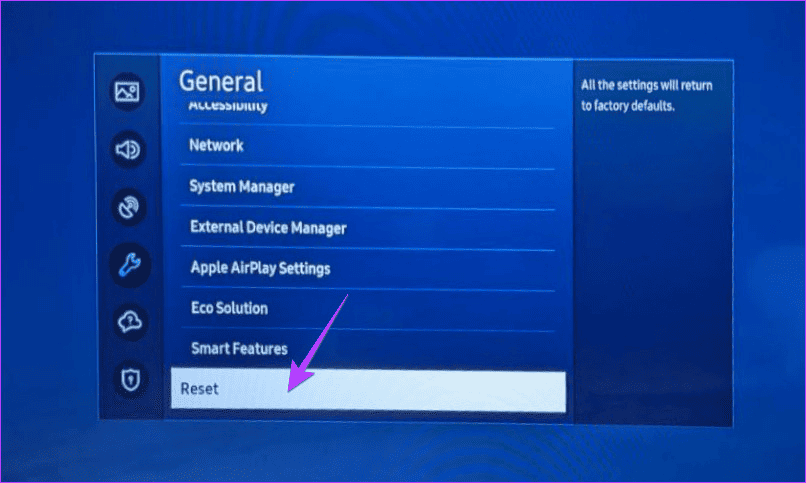
Reset Smart TV
Method 7. Try Another Screen Mirror Tool
If Smart View doesn’t work, you can always try another option. One reliable choice is AnyMiro. It is also simple to operate, connects to various devices, and provides a smooth flow of screen mirroring. It seems to be faster and more reliable than built-in tools and is liked by many people.
Standout features of AnyMiro:
- Works on Android, iOS, Windows, and Mac.
- Gives clear and stable mirroring with no lag.
- Lets you connect with both USB and Wi-Fi.
- Perfect for games, videos, or even work presentations.
- Simple design that is quick to set up.
- Keeps the connection stable, even on weaker networks.
AnyMiro is a handy alternative when Smart View fails. It is also versatile, easy to use, and handy in various ways. Whether to have fun or work, it helps you enjoy screen mirroring without hassle.
FAQs About Smart View Not Working
1. Why is Smart View not working after update?
Software updates can introduce bugs, reset necessary app permissions, or corrupt cached data, causing conflicts. This may create a new incompatibility with your TV’s firmware. Often, restarting both your phone and TV, ensuring they’re on the same Wi-Fi, and checking app permissions will resolve the issue.
2. How do I get Smart View to work on my TV?
Ensure your phone and TV are connected to the same Wi-Fi network. On your Samsung phone, swipe down to open the Quick Panel, tap the “Smart View” icon, and select your TV from the list. You may need to approve the connection request on your TV screen.
Conclusion
Samsung Smart View is a useful feature. But sometimes it may stop working. Most issues are due to outdated software or simple glitches. However, they can be fixed with quick troubleshooting. If Smart View not working even after trying different methods, such as updating the System or factory resetting your smart TV, you can switch to a reliable alternative. AnyMiro is a smooth and flexible option that makes screen mirroring easy for both work and entertainment.



Jeremy Feron is a writer for iMobie with a deep passion for Android. He specializes in creating clear guides on Android tips and the latest updates, helping users navigate their devices and get the most out of new features.
Product-related questions? Contact Our Support Team to Get Quick Solution >
