How to Fix Account Action Required from Google Play Services
“Account action required” from Google Play Services is usually related to Google accounts, typically needing you to re-enter your password or take some other step to verify your identity or clear up an issue with your account. This may be for several reasons, including security updates, changes to account settings, or problems with the Google Play Services framework. Read this article to learn 8 easy solutions for the “Account action required” error.
An “Account Action Required” notification from Google Play Services generally points to a Google account problem, your device configuration, or identification data that is no longer valid. This kind of situation is frustrating, especially when it repeatedly occurs and you can’t get rid of it. This article intends to find the principles behind this sign and show you solutions, like deleting cache files, altering passwords, rebooting the device, etc. We also share an easier way to remove the “Account Action Required” notification without entering a password. Let’s start!
Table of ContentsHide
Why Account Action Required Notification Appear?
How to Remove Account Action Required in Google?
- Way 1. Clear Cache Data of Google Play Store
- Way 2. Clear Cache Data of Google Play Services
- Way 3. Remove Google Account & Add New One
- Way 4. Update Your Google Account Password
- Way 5. Switch Off and On Google Play Services Notifications
- Way 6. Uninstall Google Play Store
- Way 7. Factory Reset the Android Device
How to Remove Account Action Required Without Password
FAQs about Account Action Required Notification
Why Account Action Required Notification Appear?
There may be several causes for the “Account Action Required” message to be displayed as follows:
- Security risk or suspicious activity – In case Google finds that there have been attempts to sign in to your account in an unusual way, it may decide to send you a warning.
- Outdated or compromised password – If the new password is leaked after a change, your device will not be able to synchronize until you change the login data.
- Problem with a linked account – If there are problems with the accounts that are connected to your Google profile, and, for example, issues with YouTube or Gmail, then this message will also appear.
- Outdated device or browser – It is possible that an old version of Android, Google Play Services, or a web browser that you are using causes an incompatibility problem.
How to Remove Account Action Required in Google?
After learning possible reasons for the “Account Action Required” notification from Google Play Services, here are 7 easy ways to help you fix this issue.
Way 1. Clear Cache Data of Google Play Store
The “Account Action Required” message might be caused by corrupted cache files in the Google Play Store. These files can prevent the proper syncing of the account. By deleting the cache, the app can clear its temporary files. Then it can be reloaded with new data and function as usual.
Step 1. Hit the Settings app, go to Apps or Application Manager, and then pick Google Play Store from the list.
Step 2. Tap Storage and then select Clear Cache.
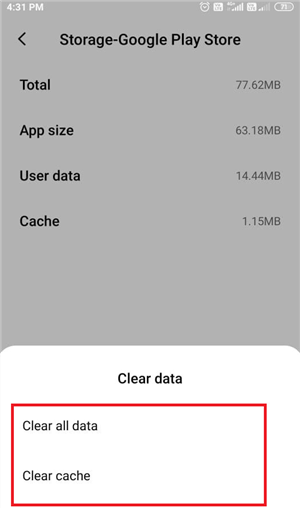
Clear Cache on Google Play Store
Way 2. Clear Cache Data of Google Play Services
Google Play Services keeps your Google account synced with all other apps. In case the cache of this service gets corrupted, a quick fix is to remove the cache, and the problem will be solved right away. To clear cache:
Step 1. Navigate to Settings > Apps or Application Manager. Tap on Google Play Services.
Step 2. Click Storage and then Clear Cache. Reboot your device and check if the alert is no longer there.
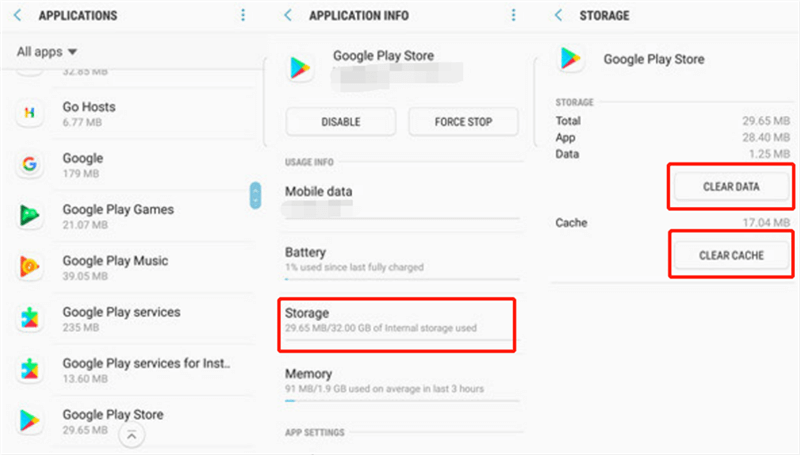
Clear Cache and Data from Google Play Services
Way 3. Remove Google Account & Add New One
Deleting and re-adding your Google account essentially means that you are refreshing your login details, and a sync issue that is sticking with you may get solved. Here is how to:
Step 1. In the Settings app, navigate to Accounts, and then select your Google account. Tap Remove Account.
Step 2. Return to Accounts and select Add Account > Google. Use either your existing Google account or create a new one to sign in, then reboot your device.
Way 4. Update Your Google Account Password
Updating your Google Account Password on your Android device can make your credentials accurate and in line with others. If your password is not up-to-date or has been changed recently on another device, then a mismatch will inevitably occur, resulting in the error message.
Step 1. Use a web browser or the Google Account app, sign in, and navigate to Manage your Google Account > Password > Change Password.

Change Google Password
Step 2. Provide your current password, create a new strong password, and save the changes.
Step 3. Sign in with the changed password on your device and restart to check if the notification has disappeared.
Way 5. Switch Off and On Google Play Services Notifications
The notification settings bug may be the source of a persistent “Account Action Required” warning. Turning notifications off and then back on is what updates the alert system, and at the same time, it may dislodge the stuck warning.
Way 6. Uninstall Google Play Store
Sometimes Google Play Store updates cause account verification errors. Uninstalling the updates restores the factory version, clears problematic data, and forces the app to re-verify your account, which can fix the Account Action Required notification.
Step 1. Open Settings and then tap on Application Manager.
Step 2. In the Google Play Store menu, tap on the three-dot menu in the top-right corner and select Uninstall updates from the list.
Way 7. Factory Reset the Android Device
Persistent account sync errors can be caused by corrupted system data or misconfigured settings. A factory reset on an Android phone removes all data and restores default system configurations, forcing a fresh account setup that can eliminate the Account Action Required notification.
Step 1. Make a copy of your important files and then go to Settings > System > Reset options.
Step 2. Choose Erase all data (factory reset) and then agree with the action.
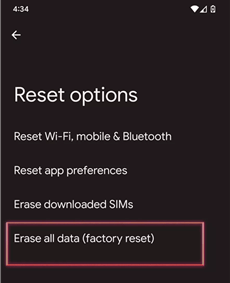
Click on Erase All Data
Step 3. When the reset is done, configure your device and enter your Google account again.
How to Remove Account Action Required Without Password
“Account Action Required” notification may also happen after a factory reset. When you can’t remember your password, or you buy a second-hand phone with the FRP feature on, the easiest way to remove this notification is with a good FRP bypass tool. Here we recommend DroidKit by iMobie, which enables you to bypass Google account verification on Android devices without the original password. The program is compatible with a vast number of brands, runs on Android 6 to Android 15, and guarantees a high success rate with a safe home operation. With only a few clicks, you can regain access to your FRP-locked phone without effort.
Key features of DroidKit FRP bypass:
- Bypass Google FRP lock without the original account password.
- Works with Android versions 6 through 15.
- Keeps your privacy safe with SSL-256 encryption during the process.
- Supports multiple Android brands such as Samsung, Xiaomi, Redmi, Motorola, Lenovo, VIVO, etc.
Free Download * 100% Clean & Safe
Steps that can be followed to bypass FRP with DroidKit:
Step 1: Download and Install DroidKit
Download and install the DroidKit app. Once launched, choose the FRP Bypass mode, and launch it.
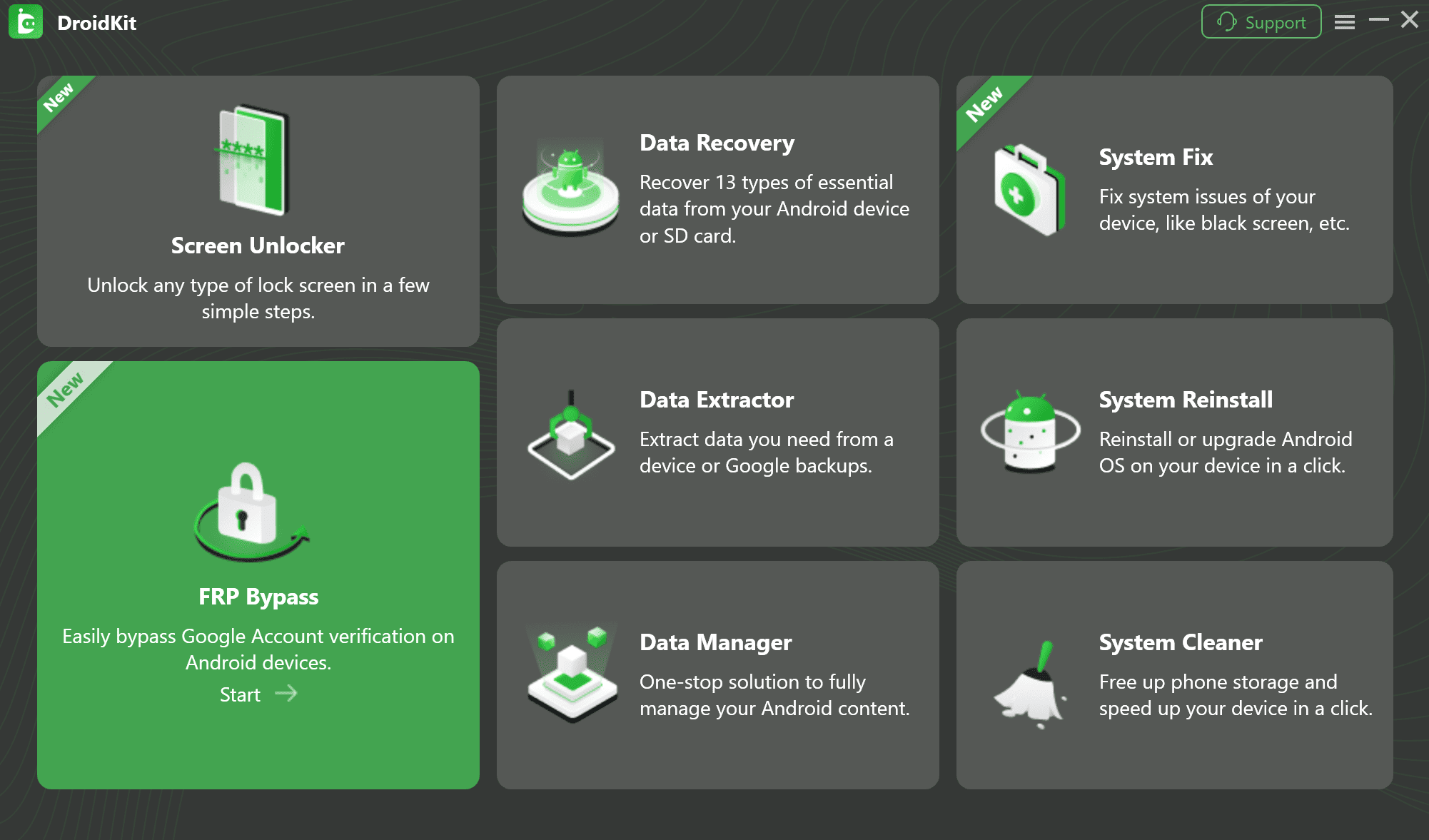
Select FRP Bypass Feature
Step 2: Connect Your Phone to PC
Connect the Android device to the computer via USB, press Start, and select the brand and the version of your device.
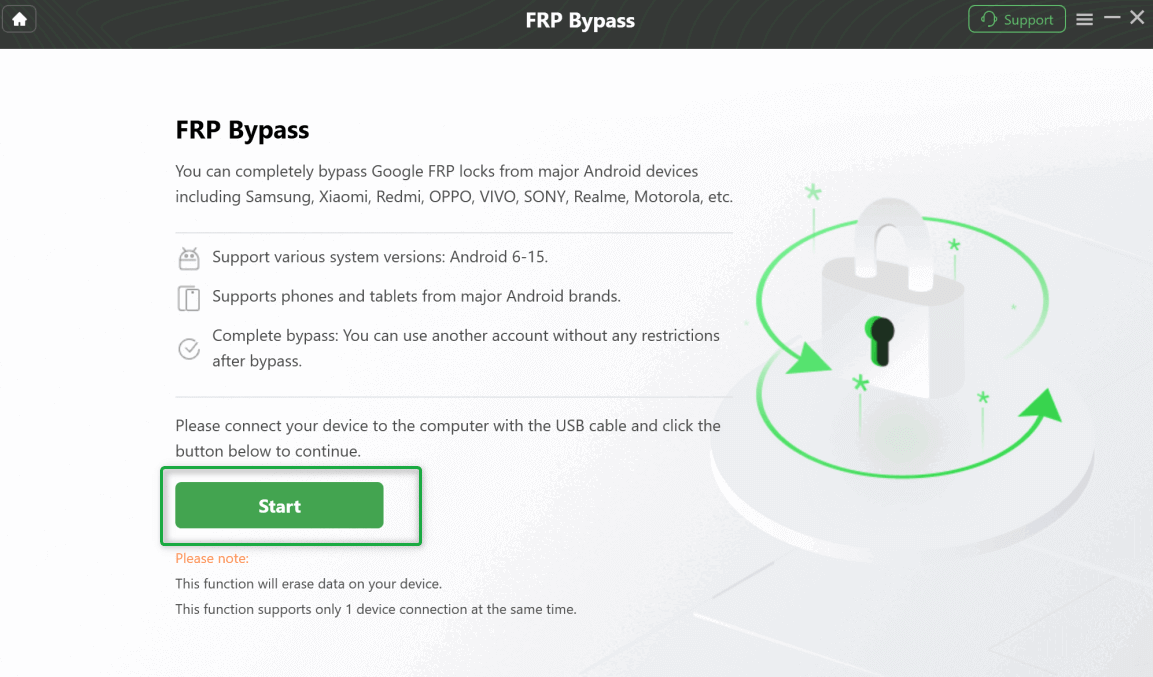
Click Start Button
Step 3: Prepare the Configuration file
Allow DroidKit to generate the device configuration file, and then press Start to Bypass.
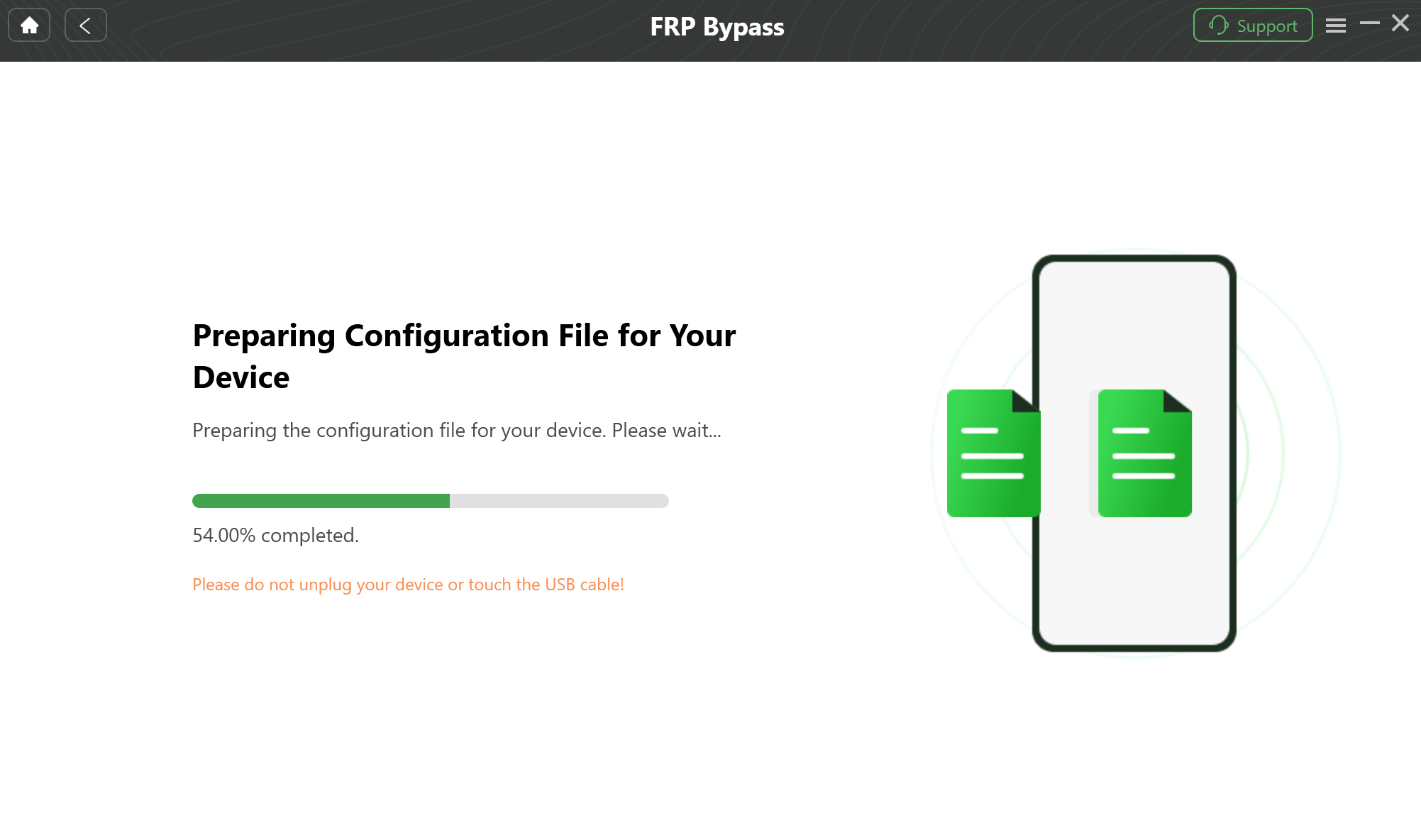
Prepare the Device-Specific Configuration
Step 4: Start to Bypass FRP
Press Reset to initiate the FRP bypass process. After that, your device will be rebooted without Google account verification.
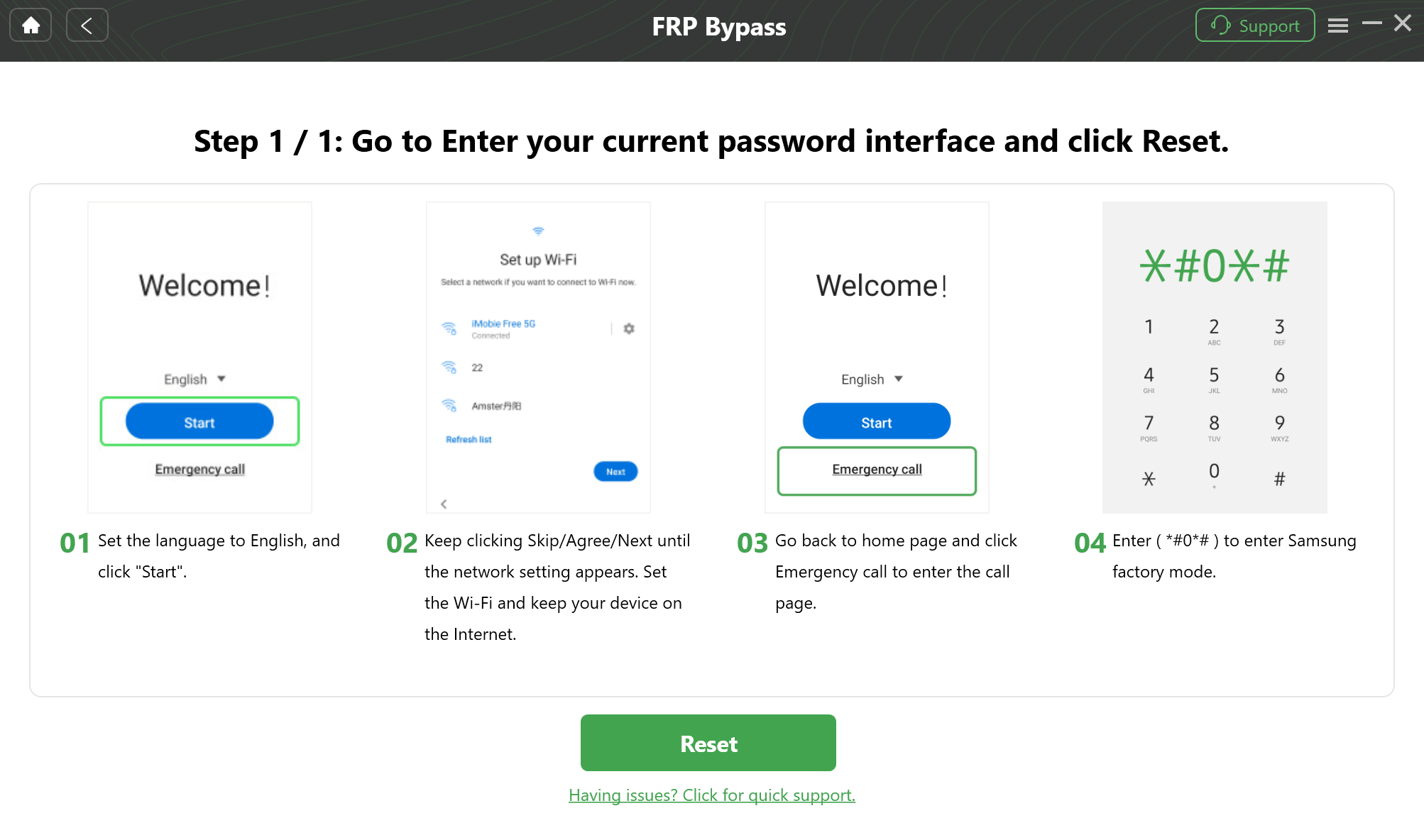
Reset Your Device
Step 5: FRP Bypass Successfully
After the process is completed, the phone will be restarted automatically.
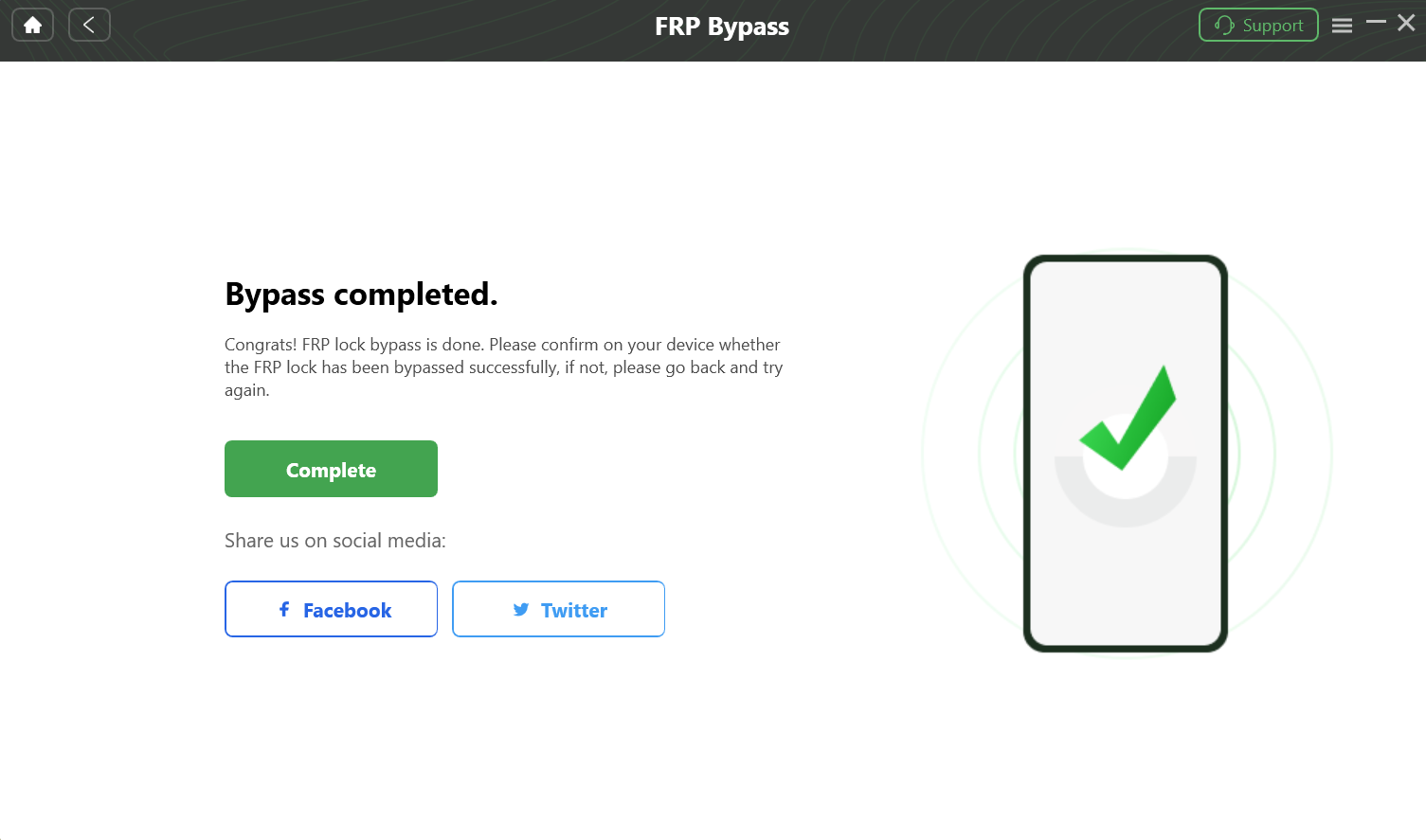
Bypass FRP Lock
FAQs about Account Action Required Notification
Q1: Why Does Google Play Services Error Happen?
The most common causes that lead to Google Play Service errors are the issues listed below: Outdated versions of the apps, corrupted cache data, failure to sync with your Google account, and network problems.
Q2: How to Get Rid of Google Account Action Required?
One of the quickest ways to resolve this issue is by clearing the cache of Google Play Store and of Google Play Services, updating your Google account password, removing and re-adding your account, and much more. In addition, DroidKit allows you to bypass account verification without entering the password.
Q3: How Do I Get Google to Stop Asking Me to Verify My Account?
Make sure that all your information is correctly entered and your password is current to avoid persistent notifications. Avoid any suspicious login attempts, clear the cache and data of Google services, and keep your device and apps updated.
Conclusion
Usually, the “Account Action Required” error is caused by your Google account or device problems and can be solved by several easy steps, like clearing Google Play cache or changing passwords. However, if the problem is more complicated, DroidKit provides a safe and hassle-free method to bypass Google verification without a password. With just a few simple steps, you can start using your Google account normally. Head to the official iMobie website and install DroidKit now for a trouble-free experience on your device!
Free Download * 100% Clean & Safe


Roger Smith is a senior technical writer with years of experience in providing Android solutions. He loves to help users solve various problems such as Android unlock, Android data recovery, and Android system repair.
Product-related questions? Contact Our Support Team to Get Quick Solution >
