How to Download and Use HalabTech Tool | Stepwise Guide
Discover the 2026 review of HalabTech Tool — explore its features, supported brands, pros & cons, how to download and use it for FRP bypass, IMEI repair, and flashing. See the best alternative if HalabTech doesn’t work for your device.
HalabTech Tool is a powerful Android repair utility that enables users to perform various operations, including FRP bypass, IMEI fixing, and flashing, without any issues. Trusted widely for its frequent updates and support of various brands, the 2026 edition is more powerful and compatible than ever. Whether you are a professional mobile technician or an advanced user, this tool provides you with unrestricted access to device features that the manufacturer ordinarily limits.
In this tutorial, we will examine the main characteristics of HalabTech Tool, including supported units, advantages, disadvantages, and methods for downloading and using the tool freely. What’s more, you will get an easier and powerful alternative—DroidKit for a simple and quick FRP bypass.
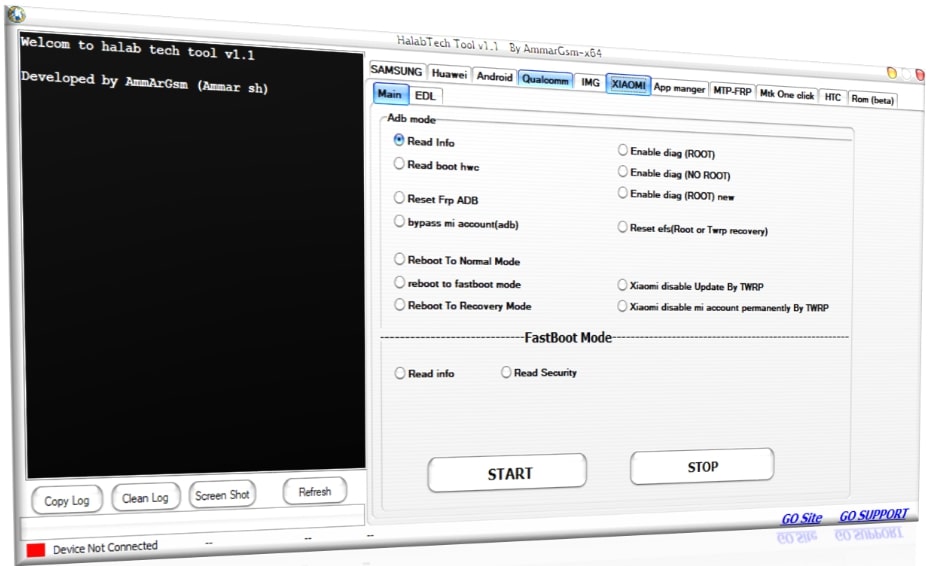
HalabTech Tol
Part 1. What Is HalabTech Tool?
HalabTech Tool is a very effective Android service software, especially designed for mobile repair technicians, developers, and advanced Android users. This tool is designed to run on Windows systems, allowing users to work with multiple functions, and comes with an easy-to-use interface.
It can be a great help in unlocking devices, bypassing FRP, repairing IMEI numbers, flashing stock firmware, rooting Android phones, and removing various locks, such as Mi or Samsung accounts. With frequent updates, a flawless interface, and the availability of thousands of models, HalabTech Tool is a trusted name in the Android repair community.
1. Main Features of HalabTech Tool
- FRP Bypass: HalabTech Tool can quickly remove Google account verification locks on multiple devices, including Samsung, Huawei, OPPO, Tecno, and Xiaomi.
- Network & Screen Unlocking: The tool is also a valuable resource for removing SIM locks, allowing users to switch to any carrier without restrictions. In addition, it provides a safe and quick way to bypass screen locks, such as PINs, passwords, and patterns, when one can no longer remember the password or the device becomes disabled.
- IMEI Repair: HalabTech Tool can be used to rewrite a corrupted IMEI number. In the event of a software error or if the device is flashed, this feature is necessary for recovering the network connection.
- Firmware Flashing: With the software, users can flash various firmware files to the device in different modes like EDL, MTK, and Qualcomm. Apart from that, it serves to recover a bricked device, remove malware, or upgrade or downgrade the Android version.
- Rooting & Account Removals: The software allows users to enable the root access feature and remove linked accounts, such as Mi Cloud or Samsung Accounts, which may be necessary for full device control or transferring ownership.
- User-Friendly Design: The tool’s interface is very easy to use, and even beginners can understand it quickly. Besides, it is supported by a vibrant team and is regularly updated with new functions and compatible models.
3. Supported Android devices
The HalabTech Tool supports the most popular chipsets such as MediaTek (MTK), Qualcomm, and Kirin, and it also provides tools for models from brands that include:
- MTK
- Qualcomm
- Kirin
- Samsung
- Huawei
- Oppo
- Tecno
4. Pros and cons of the HalabTech Tool
Pros:
- All-in-one Android service tool with wide functionality.
- Supports thousands of models across multiple brands.
- Regular software updates and improvements.
- Clean, beginner-friendly interface with strong community support.
Cons:
- Requires technical knowledge to operate advanced features like EDL mode or test points.
- Not all functions may work on the latest Android updates or models.
Part 2. How to free download and use HalabTech Tool
Ready to unlock, flash, or repair your Android device? Here’s how to download and use HalabTech Tool V1.1 on your Windows PC in a few simple steps.
Free download guide
Step 1. Open a web browser and navigate to the HalabTech Tool official website.
Step 2. Download the most recent version (V1.1) for Windows. The file will usually be in a .zip or .rar format.
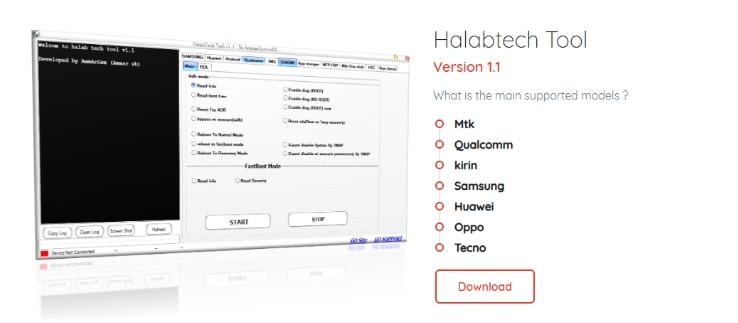
Click Download Button
Step 3. If the file has been downloaded, locate it on your computer and right-click on it. Then, select the “Extract Here” option with WinRAR or a similar program.
Step 4. Navigate to the extracted folder and double-click the HalabTechTool.exe file to initiate the installation process.
How-to-use guide
Step 1. Use a working USB cable to connect your Android device to the PC.
Step 2. Turn your device off and then start it in the necessary mode corresponding to the chipset:
- Samsung: Download Mode or USB Debugging
- MTK devices: Preloader Mode
- Qualcomm devices: EDL Mode
Step 3. Run the HalabTech Tool and stay ready for your device to be found.
Step 4. Select your device brand and decide on the function you want to perform (e.g., Erase FRP, Unlock Screen, Repair IMEI, or Flash ROM) in the tool interface.
Step 5. Use the instructions displayed on the screen given by the tool as a guide to finish the operation. Either your device will restart automatically, or a success confirmation message will be displayed while the process is in progress.
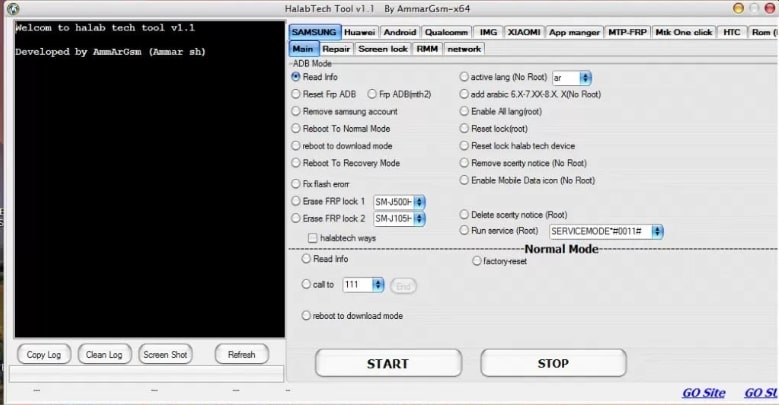
Follow the On-sceen Instruction
Part 3. Bonus. Best HalabTech Tool Alternative to Bypass FRP Easily
If you find HalabTech Tool too technical or it doesn’t support your device, consider DroidKit by iMobie, a great option for bypassing Google FRP lock with minimal effort. It is suitable for both beginners and experts, and DroidKit is a safe, quick, and efficient method for unlocking Android devices that have been locked after a factory reset. It also supports phones and tablets of major brands, and it can remove FRP lock without the need for a Google account or password.
DroidKit’s FRP Bypass feature is compatible with Android versions 6 to 15, and the latest Samsung, Xiaomi, Redmi, OPPO, Vivo, and other brands are also supported. It is perfect for second-hand phones, forgotten Google accounts, or devices you want to give away. Being the tool with the highest success rate, it guarantees that you can use your device again as if nothing had happened, and the best thing is that you don’t have to leave your house to do that.
Key features of DroidKit FRP Bypass
- Bypass Google FRP lock without a password on Android 6–15 devices
- Supports Samsung, Xiaomi, Redmi, POCO, OPPO, Vivo, Motorola, Realme, OnePlus, Sony, and more
- Regain full access to your device instantly after FRP removal
- Custom solutions for different brands to ensure a high success rate
- Safe and secure process with SSL-256 encryption
- Works on both Windows and Mac systems
Free Download * 100% Clean & Safe
Here are the steps to bypass FRP lock using DroidKit:
Step 1. Open DroidKit and pick FRP Bypass mode. Download and install DroidKit on your PC. Launch the program and tap on the “FRP Bypass” option. Then, press the “Start” button.

DroidKit FRP Bypass
Step 2. Connect your device and select the brand/version. Connect your phone using a USB cable. If recognized, tap the “Start” icon and select the brand and version of your device (e.g., Samsung > Others for international Android 13 devices).
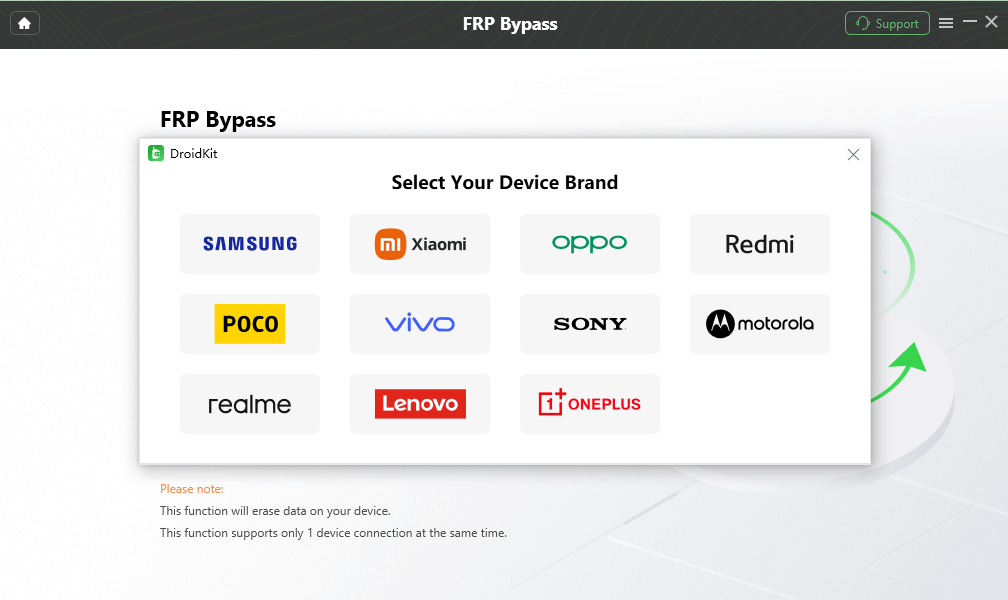
Select Correct Brand
Step 3. DroidKit will generate a configuration file. When it is done, press “Start to Bypass.”
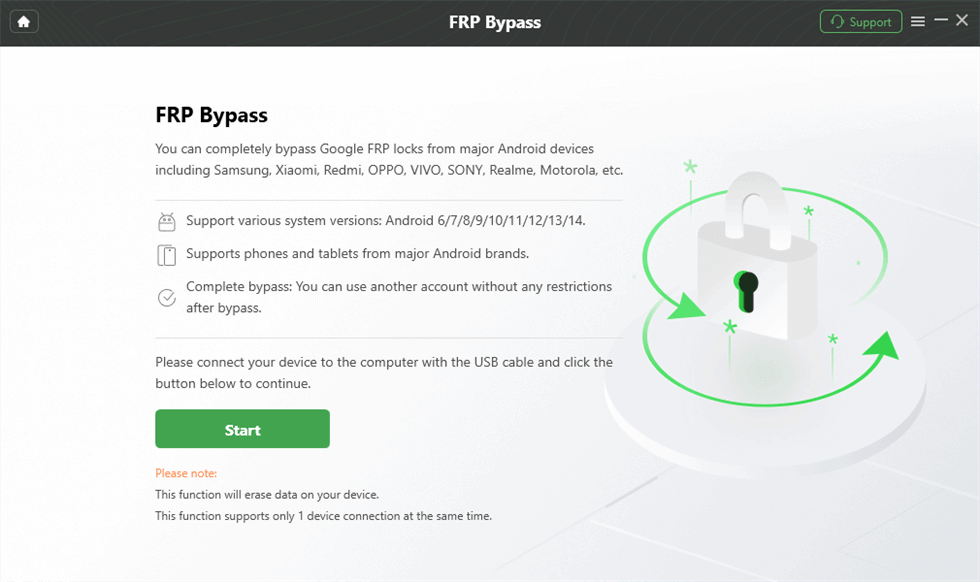
Launch the FRP Operation
Step 4. Pick the system version and go through the instructions on the screen. Choose the Android version of your device by identifying the boot screen interface. Then, click “Next” and proceed with the given steps to reach the current password screen and activate Samsung factory mode (#0#).
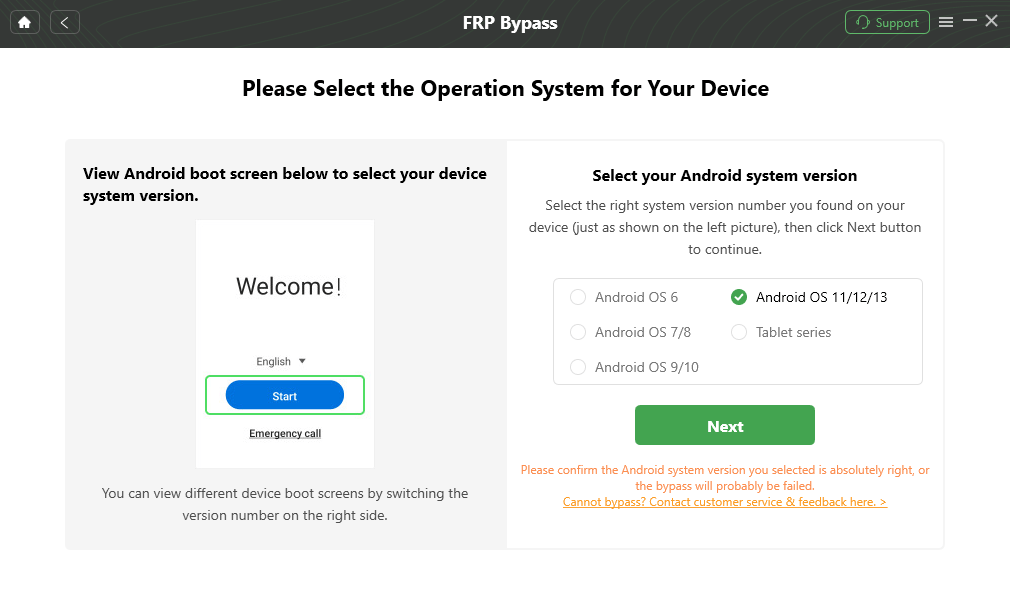
Select the Correct System Version
Step 5. Finish FRP bypass. Tap on the “Reset” button in the app. The FRP bypass will be initiated. After the process is complete, your device will restart without the FRP lock.
Part 4. Conclusion
It’s easy to unlock the FRP lock using DroidKit, provided you follow all the steps correctly. Starting from choosing the appropriate FRP mode, preparing the configuration file, and determining your Android version, the software effectively simplifies what could have been a complex task. DroidKit supports Samsung, OPPO, and any other Android devices, providing you with customized instructions for a trouble-free unlocking process. Be sure to use a suitable cable and select the correct system version to prevent any errors.



Senior writer of the iMobie team as well as an Apple fan, love to help more users solve various types of iOS & Android-related issues.
Product-related questions? Contact Our Support Team to Get Quick Solution >
