How to Check If Your Samsung Phone Is Unlocked Without a SIM
Quick Answer: You can check if a Samsung phone is carrier unlocked without another SIM by reviewing Samsung Mobile Network settings, checking your carrier account, contacting the carrier with the IMEI number, or using a reputable IMEI checker. No single settings result is final proof, so confirm with the original carrier if you need a reliable answer before switching, buying, or selling the phone.
Before switching carriers, traveling internationally, buying a used Samsung phone, or selling your Galaxy device, it is important to know whether the phone is carrier unlocked . A carrier-unlocked Samsung phone can use another compatible carrier's SIM or eSIM, while a carrier-locked phone is restricted by the original carrier until it meets that carrier's unlock requirements.
This guide focuses on how to check Samsung carrier unlock status without using another SIM card. It also explains the difference between carrier unlock, screen unlock, and FRP lock so you do not confuse different types of Android unlocking.
Part 1. What Does “Unlocked Samsung Phone” Mean?
An unlocked Samsung phone usually means a carrier-unlocked or network-unlocked device. In other words, the phone is not restricted to one mobile carrier and can work with another compatible network after you insert a supported SIM card or activate a supported eSIM.
However, “unlock” can mean different things on Android phones. Before you choose a method, make sure you know which lock you are checking.
| Lock Type | What It Means | What Solves It |
|---|---|---|
| Carrier lock / SIM lock | The phone is restricted to one carrier or network. | Carrier unlock request, carrier account check, or carrier support. |
| Screen lock | You cannot enter the phone because you forgot the PIN, password, pattern, or biometrics. | Password recovery, factory reset, or a screen unlock tool in supported cases. |
| FRP lock | Factory Reset Protection asks for the previously synced Google account after a reset. | Recover the Google account or use an FRP-specific solution in supported cases. |
If your goal is to use another carrier, you need to check the carrier unlock status . If you cannot get into the phone because of a forgotten password, see the section about screen lock near the end of this guide.
Part 2. How to Check If Your Samsung Phone Is Unlocked Without a SIM
You do not always need a second SIM card to check whether a Samsung phone is unlocked. The methods below can help you check the unlock status through Samsung settings, your carrier account, the IMEI number, or carrier support.
Method 1. Check If Your Samsung Phone Is Unlocked in Settings
The easiest way to check if your Samsung phone is unlocked in Settings is to open Settings > Connections > Mobile networks > Network operators . This method is fast and free, but the exact menu name may vary by Galaxy model, One UI version, region, and carrier customization.
Step 1. Open Settings on your Samsung phone.
Step 2. Tap Connections > Mobile networks .
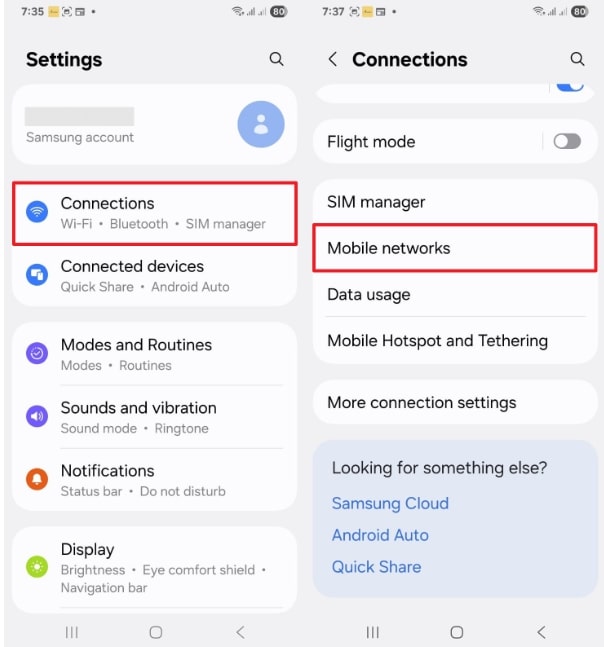
Choose Mobile Networks on Samsung
Step 3. Look for Network operators , Choose network , or a similar option. If you can turn off automatic network selection and see multiple available networks, the phone may be able to detect other carriers.
Step 4. Check whether your phone shows a carrier-specific option such as Device Unlock , Network Unlock , or a message that the device is not eligible. If you see one of these options, follow the carrier's instructions or confirm the status with the carrier.
Important: Seeing multiple networks is a useful clue, but it is not always final proof that the phone is fully unlocked. A phone can detect other networks even when activation is still limited by carrier rules, account status, or device policy.
Method 2. Check Your Carrier Account or Unlock Status Page
The carrier account is often more reliable than the phone settings because the carrier controls whether a carrier-locked device is eligible to be unlocked. This method is especially useful if the Samsung phone was bought from a carrier, financed through a carrier, or attached to a carrier account.
Step 1. Sign in to your carrier account on the carrier's official website or mobile app.
Step 2. Open the device, line, or account section linked to your Samsung phone.
Step 3. Look for terms such as Device unlock , Unlock status , Check device unlock status , SIM unlock , or Network unlock .
Step 4. If the account shows that the device is eligible, follow the official unlock request flow. If it is not eligible, check the reason, such as unpaid balance, recent purchase, active service requirement, reported lost/stolen status, or account verification issue.
Method 3. Contact Your Carrier with the IMEI Number
If the settings and account page do not give a clear answer, contact the original carrier. This is usually the safest way to confirm whether your Samsung phone is locked or unlocked because the carrier can check the device status directly.
Step 1. Find the IMEI number. You can dial *#06# on the phone, or go to Settings > About phone and look for the IMEI.
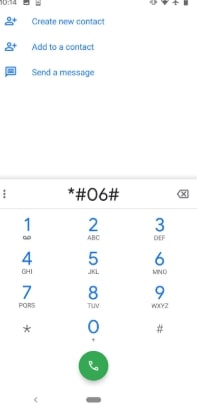
Dial the Code to Get IMEI
Step 2. Contact the original carrier by phone, online chat, support ticket, or store visit.
Step 3. Ask directly: “Is this Samsung phone carrier unlocked, and is it eligible to work with another carrier?”
Step 4. If the phone is locked, ask what requirement is still missing. Common requirements may include full payment, minimum service time, account verification, fraud check, or no lost/stolen report.
Method 4. Use an IMEI Checker Carefully
IMEI checker websites may show carrier, blacklist, warranty, or SIM lock information. They can be useful when you do not know the original carrier, but they should be used carefully because your IMEI identifies your device.
Step 1. Find your IMEI by dialing *#06# or checking Settings > About phone .
Step 2. Choose a reputable IMEI checker. Avoid unknown sites that ask for unnecessary personal information, suspicious downloads, or payment details before showing what they check.
Step 3. Enter the IMEI and review the result. If the result says the device is locked, blacklisted, financed, or tied to a specific carrier, confirm it with the carrier before buying, selling, or switching networks.
Privacy note: Do not share your IMEI publicly in forums, comments, screenshots, or marketplace listings.
Optional Method. Test with Another SIM or eSIM If You Can Get One
This article focuses on checking without another SIM, but a real SIM or eSIM test is still one of the clearest practical checks when it is available.
Step 1. Power off the Samsung phone and insert a SIM card from another carrier, or try to activate a compatible eSIM from another carrier.
Step 2. Restart the phone and wait for the carrier signal.
Step 3. If calls, texts, and mobile data work normally, the phone is likely carrier-unlocked and compatible with that network. If you see messages such as “SIM not supported,” “Network locked,” or “Enter network unlock code,” the phone may still be carrier-locked.
Note: Compatibility still matters. An unlocked phone may not support every band, 5G feature, eSIM setting, or carrier feature in every country.
Part 3. Which Method Should You Use?
Different methods give different levels of confidence. Use the table below to choose the best way to check Samsung unlock status based on what you have available.
| Method | Need Another SIM? | Best For | Reliability | Note |
|---|---|---|---|---|
| Samsung Mobile Network settings | No | Quick first check | Medium | Menu names vary by model, One UI version, and carrier. |
| Carrier account or app | No | Phones bought from a carrier | High | Requires account access. |
| Carrier support with IMEI | No | Most accurate confirmation | High | Best when buying, selling, or switching carriers. |
| IMEI checker | No | Second opinion or unknown carrier | Medium | Use reputable services and protect your IMEI. |
| Another SIM or eSIM | Yes | Real-world network test | High | Still depends on network compatibility. |
For the most reliable result, start with the carrier account or carrier support. Use Samsung settings and IMEI checker results as supporting clues, not the only proof.
Part 4. What If Your Samsung Phone Is Carrier-Locked?
If your Samsung phone is carrier-locked, do not factory reset the phone or install random “network unlock” tools. A factory reset usually does not remove a carrier lock, and untrusted unlock services may create privacy, payment, or device risks.
Instead, follow these steps:
- Confirm the original carrier: Check the box, purchase receipt, carrier app, account page, or IMEI result.
- Review unlock requirements: Carriers may require the phone to be paid off, active for a certain period, not reported lost or stolen, and connected to a verified account.
- Submit an official unlock request: Use the carrier's official website, app, store, or support channel.
- Wait for carrier confirmation: Some unlocks are automatic after eligibility, while others require a request or confirmation message.
- Test after unlocking: After the carrier confirms unlock status, test with another compatible SIM or eSIM when available.
Carrier unlock rules are not the same for every carrier, country, device, or purchase type. When in doubt, the carrier's official answer should be treated as the source of truth.
Part 5. What If You Cannot Access Settings Because You Forgot the Screen Password?
If you cannot open Samsung Settings because you forgot the screen password, that is a screen lock issue, not a carrier unlock issue. You need to regain access to the phone before you can check settings, but removing a screen lock does not automatically make the phone work with another carrier.
You can also read related guides on bypassing a Samsung lock screen , compare Samsung unlock tools , or learn about Samsung FRP tools if the phone is asking for a Google account after reset.
If manual recovery options are unavailable, an Android screen unlocker such as DroidKit may help in supported screen-lock scenarios. Use it only for a phone you own or are authorized to unlock, check compatibility and data-loss notes first, and still contact your carrier to confirm carrier unlock status.
Part 6. FAQ
Q1. Can I check if my Samsung phone is unlocked without another SIM card?
Yes. You can check Samsung Mobile Network settings, sign in to your carrier account, contact your carrier with the IMEI number, or use a reputable IMEI checker. The carrier account or carrier support is usually the most reliable option because carrier unlock status depends on the carrier's own eligibility rules.
Q2. Does seeing multiple networks mean my Samsung phone is unlocked?
Not always. Seeing multiple networks under Network operators may suggest that the phone can detect other carriers, but it does not always prove the device is fully carrier-unlocked. Carrier rules, account status, and device policy can still affect activation. Confirm with your carrier before switching networks or selling the phone as unlocked.
Q3. What is the difference between carrier unlock and screen unlock?
Carrier unlock lets the Samsung phone work with another compatible mobile network. Screen unlock removes or bypasses the lock screen password, PIN, pattern, or biometrics. These are different issues. A screen unlock tool does not automatically remove a carrier lock, and a carrier unlock does not remove a forgotten screen password.
Q4. Are Samsung phones bought directly from Samsung unlocked?
Many Samsung phones bought directly as unlocked models are carrier-unlocked, but you should still check the exact model, region, and purchase option. Phones bought through a carrier may remain locked until they meet that carrier's unlock requirements, even if they are new.
Q5. Is an IMEI checker safe to use?
It depends on the website. Your IMEI identifies your device, so avoid entering it on unknown sites, sharing it publicly, or using services that request suspicious downloads or unnecessary personal information. When possible, use the carrier's official unlock page or support team first.
Q6. Will factory reset unlock a carrier-locked Samsung phone?
No. A factory reset usually does not remove a carrier lock. It may erase phone data and settings, but carrier unlock status is controlled by the carrier or device policy. If the phone is network-locked, contact the original carrier and follow the official unlock process.
Q7. How do I check if my Galaxy S7 is unlocked?
You can check a Galaxy S7 the same way as other Samsung Galaxy phones: go to Settings > Connections > Mobile networks > Network operators , contact the original carrier with the IMEI number, or test with another compatible SIM if available. Because older models may have different menus or carrier restrictions, carrier confirmation is the safest option.
Q8. Can an unlocked Samsung phone work with every carrier?
Not always. Carrier-unlocked means the phone is not restricted to one carrier, but network compatibility still depends on the model, region, bands, 4G/5G support, eSIM support, and carrier activation rules. Check compatibility with the new carrier before buying a plan or traveling.
Conclusion
The best way to check if your Samsung phone is unlocked without another SIM is to combine several checks: Samsung Mobile Network settings, your carrier account, carrier support with the IMEI number, and a careful IMEI checker if needed. If you need the most reliable answer, contact the original carrier because it controls the carrier unlock status and eligibility rules.
Remember that carrier unlock is different from screen unlock and FRP unlock. If your Samsung phone is locked to a network, follow the carrier's official unlock process. If you simply cannot access Settings because you forgot the screen password, a screen unlock solution may help in supported cases, but it will not replace carrier unlocking.


Roger Smith is a senior technical writer with years of experience in providing Android solutions. He loves to help users solve various problems such as Android unlock, Android data recovery, and Android system repair.
Product-related questions? Contact Our Support Team to Get Quick Solution >
