4 Ways to Hard Reset Infinix Phones [All Models]
Infinix phones can be hard reset in settings, recovery mode, Google Find My Device with your screen password or Google account information. If you don’t have any passwords, you can reset it with an Android unlocker like DroidKit. Learn how to hard reset Infinix with these methods and try your preferred way.
Even high-tech Infinix devices can develop software issues over time, like slow performance, crashes, forgotten passwords, or malware infections. In those cases, a hard reset is often a necessary approach to restore the phone to its original state.
This article covers 4 proven methods on how to hard reset Infinix phones, from the standard settings to advanced approaches. As a bonus, this guide shares a reliable fix to hard reset your phone even if you have forgotten its password.
Why You Need to Hard Reset Infinix
You may need to hard reset Infinix because it wipes all data and settings on your Infinix, resolving the common problematic scenarios. These troublesome factors can be the following:
- Persistent slowness: A reset can clear corrupted files and cache if your Infinix is lagging or the system behaves unpredictably.
- Malware or corrupted system: When you install malicious apps or experience system errors, a full wipe removes unwanted software and corrupted settings.
- Locked out of device: You may need a clean reset in case you forget the screen lock password.
- Selling or donating: You can securely erase your personal data before handing your phone to someone else by resetting it.
- Preparing for a system update: Some users reset their phone to ensure a clean install of custom software or major updates.
Method 1. Hard Reset Infinix via Phone Settings
If your Infinix is powered on and you know the unlock code, the simplest method is through the phone’s Settings menu. Here’s how to hard reset Infinix via this built-in option of standard factory reset:
Step 1: Tap the Settings app icon on your Infinix home screen. Scroll down and select “System” (or System & Updates). Then tap “Reset options”.
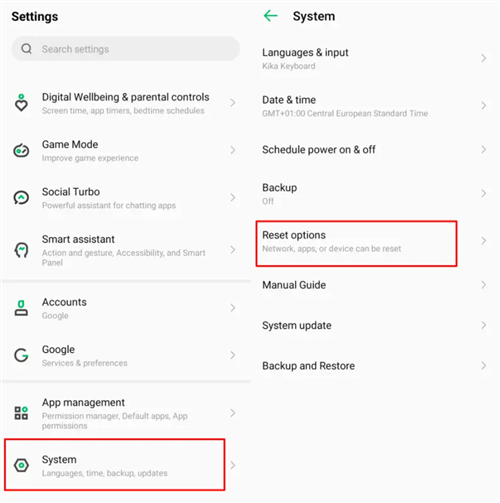
Reset Options in Infinix Settings
Step 2: Choose “Erase all data (factory reset)”. The phone will warn that all data will be erased. Confirm by tapping “Reset phone“ and then “Erase Everything”.
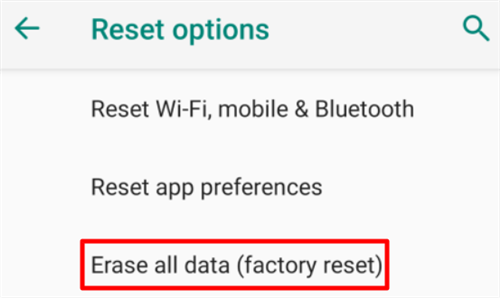
Erase All Data on Infinix
Your Infinix will restart and begin the reset. Once complete, it boots to the initial setup screen.
Method 2. Hard Reset Infinix via Recovery Mode
You can also utilize the assistance of Android Recovery Mode if your Infinix won’t boot normally. Learn how to hard reset Infinix with this hardware-key approach that forces a factory wipe:
Step 1: Press and hold the Volume Up and Power buttons simultaneously. Release the Power button when the Infinix logo appears but keep holding Volume Up until the Android Recovery menu shows.
Step 2: In the recovery menu, use the Volume buttons to highlight “wipe data/factory reset”. Press Power to select this option. Use Volume to scroll to Yes and press Power to confirm. This will erase all user data on the device.
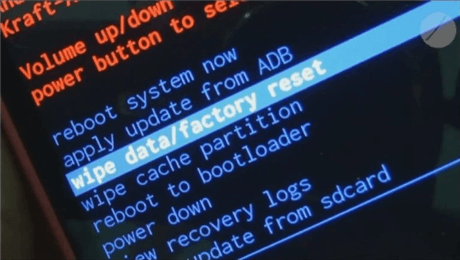
Select the “wipe data/factory reset” Option
Step 3: After it finishes, select the “Reboot system now”. The Infinix will reboot without your data or settings.
Using recovery mode is a universal method for any Android device, including Infinix models. It does not require entering the lock screen code, but it will erase everything on the phone.
Method 3. Hard Reset Infinix via Google Find My Device
Google Find My Device service can remotely erase your phone if it’s online and linked to your Google account. This is useful if your Infinix is lost, stolen, or completely locked. Check out how to hard reset Infinix via Find My Device:
Step 1: Ensure your Infinix was connected to the Internet and had Find My Device enabled under your Google account settings before it was locked or lost.
Step 2: On a computer or another smartphone, open a web browser and go to Google Find My Device. Sign in with the same Google account that’s on your Infinix.
Step 3: Select your Infinix from the list of devices. The service will try to contact the phone if it’s online. Click the Erase device in the interface. Confirm any prompts. Google will send a factory-reset command to your Infinix.
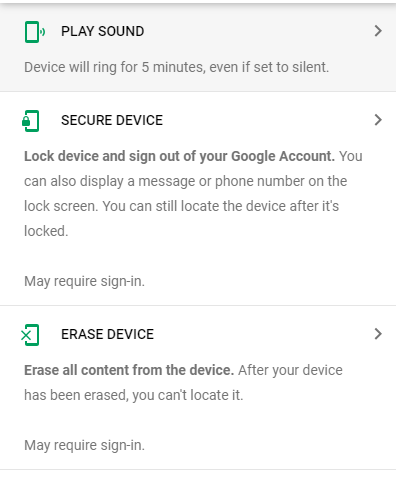
Erase Your Device
Method 4. How to Hard Reset Infinix Without Password
Some users want to hard reset Infinix because they forgot the screen passcode. In this case, you can use an Android unlocker to reset the locked phone without password. DroidKit is one such tool that removes the screen lock on almost all kinds of Android phones by erasing all data. You can check the main features of DroidKit in the following:
DroidKit – Reset Android without Password
- Unlock all types of screen locks on an Android phone in minutes.
- Unlock 20,000+ models of Android phones & tablets.
- No technical knowledge is required; No need to root your device.
- Also support FRP bypass, Android data recovery, and more.
Free Download100% Clean & Safe
Free Download100% Clean & Safe
Free Download * 100% Clean & Safe
Here’s how to hard reset Infinix without a password via DroidKit:
Step 1: Launch DroidKit and Select Screen Unlocker
Download DroidKit and install it on your Windows or Mac. Once the software is installed successfully, launch it and choose the “Screen Unlocker” feature.
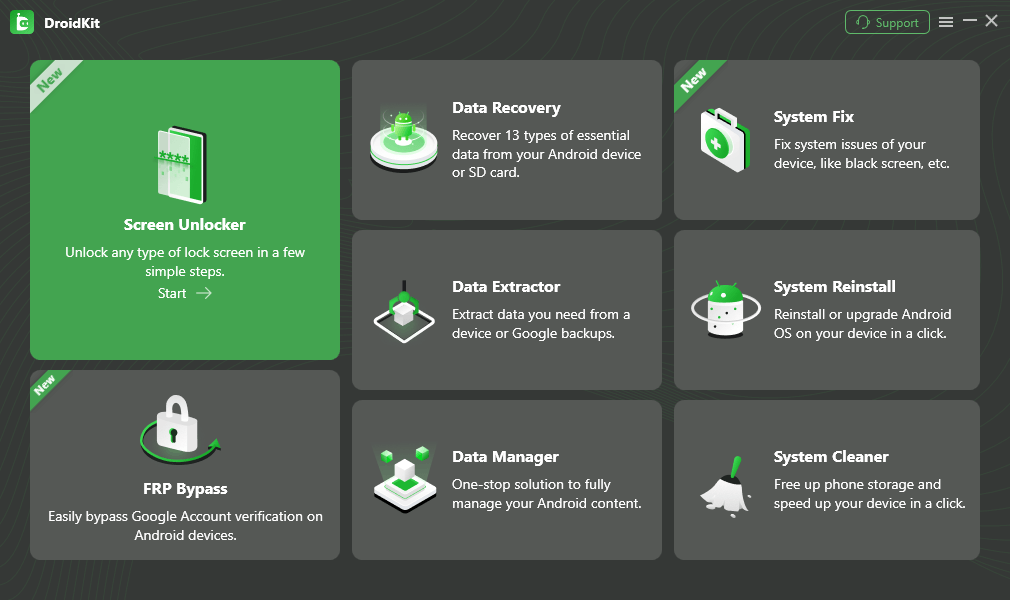
Select Screen Unlocker Mode
Step 2: Connect Your Infinix
Plug your locked Infinix into the computer with a USB cable and make sure that it is connected properly. Click “Start” in the Screen Unlocker mode which will start preparing for device configuration.
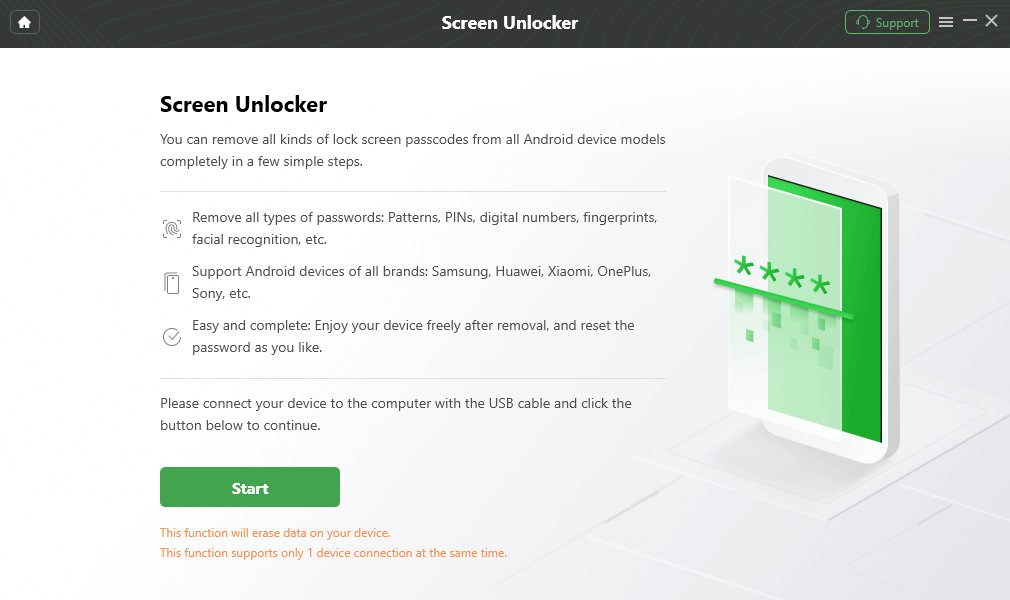
Connect your Locked Phone
Step 3: Proceed With Removal
Once ready, click “Remove Now”. The software will guide you through putting the phone into Recovery Mode (instructions vary by model).
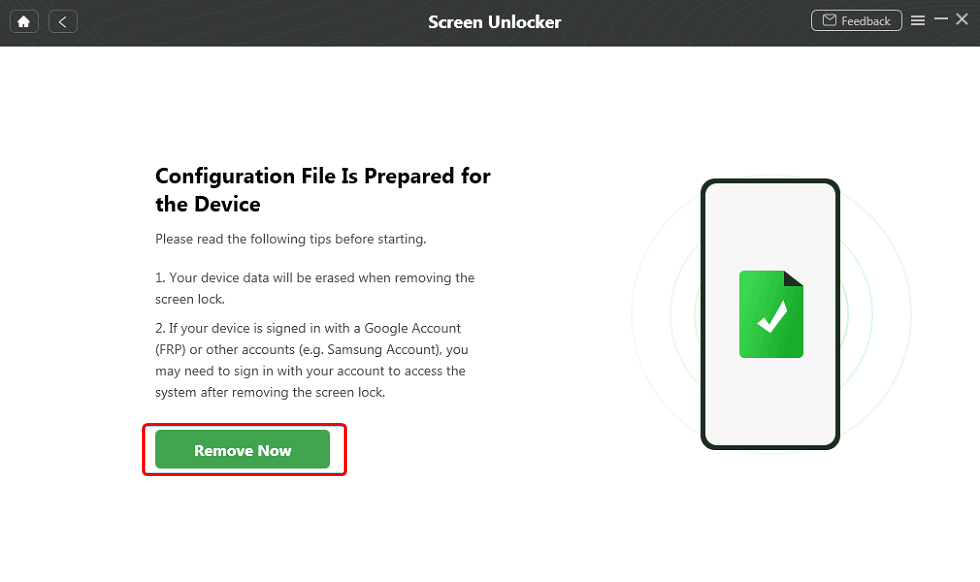
Select the “Remove Now” Button
Step 4: Wipe Device Data & Unlock
Now, choose “Wipe device data (recommended)” and follow the on-screen instructions of your Infinix to wipe the cache partition. Once the partition is wiped, your Infinix will be unlocked and ready to use.
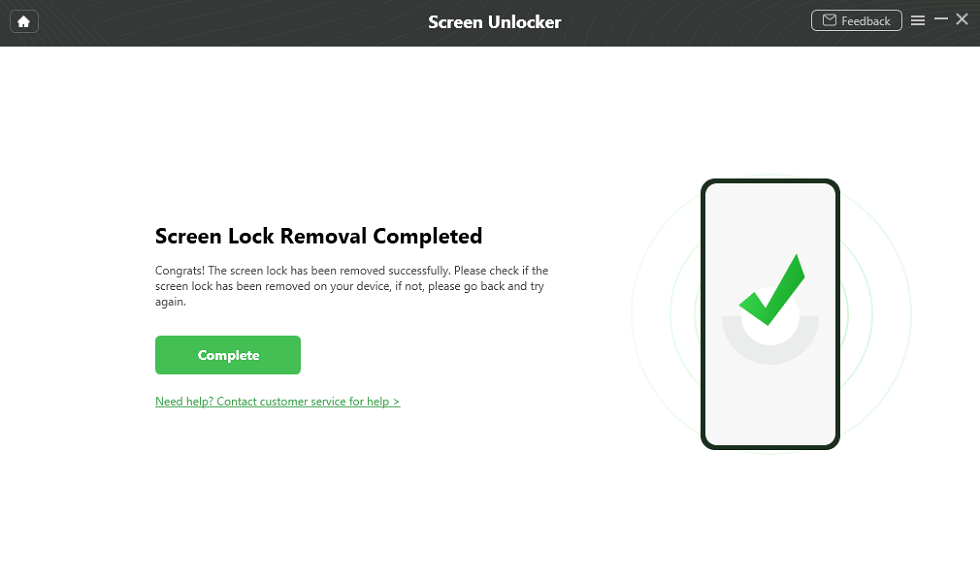
Lock Screen Removal Completed
Conclusion
In summary, a hard reset can fix many software issues on your Infinix phone, like being unresponsive or completely locked. We’ve covered four optimum ways regarding how to hard reset Infinix to deal with such technical troubles. Besides, DroidKit’s Screen Unlocker provides a quick solution to reset Infinix if you ever forget your lock code. Feel free to download DroidKit for an easy password-free reset if needed.



Senior writer of the iMobie team as well as an Apple fan, love to help more users solve various types of iOS & Android-related issues.
Product-related questions? Contact Our Support Team to Get Quick Solution >
