How to Remove FRP Lock on Samsung [Full Guide]
Stuck on a locked Samsung after a factory reset? This guide explains how to remove FRP lock on Samsung using proven methods. Discussing safe ways to unlock your phone with or without Google credentials, disable FRP before a reset, and use trusted tools to regain full access easily.
Google’s Factory Reset Protection is designed to protect your Samsung device, yet it often becomes a major roadblock after factory resetting an Android. When the Google account linked to the phone has been forgotten or still belongs to the previous owner, users can be completely locked out, unable to make calls, access apps, or use the phone they legally own. This full guide explains 4 solutions for how to remove FRP lock on Samsung safely and effectively, helping you unlock your device smoothly.
Basic Information about Google FRP Lock on Samsung
Before removing the lock, it’s important to understand how Samsung’s FRP protection works and why it triggers.
What Is Google FRP Lock on Samsung?
Google FRP (Factory Reset Protection) is a security feature that prevents unauthorized use of a Samsung device after a factory reset. Once a Google account is added, the phone links it as the owner. If the device is reset without removing that account, the setup screen will require the same Google credentials to unlock it again — protecting your data from misuse.
How Does FRP Lock Work on Samsung?
FRP activates automatically once a Google account is added to the Samsung phone. If the device is later reset without removing that account, the setup screen will require the same Google email and password to continue. Until the correct credentials are entered, the phone stays locked to protect your data and prevent unauthorized use.
Is It Possible to Remove FRP Lock from My Samsung Phone?
Yes, FRP can be removed if you have the correct Google account details. Just sign in, and it will unlock. But you will need to bypass the FRP lock if you don’t have those details. That requires either contacting Samsung or other professional technicians or investing in your own tools if you prefer to do it on your own.
How to Disable FRP Lock on Samsung Before Factory Reset?
FRP will not trigger if the Google account is removed before the reset. Disabling Factory Reset Protection in advance is the safest and simplest way to avoid being locked out later. Here is how you can turn off FRP properly through device settings:
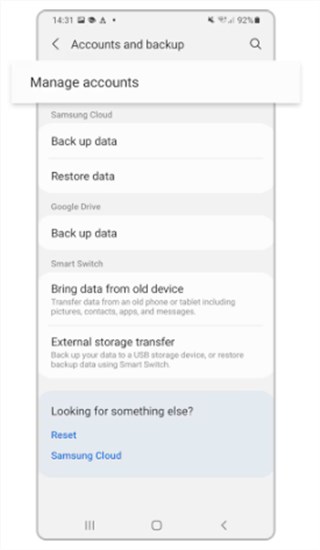
Step 1. Open settings and tap the “Accounts and Backup” option.
Step 2. Then select “Manage Accounts”
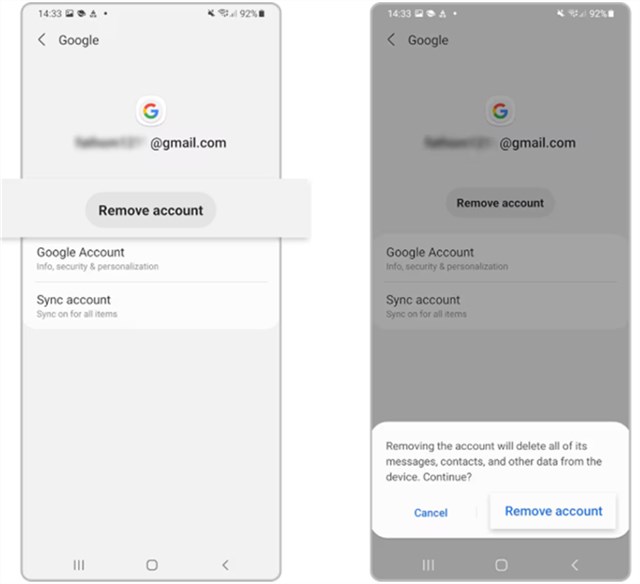
Step 3. Select the account you want to remove.
Step 4. Tap on “Remove Account” and then in the confirmation pop-up select “Remove account”.
How to Remove FRP Lock on Samsung After Factory Reset?
After factory restoration, your Samsung will ask you to provide the account details it was previously attached to. Multiple removal or bypass options exist, chosen according to whether your login information is available.
Way 1. How to Remove FRP Lock on Samsung With Password
The simplest and safest way to clear FRP is to sign back into the Google account originally linked to the device and complete the on-screen setup. Once you’ve signed in and the device accepts the credentials, FRP will be satisfied, and you can proceed to remove the account from Settings or continue with a normal factory reset without being locked out.
Way 2. How to Remove Google Lock on Samsung Without Password
Samsung FRP Online Tool offers a convenient remote solution for verified device owners who cannot access the Google account linked to their Samsung phone. With a simplified request-based process, users only need to provide essential device information, such as the IMEI or serial number, and connection options are available for automatic device recognition if needed. Security and privacy are prioritized by avoiding password requests and requiring ownership verification before any assistance. Backed by frequent updates and professional support, the tool helps users regain access efficiently while protecting personal data and complying with legal requirements.
Way 3. How to Remove Google Lock from Samsung via Odin
Odin is a firmware-flashing utility used by advanced Samsung technicians to reinstall system software or perform maintenance on devices. In some cases, professionals rely on specific service firmware packages to address FRP-related issues, but this method requires precise files, model-matching, and technical skills. Since Odin is not officially released for consumer FRP removal, it carries notable risks, including software corruption, boot failure, and loss of warranty if handled incorrectly. Here is how Odin is used to remove the Google lock from Samsung:
Step 1. Download the FRP file for your model and install Odin tool.
Step 2. Connect to your computer in Download mode, load the FRP file in Odin, and click Start.
Step 3. Once the process is complete, a ‘PASS’ message will pop up. Restart your phone to complete FRP removal.
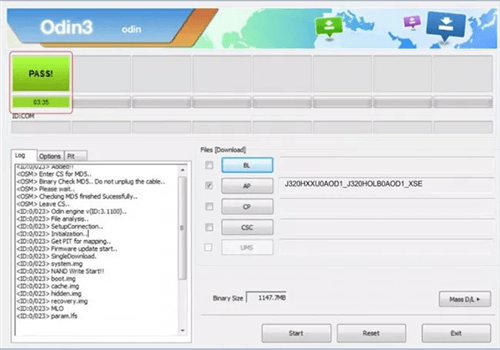
A PASS Message Pops up
Way 4. Reach Out to Samsung Phone Manufacturer
If you still can’t remove the FRP lock, contacting Samsung Support is the safest and most reliable solution. You’ll need to provide proof of ownership, such as the IMEI number and purchase receipt. Samsung will verify the device and help unlock it using its authorized tools. Processing time and service fees may vary depending on your region and verification result. If ownership cannot be confirmed, Samsung may decline the request for security reasons.
Differences Between FRP Removal & Bypass
Many people confuse FRP removal and FRP bypass, but they are not the same. FRP removal is the legitimate and permanent way to unlock a Samsung device by verifying ownership, such as signing in with the correct Google account or using an authorized support method. Once completed, the device remains secure and fully functional.
FRP bypass is generally a temporary workaround that provides access without validating the original account; it can revert after software updates or a factory reset. When performed by a reputable, verified provider, a bypass can be a low-risk option for regaining access.
Bonus Tip: Bypass FRP Lock on Samsung via DroidKit [Easy & Secure]
When ownership is verified and no account passwords are shared, a controlled FRP bypass can be a safer way to regain access. iMobie DroidKit makes the process simple and safe, showing clear steps on screen so anyone can follow along. It works with a wide range of Samsung models and Android versions, without requiring firmware searches or risky manual steps. Automatic device recognition reduces errors and keeps compatibility on track. The tool also receives frequent updates and includes built-in protections for user data. If you need a fast and user-friendly solution, DroidKit can help you remove previously synced Google accounts from your Android and get back into your Samsung device.
Main Features of iMobie DroidKit:
- Clear on-screen guidance, allowing anyone to follow along without technical skills.
- Broad Samsung and Android version support, minimizing compatibility concerns.
- No Google password required, helping protect personal privacy.
- Frequent software updates to ensure strong performance on the latest models.
Free Download * 100% Clean & Safe
Here are the steps to bypass FRP on Android via iMobie DroidKit safely:
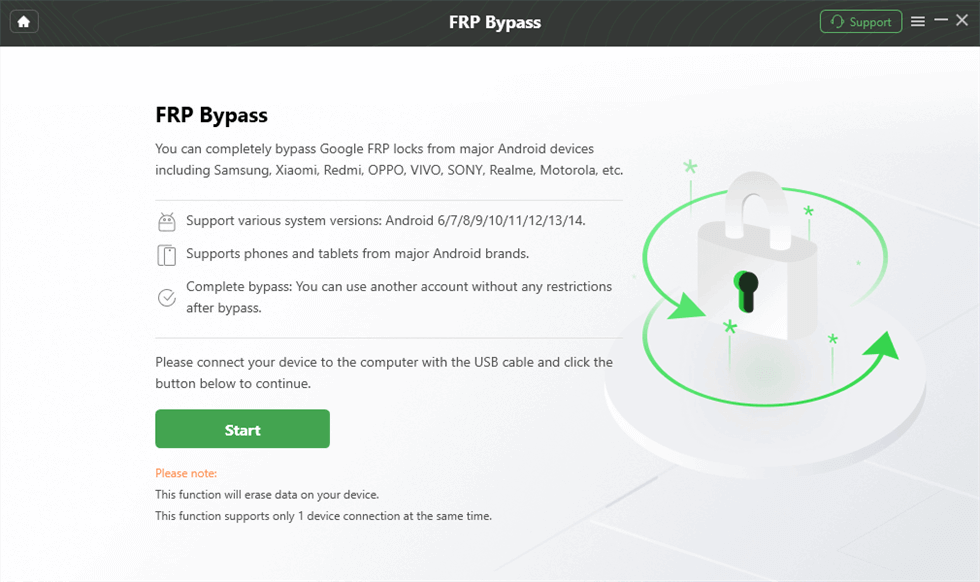
Step 1. Download Droidkit and launch it. Choose the “FRP Bypass” option in the bottom right.
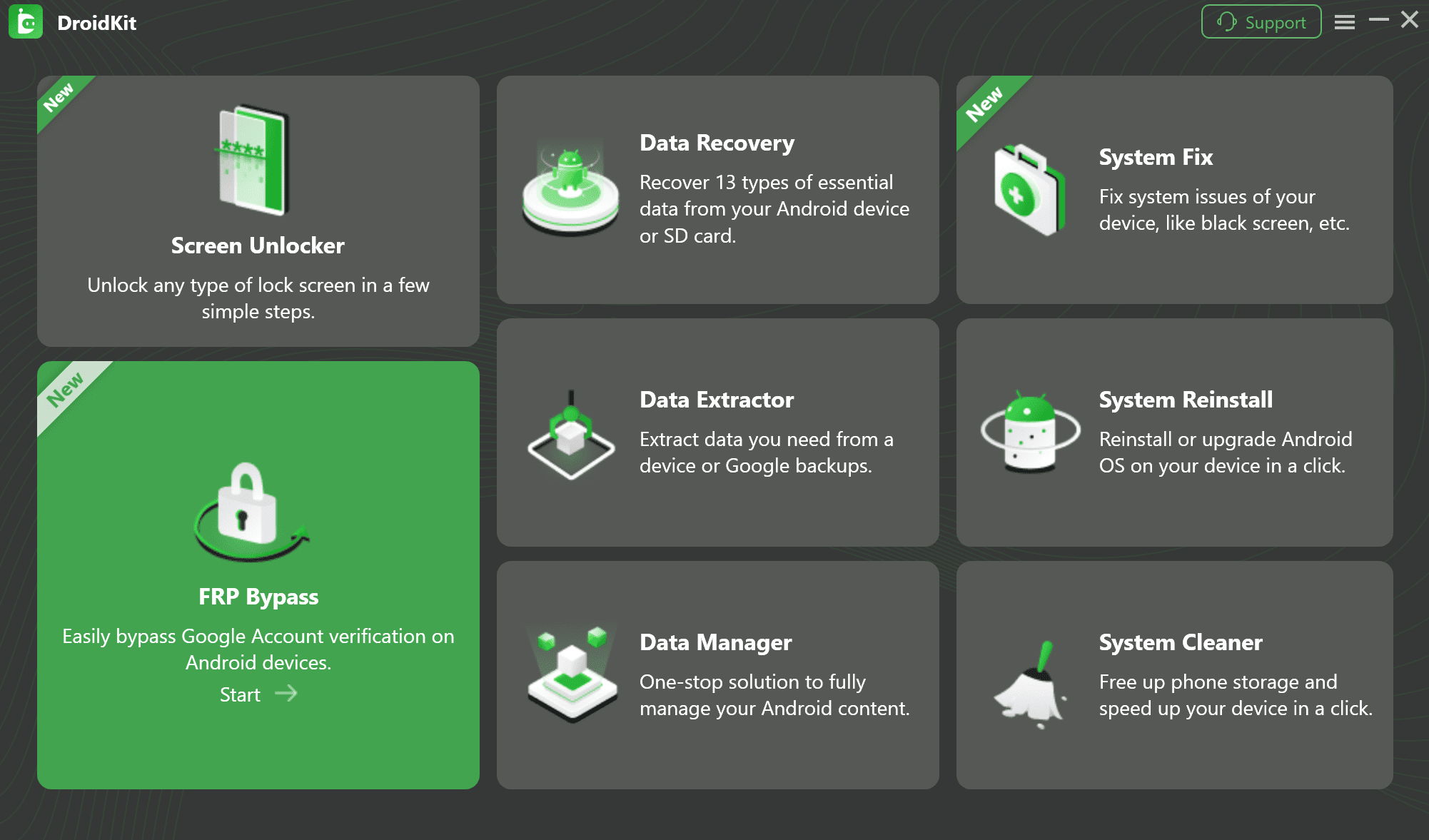
Step 2. Connect your Samsung to the computer using a cable, and hit “Start”.
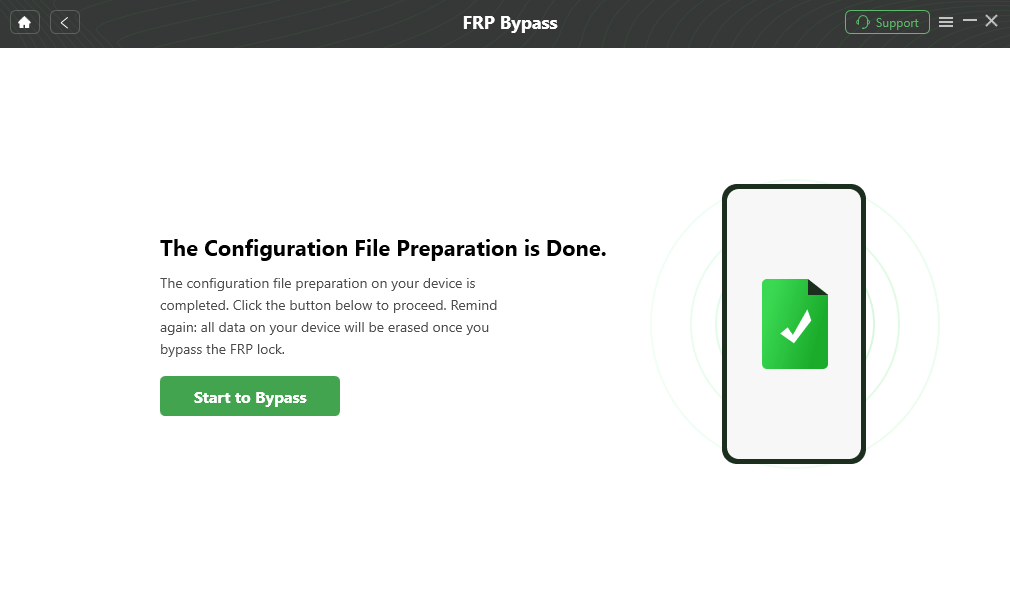
Step 3. Choose the exact Samsung model, so that it can compile the configuration file for our file. Once it is compiled, click “Start to Bypass‘.
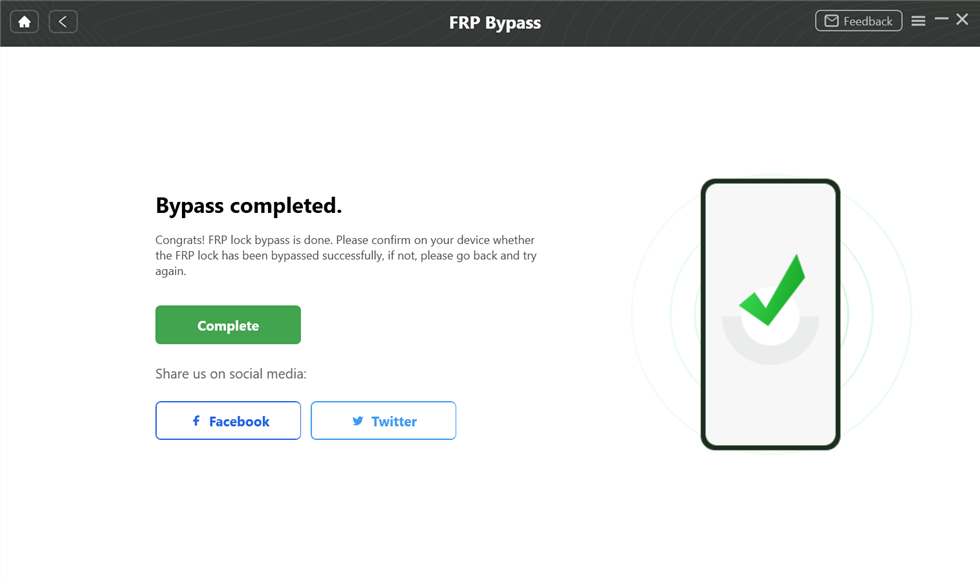
Step 4. Follow instructions on the screen until the device reboots, indicating the successful removal of FRP lock.
FAQs about How to Remove FRP Lock on Samsung
Q1. How to remove Google Lock FRP Free on Samsung?
You can remove FRP for free only by signing in with the Google account originally linked to the device. Free third-party bypass tools exist, but are often unsafe or temporary.
Q2. How to turn off FRP lock after factory reset?
FRP cannot be disabled once the device is already reset; you must sign in with the linked Google account to continue. To avoid FRP next time, remove the Google account from the device before performing a factory reset.
Q3. Can FRP lock be removed remotely?
Yes, some verified services can assist remotely after confirming legal ownership, but always check credibility and security policies first.
Q4. How to remove Samsung account after factory reset?
You can remove a Samsung account after a factory reset by signing in with the correct Samsung ID and password during setup. Or easily use DroidKit to bypass FRP in a safe way.
Conclusion
This article presents three solutions for how to remove FRP Lock on Samsung. For quick convenience, the Samsung FRP Online Tool is the simplest choice and does not require your Google password during verification. For greater security and reliability, iMobie DroidKit provides an easy Samsung FRP bypass tool with wide device compatibility and strong privacy protections. Download DroidKit for free to regain access quickly and confidently.
Free Download * 100% Clean & Safe


Roger Smith is a senior technical writer with years of experience in providing Android solutions. He loves to help users solve various problems such as Android unlock, Android data recovery, and Android system repair.
Product-related questions? Contact Our Support Team to Get Quick Solution >
