How to Unlock Samsung A12 Without Losing Data: 6 Ways
This Samsung A12 unlock guide covers six ways to unlock your Samsung A12 without losing data, from using Find My Device to Safe Mode. It includes simple steps for each method and bonus tips for bypassing FRP locks. We recommend DroidKit – an efficient screen lock removal tool – featuring one-click unlock, FRP bypass, and reliable data protection for quick access.
DroidKit – Unlock Samsung A12 Password Without Losing Data
DroidKit effortlessly removes screen locks on your Samsung A12 without data loss. Whether you’ve forgotten your PIN, pattern, or face recognition, DroidKit unlocks your device quickly and securely.

My son recently changed the screen lock password on our Samsung A12, and now we can’t unlock the phone.
-JustAnswer
Struggling to bypass the Samsung A12 lock screen without losing data? Discover five simple methods to regain access to your smartphone while keeping your files safe. From one-click tools like DroidKit to using Find My Device, each step-by-step solution is user-friendly and effective. Read on to find the best unlocking method for you, and try DroidKit for a fast, reliable Samsung A12 unlock!
Part 1: Can a Samsung Phone be Unlocked Without Losing Data?
You can unlock a Samsung A12 without losing data using Smart Lock or Samsung’s Find My Mobile. This article also explores additional methods, including DroidKit for a seamless unlocking process and a factory reset via Recovery Mode, which erases all data. Read on to discover the best approach to regain access to your device.
Part 2: How to Unlock Samsung A12 if Forgot Password Without Losing Data
Now, let’s discuss some ways to unlock the Samsung A12 Screen:
Method 1. Unlock Samsung A12 in One-Click-DroidKit
To unlock your Samsung A12 in one click, DroidKit- an all-in-one Android screen unlocker, offers a one-click solution to unlock your Samsung A12. It supports all lock types (PIN, pattern, password, fingerprint, face lock) and works on over 20,000 Android devices. Moreover, DroidKit offers additional features such as system repair, data recovery, and FRP Bypass for Google accounts.
Free Download * 100% Clean & Safe
Key Features:
- Bypasses Google’s FRP locks smoothly, allowing device access even without a Google account login.
- It can unlock all types of locks such as PIN, pattern, password, fingerprint and face lock.
- It enables quick access to Android data on both rooted and unrooted devices.
- Offers system repair tools to fix Android crashes and boot loops without requiring technical skills.
- Provides comprehensive data extraction, even from damaged or inaccessible devices.
- Ensure privacy protection by securely handling and unlocking data on your device.
Now, let’s explore some simple steps to unlock Samsung A12 using DroidKit:
Step 1. Begin by installing DroidKit on your computer. Connect your Samsung A12 to the computer using a USB cable.
Step 2. Open DroidKit and choose “Screen Unlocker” from the main menu.
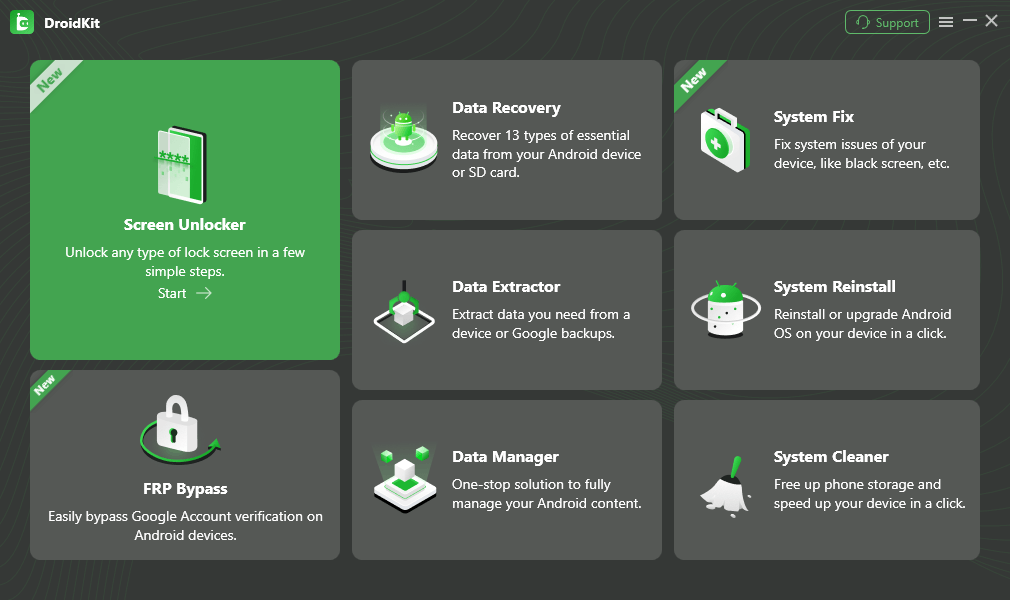
Choose Screen Unlocker
Step 3. Press “Start” to initiate the unlocking process.

Connect Your Android Device
Step 4. DroidKit will set up a configuration file, so wait a few moments for it to complete. Once ready, click “Remove Now” to continue.
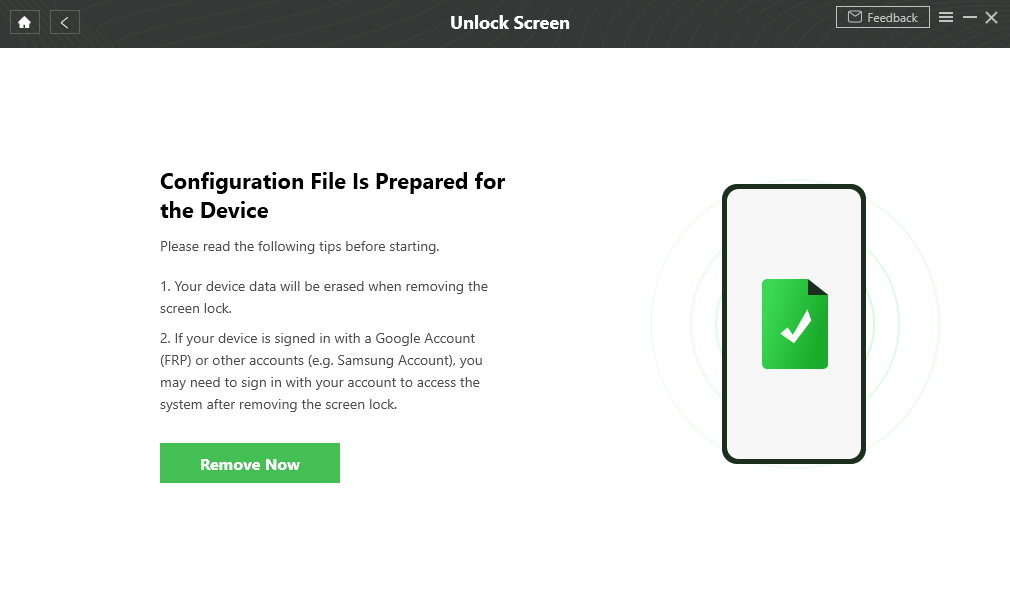
Preparing the Configuration File
Step 7. Choose your device brand and then hit “Next”. Then follow the on-screen instructions to put your device into recovery mode and wipe the cache partition on your device.
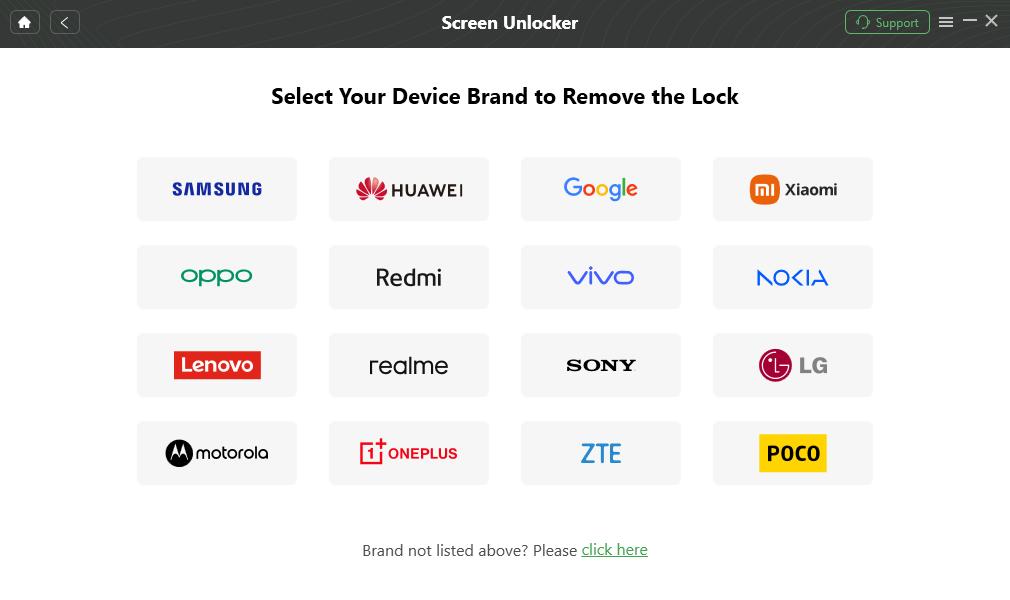
Confirm your Device Brand and Continue
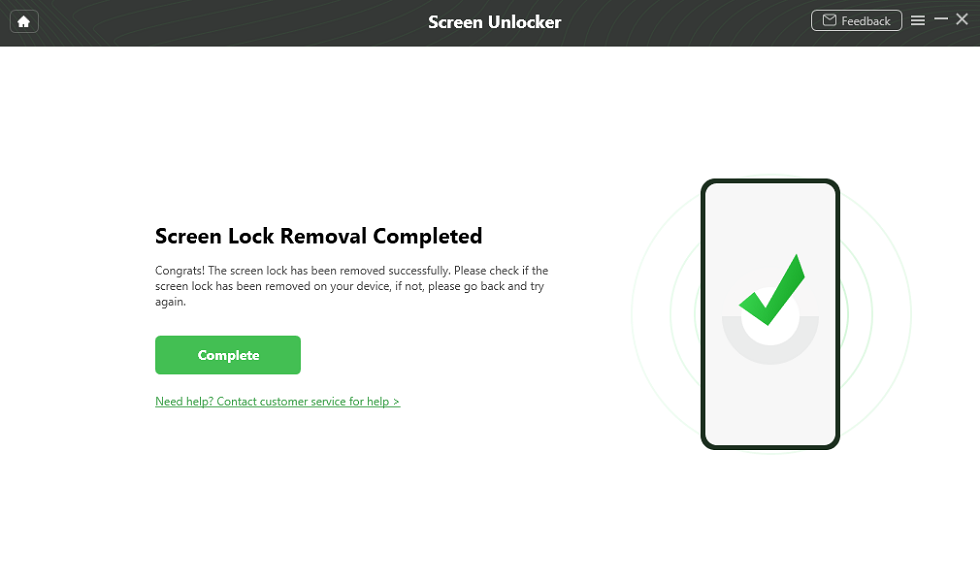
Step 8. DroidKit will begin removing the lock. Wait for the process to finish.
Remove Screen Lock
Step 9. Once you have done this, your Samsung A12 will restart, allowing you to access it without a password.
Method 2. Unlock Samsung A12 Without Losing Data via Smart Lock
How to unlock Samsung A12 if forgot password without losing data via Smart Lock? This feature automatically bypasses the lock screen in pre-set trusted conditions, such as a familiar location or paired Bluetooth device.
Prerequisites for Smart Lock:
- Smart Lock Enabled: Must be configured before the password is forgotten.
- Trusted Conditions: Phone must be in a trusted location (e.g., home) or connected to a trusted Bluetooth device.
Steps to Unlock Samsung A12 if Forgot Password Without Losing Data:
Step 1. Check Location: Ensure your phone is in a trusted location (e.g., home) or connected to a trusted Bluetooth device.
Step 2. Wake Device: Wake up your Samsung A12; it should automatically unlock if conditions are met.
Step 3. Access Settings: Once unlocked, navigate to Settings > Lock Screen > Smart Lock.
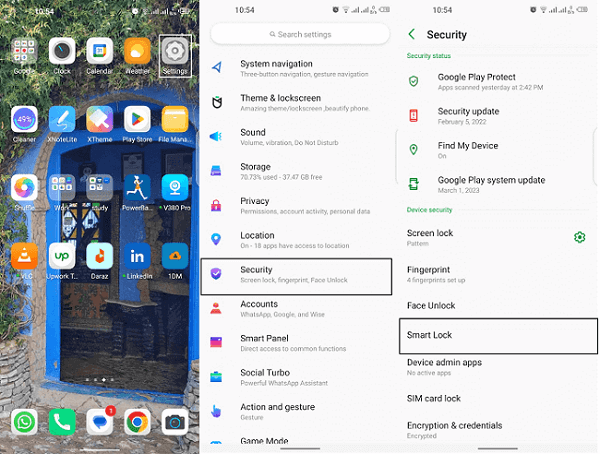
Accessing Smart Lock from the Settings
Step 4. Update Settings: Review or adjust Smart Lock settings to prevent future lockouts.
Method 3. Unlock Samsung A12 via Find My Device
Using Find My Device allows users to manage their Samsung A12 remotely. This Google feature enables device location tracking and remote lock removal. After signing in with your Google account, you can erase the device, which removes the lock screen while resetting the phone.
This process deletes all data, making it important to consider.
For this method:
Step 1. Open a web browser on your computer and go to Google Find My Device.
Step 2. Log in with the Google account linked to your Samsung A12 by entering your email and password.
Step 3. Find your Galaxy A12 in the device list and click “ERASE DEVICE.”
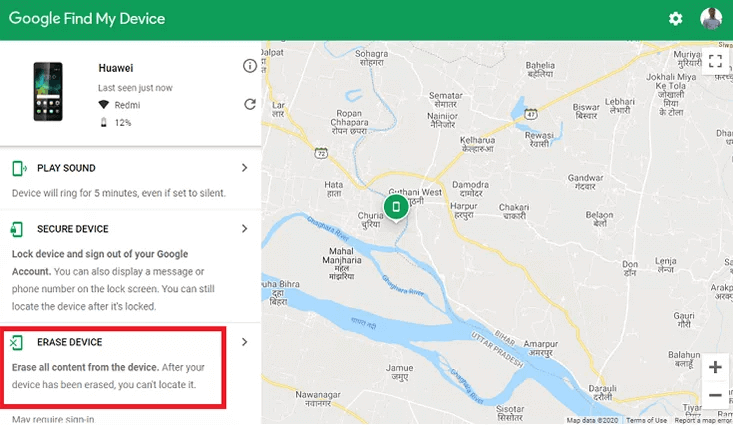
Choose Erase Device
Step 4. Confirm by clicking “ERASE DEVICE” again and then tapping “Erase” to proceed. Once your A12 connects to the internet, it will reset, erasing all screen lock information, such as the Pattern, PIN, and Password.
Method 4. Unlock Samsung A12 Without Data Loss– Find My Mobile
Find My Mobile is a management portal offered particularly by Samsung for its devices. You can remotely unlock your A12 device by logging in with your Samsung account. This approach is a practical option for locked devices, enabling users to find and back up their phones if necessary. To use this:
Step 1. Go to the Find My Mobile website (now part of SmartThings Find) and log in with the Samsung account linked to your locked device. Select your device from the list that appears.
Step 2. Once your device is located, click on the “Unlock” option. Confirm your choice by clicking “Unlock” again.
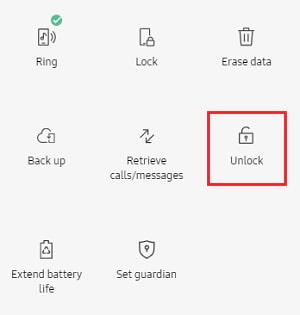
Select Unlock Option
Step 3. Enter your Samsung account password and click “Next” to complete the unlocking process. Your device will then be unlocked, allowing you access.
Method 5. Unlock Samsung A12 in Safe Mode
Boot your Samsung A12 into Safe Mode to troubleshoot lock screen issues caused by third-party apps. This mode temporarily disables these apps, allowing you to identify and remove problematic software without losing personal data. Safe Mode ensures a secure environment to resolve lock issues, restoring smooth access to your device.
Step 1. Press and hold the “Power” button until the power menu appears. Tap “Power Off” to turn off your Samsung device.
Step 2. Now, press the Power button again to turn the device ON until the Samsung logo appears and then hold the “Volume Down” button.
Step 3. “Safe Mode” will appear in the lower left corner of the screen. Once in Safe Mode, find and uninstall any third-party apps causing the lock.
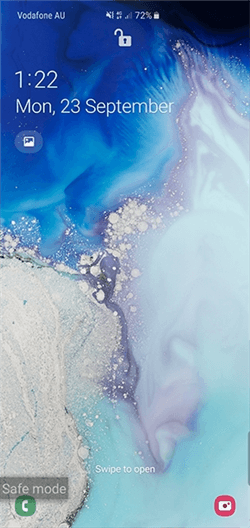
Unlock via Safe Mode
Step 4. Restart your device to return to normal mode, and it should work without the lock.
Method 6. Unlock Samsung A12 without Pattern via Factory Reset
A factory reset can unlock your Samsung A12 when other methods fail. This approach erases all personal data but restores access to your device. Although it’s a quick solution to regain control, users should know that all information will be lost. Therefore, it is recommended to backup important data.
To unlock the Samsung A12:
Step 1. Press the power button until the menu appears, then select “Power off” to turn off your Samsung A12.
Step 2. Now, simultaneously press and hold the volume up and power buttons until the Samsung logo shows up. Release the buttons to enter Recovery Mode.
Step 3. Use the Volume buttons to scroll to “Wipe data/factory reset,” then press the Power button to select it.
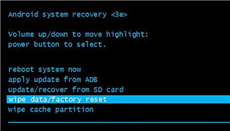
Move to Wipe Data/Factory Reset
Step 4. In Recovery Mode, navigate to “Reboot system now” using the volume buttons and confirm with the power button.
Step 5. Your Galaxy A12 will restart, removing the previous pattern lock and allowing you to access your device.
Part 4: FAQs
Q1. What is the default PIN for Samsung A12?
The Samsung Galaxy A12 does not have a universal default PIN. Instead, the PIN is typically set by the user during the initial setup or when enabling security features like the lock screen. If you haven’t set a PIN yourself, the device may not require one unless a specific security feature has been activated.
Q2. Samsung Galaxy A12 unlock codes list?
No universal unlock codes exist for the Samsung Galaxy A12. To unlock the network, obtain a unique code from your carrier or a trusted third-party service using your phone’s IMEI number (dial *#06# to find it). For a forgotten screen lock, use Samsung’s Find My Mobile with your Samsung account to preserve data or perform a factory reset via Recovery Mode, which will erase all data.
Part 5: Sum It up
This post examined several ways to unlock your Samsung A12 without erasing any data. Each technique has its advantages and makes getting back into your device simple. For the most efficient solution, consider using DroidKit. It simplifies the unlocking process and ensures your data remains safe. We highly recommend downloading DroidKit for quick and reliable results.


Roger Smith is a senior technical writer with years of experience in providing Android solutions. He loves to help users solve various problems such as Android unlock, Android data recovery, and Android system repair.
Product-related questions? Contact Our Support Team to Get Quick Solution >
