How to Bypass Samsung FRP With/Without PC-7 Ways in 2025
Samsung’s Factory Reset Protection (FRP) is a security feature that locks your phone after a reset unless the original Google account is entered. This guide explores five PC-free methods to bypass it with clear steps and also covers the safest PC-based solution, i.e., iMobie DroidKit.
You’ve just reset your Samsung phone, and now it’s stuck on the Google verification screen. You know that this is your device, but you cannot access it because of a FRP lock. You may have forgotten the old account information, your phone may have been repaired, or you have bought the device second-hand, and the old owner has failed to delete their account.
Either way, it’s frustrating to have a perfectly good phone turn into a brick just because of a forgotten login. The great news is that it is still possible to access it safely and legitimately. This guide explains how to bypass Samsung FRP with or without a PC. If this phone is yours, keep reading. If you can’t prove ownership, stop here and use official support channels.
Part 1. Can you Bypass Samsung FRP?
Yes. You can bypass Samsung FRP with or without a computer. Factory Reset Protection (FRP) is an inbuilt security feature in Android. It is activated once an Android system (including Samsung) is reset, which requires the Google account (username and password) already registered on the phone.
FRP may theoretically be bypassed, but only using workarounds or special tools, rather than by any official means. This implies that if you are a rightful owner of the phone, there are a number of tricks and tools that can help to overcome Samsung FRP.
Part 2. How to Bypass Samsung FRP Without PC
Samsung devices can be unlocked without a computer using a few smart tricks. Below are five ways to skip FRP entirely on the phone itself.
Way 1. Bypass FRP with Samsung/Google Keyboard
This method works on many Samsung phones that allow access to keyboard settings from the lock screen. You can follow these steps to apply the method:
Step 1. First, tap the text field on the FRP screen so the keyboard appears. Then tap and hold the “@” key until a pop-up menu appears, and open keyboard settings.
Step 2. At the top right corner, tap the three-dot menu to open “Help and Feedback.” After that, tap and hold any word, select “Web Search,” and type “Settings.” Then open the settings menu, go to “About phone,” and tap “Build Number” seven times to unlock Developer options.
Step 3. Go back to the settings main menu and open Developer options. Find “OEM unlocking” and toggle it on. Confirm if prompted.
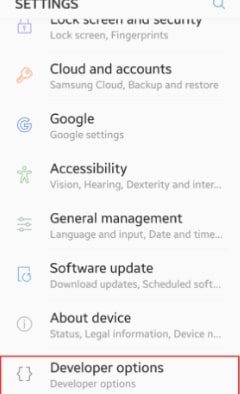
Step 4. Subsequently, long-press the “Power” button to reboot. After rebooting, the setup should now show “Add your account” instead of “Verify your account.”
Way 2. Bypass FRP with Google Account Recovery Option
If you remember your Google email, the simplest solution is to recover your account via Google’s recovery options. Let’s take a look at how it works.
Step 1. Enter your Google email and an incorrect password. After the failed login, tap “Forgot password?” or “Forgot email?” Then, Google will walk you through verification steps. Complete the on-screen instructions carefully.
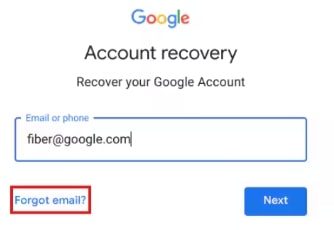
Step 2. After that, you’ll be allowed to reset the account password. Create a new strong password, return to the FRP screen, and log in using your new credentials.
Way 3. Bypass FRP with Google Voice Typing
If the on-screen keyboard won’t let you type, or the screen is broken, you can use Google’s voice typing to enter your credentials.
Step 1. Start by tapping the text field on the FRP screen so the keyboard appears. Then tap the “Microphone” icon to activate Google Voice Typing.
Step 2. After that, clearly speak the full email address and password of the Google account. The system will convert your speech to text and fill it in.
Step 3. Once both fields are filled, tap “Verify”. The FRP screen will clear, and you can proceed to the phone.
Way 4. Bypass FRP with Google Find My Device
This method erases your data, but it also removes the FRP lock, because it wipes the device completely. To use this:
Step 1. Ensure the locked Samsung phone is turned on, signed into your Google account, and connected to the Internet.
Step 2. Open a browser on the second device, go to Google Find My Device, and log in with the same Google account. This will show a list of your devices. Select the locked Samsung phone from the list.
Step3. After that, click the “Erase Device” option and confirm it. Google will then remotely wipe the device. Wait until it completes. When done, the phone will restart as if it’s fresh out of the box.
Way 5. Bypass FRP with Hard Reset
As a last resort, you can perform a factory reset from Recovery Mode. Follow these steps:
Step 1. Power down the Samsung device completely. Then press and hold the “Volume Up + Power” buttons at the same time. Keep holding until the Android logo appears.
Step 2. Now, use the “Volume” buttons to scroll to the “wipe data/factory reset” option. Then press the “Power” button to select it.
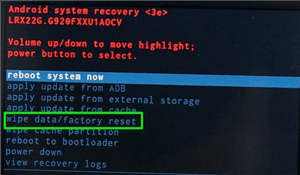
Step 3. Subsequently, scroll down to the “Yes” option and press the “Power” button to confirm. The phone will begin erasing itself. After its completion, press the “Power” button to reboot.
Part 3. How to Bypass Samsung FRP With PC [Safe & Easy]
If the above manual methods seem too tricky or don’t work, using a PC software tool is often more reliable. iMobie DroidKit is a recommended solution that supports multiple Android devices. It allows you to bypass Samsung FRP after reset without Google account in clicks.
Here are some of its key features:
- FRP Bypass: It eliminates Factory Reset Protection and allows you to get access even without remembering the very first Google account.
- Full compatibility: It supports all kinds of brands and models, including Samsung, Oppo, and so on. [Android 6 and above]
- Recover Lost Data: The tool offers Quick recovery mode for fast scans and Deep recovery mode for maximum retrieval of data
- Screen Unlock: It removes all types of screen locks like PINs, digital numbers, Face ID, and so on.
- Data Extraction: Droidkit allows pulling data from non-booting Samsung devices, SD cards, and preview/extract items from Google backups and WhatsApp.
- No Root Required: The tool avoids risky rooting and uses safe, non-invasive methods to unlock devices in most supported scenarios.
Free Download * 100% Clean & Safe
Below is a concise, accurate walkthrough for removing Samsung FRP using the DroidKit desktop app.
Step 1. Start by downloading and installing the “iMobie Droidkit” app on your PC. Then open the application and choose the “FRP Bypass” feature from the main menu.
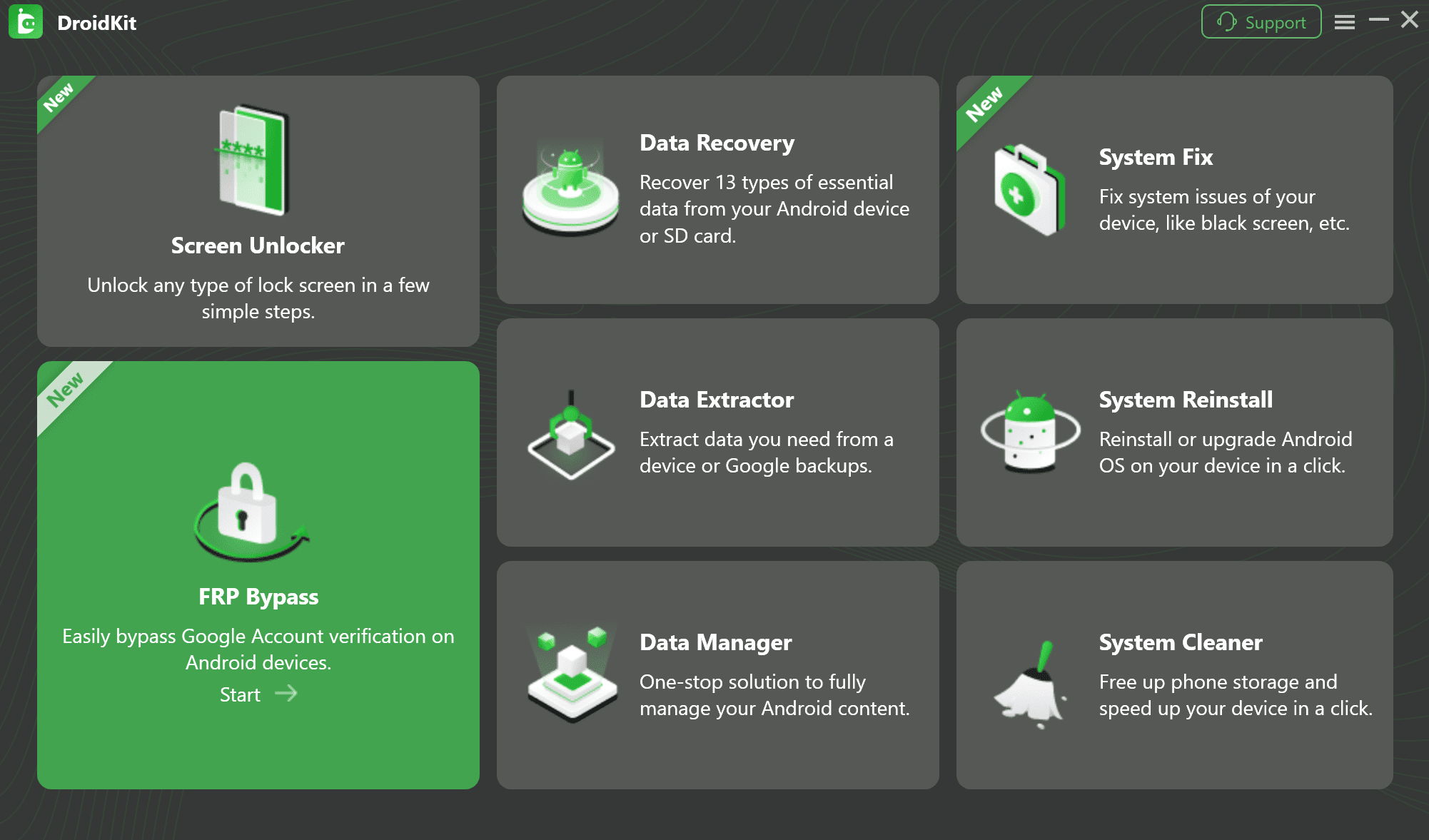
Step 2. Now, connect your locked Samsung phone to the PC via a USB cable and hit the start button.
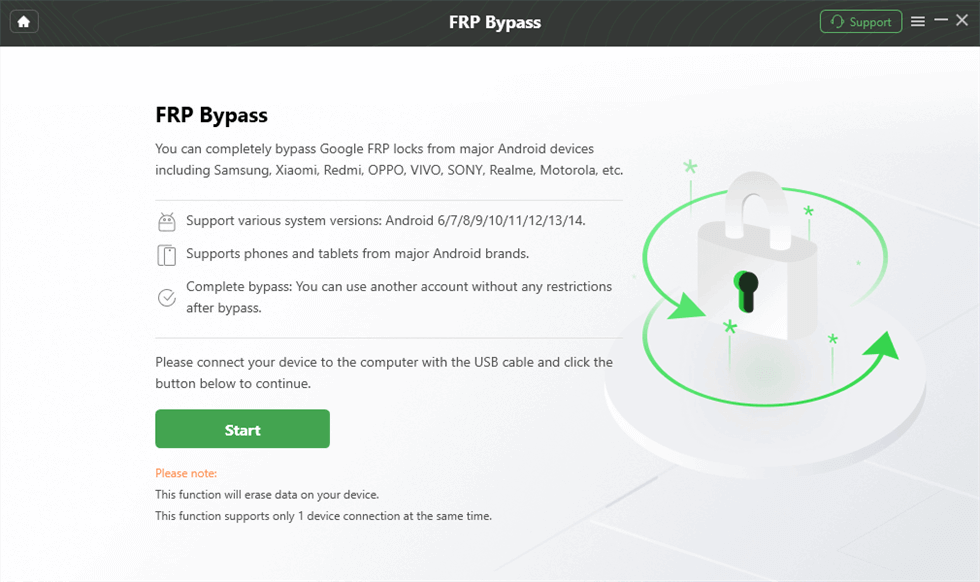
Step 3. Then select “Samsung” as the brand and click the “Start” option. The software will identify your device and download the necessary firmware. After the download, follow the onscreen instructions, and Droidkit will then wipe the FRP lock.
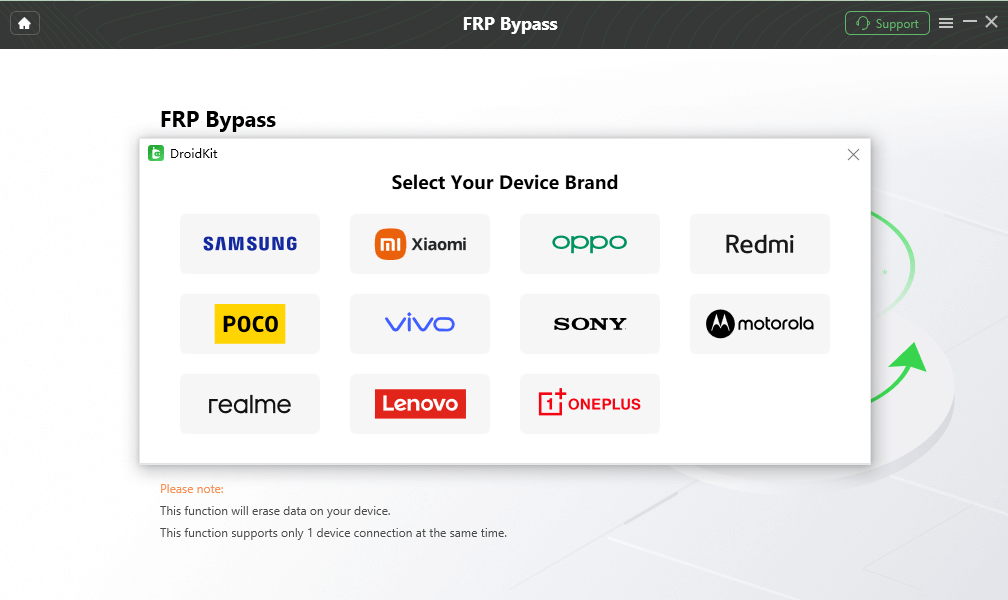
Step 4. The software will identify your device and download the necessary firmware. After the download, follow the on-screen instructions, and Droidkit will then wipe the FRP lock.
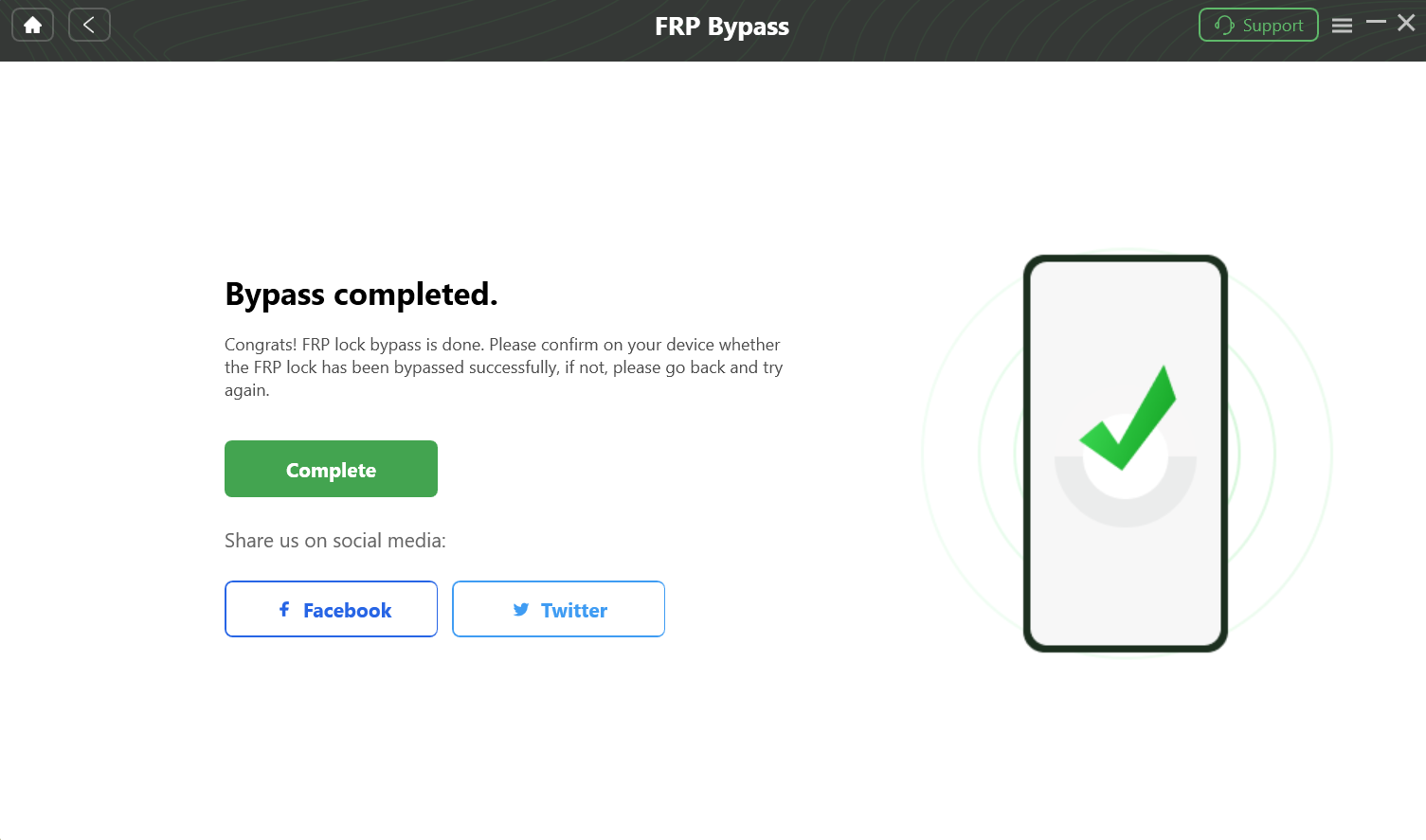
Step 5. Then, follow the full instructions in the DroidKit interface and click on the Reset button. After completing the steps above, the device will be restarted and the FRP Lock is also removed successfully.
Part 4. Bonus: Remove Samsung FRP via DroidKit FRP Online Tool | 100% Success
Completely remove Samsung FRP via DroidKit Online FRP tool without any passcode or email account! It allows you to remove FRP on Samsung by IMEI or SN. The whole process can be done in few minutes.
Key features:
- Remove FRP on Samsung Device completely.
- Support Android OS 6-16.
- Use IMEI or SN for FRP unlock. No verification is required.
- Approximately 100% success rate.
Steps to unlock Samsung FRP remotely with DroidKit:
Step 1. Open the iMobie DroidKit Online FRP tool website.
Step 2. Select your device model and enter its IMEI or SN in the box. You can also connect your device and obtain the number automatically.
If you enter the IMEI manually, you should be cautious to ensure a successful unlock result.
Step 3. Confirm and click the Unlock button and wait for the removal process. It will take just a few minutes to unlock. After that, you will be notified in your email of the unlocking status.
DroidKit Online FRP Tool is under preparation. You can follow up with the release information on iMobie DroidKit official website.
Part 5. FAQs
Q1. Will a factory reset remove the Google lock?
No. In fact, it triggers FRP if the Google account wasn’t removed first. In other words, if you reset without deleting the account, you’ll be stuck at the Google login screen.
Q2. Is there a free FRP Removal tool?
Some free methods exist, but they are limited. For instance, various FRP bypass APKs claim to remove FRP without a PC. These often require convoluted steps and have security risks.
Part 6. Conclusion
Bypassing Samsung’s FRP lock is challenging by design, but it is possible if you’re the rightful owner locked out of your device. We’ve covered five PC-free workarounds like voice typing, Find My Device, etc, that can often bypass FRP on Samsung phones.
If manual methods fail or seem too complicated, a dedicated PC tool like DroidKit offers a user-friendly “one-click” solution. It can remove FRP quickly, even without knowing the old credentials.
Free Download * 100% Clean & Safe


Roger Smith is a senior technical writer with years of experience in providing Android solutions. He loves to help users solve various problems such as Android unlock, Android data recovery, and Android system repair.
Product-related questions? Contact Our Support Team to Get Quick Solution >
