Samsung Remote Unlock: Screen & FRP Lock Removal
Samsung remote screen unlock is possible with Samsung’s and Google’s unlock tools, as long as you have linked your Samsung to the related platform. To remove Samsung FRP remotely, some Samsung FRP removal services are available.
A smartphone always makes our daily life easier and smarter, from a simple contact to complicated task editing. What happens when that convenience is severed is not by a dead battery, but by a forgotten screen password. Or worse, you buy a second-hand Samsung device only to find it’s Google-locked? This is where Samsung remote unlock becomes a critical solution.
So, is it possible to unlock Samsung remotely? What are the requirements of that? Don’t worry, whether it’s the screen lock or the FRP lock, there are ways out. We will explore the official methods provided by Samsung and Google for remotely removing a screen lock and introduce a powerful tool for tackling the stubborn FRP lock.
When Do You Need to Unlock Samsung Remotely
Not all Samsung phones can be unlocked remotely. You should meet the requirements of unlocking Samsung screen or FRP. The following cases are available for Samsung remote unlock.
1. You Forgot Your Screen Lock
This is the most frequent reason. You might have just changed your PIN or pattern and the new one is forgotten. Or perhaps you haven’t rebooted your phone in weeks, and it’s suddenly asking for the password you set months ago instead of your usual fingerprint.
2. Biometric Failure
Sometimes you fail to unlock your Samsung with the fingerprint or face recognition. After too many failed attempts, your Samsung phone will default to requiring the backup PIN or password, which you may have forgotten.
3. Acquiring a Second-Hand Device
This is the primary scenario where you’ll encounter the FRP lock. A previous owner may have factory reset the phone without first removing their Google account. This triggers Google’s Factory Reset Protection, which renders the phone unusable until the original account credentials are entered. If you can’t contact the seller, you’re stuck.
4. Damage to the Screen
If your phone’s screen is cracked, broken, or unresponsive, you may fail to enter your PIN or pattern correctly. A remote unlock can be the only way to access your Samsung.
In each of these cases, a remote Samsung unlock is ideal for an immediate repair, saving you time, money, and stress.
How to Unlock Samsung Screen Remotely
To remotely unlock Samsung screen, you should first confirm which account is logged in on your device. You can use Samsung SmartThings Find if you have logged in to your Samsung account. Or use Find My Device if you have logged in with a Google account. They work differently but have one crucial prerequisite: you must have set up the feature before you get locked out.
1. Use Samsung SmartThings Find (formerly Find My Mobile)
SmartThings Find is an official service designed specifically for Samsung remote unlock. If enabled, it can unlock your phone without a factory reset, meaning you will not lose your data.
Prerequisites:
- Your Samsung phone must be powered on.
- It must be connected to Wi-Fi or mobile data.
- You must have a Samsung account registered on the device, and you must remember the account’s email and password.
- Most importantly, the Unlock feature must have been enabled beforehand.
Step-by-Step Instructions:
Step 1. On a computer or another mobile device, navigate to the official SmartThings Find.
Step 2. Sign in using the same Samsung account credentials that are on your locked phone.
Step 3. Once logged in, the SmartThings Find interface will show a map and a list of your registered Samsung devices on the left-hand side. Select the locked phone from this list.
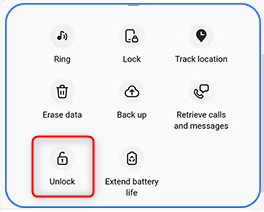
Step 4. The service will attempt to locate your device. Once it’s found, a control panel will appear on the right side of the screen with several options. Click on the Unlock icon.
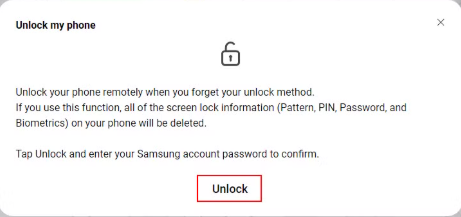
Step 5. A new pop-up window will appear, warning you that all screen locks will be removed. Click Unlock again to confirm.
Step 6. Re-enter your Samsung account password one last time as a final security verification. Once confirmed, your device will be unlocked in a few minutes. After that, you can go to Settings and set a new, memorable screen password.
There have been some user reports that this Unlock feature may have been disabled or removed in certain regions or with specific software updates. You can check the status in your SmartThings Find app. If there is no unlock option, you can choose the Erase Data icon, which can help unlock your Samsung remotely, too.
2. Use Google Find My Device
If you didn’t set up the Samsung Remote unlock feature, Google’s Find My Device is your next option. This method doesn’t provide a direct unlock option. You can only perform a remote factory reset to unlock your Samsung screen, which means that all data will be erased. Only use this if you have no other choice or if your data is securely backed up to a cloud service.
Prerequisites:
- Your locked phone must be powered on.
- It must be connected to Wi-Fi or mobile data.
- You must have a Google account registered on the device, and you must remember that account’s email and password.
- The Find My Device feature must be enabled.
Step-by-Step Instructions:
Step 1. Go to the official Google Find My Device website and log in to your account.
Step 2. Select the locked phone from the device list.
Step 3. The service will locate your phone on a map. On the left, click on Erase Device.
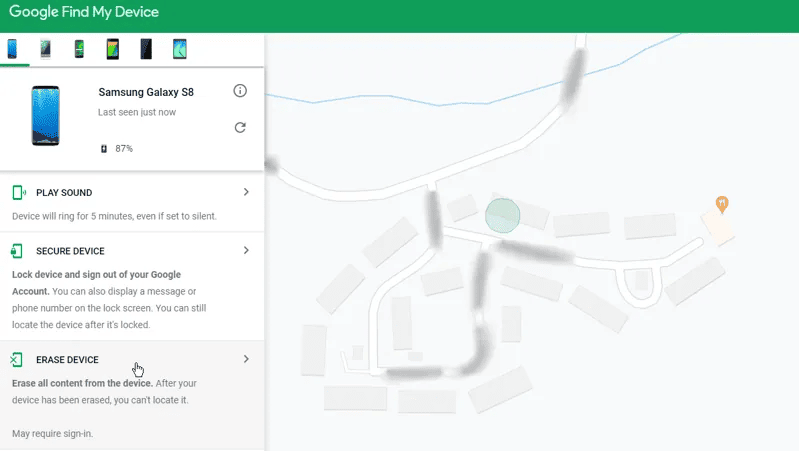
Step 4. A confirmation screen will appear, warning you that all data on your device will be permanently erased. If your device is offline, the erase will begin the next time it connects to the internet. Click Erase again to confirm. You may be asked to re-enter your Google account password.
Step 5. The remote wipe command will be sent. Your Samsung phone will restart and begin the factory reset process.
Step 6. Once complete, the phone will boot up to the initial setup screen, just like a new phone. The screen lock will be gone.
If you use the Erase Device method, the phone’s Factory Reset Protection lock will be activated. You will be required to enter the credentials for the Google account to complete the setup.
How to Unlock Samsung FRP
As mentioned above, if you reset your Samsung device using features like Find My Device, the FRP (Factory Reset Protection) lock will be triggered. If you still remember the original Google account, you can simply sign in to remove the lock. However, for second-hand devices where the previous owner’s credentials are unavailable, an alternative method is required.
In this case, tools like DroidKit can help remove Samsung FRP using a computer. Unlike so-called “online IMEI unlock” services, DroidKit works through dedicated software installed on your PC or Mac, guiding you through the unlocking process step by step.
Key advantages:
- Remove FRP lock from Samsung devices without requiring the original Google account
- No need for IMEI or SN-based remote unlocking (avoids unreliable online services)
- Supports a wide range of Samsung models and Android versions
- User-friendly interface with guided instructions
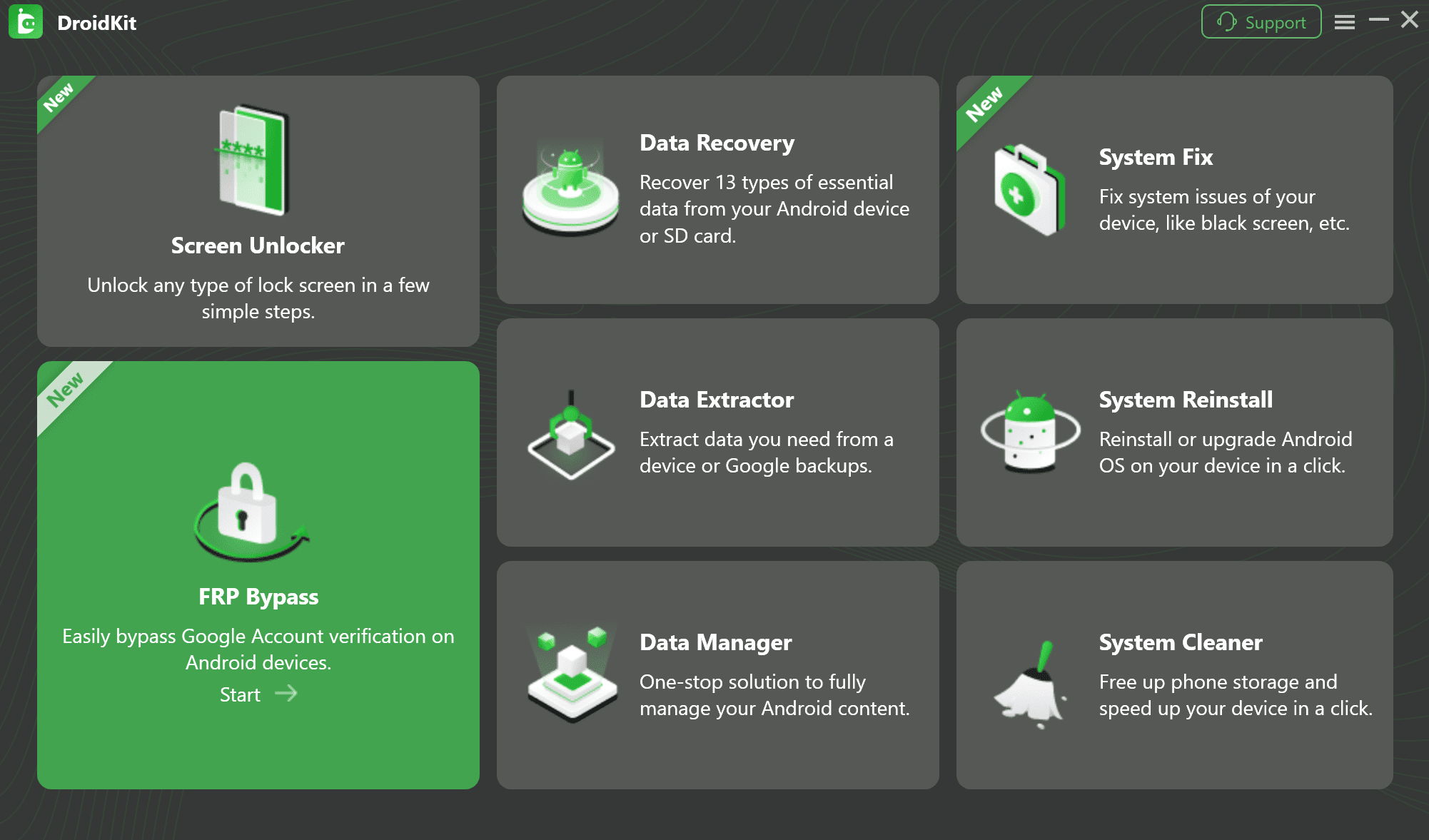
The process typically involves connecting your Samsung device to a computer and following on-screen steps to bypass the Google verification screen. Compared to unreliable remote unlocking claims, this method is more transparent and practical for most users.
FAQs About Samsung Remote Unlock
1. Is it legal to remotely unlock a Samsung phone?
Yes, unlocking a Samsung device remotely is legal as long as you are the rightful owner. Official tools like SmartThings Find and Google Find My Mobile are suitable for screen unlocking, while software solutions like DroidKit can be used for FRP removal. You can choose the most appropriate method based on your specific lock situation.
2. Do all Samsung phones support remote unlock?
While not every Samsung phone ever made supports it, virtually all modern Samsung Galaxy devices running Android 8.0 or newer are compatible with SmartThings Find. Similarly, any Samsung phone running Android 5.0 or newer is compatible with Google Find My Device.
Conclusion
Samsung remote unlock is possible for both screen lock and FRP lock. With official tools like SmartThings Find and Google Find My Device, you can easily remove a Samsung screen password, provided that Remote Unlock or Find My Device has been enabled in advance. For FRP lock, software solutions like DroidKit can help you bypass the Google verification screen after a factory reset. Choose the method that best fits your situation to regain access to your device.


Roger Smith is a senior technical writer with years of experience in providing Android solutions. He loves to help users solve various problems such as Android unlock, Android data recovery, and Android system repair.
Product-related questions? Contact Our Support Team to Get Quick Solution >
