SPD Flash Tool Latest Version Download & How to Use
Explore the full review on SPD Flash Tool. Additionally, you can use DroidKit to handle some issues like bypass FRP, unlock screen as a compliment.
The SPD Flash Tool is a program that facilitates the process of loading device firmware to Android devices powered by Spreadtrum (SPD) chipsets. If your primary goal is to resolve boot loops, update firmware, or bypass FRP, then this tool is the ideal solution for flashing PAC or P5C files correctly. It is the ideal choice for those with advanced technical skills or professionals who need to perform phone resurrection or software troubleshooting.
This article will discuss the SPD Flash Tool, list its features, outline its versions, and provide instructions on how to download and install the latest version. Additionally, we will discuss DroidKit, a new option that simplifies the process of unlocking FRP on any Android device without complications.
Part 1. What Is SPD Flash Tool?
1. SPD Flash Tool Overview
The SPD Flash Tool, also referred to as the SPD Upgrade Tool, is a Windows-based utility designed for upgrading firmware on Android devices with Spreadtrum (Unisoc) chipsets. The tool’s GUI is so straightforward that it facilitates the process without complications, even for those unfamiliar with it.
Therefore, whether you’re repairing a bricked phone or resolving boot loops, the software can help. Moreover, the software accepts firmware files in the PAC format. It is compatible with various devices, including smartphones, tablets, and feature phones.
2. Key features
- Firmware flashing: Enables users to flash the P5C and PAC official firmware files, allowing them to upgrade, downgrade, or reinstall the Android operating system. This is a must-have when repairing a soft-bricked device or when replacing corrupted firmware.
- Factory reset & format: This method allows for a deep-level factory reset, which can erase not only user data and cache but also system partitions if necessary. This is one possible way to get rid of the hot boot loops on frozen devices or states.
- Error reporting: The built-in error tracking system provides complete error codes and messages, allowing users to easily identify the source of the problem and apply a suitable fix.
- Support for multiple devices: Offers full compatibility with Spreadtrum/Unisoc-powered devices, which are extensive in number. These may include smart devices like phones and tablets, or simple feature phones from brands such as Lava, Micromax, and Symphony.
- User-friendly interface: It is designed for users who prefer a simple approach. The layout is very neat and easy to follow; even first-time users with no technical knowledge can flash their phones with guided instructions only.
- Backup and recovery (advanced): Drives for some new areas enable customers to perform tasks such as reading/writing to specific areas, backing up essential NV data, or flashing custom recovery images, making it a very powerful tool for developers and users who work extensively.
- Portable & lightweight: This is a direct-use tool, i.e., no installation is needed. Just copy, decompress, and run on any Windows PC without taking up a lot of system memory.
3. SPD Flash Tool All Versions
The official SPD Flash Tool website provides an archive of both the latest and older versions, enabling users to select the most compatible build for their device. Here is the latest version:
SPD Flash Tool R27.24.2301 – The latest stable release, compatible with newer Unisoc devices and improved flashing stability.
Besides the Upgrade Tool, the official site provides several other related utilities, such as:
- SPD Research Tool: It is a set of tools designed for developers and power users, aimed at debugging, reading, and writing the NV partition, loading BIN firmware, and more.
- SPD Factory Tool: A solution for mass production flashing at the factory level, supporting the programming of large numbers of devices.
Part 2. How to Download SPD Flash Tool Latest Version
Download the latest version of the SPD Flash Tool by following these instructions:
Step 1. Visit the official website
Access the authorized source for SPD flashing utilities and tools.
Step 2. Go to the download section
Go to the ‘Download SPD Flash Tool’ area or utilize the top navigation bar to locate the right page.
Step 3. Pick the most recent version
Look for the most recent version on the website.
Step 4. Click the download button
When you click on the appropriate link, a ZIP file will be downloaded directly to your computer. Then, unzip the archive and store the files locally.
Part 3. How to Use SPD Flash Tool
Step 1: Install SPD USB drivers
Before proceeding, ensure that you have installed the correct SPD (Spreadtrum) USB drivers on your Windows PC. This ensures your device can be detected in flashing mode.
Step 2: Launch SPD Flash Tool
Double-click on the UpgradeDownload.exe file to launch the SPD Flash Tool interface.
Step 3: Load the firmware
Click on the Load Packet or Load Firmware button (depending on the version you’re using).
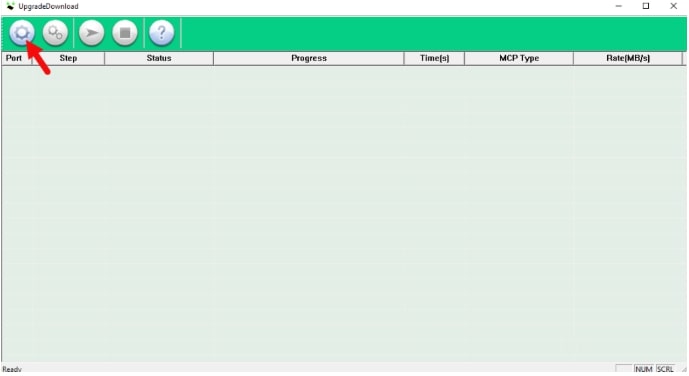
Click on the Load Packet
Locate and select the PAC firmware file you’ve downloaded for your specific device model.
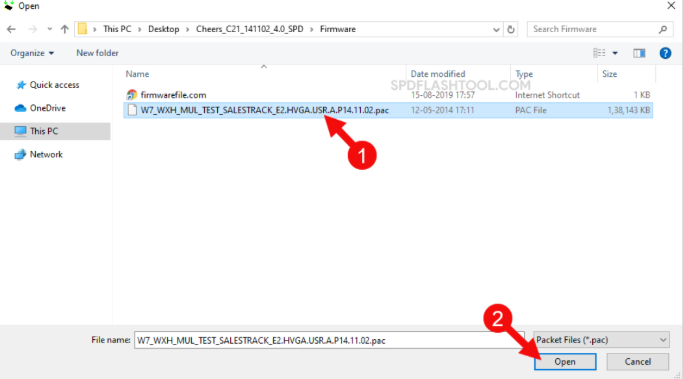
Locate and select the PAC firmware file
Step 4: Connect your device
Power off your SPD device. Press and hold the specific key combination for flash mode (often Volume Down or Volume Up) and connect it to the PC using a USB cable. The tool should automatically detect your device.
Step 5: Start the flashing process
Press the green Start button on the tool. A progress bar will be displayed as the flashing process is performed. Don’t remove your device while the process is running. When the flashing is done, a “Passed” or green success message will be shown. Then you can unplug your phone and start it up without any problems.
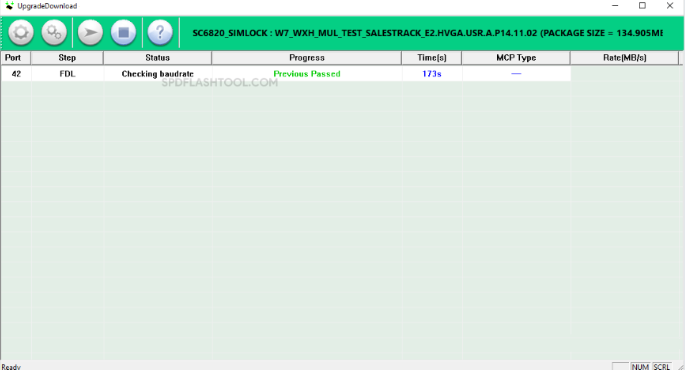
Start the flashing process
Part4. Bonus Tip. Easier Way to Unlock FRP/Screen on All Android Devices-DroidKit Way
Suppose SPD Flash Tool seems like it’s too technical, or you are using a device from a brand other than Spreadtrum-powered models. In that case, DroidKit is a much simpler option for you to remove Google’s Factory Reset Protection (FRP). The DroidKit is designed to support a wide range of Android brands, including Samsung, Xiaomi, OPPO, OnePlus, and more. It is a device access tool that helps unlock your device after a reset by regaining full control.
Key features of DroidKit FRP bypass
- Offer various functions like unlocking the Android screen, retrieving deleted files, and so on.
- Compatible with Android 6 up to Android 15.
- Supports devices from various brands, including Samsung, Xiaomi, Redmi, OPPO, Vivo, OnePlus, and more.
- Google disables the verification feature without the need to set a password.
- Removes FRP lock in various real-world scenarios, such as when a password is forgotten or a phone is second-hand.
Free Download * 100% Clean & Safe
How to Bypass FRP via DroidKit
Step 1. Download DroidKit and install it on your computer. After running the software, select the “FRP Bypass” from the main screen.

Choose FRP Bypass
Step 2. Use a USB cable to connect your device to the PC. DroidKit detects your device automatically. Select your brand (e.g., Samsung, OPPO) and confirm the device version.
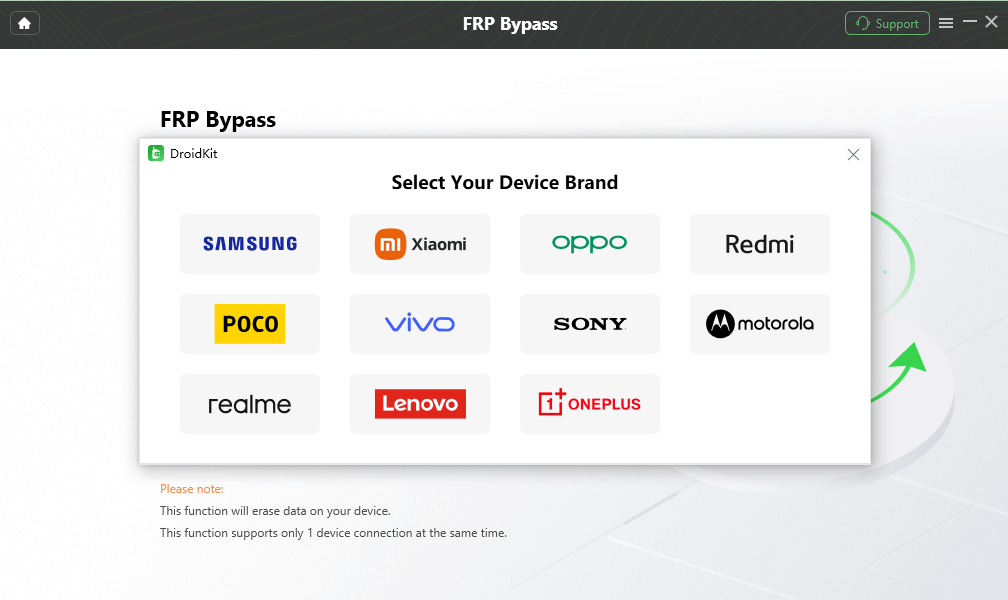
Select Correct Brand
Step 3. DroidKit will create a configuration file depending on your device. When it is done, click “Start to Bypass.”
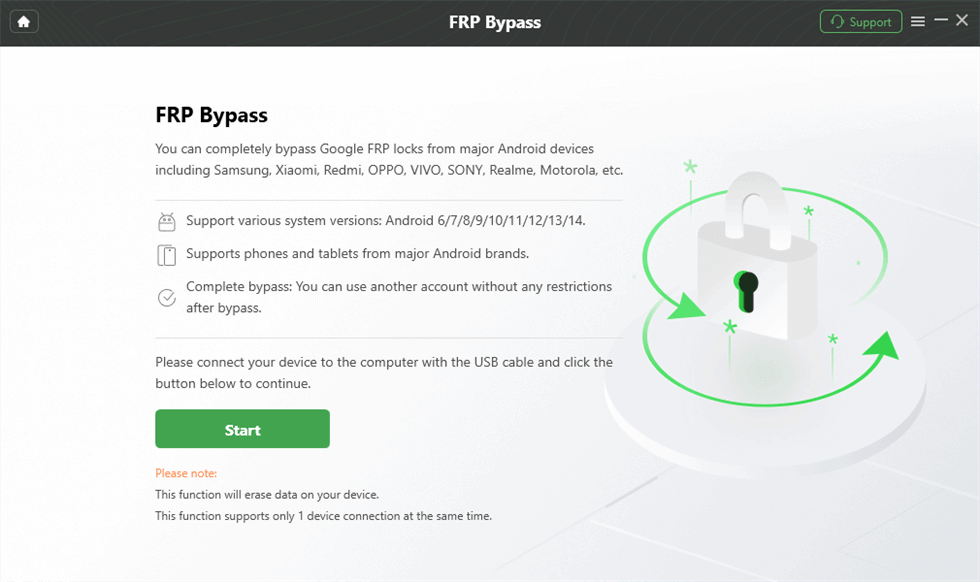
Launch the FRP Operation
Step 4. Then you need to select the Android system version of your device and tap “Next”.
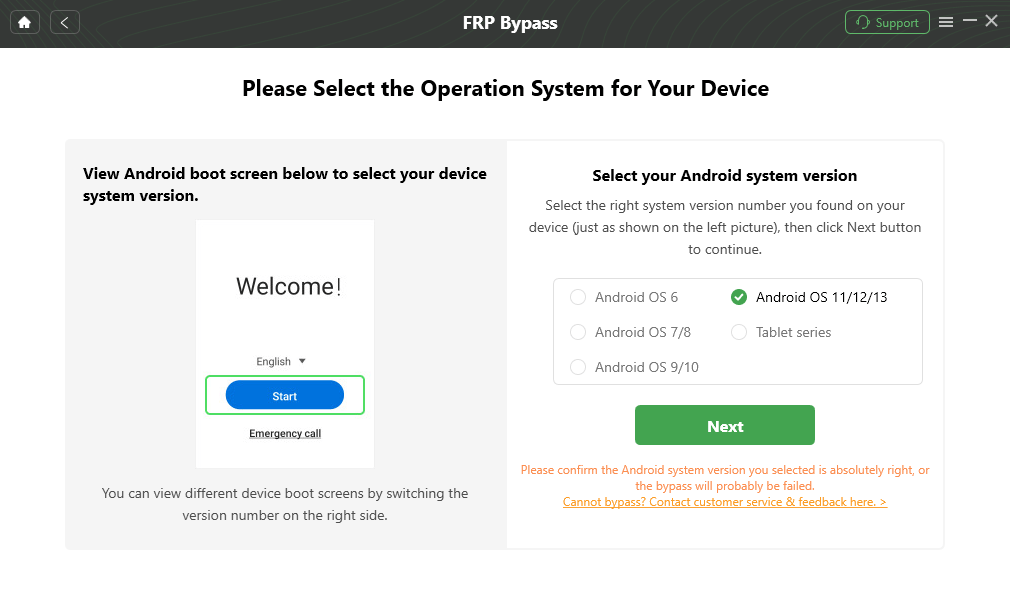
Select the Correct System Version
Step 5. Perform the final steps on the device as indicated, such as entering factory mode or confirming—using DroidKit, and it will bypass the FRP lock for you. It can take a few minutes.

FRP Bypass Complete
Part 5. Conclusion
The SPD Flash Tool is a powerful utility designed for individuals in the field of troubleshooting and repairing Spreadtrum-based Android devices, offering safe firmware flashing, device formatting, and repair functions. Being compatible with PAC/P5C files and having a wide range of compatibility with various devices, it is a favorite among mobile repair professionals.
For those seeking an easy and brand-independent way to get rid of FRP locks, DroidKit is an understandable alternative that has a high success rate, and it also works on the main Android brands and the newest versions. These tools, whether you are a professional technician or a DIY user, give you a lot of power over your solutions and allow you to fix, flash, and unlock your Android devices without any difficulty.
DroidKit – All-in-one Android Toolkit
- Unlock all types of screen locks on an Android phone in minutes.
- Unlock 20,000+ models of Android phones & tablets.
- No technical knowledge is required; No need to root your device.
- Bypass Samsung FRP lock if forgot Google account password.
Free Download100% Clean & Safe
Free Download100% Clean & Safe
Free Download * 100% Clean & Safe


Roger Smith is a senior technical writer with years of experience in providing Android solutions. He loves to help users solve various problems such as Android unlock, Android data recovery, and Android system repair.
Product-related questions? Contact Our Support Team to Get Quick Solution >
