How to Downgrade iOS 26/27 to 18 Without Computer: What You Can Really Do
Want to downgrade iOS 26 or iOS 27 to iOS 18 without a computer? This guide explains what is actually possible, why full downgrades usually need a computer, how to use 3uTools, and what to do if your iPhone gets stuck during the process.
Many iPhone users search for how to downgrade iOS 26/27 to 18 without a computer after installing a new iOS beta or major update and realizing something does not feel right. The battery may drain faster, apps may crash, the interface may feel unfamiliar, or the iPhone may become unstable during daily use.
But before trying any downgrade method, there is one important truth:
You usually cannot fully downgrade iOS 26 or iOS 27 to iOS 18 without a computer.
Your iPhone can turn off beta updates, erase settings, install available public updates, and back up data through iCloud. But it cannot manually install an older iOS 18 firmware file from Settings. A real downgrade normally requires a computer-based restore tool such as Finder, iTunes, Apple Devices, or 3uTools.
So instead of giving you a misleading “one-click no computer downgrade” promise, this guide explains what is actually possible, what is not possible, and what to do if your iPhone gets stuck after a failed update or downgrade attempt.
The Real Answer: No-Computer Downgrade vs Real iOS Downgrade
The phrase “downgrade without computer” usually means different things to different users.
Some users only want to leave the iOS beta program. Some users want to stop future beta updates. Some users want to go back to iOS 18 completely. Some users are already stuck on the Apple logo or recovery mode.
These are not the same problem.
Here is the difference:
| User Goal | Can You Do It Without Computer? | What It Really Means |
|---|---|---|
| Turn off iOS 26/27 beta updates | Yes | Stops future beta versions, but does not downgrade instantly |
| Go back to iOS 18 from Settings | No | Settings cannot manually install old firmware |
| Install iOS 18 IPSW | No | Requires a computer and signed firmware |
| Fix iPhone stuck after update | Sometimes | Basic restart may work, but deeper repair usually needs a computer |
| Downgrade with 3uTools | No | 3uTools is a desktop tool and requires a Windows PC |
This is why many users feel confused. They search for a no-computer method, but most real downgrade methods still require a computer.
Scenario 1: You Only Want to Stop iOS 26/27 Beta Updates
If your iPhone is on iOS 26 beta or iOS 27 beta and you simply want to stop getting future beta builds, you can do this directly on your iPhone.
Go to:
Settings > General > Software Update > Beta Updates > Off
This is the only meaningful “without computer” action for beta users.
After turning beta updates off, your iPhone will stop receiving future beta versions. When Apple releases a newer public version, your iPhone may be able to update to that public version from Settings.
However, this does not roll your iPhone back to iOS 18 immediately.
For example, if your iPhone is already running iOS 26 beta, turning off Beta Updates does not magically reinstall iOS 18. It only changes what future updates appear on your device.
Scenario 2: You Want to Fully Downgrade iOS 26/27 to iOS 18
If your goal is to fully return from iOS 26 or iOS 27 to iOS 18, then you are talking about a real iOS firmware downgrade.
This usually requires:
- A Mac or Windows computer
- Finder, iTunes, Apple Devices, or 3uTools
- The correct iOS 18 firmware for your exact iPhone model
- Apple signing approval for that iOS 18 version
- A backup, preferably made before you upgraded
The most important part is Apple signing status. Even if you have the correct iOS 18 IPSW file, the restore will fail if Apple is no longer signing that version.
That means the downgrade is not controlled only by the tool you use. It is controlled by Apple’s signing server.
Why Apple Signing Status Matters More Than the Tool
Many users search for different tools because they hope one of them can bypass the downgrade limit. But in normal downgrade situations, the tool is not the final decision-maker.
However, Apple is.
When your iPhone restores firmware, Apple verifies whether that iOS version is still allowed for your device. If iOS 18 is no longer signed for your iPhone model, Finder, iTunes, Apple Devices, and 3uTools will usually fail to install it.
This is why older downgrade guides often become outdated. A method may work while Apple is still signing iOS 18, then stop working once the signing window closes.
So before trying anything, check whether iOS 18 is still signed for your exact iPhone model.
Scenario 3: You Want to Downgrade iOS 26 to 18 Using 3uTools
The keyword How to downgrade iOS 26 to 18 using 3uTools is common because many users find 3uTools easier than iTunes. But it is important to understand that 3uTools is not a no-computer method.
3uTools requires a Windows PC.
It can help you manage firmware flashing in a more visual way, but it still depends on Apple signing status. If iOS 18 is unsigned, 3uTools usually cannot force the downgrade.
How to Downgrade iOS 26 to 18 Using 3uTools
Before starting, back up your iPhone. Downgrading can erase your device, and a backup made on iOS 26 may not restore properly to iOS 18.
Then follow these steps:
- Install 3uTools on your Windows computer.
- Connect your iPhone to the computer with a USB cable.
- Open 3uTools and wait for it to detect your device.
- Go to the firmware flashing section.
- Check whether an iOS 18 version is still marked as signed.
- Select the signed iOS 18 firmware for your exact iPhone model.
- Choose the flash mode carefully. A clean flash is usually safer, but it may erase data.
- Start the flash process and keep your iPhone connected until it finishes.
If 3uTools shows that iOS 18 is unsigned, do not expect the downgrade to work. In that case, your better option is to stay on the latest signed public version or wait for a stable bug-fix update.
Can You Downgrade iOS 27 to iOS 18 Using the Same Method?
In theory, yes, the logic is the same.
In practice, it depends on signing status.
To downgrade iOS 27 to iOS 18, all of these must be true:
- Your iPhone model supports the target iOS 18 firmware.
- Apple is still signing that iOS 18 version.
- You have a computer.
- You use the correct firmware file.
- You accept the possibility of data loss.
If Apple has stopped signing iOS 18, then using a different tool will not usually solve the problem.
What If You Do Not Have a Computer?
If you do not have a computer, your best options are more limited but still useful.
You can:
- Turn off Beta Updates from Settings.
- Back up important data to iCloud.
- Reset all settings if the phone feels unstable.
- Delete unnecessary apps and files to improve performance.
- Wait for the next public iOS update.
- Borrow a trusted computer if you need a real restore.
You cannot normally:
- Install an iOS 18 IPSW file directly from the iPhone.
- Use 3uTools without a computer.
- Enter DFU restore without desktop restore software.
- Force Apple to sign an older iOS version.
If your iPhone is still usable, waiting for a public bug-fix update may be safer than trying risky downgrade shortcuts.
What If the iPhone Gets Stuck After Trying to Downgrade?
Some users do not search for downgrade help until the iPhone is already in trouble.
Common problems include:
- iPhone stuck on Apple logo
- iPhone stuck in recovery mode
- iPhone boot loop after downgrade attempt
- iPhone black screen after failed restore
- iPhone stuck on verifying update
- iPhone restore failed in 3uTools or iTunes
If this happens, first try a force restart. If the iPhone still cannot start normally, connect it to a computer and try the official Update option through Finder, iTunes, or Apple Devices.
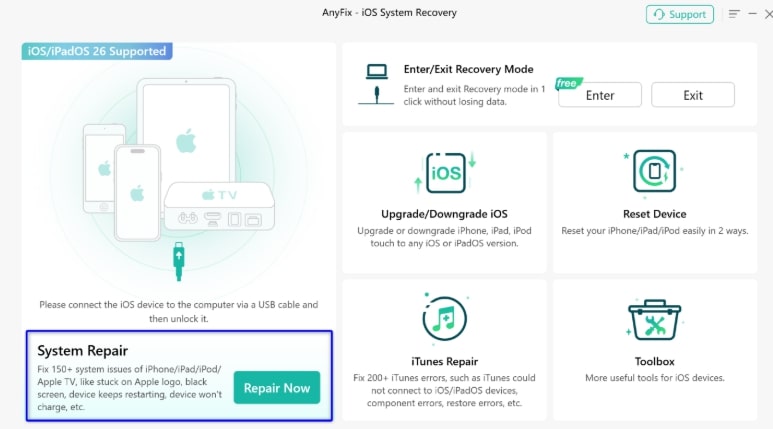
If the iPhone remains stuck, you can try AnyFix iOS System Recovery to repair common iOS system problems such as recovery mode, Apple logo, black screen, boot loop, or failed update issues.
How to Use AnyFix to Repair iOS Update or Downgrade Problems
AnyFix is best placed here because it is most relevant when the iPhone has already run into a system problem. It should not be treated as a magic downgrade bypass, but it can be useful for repairing stuck-device issues.
Follow these steps:
- Download and install AnyFix on your Mac or Windows computer.
- Connect your iPhone to the computer with a USB cable.
- Open AnyFix and choose System Repair.
- Select the issue type that matches your device, such as recovery mode, Apple logo, black screen, or update failure.
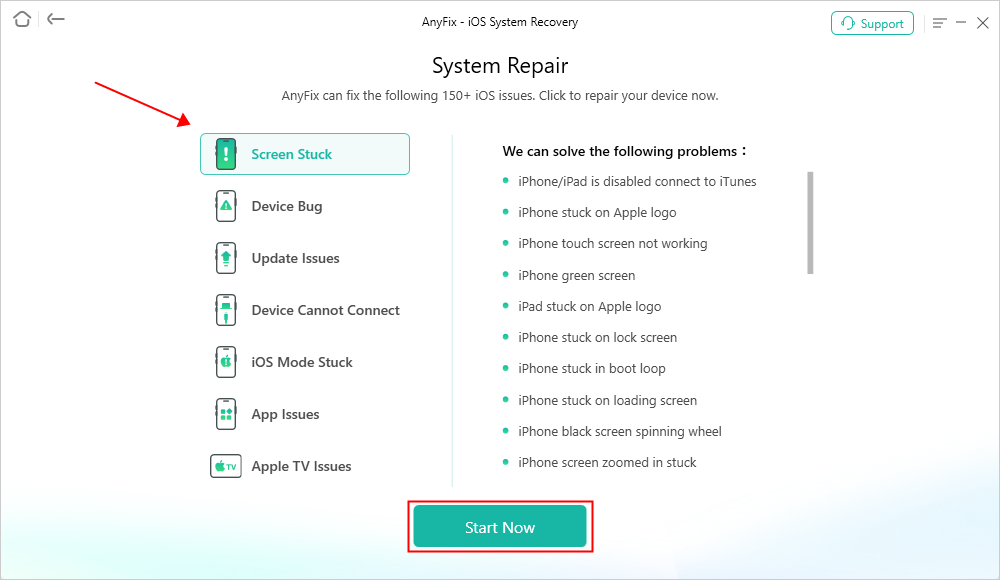
- Choose a repair mode. Start with the standard repair option if you want to reduce the risk of data loss.
- Follow the on-screen instructions to download the required firmware package.
- Start the repair process and keep your iPhone connected until it finishes.
- After repair, check whether your iPhone can boot normally.
AnyFix is useful when the downgrade or update process causes system issues. However, if Apple no longer signs iOS 18, AnyFix should not be described as a guaranteed way to downgrade iOS 26/27 to iOS 18.
What About Keeping Data During Downgrade?
Keeping data during an iOS downgrade is not guaranteed.
Some tools may offer a retain-data option, but major iOS downgrades are risky. You should always assume there is a chance of data loss.
Another issue is backup compatibility. A backup made on iOS 26 or iOS 27 may not restore properly onto iOS 18. If you want the cleanest rollback, the best backup is an archived backup made before you upgraded.
Before trying to downgrade, save important content manually:
- Photos and videos
- Notes
- Messages
- WhatsApp chats
- Files
- Authenticator app access
- Banking app login information
Best Choice Based on Your Situation
Use this section to decide what to do next.
| Your Situation | Best Next Step |
|---|---|
| You are on iOS 26/27 beta but the phone still works | Turn off Beta Updates and wait for the next public release |
| You want a true downgrade to iOS 18 | Use a computer and check if iOS 18 is still signed |
| You want to use 3uTools | Use a Windows PC and only choose signed firmware |
| You do not have a computer | Back up data, reset settings, turn off beta updates, or borrow a computer |
| Your iPhone is stuck after downgrade | Try Finder/iTunes update first, then use AnyFix if system repair is needed |
| Apple no longer signs iOS 18 | Wait for a stable update or restore to the latest signed version |
Common Myths About Downgrading iOS 26/27 to 18
Myth 1: Turning Off Beta Updates Downgrades iOS
No. It only stops future beta updates. It does not reinstall iOS 18.
Myth 2: 3uTools Can Downgrade Any iOS Version
No. 3uTools still depends on Apple signing status.
Myth 3: iCloud Backup Can Install iOS 18
No. iCloud backup protects data, but it cannot install older firmware.
Myth 4: No-Computer Downgrade Is Always Possible
No. A true firmware downgrade usually requires a computer.
Myth 5: Repair Tools Can Bypass Apple Signing
No normal system repair tool should be presented as a guaranteed way to bypass Apple signing restrictions.
Final Verdict
If you are looking for how to downgrade iOS 26/27 to 18 without computer, the realistic answer is that you usually cannot perform a full downgrade without a computer. You can turn off beta updates and wait for a public release, but installing iOS 18 normally requires a computer-based restore.
If you are searching for How to downgrade iOS 26 to 18 using 3uTools, you need a Windows PC, the correct iOS 18 firmware, and a signed version from Apple. If Apple has stopped signing iOS 18, the downgrade usually will not work.
If your iPhone gets stuck during an update or downgrade attempt, AnyFix iOS System Recovery can help repair system issues like recovery mode, Apple logo, black screen, boot loop, or failed updates. But for true downgrading, Apple signing status remains the final limit.
More Related Articles



Wanda Norris is a junior author in iMobie specializing in iOS tips and solutions. She keeps a close eye on every iOS update to provide practical, easy-to-understand guides that help users solve problems and master their Apple devices.
Product-related questions? Contact Our Support Team to Get Quick Solution >
