How to Downgrade iPadOS 26/27 to 18: What You Can and Can’t Do
Want to downgrade iPadOS 26 or iPadOS 27 to iPadOS 18? This guide explains when downgrading is possible, how Apple signing status works, what to know before restoring, and how to fix iPad update or recovery mode issues safely.
Downgrading iPadOS sounds simple: download an older version, connect your iPad, and restore it. But in reality, downgrading iPadOS 26 or iPadOS 27 to iPadOS 18 depends on one key condition: whether Apple is still signing iPadOS 18 for your exact iPad model.
If Apple is still signing the iPadOS 18 firmware, you may be able to restore your iPad with a computer. If Apple has stopped signing it, a normal downgrade to iPadOS 18 is usually no longer possible through Finder, iTunes, the Apple Devices app, or most repair tools.
This guide explains what you can do, what you cannot do, how to prepare your iPad, and what to try if your iPad gets stuck during the downgrade process.
Quick Answer: Can You Downgrade iPadOS 26/27 to 18?
You can downgrade iPadOS 26 or iPadOS 27 to iPadOS 18 only if Apple is still signing the iPadOS 18 version for your specific iPad model. Apple’s official beta-removal guidance says that to remove iOS or iPadOS beta software and install the current public release, you need to erase and restore the device. Apple also recommends using an archived backup if you want to restore your data after leaving beta software.
If Apple is no longer signing iPadOS 18, you usually cannot force your iPad back to iPadOS 18 through a normal restore. In that case, your best options are to wait for a newer iPadOS 26/27 bug-fix update, restore to the latest signed public version, or repair system problems if your iPad is stuck.
Before You Start: Understand the Downgrade Rule
The most important part of any iPadOS downgrade is Apple signing status.
When you restore an iPad, Apple’s servers verify whether that iPadOS version is still allowed to be installed. If the firmware is no longer signed, the restore will fail even if you downloaded the correct IPSW file.
This is why some guides say downgrade is possible while others say it is impossible. Both can be true depending on timing.
A downgrade may be possible if:
- Apple is still signing iPadOS 18 for your iPad model.
- You downloaded the correct IPSW file.
- You have a Mac or Windows computer.
- You are willing to erase and restore the iPad.
- You understand that newer backups may not restore to older iPadOS versions.
A downgrade is usually not possible if:
- Apple has stopped signing iPadOS 18.
- You are trying to restore a firmware file that does not match your iPad model.
- You want to downgrade without erasing anything.
- You expect removing the beta profile to instantly return your iPad to iPadOS 18.
Downgrade iPadOS 26/27 to 18: What You Need
Before trying to downgrade, prepare the following:
- A Mac with Finder, or a Windows PC with iTunes or the Apple Devices app.
- A reliable USB-C or Lightning cable.
- The correct iPadOS 18 IPSW file for your exact iPad model.
- A recent backup.
- Your Apple ID and password.
- Enough time for the restore process.
- A stable internet connection.
You should also turn off Find My iPad if the restore process asks for it, and make sure you know your Apple ID password because Activation Lock may appear after restoring.
Important: Will You Lose Data?
In most downgrade cases, yes, you should expect the process to erase your iPad.
This is where many users get confused. A backup made on iPadOS 26 or iPadOS 27 may not restore properly onto iPadOS 18 because backups are usually not backward-compatible. That means if you want to return to iPadOS 18 and keep your previous setup, the safest backup is an archived backup created before you upgraded.
If you do not have an older archived backup, you should manually save important files before attempting anything:
- Export important Notes.
- Save Procreate or drawing files.
- Upload documents to iCloud Drive, Google Drive, Dropbox, or OneDrive.
- Back up photos and videos.
- Save app login information.
- Check school, work, and authenticator apps.
Method 1: Downgrade iPadOS 26/27 to 18 with Finder or iTunes
This is the standard method if iPadOS 18 is still signed for your device.
Step 1. Back Up Your iPad
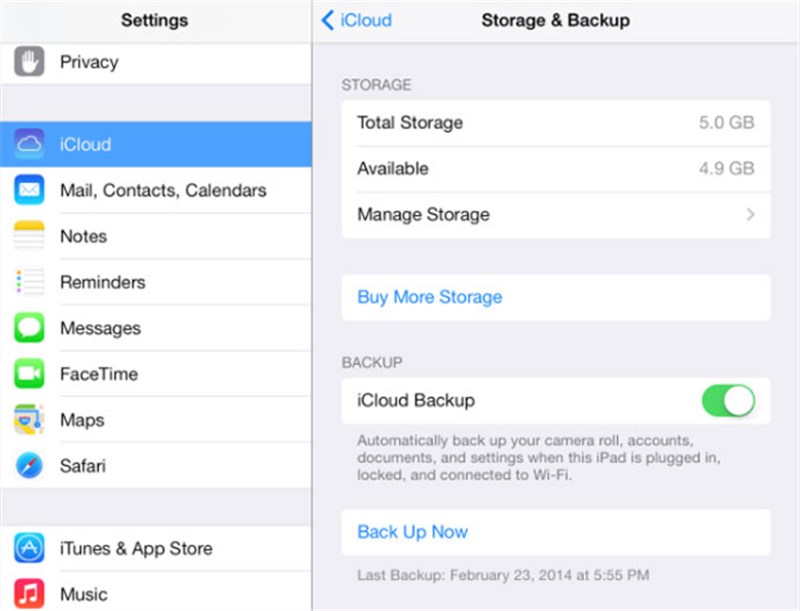
Back up your iPad before doing anything. Use iCloud, Finder, iTunes, or the Apple Devices app. If possible, keep an archived backup from before the iPadOS 26/27 upgrade.
Step 2. Download the Correct iPadOS 18 IPSW
Find the IPSW file that matches your exact iPad model. Do not download a random iPadOS 18 file. If the firmware does not match your iPad, Finder or iTunes may show an error such as “firmware is not compatible.”
Step 3. Connect Your iPad to a Computer
Use a stable USB cable. Open Finder on Mac, iTunes on older systems, or the Apple Devices app on Windows.
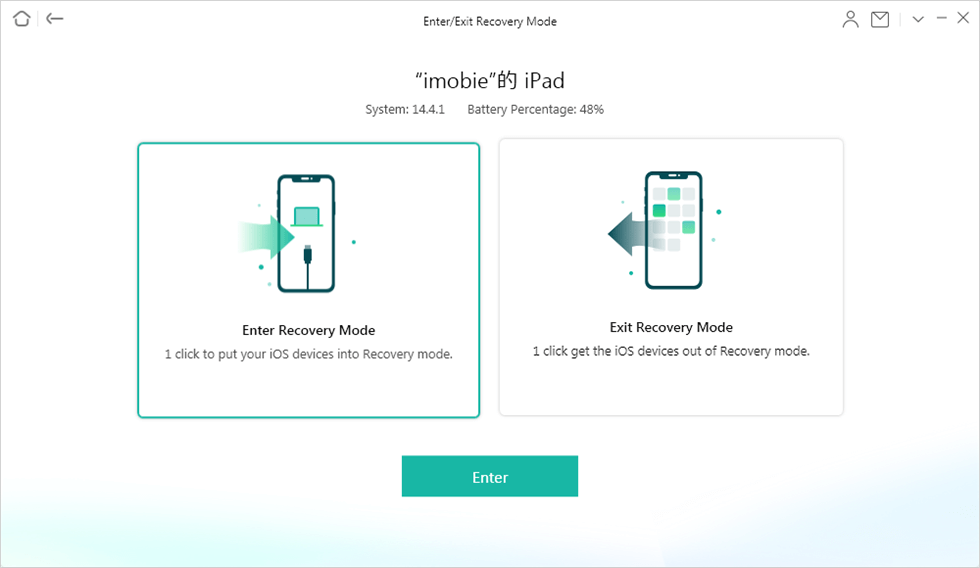
Step 4. Put Your iPad into Recovery Mode If Needed
If your iPad is not detected normally, you may need to use recovery mode. Apple’s support guide explains that recovery mode can be used when an iPad cannot update or restore normally.
Step 5. Select the IPSW File
On Mac, hold the Option key and click Restore iPad. On Windows, hold the Shift key and click Restore iPad.
Then choose the iPadOS 18 IPSW file.
Step 6. Wait for the Restore to Finish
Do not unplug the iPad during the process. Your iPad may restart several times.
Step 7. Set Up Your iPad
After the restore, set up your iPad. If you have an archived iPadOS 18 backup, restore it. If not, set up the iPad as new and manually sync your files back.
Method 2: Remove iPadOS 26/27 Beta Updates
If your issue is that you installed a beta version, you may not need a full downgrade immediately. You can stop receiving future beta updates.
Go to: Settings > General > Software Update > Beta Updates
Then select Off.
However, this does not instantly downgrade your iPad to iPadOS 18. It only prevents future beta updates from appearing. Apple’s beta removal guidance explains that returning to the current public release may require erasing and restoring the device.
This section is important because many users think “remove beta” means “go back to the old iPadOS.” It does not.
Method 3: What If Your iPad Gets Stuck During Downgrade?
Downgrading can fail. Your iPad may get stuck on:
- Apple logo
- Recovery mode screen
- Restore failed screen
- Verifying update
- Preparing iPad
- Black screen
- Boot loop
First, try Apple’s basic recovery steps. Connect the iPad to a computer, use Finder, iTunes, or Apple Devices, and choose Update first if available. Choosing Update may try to reinstall the system without erasing data. Choosing Restore usually erases the device.
If the iPad still cannot start normally, you can try a system repair tool such as AnyFix iOS System Recovery. AnyFix is relevant here because downgrade attempts can sometimes leave an iPad stuck in recovery mode, on the Apple logo, or in a failed update loop.
How to Use AnyFix to Repair iPadOS Problems
Follow these steps if your iPad is stuck after trying to downgrade iPadOS 26/27 to 18:
- Download and install AnyFix on your Mac or Windows computer.
- Connect your iPad to the computer with a USB cable.
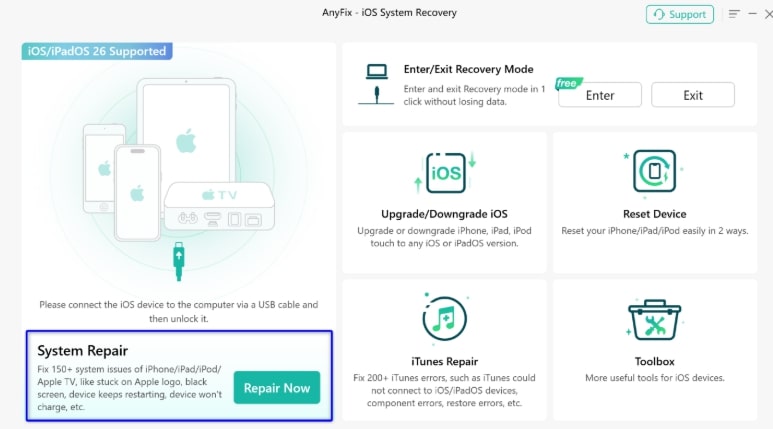
- Open AnyFix and choose System Repair.
- Select the iPad issue you are facing, such as stuck on Apple logo, recovery mode, or update failure.
- Choose a repair mode. Start with the standard repair option if you want to reduce the risk of data loss.

- Follow the on-screen instructions to download the required firmware.
- Wait for AnyFix to complete the repair process.

AnyFix should be used as a troubleshooting option when the iPad is stuck or cannot complete an update/restore normally. It should not be presented as a way to bypass Apple signing restrictions. If Apple no longer signs iPadOS 18, a normal downgrade to iPadOS 18 is still not guaranteed.
Free Download for all windows & 100% safe Free Download for all mac & 100% safe
Free Download100% Clean & Safe
Can You Downgrade iPadOS 26/27 to 18 Without a Computer?
Usually, no.
A real downgrade normally requires a computer because you need Finder, iTunes, or the Apple Devices app to restore firmware. Turning off beta updates on the iPad itself can stop future beta versions, but it does not roll the device back to iPadOS 18.
You may be able to erase the iPad without a computer, but that is not the same as choosing and installing iPadOS 18. If your goal is a true iPadOS version downgrade, expect to use a computer.
Can You Downgrade iPadOS 26/27 to 18 Without Losing Data?
In most cases, you should assume data loss is possible.
The safest scenario is:
- You created an archived backup before upgrading.
- iPadOS 18 is still signed.
- You restore to iPadOS 18.
- You restore the old iPadOS 18-compatible backup.
The risky scenario is:
- You upgraded to iPadOS 26/27.
- You only have a new backup from iPadOS 26/27.
- You try to restore that backup to iPadOS 18.
That backup may not be compatible with the older system. Before downgrading, manually save the files you cannot afford to lose.
What If Apple No Longer Signs iPadOS 18?
If Apple no longer signs iPadOS 18 for your iPad model, the realistic options are limited.
You can:
- Stay on iPadOS 26/27 and wait for a bug-fix update.
- Restore to the latest signed public iPadOS version.
- Turn off beta updates if you are on a beta build.
- Repair system issues if the iPad is stuck.
- Contact Apple Support if the device cannot restore normally.
You usually cannot:
- Force-install an unsigned iPadOS 18 version.
- Use a normal IPSW restore after signing has ended.
- Restore a newer iPadOS 26/27 backup onto iPadOS 18 cleanly.
- Downgrade with one tap from Settings.
This is the main point many recovery-tool pages fail to explain clearly. Tools can help with system repair, recovery mode, update failure, and stuck screens, but they normally cannot override Apple’s firmware signing rules.
What About “How to Downgrade iPadOS 17 to 16”?
The keyword How to downgrade ipados 17 to 16 follows the same rule.
When iPadOS 17 was new, some users wanted to return to iPadOS 16 because of app compatibility, battery drain, or design changes. The process depended on whether Apple was still signing iPadOS 16 for that exact iPad model.
So whether the question is:
- How to downgrade iPadOS 17 to 16
- How to downgrade iPadOS 26 to 18
- How to downgrade iPadOS 27 to 18
The logic is the same: the downgrade only works if Apple still signs the older version.
That means an article should not simply list steps. It must first explain the downgrade window, signing status, backup compatibility, and data-loss risk.
Should You Downgrade or Wait for a Bug-Fix Update?
Downgrading is not always the best choice.
You may want to downgrade if:
- iPadOS 18 is still signed.
- A critical app does not work on iPadOS 26/27.
- Your iPad is unstable after the update.
- You have a compatible archived backup.
- You are comfortable erasing and restoring the device.
You may want to wait if:
- Apple no longer signs iPadOS 18.
- You do not have a backup.
- Your iPad only has minor bugs.
- You rely on the iPad every day for school or work.
- A minor update such as iPadOS 26.1 or iPadOS 27.1 may fix the issue soon.
For many users, waiting for a stable bug-fix release is safer than trying to force a downgrade.
Common Downgrade Errors and Fixes
Firmware Is Not Compatible
This usually means the IPSW file does not match your iPad model or the firmware is no longer signed.
Finder or iTunes Does Not Detect the iPad
Try another cable, another USB port, or another computer. Then put the iPad into recovery mode.
iPad Is Stuck in Recovery Mode
Try exiting recovery mode first. If that fails, use Finder or iTunes to update the iPad. If the device remains stuck, AnyFix can be used as a repair option for recovery mode or system boot issues.
Restore Failed
A restore can fail because of unsigned firmware, unstable connection, outdated software, or Apple server verification failure.
Backup Cannot Be Restored
A backup made on iPadOS 26 or iPadOS 27 may not restore onto iPadOS 18. Use an older archived backup if available.
Final Verdict
You can downgrade iPadOS 26/27 to iPadOS 18 only under the right conditions. The most important condition is Apple signing status. If Apple is still signing iPadOS 18 for your exact iPad model, you may be able to restore with Finder, iTunes, or the Apple Devices app. If signing has ended, a normal downgrade is usually not possible.
Before attempting any downgrade, back up your iPad, check whether you have an older archived backup, save important files manually, and understand that the process may erase your device.
If your iPad gets stuck during the downgrade or update process, tools like AnyFix can help repair system problems such as recovery mode, Apple logo, boot loop, or update failure. But for true downgrading, Apple’s signing rules still decide whether iPadOS 18 can be installed.
FAQ
Can I downgrade iPadOS 26 to iPadOS 18?
Only if Apple is still signing iPadOS 18 for your exact iPad model. If signing has ended, a normal downgrade is usually not possible.
Can I downgrade iPadOS 27 to iPadOS 18?
The same rule applies. You can only downgrade if iPadOS 18 is still signed for your iPad.
Can I downgrade without losing data?
Not reliably. Downgrading usually involves erasing the iPad. You need an archived backup made before upgrading if you want the cleanest restore.
Can I downgrade without a computer?
Usually no. A true iPadOS downgrade normally requires Finder, iTunes, or the Apple Devices app on a computer.
Does removing beta updates downgrade my iPad?
No. Turning off Beta Updates only stops future beta updates. It does not instantly roll your iPad back to iPadOS 18.
Can AnyFix downgrade iPadOS 26/27 to 18?
AnyFix can help repair iPadOS system problems, such as recovery mode, Apple logo, boot loops, and failed updates. However, if Apple no longer signs iPadOS 18, a normal downgrade to iPadOS 18 is not guaranteed.
Why does my iPad say the firmware is not compatible?
The IPSW file may not match your iPad model, or Apple may no longer be signing that firmware.
Is “How to downgrade ipados 17 to 16” the same process?
Yes, the downgrade logic is the same. You could only downgrade iPadOS 17 to 16 while Apple was still signing the iPadOS 16 firmware for your specific iPad model.
More Related Articles



Wanda Norris is a junior author in iMobie specializing in iOS tips and solutions. She keeps a close eye on every iOS update to provide practical, easy-to-understand guides that help users solve problems and master their Apple devices.
Product-related questions? Contact Our Support Team to Get Quick Solution >
