7 Ways to Fix This Apple ID is Not Valid or Supported
This article explains why ‘This Apple ID is Not Valid or Supported’ happens and offers seven easy solutions. It covers checking details, updating iOS, switching networks, and resetting passwords. When standard methods fail, AnyUnlock is recommended as a safe tool to unlock Apple ID without a password.
Many iPhone users encounter the frustrating error message, “This Apple ID is Not Valid or supported.” Reports highlight this recurring issue across different devices, usually leaving people confused and stuck. On Reddit, one user with an iPhone 6 described constant login errors without resolution. Such experiences reflect mixed reviews of Apple’s account management system. This guide explores the main reasons for the problem and provides seven practical solutions.
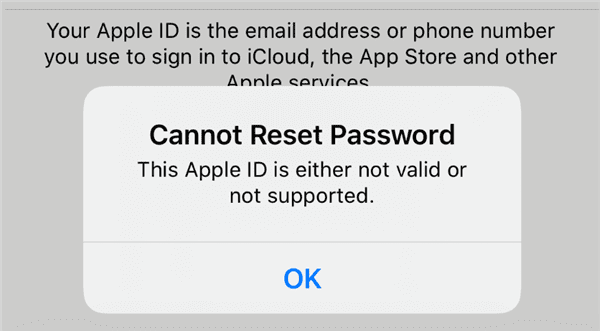
Apple ID Not Valid or Supported
Why Is This Apple ID Not Valid or Supported?
Sometimes, people encounter the error and wonder why Apple does not accept their login information. Below, you will explore a few main reasons that explain why “This Apple ID is Not Valid or Supported” occurs:
- Wrong Entry: Entering an incorrect email or password often causes login issues and Apple ID errors.
- Unverified Email: In case your email is not verified, Apple may reject login for safety reasons.
- Region Limit: Some Apple IDs cannot work in certain regions due to store or country restrictions.
- Network Problem: A poor or unstable internet connection can block Apple servers from confirming your details.
- Outdated System: Using an outdated iOS version may stop the proper Apple ID login or verification process.
You may also like: How to fix wrong Apple ID when updating apps
How to Fix This Apple ID is Not Valid or Supported
When you see “This Apple ID is Not Valid or Supported,” multiple solutions are available. The following section provides you with 7 available solutions to help you address and resolve it:
Method 1. Check If the Apple ID is Correct
A common cause of the error “This Apple ID is Not Valid or Supported” is a typo when entering your Apple account information. Therefore, you should carefully check the Apple ID you typed to avoid any mistakes. A wrong letter, extra space, or incorrect domain like “.con” instead of “.com” can cause this problem. At this point, retype the Apple ID correctly and try again, as this simple step often fixes the issue immediately.
Method 2. Verify Apple ID on iCloud
Another good way to confirm the issue is by testing or confirming your Apple ID directly on iCloud. Sometimes, the “This Apple ID is Not Valid or Supported” error shows up only due to device-related problems. You need to access iCloud on any browser or a new device and try signing in with the same account details. If login works, the issue is likely with your device settings or software problems.
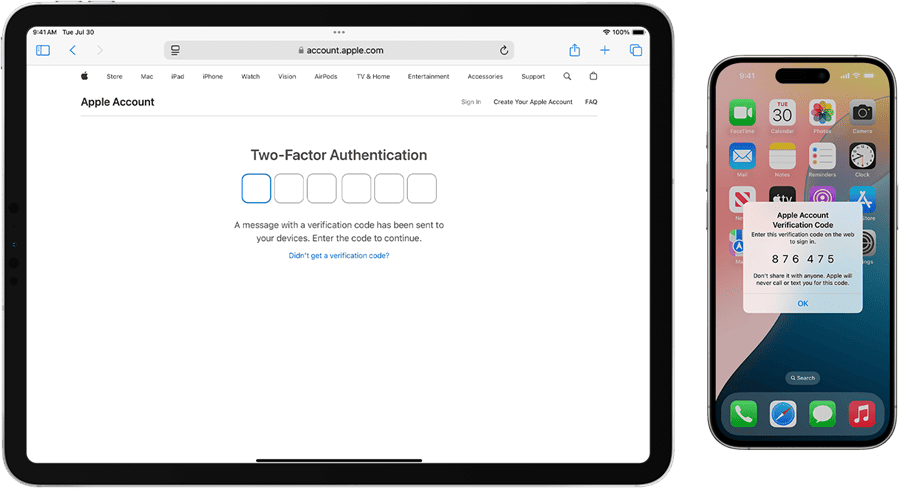
Verify Apple ID on iCloud
Method 3. Restart Your Device
In case of the error messages, even after inputting your account details correctly, you should restart your device. It updates background processes to eliminate temporary glitches, along with fixing minor problems with logging in or connecting. This method does not erase your personal data, making it a completely safe troubleshooting option. Go through the given instructions below to find out how you can restart your iPhone:
Step 1. Press the “Power” and “Volume Up” keys together for a few seconds to access the restart screen.
Step 2. Drag the “Slide To Power Off” slider from left to right to turn off your phone, and then manually restart it after a while.
Method 4. Update iOS
Another practical way to fix many common account issues is to update your device’s iOS firmware. Sometimes, “This Apple ID is Not Valid or Supported” occurs due to outdated software on your device. The update ensures your phone has the newest security features and bug fixes from Apple. Adhere to the given steps to understand how you can update the iOS without hassle:
- Go to General > Software Update on your iPhone.
- Tap on Check for Updates and see if an update is required.
- Press the “Update” button on the following screen to upgrade your iOS version.
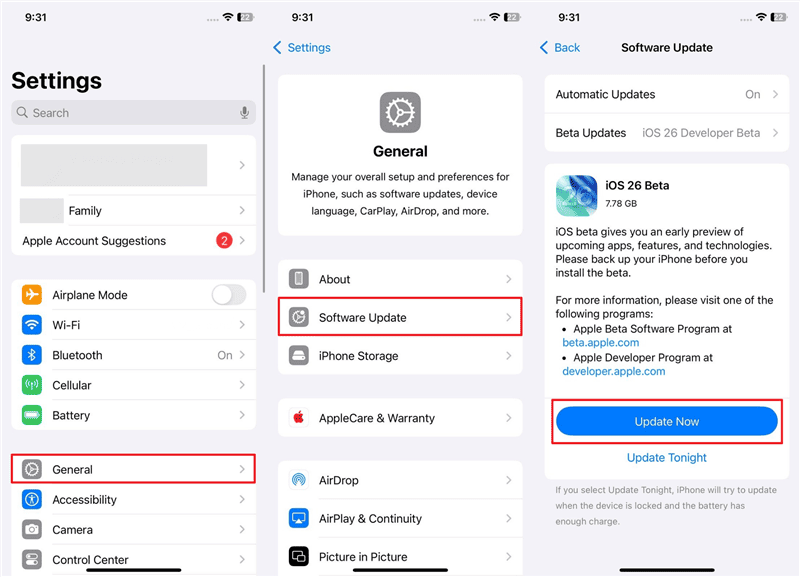
Update iOS on iPhone
Method 5. Switch Your Network Connection
A weak or unstable internet connection also interrupts communication between your device and Apple’s servers. When this happens, errors like “This Apple ID is Not Valid or supported” may suddenly appear. At this point, a swap between Wi-Fi and mobile data or vice versa might assist in regaining normal communication with the server. It guarantees an easier verification and enhances the possibility of successful access to the account.
Method 6. Reset Apple ID Password
In case you still face login issues, resetting your Apple ID password can be the next step. This method is useful if “This Apple ID is Not Valid or Supported” due to password problems. Through the official site, Apple lets you securely reset your password and confirm ownership of your account. Take guidance from the steps below to find out how you can reset your Apple ID password:
Step 1. Navigate to the iForgot website on your phone or computer.
Step 2. Hit the “Reset Password” button on the main screen.
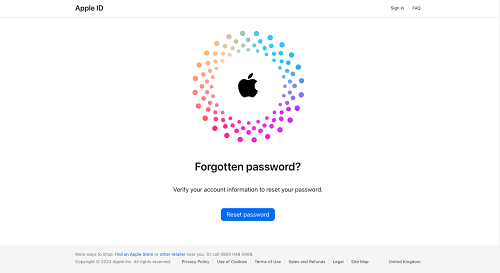
Click Reset Password on iForgot
Step 3. Tap the “Reset My Password” button to enter either your email address or phone number.
Step 4. Follow the provided prompt to reset your Apple ID password.
Method 7. Unlock Apple ID without Password
When all standard fixes fail and you don’t want to reset the password, you still cannot bypass the frustrating login restrictions successfully. That’s when a professional iPhone unlocker like AnyUnlock becomes essential for resolving persistent Apple ID problems. It allows you to unlock your Apple ID without a password and regain complete access to services. If “This Apple ID is Not Valid or Supported” keeps showing, AnyUnlock provides a safe alternative solution.
You will access all Apple features again by removing Apple ID without a password. It supports iOS 26 and covers all iPhone models, including the latest series. Apart from that, you can also remove all types of screen locks, like passcode or PIN, without needing the original password.
Free Download * 100% Clean & Safe
To find out how you can utilize AnyUnlock, take guidance from the following detailed steps:
Step 1. After installing AnyUnlock, open it on your computer and choose “Unlock Apple ID” from the main screen. Click the “Start” button, then connect your iPhone to the PC using a compatible USB cable for detection.
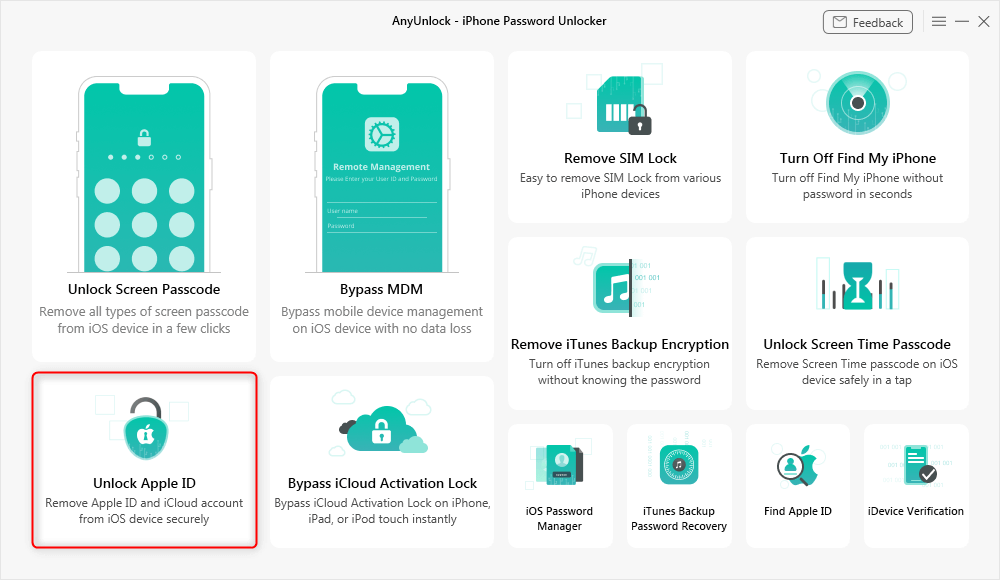
Click Unlock Apple ID from the Homepage
Step 2. Once your device appears within AnyUnlock, click “Unlock Now” and allow the software to start removing your Apple ID.
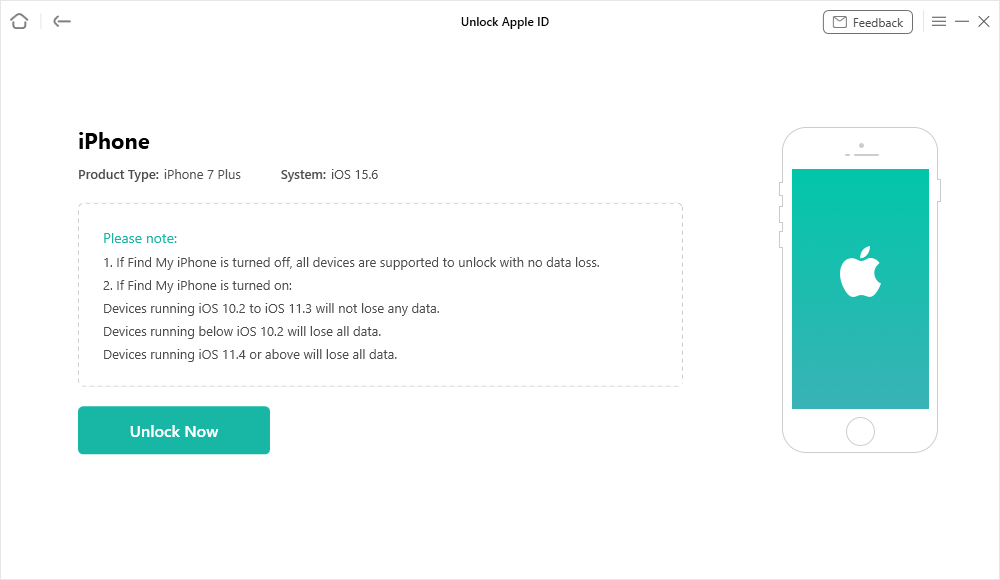
Click the Unlock Now Button
Step 3. When the unlocking completes, a message will display on-screen confirming that your Apple ID has been successfully removed.
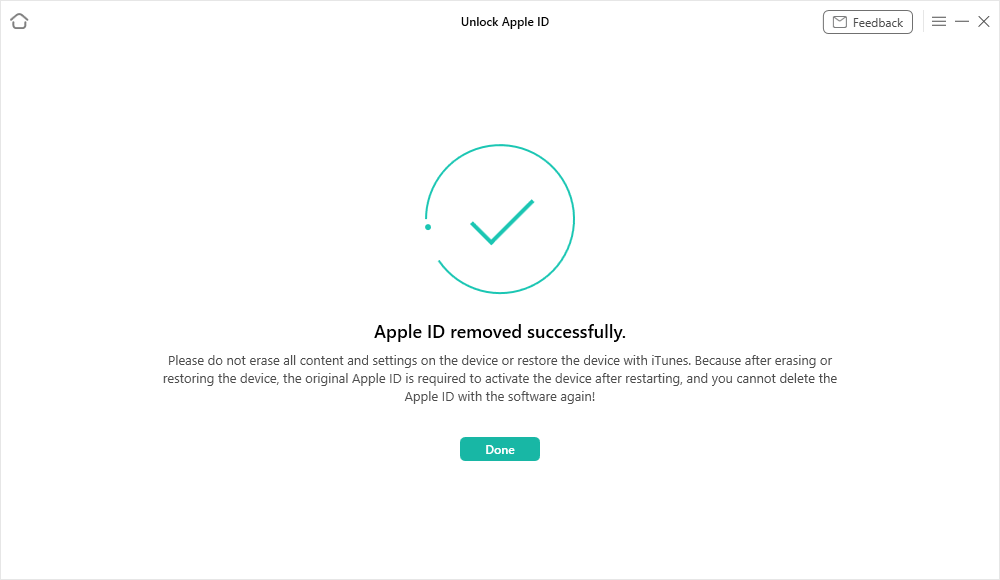
Apple ID Removed Successfully
FAQs About Invalid Apple ID
1. How do I recover an unsupported Apple ID?
An unsupported message usually means the account is either locked or disabled, and has failed some verification. Contact Apple Support immediately to get help restoring your account and verifying your identity. You can also try resetting your Apple ID password to regain access safely and securely.
2. How to recover a permanently disabled Apple ID?
A permanently disabled Apple ID cannot be fixed by simple steps like password resets or iCloud login. To recover, visit the getsupport website and select Apple ID, then choose the “Disabled Apple ID” option. You must contact a senior Apple Support advisor to explain your case and request account reactivation.
3. Why is my email not supported for Apple ID?
Your email may not be supported because it’s already linked with another active Apple ID. The email could be invalid or associated with a disabled Apple account by Apple itself. Sometimes, typing errors or using an email you do not own cause the system to reject it.
Conclusion
In summary, this article has explained why “This Apple ID is Not Valid or Supported” appears. It also covered 7 simple methods like updating iOS or changing your network connection. Most people can solve the issue quickly, but sometimes the usual fixes fail to work. That’s when AnyUnlock becomes essential, offering a safe way to unlock Apple IDs without needing a password. Don’t let Apple ID issues stop you; try AnyUnlock now to unlock your device effortlessly.
Free Download * 100% Clean & Safe



Wanda Norris is a junior author in iMobie specializing in iOS tips and solutions. She keeps a close eye on every iOS update to provide practical, easy-to-understand guides that help users solve problems and master their Apple devices.
Product-related questions? Contact Our Support Team to Get Quick Solution >
