Wrong Apple ID When Updating Apps: Fixes & Tips
This article explains why the Wrong Apple ID when updating apps problem occurs and offers easy solutions. It covers common causes like account mismatches and shared purchases. You will learn step-by-step fixes such as signing out, resetting settings, and updating iOS. For deeper issues, professional tools, known as AnyUnlock can remove Apple ID without a password.
Many iPhone users encounter the annoying message Wrong Apple ID when updating apps. This mostly occurs in cases where a different account was used to download an app. With such a problem, users cannot upgrade apps on iPhone easily, and end up feeling frustrated and wasting time. Fortunately, several quick and easy solutions are available to address this problem. This article will help you learn effective methods to fix the issue and restore effortless app updates.
“When I try to update an app on my iPhone 8, the App Store asks for the wrong Apple ID. I’m signed in with a different Apple ID. Please help.” – A user asked on Reddit
Why does Apple say Wrong Apple ID When Updating Apps?
The issue “Wrong Apple ID when updating apps” usually occurs due to various reasons, like account conflicts or old downloads. Below, you will explore a few key reasons that help you apply the correct fix:
- Different Accounts: Sometimes apps are downloaded with one Apple ID, but updates ask for another Apple ID. This mismatch creates the error message and prevents smooth updating.
- Family Sharing: When Family Sharing is enabled, apps linked to another member’s Apple ID create conflicts. You may see the error messages on your screen because ownership belongs to another account.
- App Transfer: Apps moved from another iPhone can keep their original Apple ID credentials active. Without matching login details, your phone will demand the earlier Apple ID for updates.
- iCloud Sync: If iCloud is synced with another Apple ID, apps may request that linked account. This mismatch results in update problems because the iPhone expects credentials from iCloud settings.
- Software Bug: Many times, a minor iOS bug can also confuse accounts during the updating process. Such errors lead to unexpected Apple ID prompts even when using the correct account.
How to Fix Wrong Apple ID Issues When Updating Apps
Fixing the Wrong Apple ID when updating apps problem is easier than many people think. So, the following sections cover the top 7 quick and easy solutions to resolve the error and help your iPhone update apps smoothly:
Method 1. Sign Out Apple ID & Back In
One effective way to fix the Wrong Apple ID when updating apps is signing out and back in. This method refreshes your Apple ID settings and clears temporary login conflicts on your device. It helps the system recognize the correct account connected to your downloaded apps. Go through the quick instructions below to find out how to apply this method to resolve the wrong Apple ID error:
Instructions: As you access the Settings main screen, tap the Apple Account and swipe up to choose the Sign Out option. Input your Apple ID password to turn off Find My iPhone and confirm. After signing out, from the main Settings screen, tap Sign in to your iPhone to return to your account.
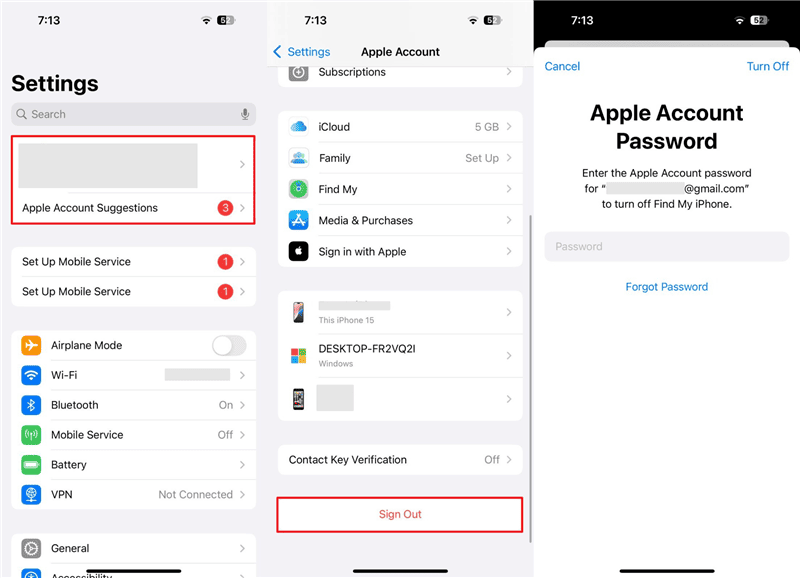
Sign Out Apple ID & Back In
Method 2. Stop Purchase Sharing in Family Group
Another useful fix for the Wrong Apple ID when updating apps issue is disabling purchase sharing. When purchase sharing is active, apps downloaded from another member require that person’s Apple ID. Stopping purchase sharing ensures your apps remain tied only to your personal Apple ID account. Let’s explore the steps below to stop purchase sharing in your Apple Family group:
Step 1. Start by accessing the “Apple Account” through your settings app and going to the “Family” section.
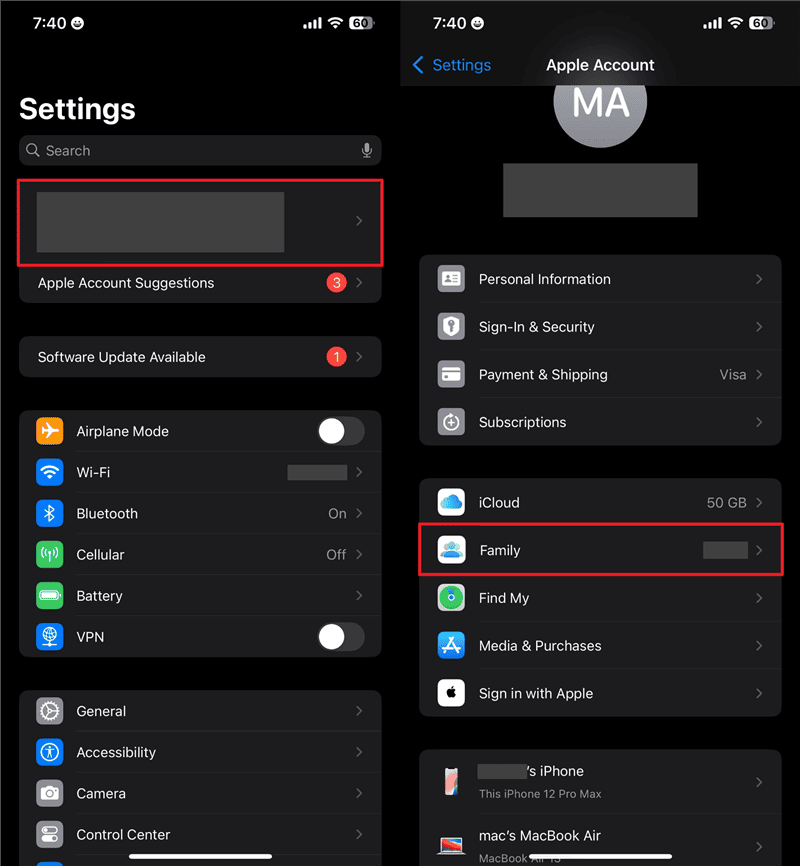
Access Family Option in Apple Account
Step 2. Access the “Purchase Sharing” section and tap the “Stop Purchase Sharing” option.
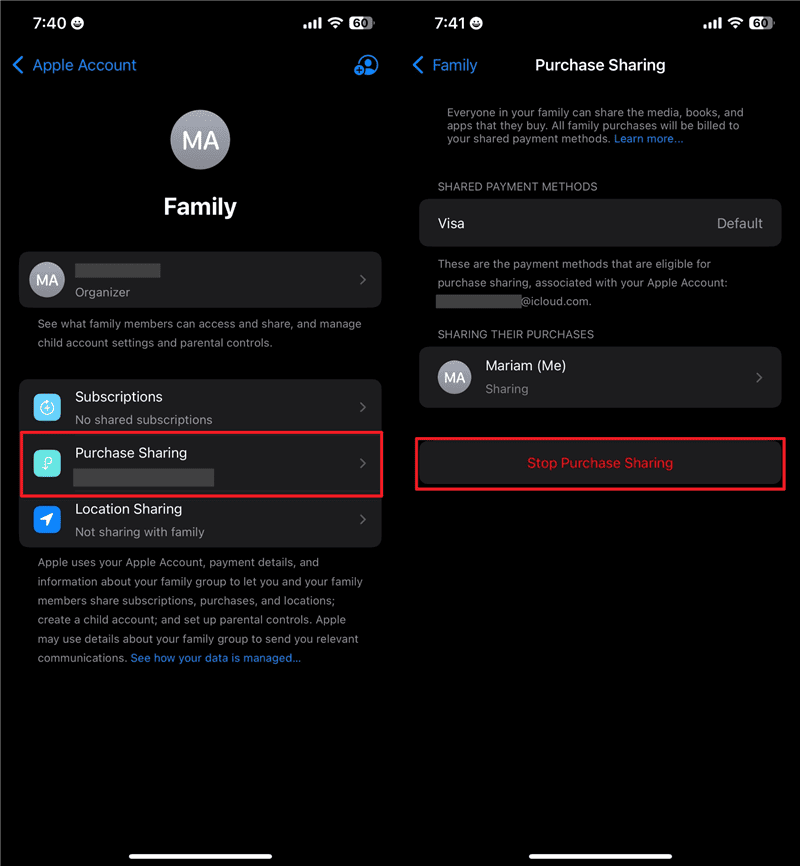
Stop Purchase Sharing on iPhone
Method 3. Redownload the App
One more practical way to handle the Wrong Apple ID when updating apps problem is redownloading the app. This method removes the link between the app and the previous Apple ID account. Once deleted, reinstalling connects the app to your current Apple ID instead. Take guidance from the given guidelines to reinstall the problematic app:
Step 1. Press the problematic app for a few seconds and select the “Remove App” option. When you see another pop-up, choose “Delete App” and then tap the “Delete” option to uninstall it.
Step 2. Head to the “App Store” and access the recently uninstalled app. Tap the “Install” icon to redownload the application on your iPhone.
Method 4. Update iOS
Apart from that, keeping your iPhone updated can also help fix the Wrong Apple ID when updating apps problem. Apple regularly releases updates that fix software bugs, some of which cause account-related problems during updates. It ensures your device runs easily with the latest security patches and system upgrades. Adhere to the following instructions to learn how you can update your iOS without hassle:
Instruction: Upon accessing the “Settings” app, go to the “General” section to choose “Software Update.” If you see any update available, hit the “Update Now” button to upgrade your iOS.
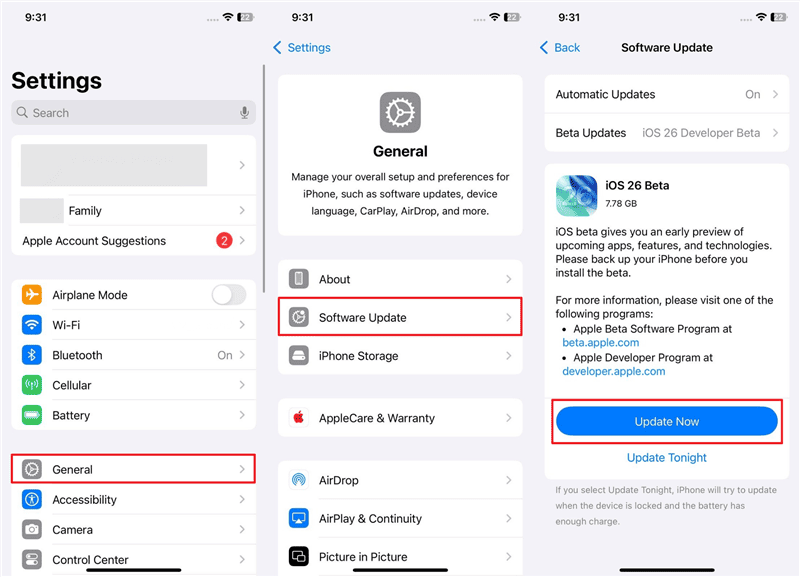
Update iOS on iPhone
Method 5. Reset All Settings
You can also try resetting all settings to fix the Wrong Apple ID when updating apps issue. This method restores your iPhone settings to default without deleting personal files or data. It clears conflicts in Apple ID, network, or app update configurations, causing repeated errors. Review the steps below to reset all settings on your iPhone to resolve the wrong Apple ID error message:
Step 1. As you head to the “General” section on iPhone’s settings, choose “Transfer or Reset iPhone” and then tap “Reset.”
Step 2. Tap the option of “Reset All Settings,” enter your passcode, and tap once more on “Reset All Settings.”
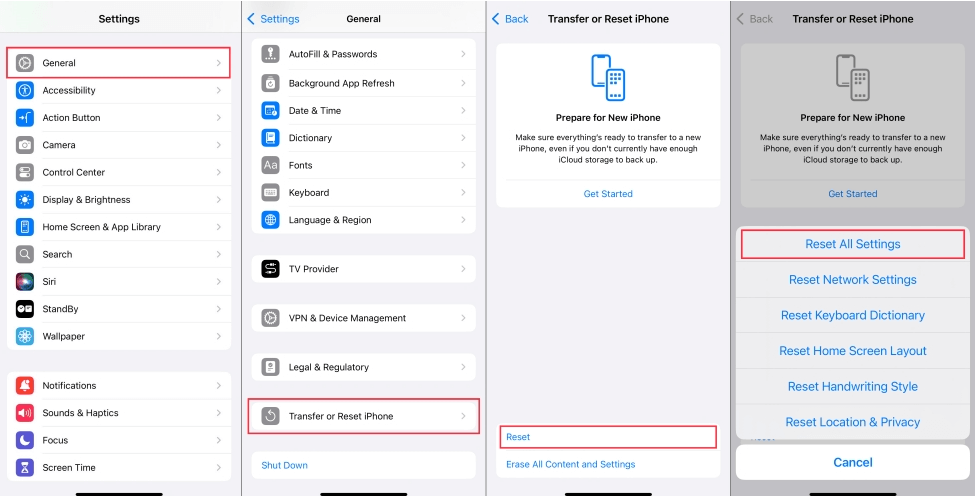
Reset All Settings
Method 6. Unlink Apple ID in iCloud
Many times, unlinking the Apple ID in iCloud helps fix update issues caused by account mix-ups. This solution removes devices or disables iCloud connections that cause the Wrong Apple ID when updating apps error. By unlinking, your apps link directly to the active Apple ID, avoiding confusion from previous accounts. Follow the given guide below to find out how you can unlink your Apple ID through iCloud remotely:
Step 1. Sign in on the “iCloud Find Devices” site and select your added iPhone to press the “Erase” button.
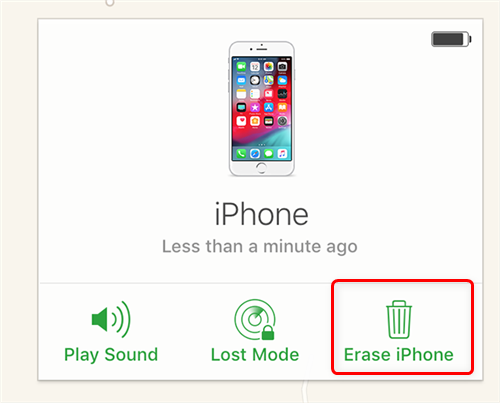
Erase and Remove the iPhone from the Account
Step 2. From the newly appeared display, hit the “Next” button to erase on your iPhone.
Method 7. Factory Reset iPhone
A final way to solve the Wrong Apple ID when updating apps problem is factory resetting. This method completely wipes your phone to remove all data and connected Apple IDs. It gives your device a clean start, eliminating hidden errors that cause account conflicts during updates. Head to the following steps to completely reset your iPhone:
Step 1. Start by heading to the “General” section on your phone’s settings and tapping the “Transfer or Reset iPhone” option.
Step 2. Choose the “Erase All Content And Settings” option, hit the “Continue” button, and follow the provided prompt to reset your iPhone.
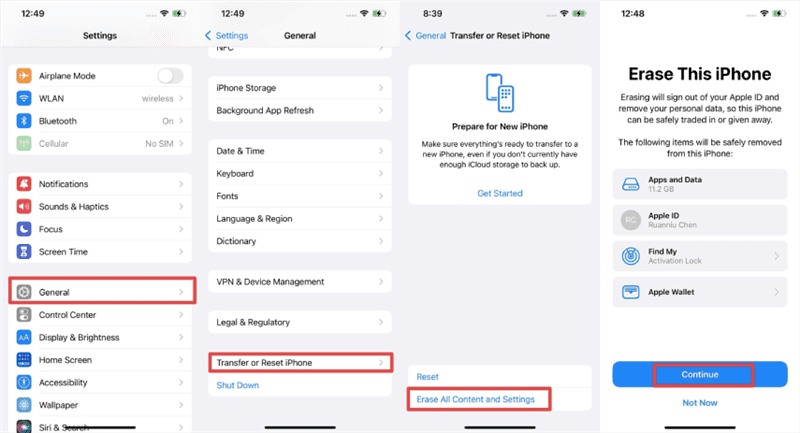
Factory Reset iPhone with Erase
Bonus Tip. How to Remove Apple ID Without Password
Besides the above methods to solve the wrong Apple ID when updating apps problem, many users face this when they forget the original Apple ID password or purchase a second-hand iPhone still linked to someone else’s account. In such cases, updates remain locked, and normal fixes fail because the phone continues to ask for credentials you cannot provide. This is where a professional tool like AnyUnlock becomes highly valuable.
Unlike manual methods, AnyUnlock doesn’t require the original password. Instead, it safely removes the Apple ID from your iPhone without password and allows you to sign in with your own account. Whether the device is locked with iCloud or even screen passcodes, AnyUnlock offers a complete solution. You not only fix the Apple ID conflict but also ensure your iPhone stays ready for future updates without barriers.
Key Features of AnyUnlock:
- Cross Platform: Compatible with Windows and Mac to reach out to a wide audience.
- Device Compatibility: Amazingly compatible with all iPhone, iPad, and iPod touch models having the latest iOS 26.
- Fast Process: Unlocks Apple ID within minutes, saving time during urgent situations.
- Safe Unlock: Ensures device safety while removing locks, protecting stored personal data.
Free Download * 100% Clean & Safe
Detailed Steps to Remove Apple ID Without Password Using AnyUnlock:
Step 1. When you download and open AnyUnlock on your computer, click the “Unlock Apple ID” feature from its main display. On the following screen, press the “Start” button and then connect your iPhone to the PC using a USB cable.
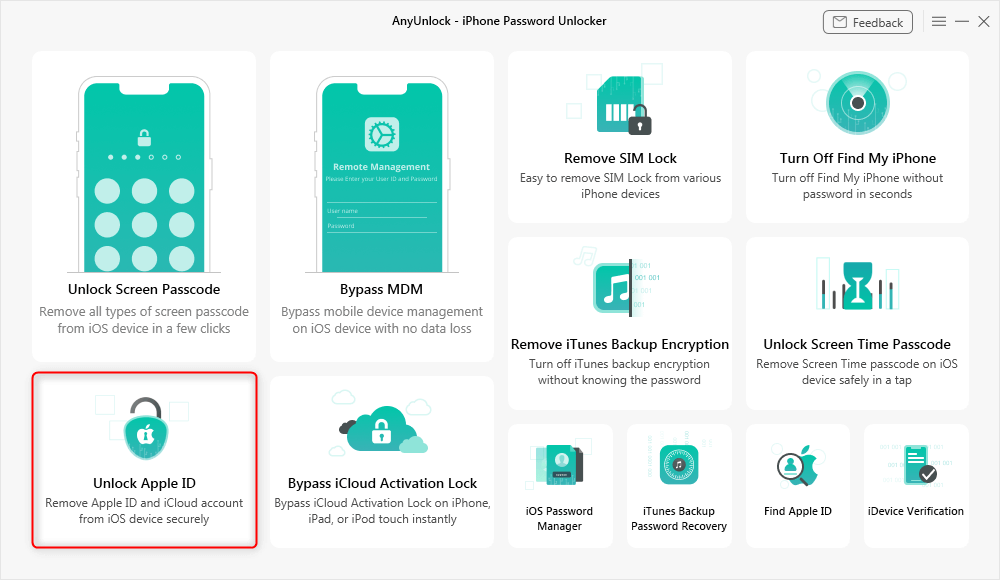
Click Unlock Apple ID from the Homepage
Step 2. Once your phone is connected and appears on the AnyUnlock screen, hit the “Unlock Now” button and let the tool unlock your Apple ID.
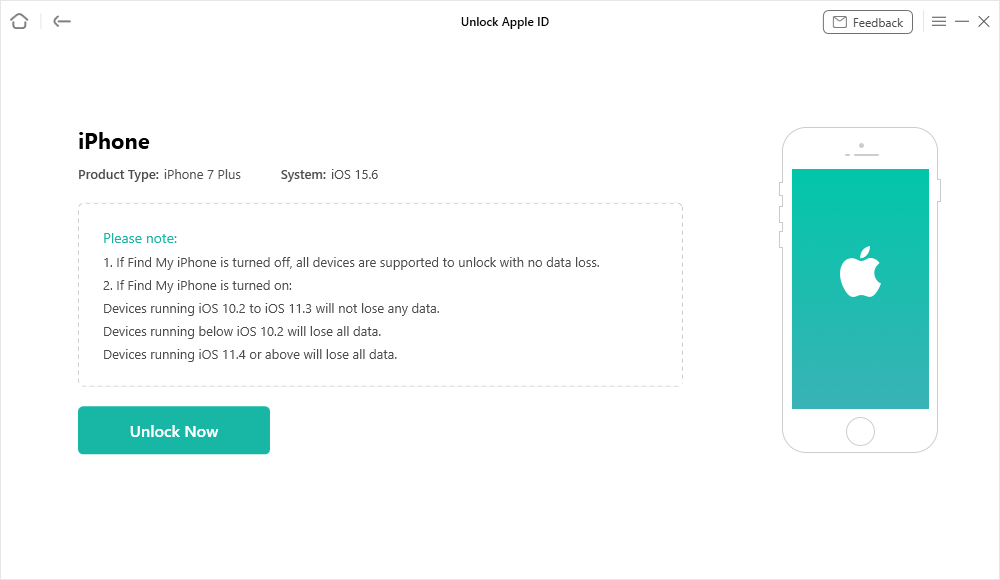
Click Unlock Now Button
Step 3. As the process completes, you will see a confirmation that says “Apple ID Removed Successfully.”
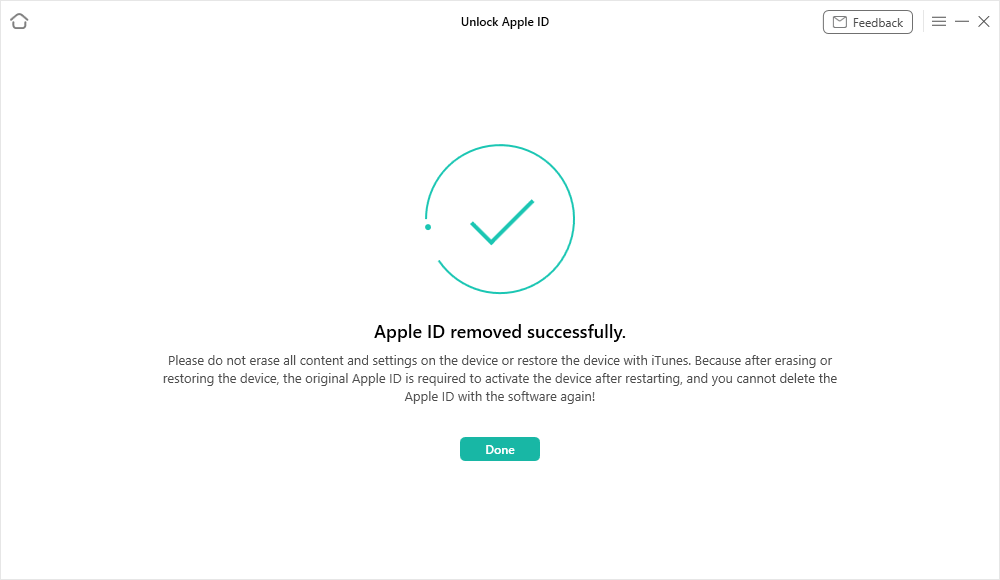
Apple ID Removed Successfully
Conclusion
In conclusion, this article has explored the main causes and solutions for the Wrong Apple ID when updating apps. From simple resets to unlinking accounts, each method helps restore smooth app updates. Still, some cases remain harder to solve without the right tool. That’s why using AnyUnlock is highly recommended, as it quickly removes a stubborn Apple ID without requiring a password.



Wanda Norris is a junior author in iMobie specializing in iOS tips and solutions. She keeps a close eye on every iOS update to provide practical, easy-to-understand guides that help users solve problems and master their Apple devices.
Product-related questions? Contact Our Support Team to Get Quick Solution >
