How to Turn Off Downtime on iPhone [2 Ways]
To turn off Downtime on your iPhone, go to Settings > Screen Time > Downtime, enter your passcode if asked, and toggle it off. When you forget the screen time passcode, simply use AnyUnlock to bypass the screen time lock on your iPhone within minutes!
Downtime on iPhone is designed to limit app usage and notifications, helping you reduce distractions. However, it can sometimes feel inconvenient, and you may want to turn it off. In this article, we’ll show you step by step how to disable Downtime using the built-in Settings. We’ll also explain what to do if you forget your Screen Time passcode, and how AnyUnlock can help you turn off Downtime quickly and effortlessly.
You may Also like: How to Fix iPhone Screen Time Not Working [Updated] >
What Is Downtime on iPhone?
Downtime on iPhone is a tool that comes with Screen Time. It works on iOS 12 and later. The idea is simple: you set hours when you don’t want to use most apps. During Downtime, calls will still come through, but only the apps or contacts you allow will work.
Many people use it at night, while working, or for their kids so the phone doesn’t keep buzzing. Apps that aren’t allowed become grayed out, and notifications do not bother. It is a very straightforward method to withdraw yourself from phone applications to turn your attention to other matters.
How to Use Downtime and Screen Time on iPhone
Once you understand what Downtime does, the next step is learning how to set it up. To turn it on, open Settings > Screen Time, then tap Downtime to choose the hours when you want restrictions active. You can also manage which apps and contacts remain accessible by selecting Always Allowed. This gives you full control over when your iPhone limits distractions, while still keeping essential apps and calls available.
How to Turn Off Downtime on iPhone With a Passcode
Sometimes Downtime can get in the way. For example, when you set the wrong schedule, need to use blocked apps during work or study, or simply decide the restrictions are too limiting. In these cases, turning off Downtime is the fastest way to regain full access to your iPhone. If you’ve set a Screen Time passcode, you’ll be asked to enter it before making changes. Just follow these steps:
Step 1. Open the Settings app and go to Screen Time. Tap Downtime.
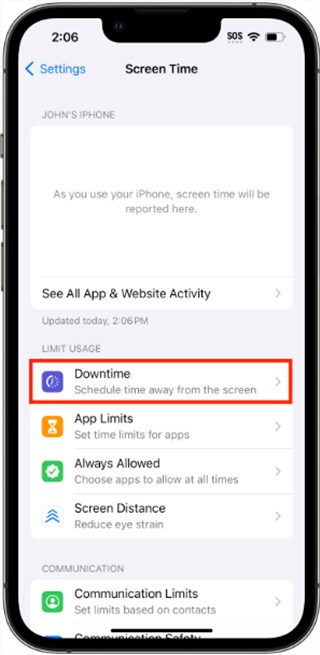
Tap Downtime
Step 2. Enter your Screen Time passcode when prompted.
Step 3. Tap Turn Off Downtime to disable it. Once turned off, all apps and notifications will be available again without restrictions.
How to Turn Off Downtime on iPhone Without a Passcode
Forgetting your Screen Time passcode means you can’t turn off Downtime through Settings. In this case, AnyUnlock offers a smarter alternative. By removing the Screen Time passcode, AnyUnlock unlocks access to the Screen Time settings, which means you can then disable Downtime freely without passcode. This tool supports a wide range of iOS versions, including the latest iOS 26. Designed with non-technical users in mind, AnyUnlock makes it simple, safe, and fast to regain full control over your iPhone. Except for bypassing Screen Time passcode, AnyUnlock can also help you remove screen locks on iPhone, unlock Apple ID, bypass iCloud Activation lock, etc,
Key Advantages of AnyUnlock:
- Removes screen time or restrictions passcode within minutes.
- Regular updates to support the latest iPhone 17 & iOS 26.
- Easy steps & simple interface, no technical skills required.
- No data will be erased when disabling screen time.
Free Download * 100% Clean & Safe
How to use AnyUnlock to turn off Downtime on iPhone:
Step 1. Run AnyUnlock on your computer, and connect your iPhone or iPad to the computer > Choose the Unlock Screen Time Passcode on the right.
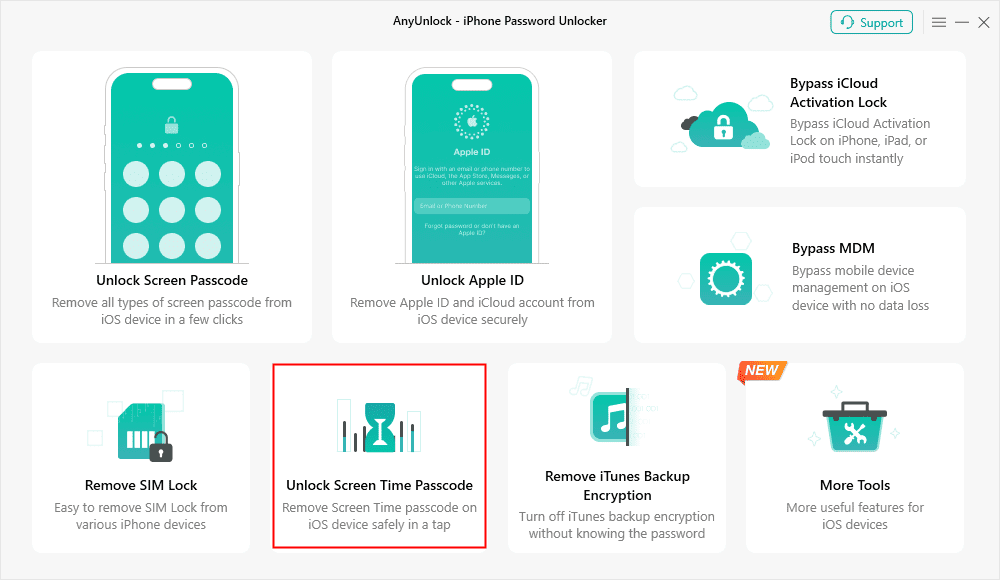
Choose Unlock Screen Time Passcode Mode
Step 2. Connect your iPhone or iPad device to the computer via a USB cable and click on Unlock Now to get rid of screen time.
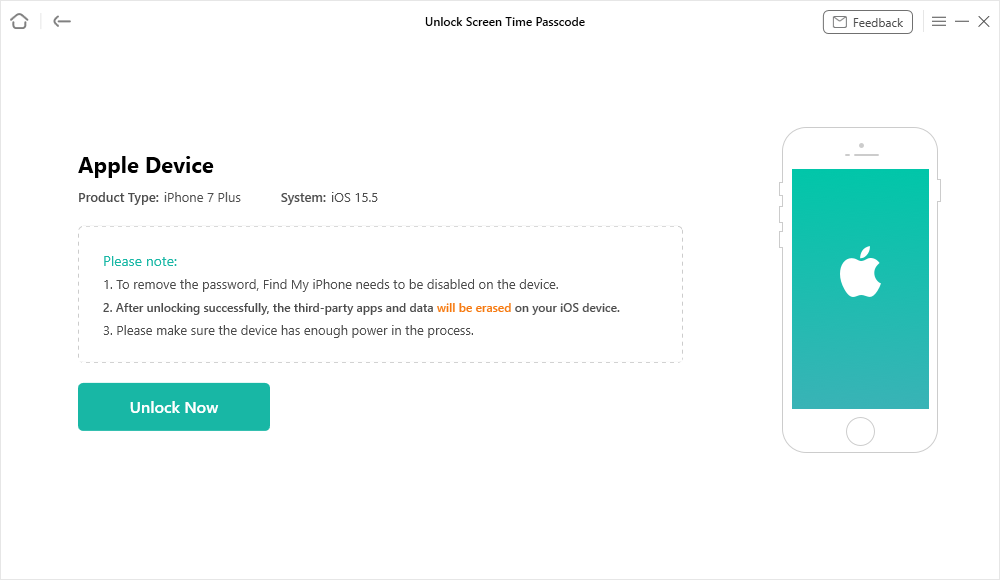
Click on Unlock Now
Step 3. AnyUnlock will ask you to back up your iPhone and encrypt the backup.
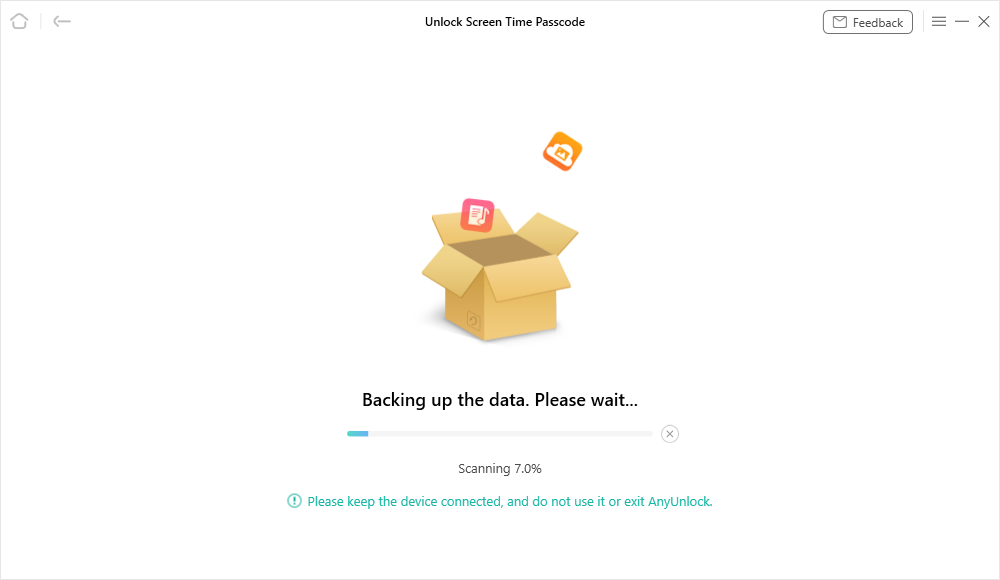
Unlock Screen Time Passcode Process
Step 4. AnyUnlock would remove your Screen Time Passcode. After that, you can turn off Downtime on iPhone without hassle.
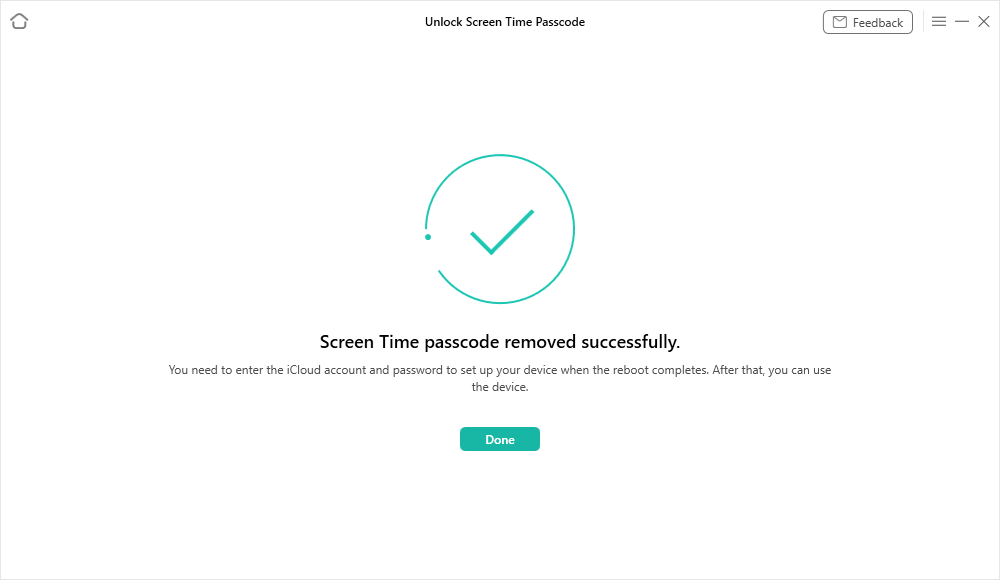
Successfully Removed Screen Time Passcode
FAQ on How to Turn Off Downtime on iPhone
Q1. How can I remove parental controls on my iPhone?
To remove parental controls, go to Settings > Screen Time, then tap Turn Off Screen Time. If a passcode is set, you’ll need to enter it. This will remove all limits and restrictions.
Q2. How do I turn off time-of-day restrictions on my iPhone?
To turn off time-of-day restrictions, go to Settings > Screen Time > Downtime, then toggle it off. This will remove all scheduled app and device usage limits.
Q3. How to turn off Downtime on iPhone 16?
On iPhone 16, open Settings > Screen Time > Downtime, then turn it off. All scheduled restrictions will be removed immediately.
Conclusion
This guide explained what downtime on an iPhone does and how to turn off downtime on iPhone. You can now remove or adjust these limits whenever you need. If you happen to forget your screen time passcode, AnyUnlock can help you unlock it without deleting your data. It works quickly and safely. Download AnyUnlock today and get full control of your iPhone again.
Free Download * 100% Clean & Safe



Wanda Norris is a junior author in iMobie specializing in iOS tips and solutions. She keeps a close eye on every iOS update to provide practical, easy-to-understand guides that help users solve problems and master their Apple devices.
Product-related questions? Contact Our Support Team to Get Quick Solution >
