Differences Between Reset All Settings VS Erase All Content
Reset All Settings restores your settings to defaults without deleting any personal data. While Erase All Content & Settings wipes everything and returns the iPhone to factory state. Use reset for minor glitches. Use the erase feature for severe software problems or before selling. Always back up before proceeding.
Are you confused between resetting all settings vs. erasing all content on the iPhone? Many people struggle with issues, and they don’t know what to choose for their phone. Both settings have their own roles. One only cleans the basic settings, while the other wipes your entire data like it’s a brand new phone.
This blog compares Reset All Settings vs Erase All Content and Settings to make the right choice easy for you. Plus, you’ll also learn about a reliable tool, AnyUnlock, to access your iPhone if you forget the passcode.
Reset All Settings on iPhone Overview
Reset All Settings is an iPhone feature that only resets your network settings and personal preferences without deleting your data. It keeps your files, document data, information, or apps of your iPhone intact. Reset all settings refreshes your iPhone’s system settings without wiping personal data. It’s useful for fixing network issues, sound errors, or display glitches. After the reset, your iPhone runs with clean default settings but keeps everything important intact.
When to Use
Reset All Settings is a reset option of the iPhone that is actually helpful if your phone is facing different problems. You might experience slow phone response. If you want to make your iPhone’s performance like before, then Resetting All Settings is the solution. Use this feature when you need to restore default settings after making system-wide changes. Also, you can try this feature when certain apps or features are malfunctioning.
Device Requirements
You need to fulfill the following requirements before resetting all the settings:
- Charge your iPhone above 50% or plug it in.
- Back up data to iCloud or iTunes.
- Note your Wi-Fi passwords.
- Keep your Apple ID and passcode ready.
- Close all running apps before resetting.
- Use it if settings cause glitches or slowdowns.
- Your photos and apps stay safe.
- Reconnect Wi-Fi and Bluetooth after reset.
- Reapply wallpapers and notification settings.
- Restart your iPhone for smoother performance.
Erase All Content & Settings on iPhone Overview
Erase All Content & Settings will delete all the data on your iPhone. It will make your device feel like you just bought it. This option resolves the software issue that you might be facing on your iPhone. When resetting All Settings does not work, then you need to try this option, which will completely delete all the data of your iPhone. Facing app crashing, freezing, or frequent restarting? If yes, you can use this option. If you want to wipe all the content and settings of your iPhone completely, then use this option. But it is important to back up all the content of your iPhone before performing this method. Once you delete all content and settings of your iPhone, there is no way to go back and get the content.
When to Use
When the Reset All Settings option fails to solve the problems, you have to choose the Erase All Content and Settings option. However, use this option as a last resort and for really stubborn issues. For example, your iPhone is stuck at a point or is very laggy when performing even daily functions. Erasing all the content also resolves issues of random crashes, freezes, or restarts.
Device Requirements
Complete the requirements below before erasing all content and settings:
- Back up your iPhone to iCloud or a computer first.
- Charge above 50% or connect to power.
- Turn off Find My (Apple ID credentials required).
- Log out of your Apple ID.
- Use only for severe issues or before selling/giving away.
- Expect complete and irreversible data loss.
- Stay on a stable Wi-Fi network during the erase.
- After erasing, choose “Set up as new” or restore from backup.
Comparison Table for Reset All Settings VS Erase All Content
You can also check the given table to compare the “Reset All Settings” and “Erase All Content.”
| Feature | Reset All Settings | Erase All Content & Settings |
| Purpose | Fix misconfigured settings or minor glitches. | Fix deep software problems or wipe the device before sale. |
| What it deletes | System settings only. | Everything: data, apps, and settings. |
| Wi-Fi & passwords | Deletes saved Wi-Fi and VPN info. | Deletes all saved accounts and passwords. |
| Apple ID / Find My | Apple ID stays signed in. | Apple ID requires sign-out |
| Backup required | Recommended but not required. | Yes, to protect your data |
| Time to complete | A few seconds. | Several minutes to longer. |
| Reversibility | Settings are reversible by reconfiguring. | Irreversible without a backup. |
| Typical fixes | Network, sound, display, and notification quirks. | Crashes, freezes, boot loops, major corruption. |
| Post-action steps | Reconnect Wi-Fi and Bluetooth. | Restore from backup or set up as new. |
| Who should use it | Users with setting errors or slow responses. | Users who need a full wipe or a full repair attempt. |
Bonus Tip. How to Erase All Content & Settings Without a Password
When you are locked out of your iPhone, it will be problematic to erase all content and settings. Is there a way to erase an iPhone without the password? Yes, AnyUnlock is a desktop tool that helps erase an iPhone even when you don’t have the device passcode. It presents a clear interface and guides you through unlocking and wiping without complex steps.
AnyUnlock supports the latest iOS versions and popular device models, which works on Windows and macOS. It keeps the process simple and fast. AnyUnlock can help you erase a forgotten passcode or reset a device for resale.
Steps to Erase All Content & Settings without a Passcode with AnyUnlock:
Step 1. First, download and launch AnyUnlock on your computer.
Free Download * 100% Clean & Safe
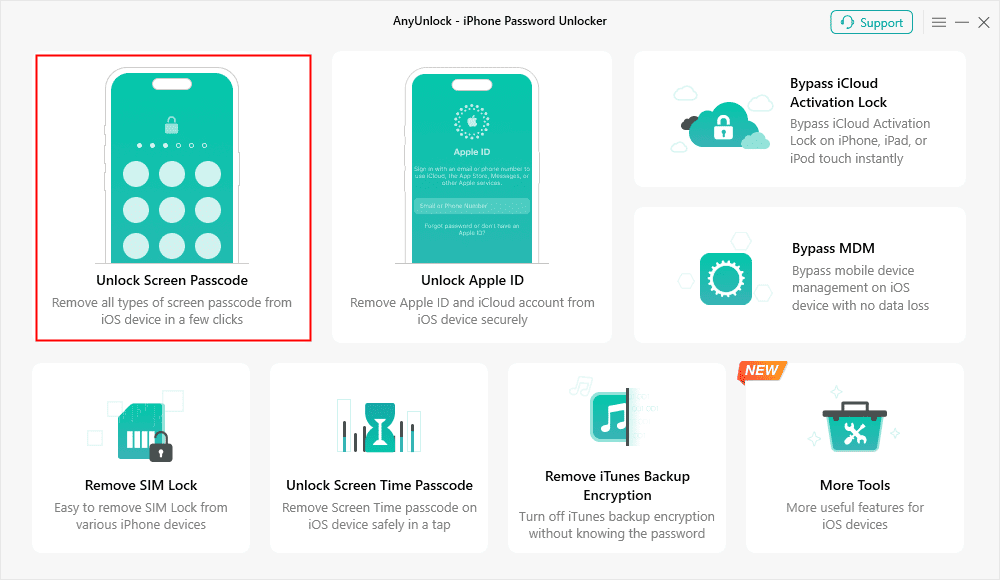
Step 2. Click Unlock Screen Passcode mode. Then connect your iPhone to your PC or Mac. Next, hit the Start Now button to proceed.
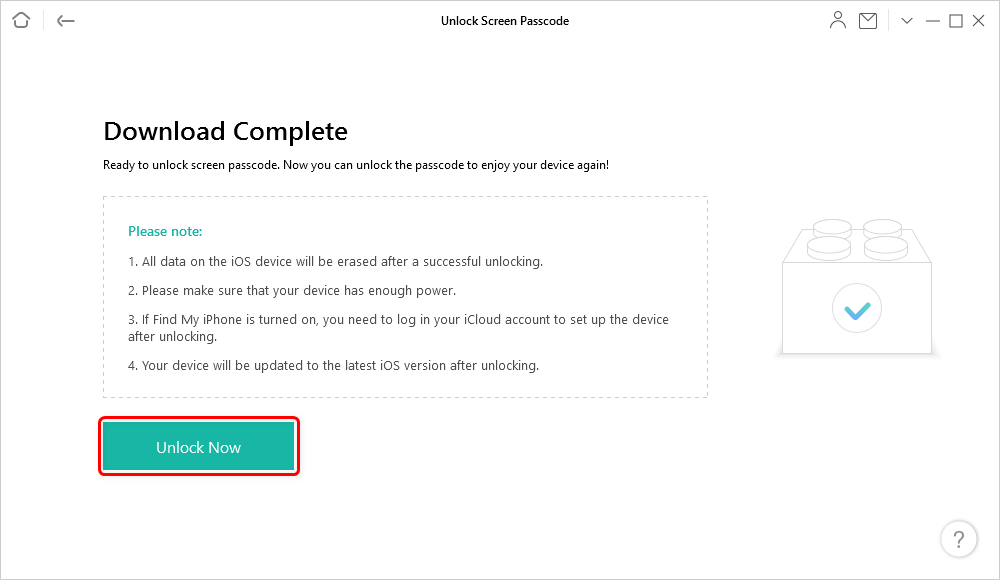
Step 3. Follow the on-screen prompts to get a matching firmware package. Click the Unlock Now option. Then, AnyUnlock will now automatically unlock the screen passcode.
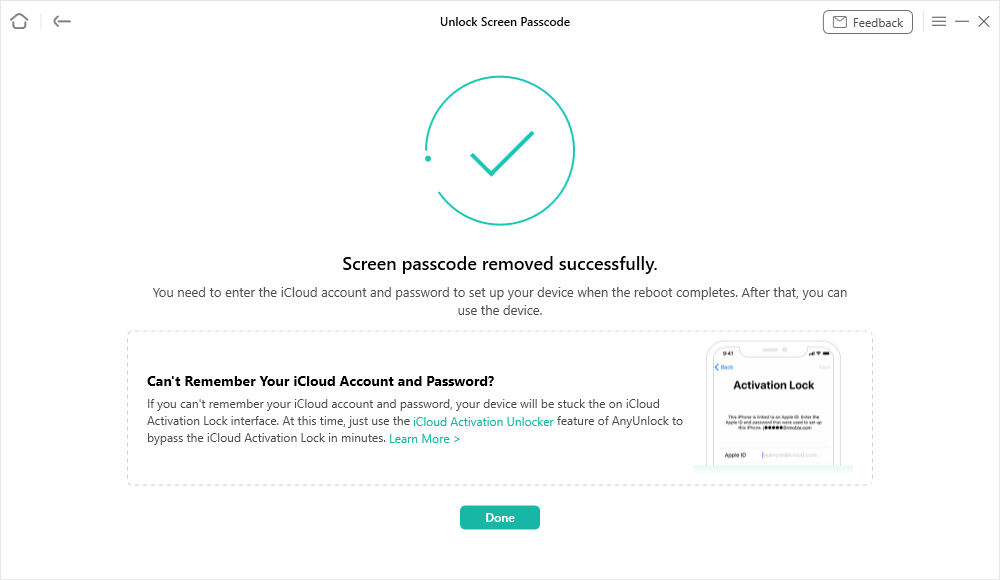
Step 4. Finally, wait for the unlocking process to complete. After that, your iPhone will restart and all content and settings will be erased from it.
FAQs About iPhone Reset
1. What will happen if I erase all content and Settings?
When you erase all content and settings, it will wipe all your personal data on your iPhone, returning it to the factory default state. However, your data will remain in iCloud backup if you have it.
2. Will resetting delete my text messages?
No! Resetting all settings will not delete your text messages. It will keep your personal data, including text messages, photos, files, etc.
3. What data is not erased during a factory reset?
A factory reset does not erase data stored on an external microSD card and in iCloud backups.
Conclusion
Reset all settings vs erase all content and settings shows two different fixes. Reset All Settings restores defaults without removing your files. While Erase All Content & Settings wipes everything for a full fresh start. Back up first, then pick the option that fits your issue. And if you’re locked out, try AnyUnlock to erase and restore the device safely. Download the tool today to easily access your locked iPhone.
Free Download * 100% Clean & Safe



Wanda Norris is a junior author in iMobie specializing in iOS tips and solutions. She keeps a close eye on every iOS update to provide practical, easy-to-understand guides that help users solve problems and master their Apple devices.
Product-related questions? Contact Our Support Team to Get Quick Solution >
