Fix Face ID Not Working iPhone 14 in 6 Ways [2026 Update]
Face ID may fail for many small reasons, like settings, updates, or even a dirty camera. The methods shared give quick ways to solve it. And if you still cannot unlock, AnyUnlock is there as a safe tool to open your iPhone 14.
Face ID is a secure, convenient way to unlock your iPhone 14, but it can fail due to various reasons. From software bugs to hardware damage, these issues are common but fixable. There are a few simple ways one could fix Face ID.
In this article, we’ll explain the common reasons behind Face ID not working iPhone 14 and walk you through 6 effective methods to get it working again.
Part 1. Why Is My Face ID Not Working All of a Sudden
Face ID can stop working for different reasons. Sometimes it’s a small issue, other times it’s related to settings or updates. Here are some common causes:
- Face ID issues: Face ID is likely to fail due to dust, smudges, or even a little bit of cover on the TrueDepth camera that permits you to be recognized.
- Illumination and angle: Necessary light conditions and the proper spacing from the device are to be considered when operating adequately.
- Changes in appearance: Masks or sunglasses may mislead the system because of many changes in hairstyles.
- Software issues: It sometimes creates a small bug or two that obstructs Face ID due to updates on iOS.
- Hardware problem: A fall or damage affects the sensor to stop the function of Face ID.
- Settings issue: Sometimes the settings will disable Face ID without an indication.
Part 2. How to Fix Face ID Stopped Working on iPhone 14 (Pro)
Way 1. Restart Your iPhone
Sometimes, a refresh works wonders for the iPhone. Just by turning off and on its system, minor glitches that may prevent Face ID from working are cleared.
Step 1. Press and hold the Side button along with the Volume Up or Down button.
Step 2. Slide the power-off slider on the screen.
Step 3. Wait a few seconds, then press and hold the Side button again until you see the Apple logo.
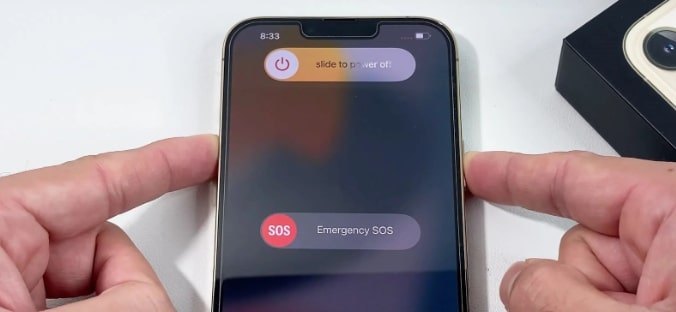
Restart the Phone
Way 2. Adjust Face ID Settings
Your Face ID support may disappear if the right options in configuration are not enabled. If, for whatever reason, usage of Face ID is not allowed for unlocking or permitted for some apps, then it will not work. Generally, this problem can be solved by going to settings.
Step 1. On your iPhone, open Settings.
Step 2. Tap on Face ID & Passcode.
Step 3. Enter your passcode.
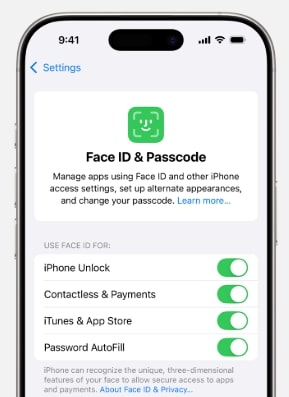
Adjust Face ID Settings
Make sure Face ID is enabled for iPhone Unlock, App Store, Wallet, and any other feature you want it enabled.
If it still does not work, opt for Reset Face ID and set up again.
Way 3. Update iOS Software
Apple keeps coming up with fixes for several bugs or features every couple of weeks as updates. In case Face ID not working iPhone 14 due to an update, getting the latest version of iOS should fix it.
Step 1. Open Settings.
Step 2. Tap General > Software Update.
Step 3. Select the Update Now option if the update is available. Your iPhone will need to be rebooted after the update is complete.
Way 4. Clean the TrueDepth Camera
The TrueDepth camera on the front of your iPhone is in charge of Face ID. It creates a 3D map of your face by means of a series of tiny dots and infrared light. It will not unlock if there is anything dirty, blocking, or covering the lens.
Step 1. Make sure your case or screen cover is not blocking your camera.
Step 2. Then, wipe the front camera gently with a dry cloth.
Step 3. Hold the iPhone upright about 10-20 inches from your face.
Make sure your eyes, nose, and mouth are clearly visible. Remove anything covering your face.
Way 5. Set Up an Alternate Appearance
With changes like shaving, beard growth, or heavy makeup, Face ID adapts to small changes but can have problems adjusting to significant ones. An alternate appearance will permit Face ID to recognize you in both your appearances.
Step 1. Go to Settings > Face ID & Passcode.
Step 2. Enter your passcode.
Step 3. Tap Set Up an Alternate Appearance.
Step 4. Look at your iPhone and move your head slowly in a circle.
Step 5. Do the scan again when asked. Tap Done to finish.
Way 6. Reset and Re-Set Up Face ID
Most of the time, face ID fails because it hasn’t really been set up correctly in the first place. Resetting it gets rid of the old scan and allows a fresh start.
Step 1. In the Settings, tap Face ID & Passcode and enter the passcode.
Step 2. Select Reset Face ID.
Step 3. After deletion, tap Set Up Face ID to start again.
Step 4. Follow the on-screen instructions for positioning your face within the frame so as to take head scans twice.
Step 5. Done, your new Face ID is now ready for use.
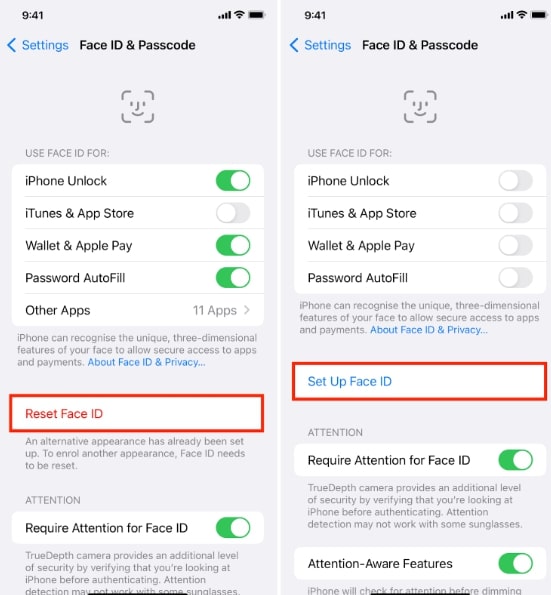
Set up Face ID
Part 3. How to Unlock iPhone 14 Without Face ID and Passcode — AnyUnlock
Being locked out of your iPhone or iPad can be stressful, whether it’s because you forgot your passcode, Face ID isn’t working, or iCloud Activation Lock is active. AnyUnlock helps you regain access to your device quickly and securely.
It works with all iOS versions and removes screen locks, Apple ID, and iCloud restrictions with simple steps. With AnyUnlock, you can take back control of your device in just a few minutes.
Free Download * 100% Clean & Safe
Advantages of AnyUnlock:
- Versatile: Removes screen passcodes, Apple IDs, MDM, and iCloud locks.
- Fast and Easy: Unlocks in minutes, no tech skills needed.
- Compatible: Available for both Windows and Mac. [iOS 26 Supported]
- Secure: Official downloads, 24/7 support, money-back guarantee.
Steps to Unlock iPhone Without Passcode or Face ID
Step 1. Install AnyUnlock on your computer and open it. Choose Unlock Screen Passcode.
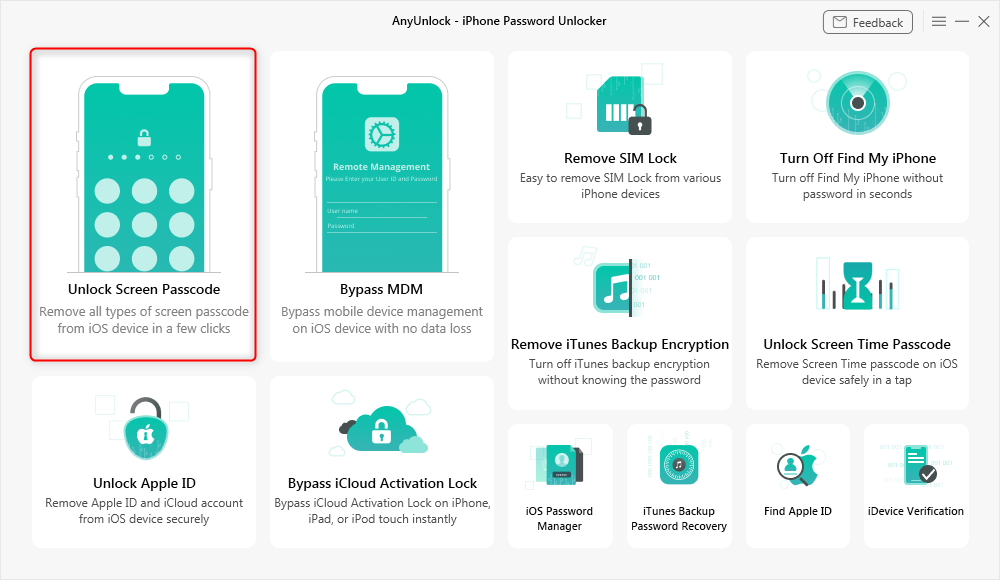
Choose Unlock Screen Mode
Step 2. To connect your iPhone and the computer with a USB cable, click Start Now to download the required iOS firmware package.
Step 3. Click Unlock Now to start unlocking once the firmware is downloaded completely.

Download Suitable Firmware
Step 4. Simply wait for the process to complete. Whenever the process finishes, you will see the message Screen passcode removed successfully. Your iPhone is now unlocked and ready to set up again.

Remove Screen Passcode Successfully
Part 4. FAQs on iPhone 14 Face ID Problem
Q1. What disables Face ID on iPhone?
Face ID can stop working if the camera is covered, dirty, or after too many wrong scans. It may also switch off after a software issue or damage near the sensor.
Q2. Why is my iPhone 14 Face ID not working after screen replacement?
Face ID depends on special sensors that are linked with the screen. If they aren’t moved correctly during replacement, Face ID won’t work. Only Apple or trusted repair shops can fix this properly.
Q3. What happens if Face ID fails?
If face recognition does not work, you will be asked for your passcode. Your iPhone will still work without any problem.
Part 5. Conclusion
It’s annoying when Face ID not working iPhone 14. It’s usually nothing major; maybe it’s just the settings, a missed update, or a dirty camera. Usually, it’s fixed with a restart or recheck of the Face ID settings. If it still won’t work, you can use anyUnlock to get into your phone without the extra stress.
AnyUnlock – Unlock iPhone in Clicks
- Unlock forgotten iPhone passcode in 3 steps and minutes.
- Unlock 4-digit or 6-digit numeric code, Touch ID, Face ID, etc.
- Simple and no tech skills required. Anyone can unlock with ease.
- Bypass MDM lock, unlock Apple ID, remove screen time passcode, etc.
Free Download100% Clean & Safe
Free Download100% Clean & Safe
Free Download * 100% Clean & Safe



Wanda Norris is a junior author in iMobie specializing in iOS tips and solutions. She keeps a close eye on every iOS update to provide practical, easy-to-understand guides that help users solve problems and master their Apple devices.
Product-related questions? Contact Our Support Team to Get Quick Solution >
