How to Download iActivate & Bypass MDM on iPhone
iActivate offers an IMEI-based MDM bypass service that works for Apple devices and costs $45–$70. This article walks through the full process of how to bypass MDM with iActivate and presents a safe, affordable alternative for users seeking a more reliable option.
If you are researching iActivate, the main questions are usually whether it is legitimate, what it actually bypasses, how much it costs, which devices it supports, and whether it is worth using. iActivate is a third-party MDM bypass service for Apple devices, not an Apple service. Use it only on a device you own or are authorized to manage; if a company or school still owns the device, contact its administrator instead.
What is iActivate?
iActivate is a third-party service designed to bypass the Remote Management/MDM setup screen on supported iPhones and iPads and to provide MDM-related services for Mac. Its current website advertises iPhone support from iPhone 5S through iPhone 17 Pro Max and iOS 7 through iOS 26, while iPad pricing is split between older and newer model groups. These are vendor claims, so check your exact model and system version before paying.
For iPhone and iPad, iActivate is best understood as an MDM bypass service. Bypassing the Remote Management screen is not necessarily the same as permanently releasing the device from an organization’s server-side enrollment. If that assignment remains, Remote Management may return after a later erase or restore.
iActivate MDM Bypass: Quick Verdict
| Item | What to Know |
| Primary use | Bypass Remote Management/MDM on supported Apple devices |
| iPhone pricing | $14.99 for iPhone 5S–X; $29.99 for iPhone XS/XR and newer models on the current site |
| iPad pricing | $14.99 for models up to 2019; $29.99 for newer models on the current site |
| Computer support | Windows and macOS software are currently offered for iPhone/iPad workflows |
| Vendor iOS claim | iOS 7–26 |
| Free? | No. Downloading/checking compatibility is different from purchasing the full bypass service. |
| Admin credentials | Vendor advertises bypass without the organization login/password for supported cases |
| Permanent organization release? | Not necessarily; bypass and server-side release are different |
| Best for | Authorized users who have a compatible Apple device stuck on Remote Management and accept a paid service |
Main Features of iActivate
Based on iActivate’s current product pages, the service focuses on MDM-related workflows rather than general iPhone unlocking. The most relevant features are:
- Remote Management bypass: The vendor advertises bypassing the MDM authentication screen without the organization login/password on supported devices.
- iPhone and iPad services: Current pages list separate pricing and supported device groups for iPhone and iPad.
- Windows and macOS availability: iPhone/iPad software downloads are currently offered for desktop use.
- MDM/DEP checking: iActivate also provides an MDM/DEP status-check service.
- Device-specific ordering: The service uses device information such as serial number/IMEI in its compatibility and ordering workflow.
Do not confuse MDM with Activation Lock: iActivate itself states that MDM Lock and iCloud Activation Lock are different problems. This article is about MDM/Remote Management only.
How to Download iActivate MDM Bypass
For a paid device-management service, the safest download route is the provider’s current official website. Avoid repackaged installers from unofficial download sites, especially when the tool will receive your device serial number or IMEI.
Step 1: On your Windows or Mac computer, open the official iActivate website and choose the iPhone or iPad MDM bypass service that matches your device.
Step 2: Check the current pricing and compatibility for your exact device. The current site lists iPhone/iPad pricing by model group rather than a single universal price.
Step 3: Download the Windows or macOS software from the official iActivate page and install it on your computer.
Step 4: Launch iActivate and follow its compatibility/order workflow. Review any request for device-identifying information before submitting it.
Download safety: Do not use a random GitHub repository or third-party mirror unless iActivate itself identifies it as an official source. The current official service is distributed through iActivate’s own website.
How to Bypass MDM with iActivate
Before starting, confirm that the device is yours or that you are authorized to manage it. Back up important data when possible, then verify that your model and iOS/iPadOS version match iActivate’s current supported range.
Step 1: Connect the iPhone or iPad to your computer. Open iActivate, it should detect the device and show the model and iOS version. Take a quick look to confirm details.
Step 2: If the software asks for device registration, confirm the IMEI or serial number carefully and complete the required order/activation step.
Step 3: Select the MDM bypass option shown for your supported device and start the process. Keep the device connected while the workflow is running.
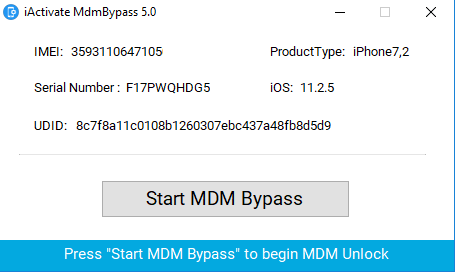
Step 4: Follow the software’s onscreen instructions and wait for the process to finish. If the tool reports an unsupported device or an error, stop and re-check compatibility rather than repeatedly forcing the workflow.
Step 5: After completion, continue Setup Assistant and verify whether the Remote Management step has been bypassed. Remember that a successful bypass does not prove that the device has been permanently released from the organization’s server.
You can only bypass MDM on your own devices or those you have permission to remove MDM. Don’t use it to unlock MDM on unauthorized devices, or you may encounter legal risks.
Pros and Cons of iActivate
Pros
- Dedicated MDM-focused service rather than a general-purpose iOS utility.
- Current iPhone/iPad product pages list Windows and macOS software.
- Current pricing is clearly split by model group instead of requiring a generic quote.
- Vendor advertises no organization login/password for supported iPhone/iPad MDM bypass cases.
Cons
- It is a paid service; “download” does not mean the full MDM bypass is free.
- The ordering/activation workflow can involve IMEI or serial-number information, so users should review privacy and refund terms first.
- Compatibility claims come from the vendor and should be checked for the exact device before purchase.
- MDM bypass is not the same as permanent organization-side release, so Remote Management may return after erase/restore if server-side enrollment remains.
- It is not the right solution for iCloud Activation Lock, which is a different Apple security mechanism.
Best Alternative to iActivate MDM Bypass
iActivate may not fit every case. You may prefer another option if your exact device is not supported, if you want a different licensing model, or if you prefer a guided workflow that distinguishes Remote Management bypass from supported local MDM removal. In those cases, AnyUnlock is one alternative to compare.
Relevant AnyUnlock MDM features:
- Guided Remote Management bypass workflow for compatible devices without the organization username/password.
- Separate workflow for supported local device-management removal scenarios.
- No jailbreak is required for the documented MDM bypass workflow.
- Windows and macOS versions are available; check current device/iOS compatibility before proceeding.
If you choose AnyUnlock, confirm compatibility first and use the MDM mode that matches your actual device state.
Free Download * 100% Clean & Safe
How to remove MDM with AnyUnlock [Stepwise guide]
Step 1: Install the software AnyUnlock on your computer, start the application and choose the Bypass MDM option.
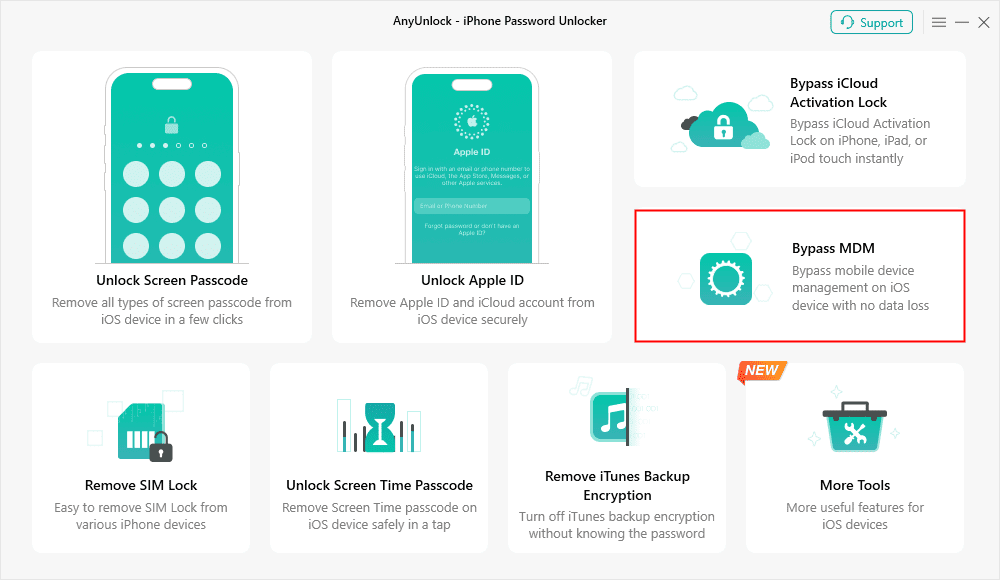
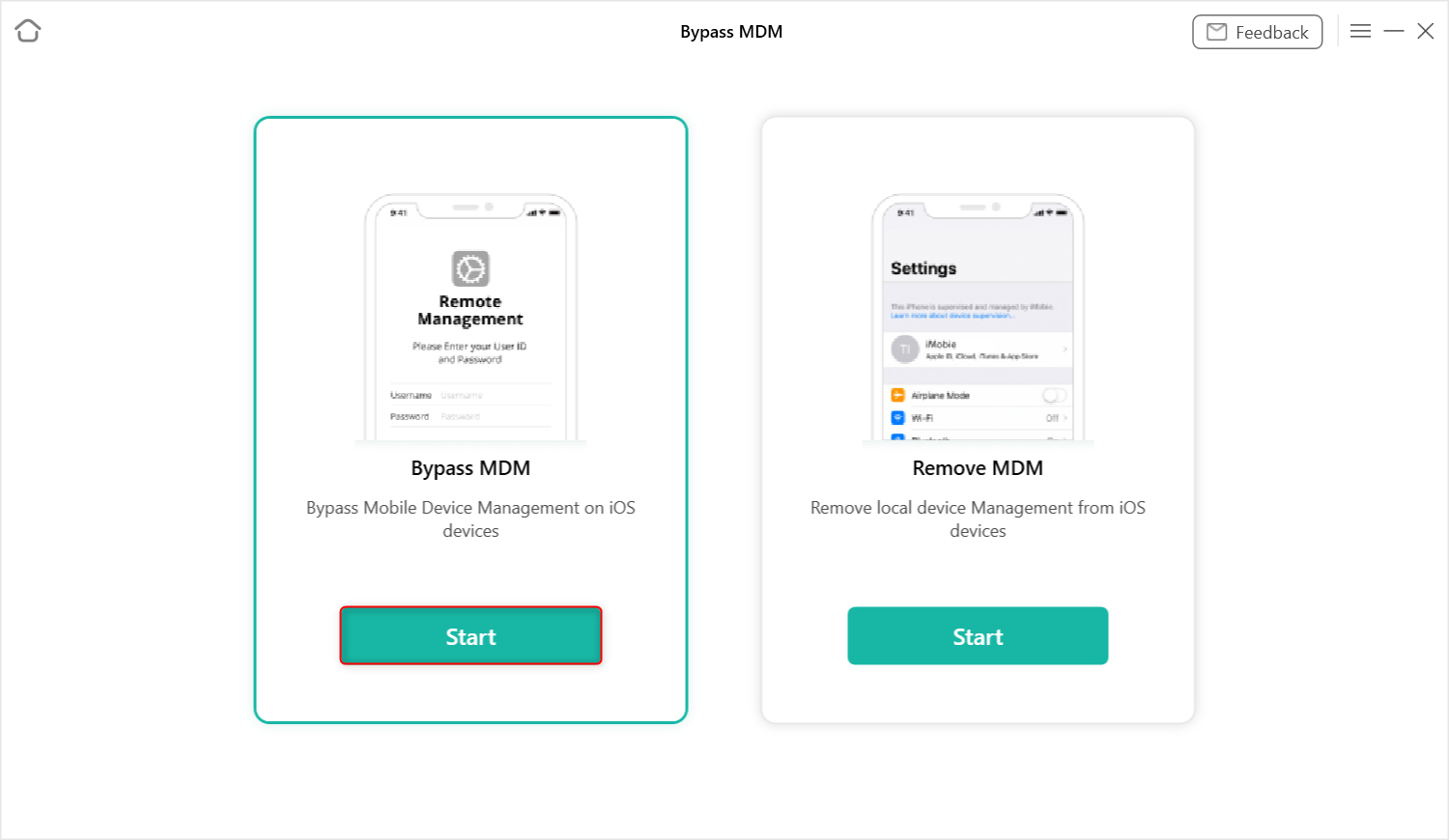
Step 2: Click Start after selecting whether to Remove MDM or Bypass MDM. (Here, we take the Bypass MDM as an example.)
Step 3: Use a USB cable to connect your iPad or iPhone to the computer. If your device is locked, unlock it to move forward.
Step 4: Press bypass now to initiate the process. Do not disconnect the device during the execution.
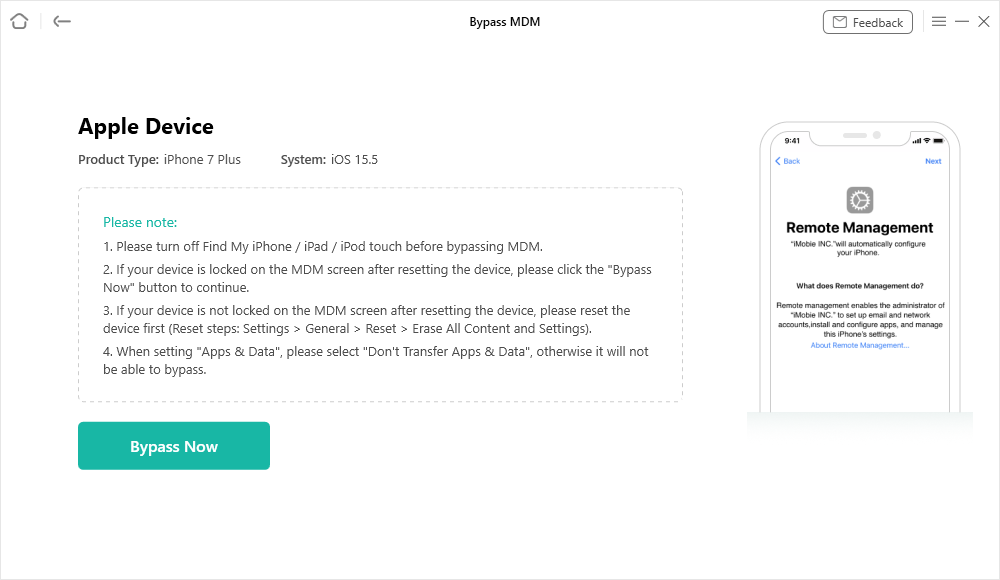
Step 5: When asked, please check if the device is displaying the Remote Management screen and then click already done in the app.
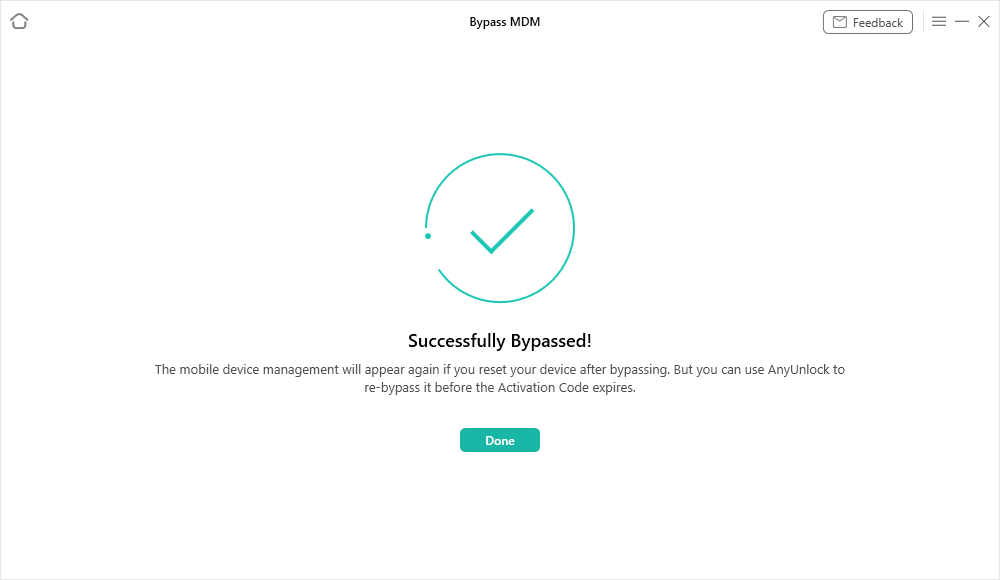
Step 6: Wait for the selected MDM workflow to finish. When the success page appears, verify the device state. A Remote Management bypass does not necessarily remove the device from server-side organizational enrollment.
You may also like: Compare More MDM Removal Tools for iPhone/iPad >
FAQs About iActivate MDM Bypass
1. Is iActivate legit?
iActivate is an active third-party MDM bypass service with its own website, product pages, pricing, support links, privacy policy, and refund policy. That makes it a real commercial service, but “legit” does not mean it is an Apple-authorized service or that every device will work. Check current compatibility, terms, and refund conditions before paying.
2. Is iActivate free to use?
No. The current iActivate website lists paid iPhone and iPad MDM bypass services. At the time of this review, iPhone pricing is $14.99 for iPhone 5S through iPhone X and $29.99 for iPhone XS/XR and newer listed models; iPad pricing is similarly split between older and newer model groups. Prices can change, so verify the current order page.
3. Does iActivate support Windows and Mac?
For iPhone/iPad MDM workflows, the current iActivate site provides Windows and macOS software downloads. Mac MDM bypass is a separate service with its own workflow.
4. Does iActivate support the latest iOS?
iActivate currently advertises support from iOS 7 through iOS 26 for its iPhone/iPad MDM service. Treat this as the vendor’s compatibility claim and confirm your exact device before purchase.
5. Does iActivate permanently remove MDM?
Do not assume that bypassing Remote Management permanently releases the device from an organization. If the device remains assigned in the organization’s enrollment system, Remote Management may return after an erase or restore.
6. Is iActivate the same as an Activation Lock tool?
No. iActivate itself distinguishes MDM Lock from iCloud Activation Lock. This article focuses on Remote Management/MDM, not Apple Activation Lock.
7. What if iActivate does not work?
First re-check the exact device model, iOS/iPadOS version, order status, and the service instructions. If the device is legitimately yours and iActivate does not fit your case, compare another current MDM tool rather than repeatedly forcing an unsupported workflow.
Conclusion
iActivate is an active paid MDM bypass service with current iPhone/iPad pricing, Windows/macOS software, and published compatibility claims. Its main appeal is a dedicated Remote Management bypass workflow, while its main limitations are the paid model, device-information requirements, vendor-dependent compatibility, and the fact that bypassing MDM is not necessarily the same as permanent organization-side release. If your device is unsupported or you prefer a different workflow, compare an alternative such as AnyUnlock after checking compatibility.
Free Download * 100% Clean & Safe



Joy Taylor is a seasoned technical writer with over a decade of experience in mobile technology. At iMobie, she specializes in producing in-depth content on iOS data recovery, iPhone unlocking solutions, and iOS troubleshooting.
Product-related questions? Contact Our Support Team to Get Quick Solution >
