2025 New | 4 Methods to Remove iPhone Demo Mode
Stuck with an iPhone in Demo Mode? This 2025 guide covers what it is and 4 simple ways to exit it—via Settings, factory reset, iTunes, or AnyUnlock’s MDM bypass. Restore normal functionality without hassle and unlock your device’s full potential.
AnyUnlock – Remove iPhone Demo Mode in Clicks
“I have an iPhone 7, which was in demo mode with base band problem, but I updated it on iTunes and now I cannot activate it. Now I need to find out how to get it back to demo mode to use it again.” If you meet the same situation, free download AnyUnlock to remove the Demo Mode and get into the normal mode with simple clicks.
Purchased a used iPhone that’s stuck in Demo Mode, limiting your access to apps, settings, and personalization? iPhone Demo Mode—also known as Retail Demo Mode—is designed for store displays, showcasing features without allowing full user control. While great for retailers, it’s frustrating for personal use, blocking installations, calls, and data storage.
In this updated 2025 guide, we’ll explain what Demo Mode entails and provide four reliable methods to remove it.
Part 1. What is iPhone Demo Mode?
iPhone Demo Mode, sometimes referred to as “Retail Demo Mode” or “Store Mode,” is essentially a different setup that comes with a new iPhone that is meant to be used as a display in a retail store. The main objective of the unit is to allow a consumer to use the device interface, apps, camera, and features without changing the system or deleting the demo content. A demo device is always kept at its best visually and functionally through this mode, but it is not fully available for personal use on the iPhone.
The demo mode is primarily implemented through software limitations and, in some instances, an MDM (Mobile Device Management) profile responsible for certain restrictions, such as limited access to settings and devices that are reset automatically without anyone’s intervention.
1. Key features of iPhone Demo Mode:
- Limited App Access: Only pre-loaded demo apps and core functions work; no third-party installations or App Store access.
- Feature Showcasing: Emphasizes visuals like Always-On Display, AR previews, and battery life demos.
- Automatic Resets: Device reverts to demo content every few hours or on power cycle.
- Usage Restrictions: Disables calling, iMessage, FaceTime, and personal data syncing.
- Data Protection: No storage of user info, safeguarding privacy.
- Controlled Settings: Locks brightness, volume, and Wi-Fi to optimal demo levels.
In a nutshell, iPhone Demo Mode is a specialized configuration for retail display units, pre-installed on new devices shipped to stores.
2. Pros and Cons of iPhone Demo Mode
iPhone Demo Mode excels in retail displays and device protection while effectively showcasing the iPhone’s features, but for individual users, its functionality may be limited as it cannot install apps or store data.
| Pros | Cons |
| Perfect for retail displays. | Limited for personal use. |
| Protects the device from misuse. | Cannot install apps or save data. |
| Showcases iPhone features effectively. |
After learning about the pros and cons of iPhone Demo Mode, many users may now be concerned about a practical issue: if your phone is locked in demo mode, how do you restore it to normal use? Below, we’ll detail several methods for exiting Demo Mode, helping you return your iPhone to a fully functional state.
Part 2. How Do I Get Out of Demo Mode on My iPhone?
Here are 4 methods to get out of demo mode on iPhone.
Method 1. Remove Demo Mode by Removing the MDM Profile
Most iPhones that have been put in demo mode, and in which you can only see the demo screen, are controlled by an MDM (Mobile Device Management) profile. This profile manages various operations such as app disabling, giving limited access to the settings, and even automatic resets. Simply deleting the MDM profile is usually the quickest way to get out of demo mode again.
Step 1. Open Settings on your iPhone. Navigate to General > VPN & Device Management (or Profiles & Device Management on older iOS versions).
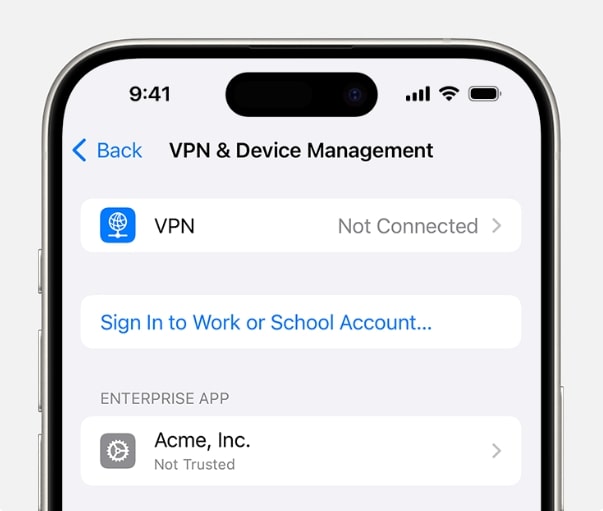
Step 2. Find the MDM profile that is attached to your device.
Step 3. Press the profile and choose Remove Management. If required, insert your device passcode. Restart your iPhone. After the profile has been removed, the demo mode limitations will be removed, and you will have full access to your device.
Most Demo Mode iPhones are locked via an MDM profile, which you can remove directly if Settings is accessible.
Method 2. Remove iPhone Demo Mode via AnyUnlock-Recommended
AnyUnlock is a set of tools specifically designed for forcibly unlocking the iPhone in Demo mode. It features a powerful bypass option called MDM bypass, which is used when an iPhone is stuck in retail/Demo mode, tied to Mobile Device Management.
This tool offers two different ways that can be very helpful: bypassing remote MDM (for devices that display the Remote Management lock) and removing local device management (for local MDM without losing data).
Key features
- MDM lock on a remote device can be bypassed without the need for an admin username or password.
- Removing management locally while retaining all content and settings.
- No jailbreak is needed; compatible with almost all iOS versions, even up to iOS 26.
Steps to remove Demo mode with AnyUnlock (MDM bypass)
Step 1. First, download and install AnyUnlock – iPhone Password Unlocker on your computer (Windows or macOS). Also, ensure that your network is stable during the downloading and installation process.
Free Download * 100% Clean & Safe
Step 2. Open AnyUnlock and select Bypass MDM from the main window.
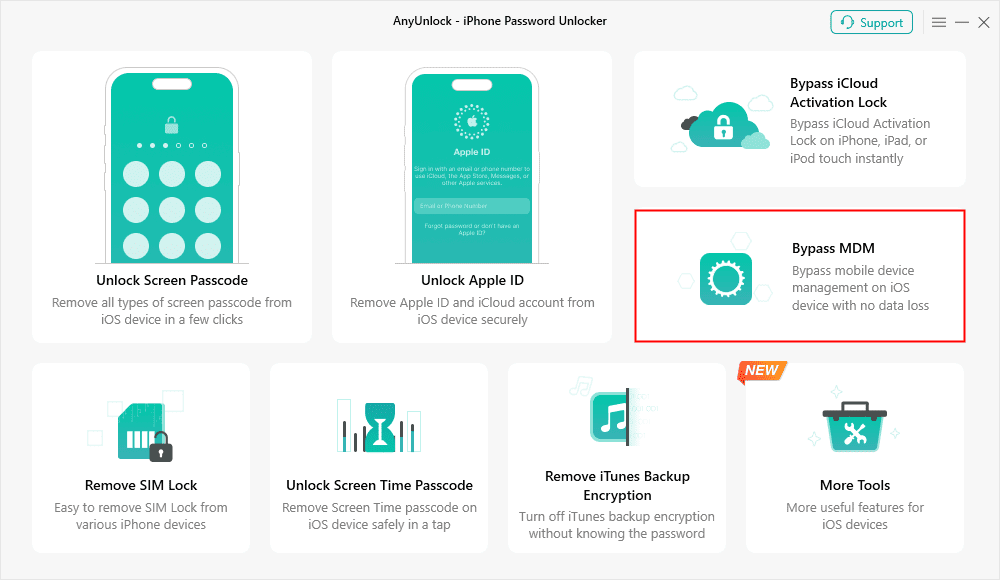
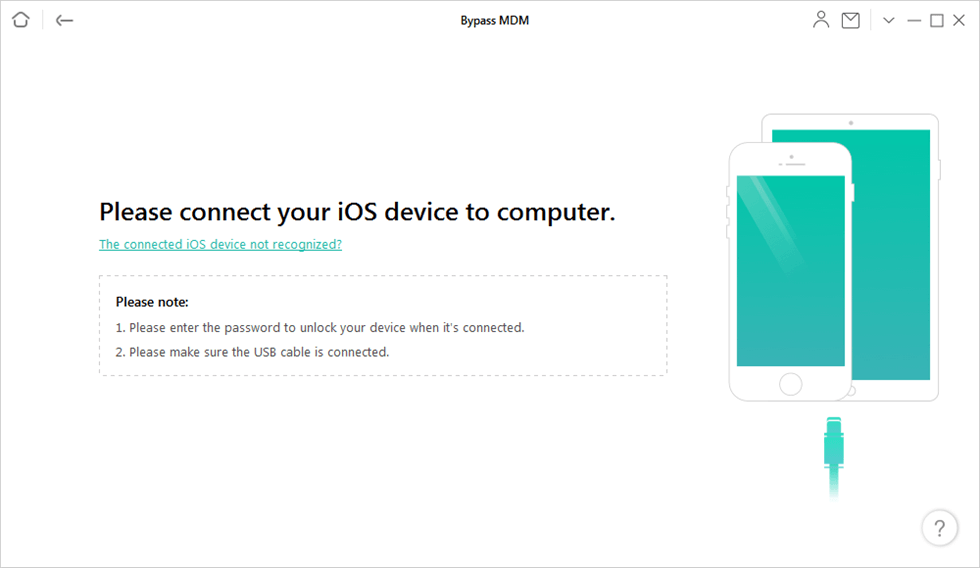
Step 3. Using a USB cable, connect your iPhone to the computer. If AnyUnlock is still unable to detect the device, then you may need to use a different cable, reinstall iTunes, or update AnyUnlock to the latest version.
Step 4. If prompted, you will need to select Bypass MDM on the AnyUnlock screen and then press the Start button.
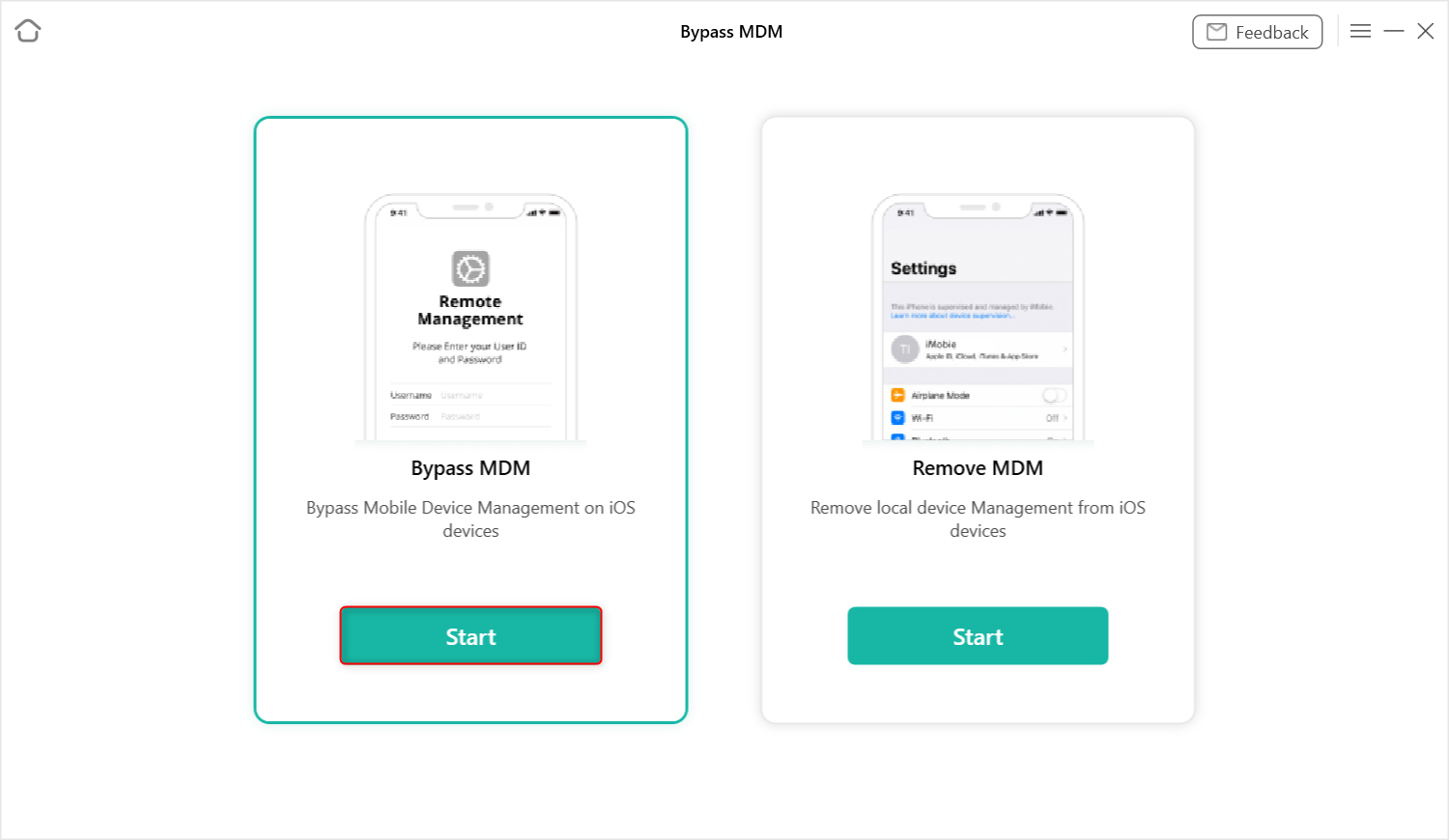
Step 5. Follow the on-screen instructions to ensure your iPhone is displaying the Remote Management screen (set language, region, Wi-Fi, etc., until that screen appears). When the device shows the Remote Management lock, please confirm it.
Step 6. To start the bypass operation, you need to press Bypass Now (or Continue / Confirm when prompted). The device should be kept plugged in, and the process should not be interrupted.
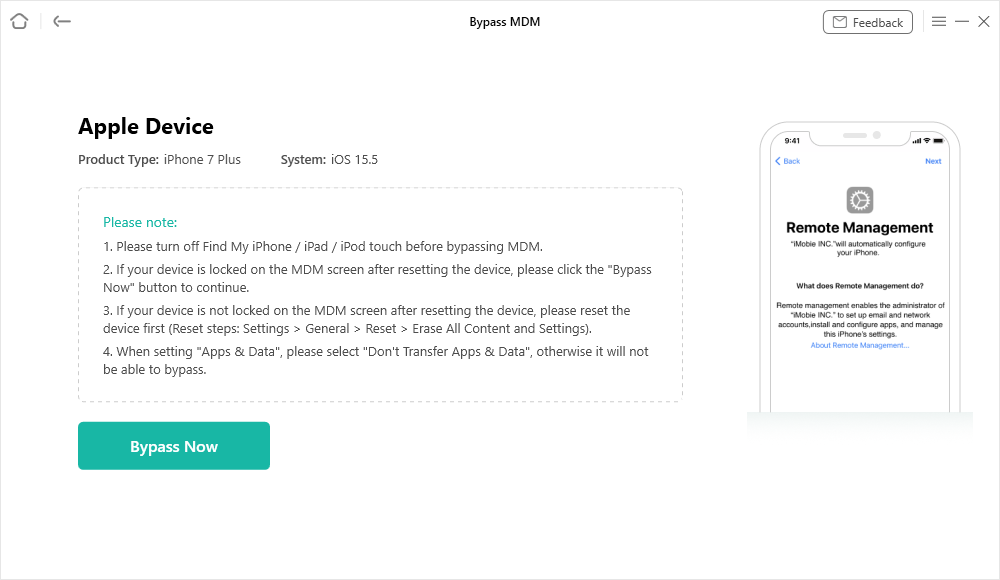
Step 7. Be patient until AnyUnlock is done. The program will automatically remove the MDM lock for you, allowing you to see a success message once it is complete. The demo/MDM restrictions should now be removed by restarting and setting up your iPhone.
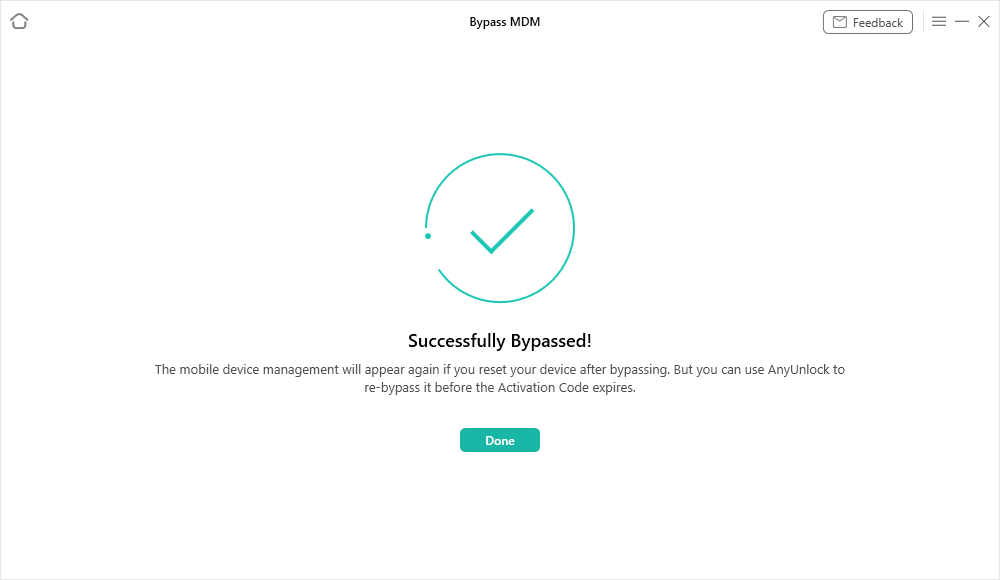
Apart from the powerful MDM removal feature, AnyUnlock serves as an all-in-one iPhone unlocker. It can remove the locked screen passwords like Pins, passcodes, and digital numbers; remove the Apple ID, bypass the iCloud activation, and so on.
Method 3. Reset Demo iPhone via Settings
If the iPhone is locked in demo mode, resetting the factory settings might be the way to go in getting rid of the restrictions. The hard reset is similar to starting the device from scratch, as if it were just taken out of the box, and thus, all personal files and settings will be removed along with demo limitations.
Step 1. Launch Settings on your iPhone. Navigate to General > Transfer or Reset iPhone > Erase All Content and Settings.
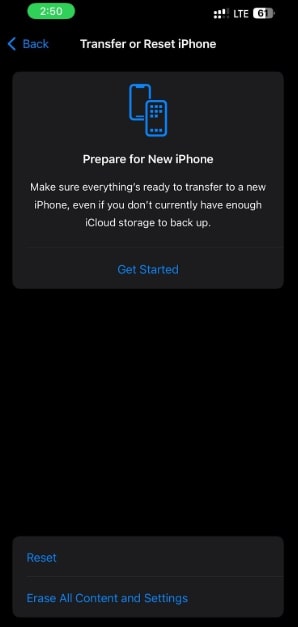
Step 2. Provide your device passcode and confirm the reset.
Step 3. The iPhone will be resetting and restarting. Setting up the iPhone as new will be the next step. Demo mode will no longer be there, and the device will be working as usual.
Method 4. Remove Demo Mode on iPhone by Turning Off the Device via iTunes
A few of the methods to get rid of demo mode include restoring your iPhone. iTunes via this method will reinstall iOS and clear any demo or MDM restrictions.
Step 1. Get and install the newest version of iTunes on your machine, be it a Windows or macOS computer.
Step 2. Connect the iPhone to the computer through the USB cable.
Step 3. Open iTunes and locate your device in the upper-left corner. Tap on it. Press the “Restore iPhone” button. Make a confirmation when prompted.
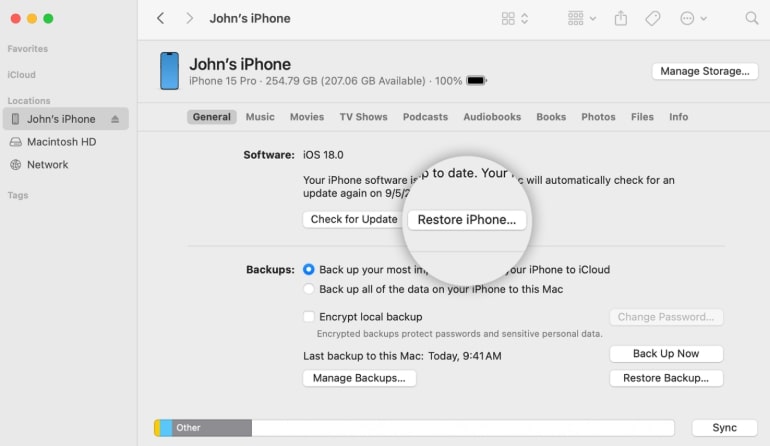
Step 4. Keep waiting until iTunes finishes downloading the latest iOS version and restoring your device. When the process is complete, your iPhone will reboot without any demo mode restrictions.
Part 3. FAQs on iPhone Demo Mode
Q1. What is the difference between the Demo iPhone and the original iPhone?
A demo iPhone is a version that is specially set up for visual presentation in stores. Its functionality is limited, the access to settings is controlled, and it has an MDM profile that manages its operation. Whereas an original iPhone gives a user complete freedom of access to all features, apps, and the ability to customize without any limitations.
Q2. What happens when you turn on Demo Mode?
With Demo Mode on, the iPhone operates with a configuration that is specifically for a retail demo and is stored in the device beforehand.
Q3. What are the benefits of Demo reset?
The demo reset iPhone is free of all retail settings, restrictions, and data, as it is a factory reset. It allows you to initiate the iPhone as a regular one with complete access to iCloud, App Store, and other personal features. This method is the easiest way to turn a demo unit into a fully functional phone.
Part 4. Conclusion
Being stuck with an iPhone in demo mode while you want to use it for your own purposes is really irritating. Fortunately, you can safely remove the demo mode in several ways, such as removing the MDM profile and resetting the device, or restoring via iTunes. But if these manual methods fail or you don’t have the admin password, then AnyUnlock – iPhone Password Unlocker is your next move.
AnyUnlock, by means of its cutting-edge MDM Bypass component, can free iPhone demo restrictions in a flash – no jailbreak nor password needed.
Free Download * 100% Clean & Safe



Joy Taylor is a seasoned technical writer with over a decade of experience in mobile technology. At iMobie, she specializes in producing in-depth content on iOS data recovery, iPhone unlocking solutions, and iOS troubleshooting.
Product-related questions? Contact Our Support Team to Get Quick Solution >
