No Option to Remove MDM Profile? Try 3 Ways 2026
Why the “Remove Management” Option Might Be Missing and how to remove MDM to regain control on your iPhone/iPad? In this article, you will find effective ways to solve this problems
Struggling to remove an MDM (Mobile Device Management) profile from your iPhone or iPad because ‘no option to remove MDM profile’? You’re not alone. This is a frequent issue on devices managed by schools, workplaces, or organizations. MDM profiles restrict features, monitor activity, and limit user control.
This guide explains the causes and offers step-by-step solutions, including tools like AnyUnlock, Apple Configurator, or administrator assistance. We also touch on jailbreaking as a risky alternative. Remember: Only use these methods on devices you own to comply with laws and policies.
Part 1. Why the “Remove Management” Option Might Be Missing?
Normally, you’d find the MDM profile under Settings > General > VPN & Device Management, with a clear removal option. If it’s absent, the profile is likely configured with restrictions that prevent self-deletion.
This is common on supervised school or work devices, where MDM lets admins remotely configure settings, manage apps, and enforce security, often by disabling user removal access.
Key reasons include:
- Device Supervision: Supervised devices have enhanced security that hides the removal option by default.
- Administrator Restrictions: The managing entity intentionally locks the profile to maintain control.
- Setup Enrollment: Profiles added during initial setup are often permanently locked.
- Ownership Policies: Company or school-issued devices tie MDM to the hardware, blocking user removal.
To put it differently, the ‘no option to remove MDM profile’ is not a fault of the software but a deliberate barrier that prevents the device from breaching the organization’s rules. If you bought a second-hand device or are a personal user who left a company but still finds your iPhone/iPad under management, then this situation might annoy you.
Part2. How to Fix ‘No Option to Remove MDM Profile
To remove the MDM profile, you can learn the three ways below.
Way 1. Bypass MDM If No Remove Management Option— AnyUnlock
If MDM profile removal is not displayed as an option on your iPhone or iPad, a simple method is to use software like AnyUnlock – iPhone Password Unlocker by iMobie. It is designed to allow users to bypass MDM restrictions securely, without requiring the administrator’s username and password. Moreover, it is not a jailbreaking procedure, so you can regain full access to your device without losing any data immediately.
AnyUnlock main features for the MDM removal case:
- Bypasses MDM without username/password.
- Removes local device management without data loss.
- No jailbreak required.
- One-click process.
- Supports iPhone/iPad to iOS 26.
- User-friendly and secure.
AnyUnlock is an all-in-one iPhone unlocker that can remove screen passcode, unlock Apple ID, bypass iCloud activation lock and more instantly.
How to Bypass MDM (Mobile Device Management) lock via AnyUnlock
Step 1: Install AnyUnlock on PC
Download, install, and launch AnyUnlock.
Free Download * 100% Clean & Safe
Step 2: Select Bypass MDM
Choose “Bypass MDM” and connect your iPhone/iPad via USB. Wait for detection.
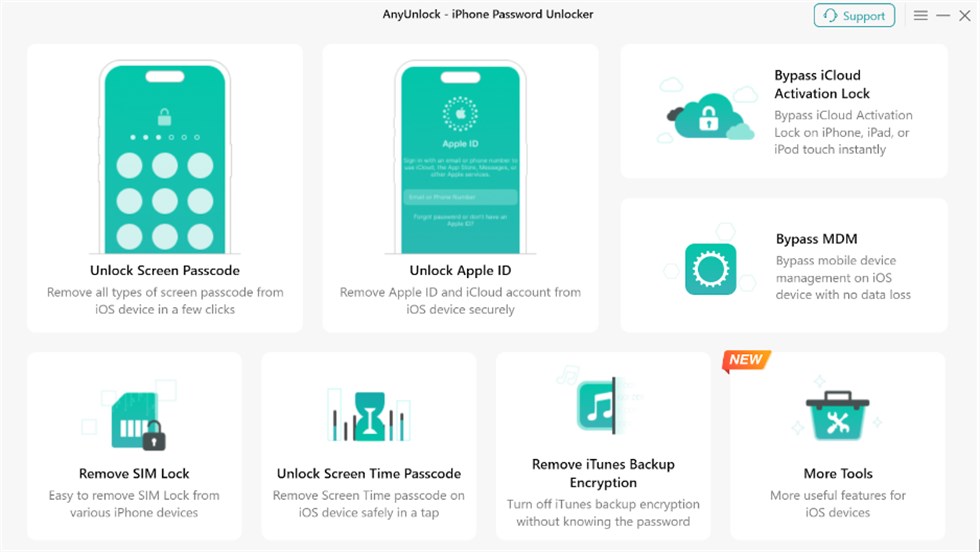
AnyUnlock Main Interface
Step 3: Confirm the Remote Management
Click “Start” and then “Bypass Now.” If not on the Remote Management screen, follow on-screen prompts to navigate there and confirm.
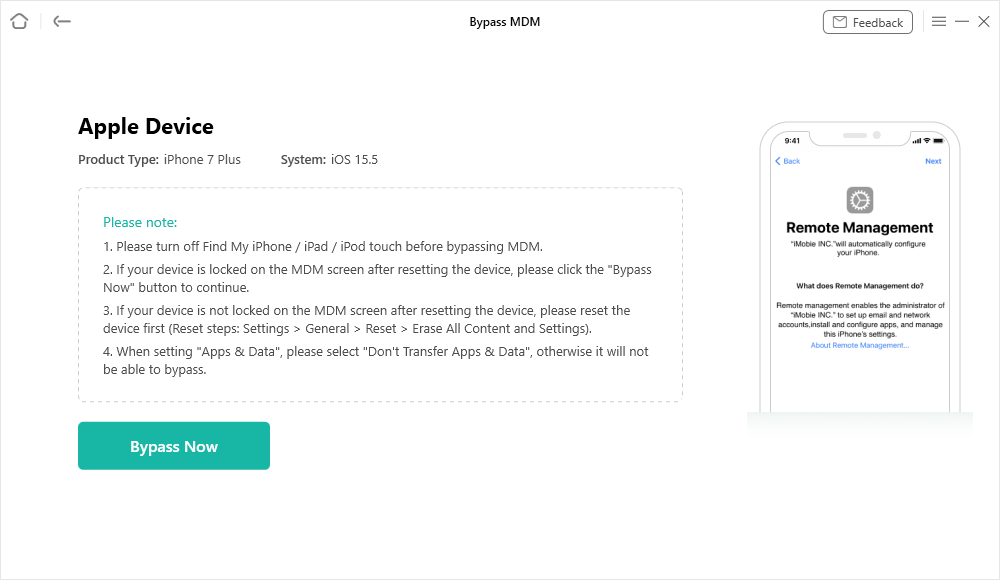
Click on the Bypass Now Button
Step 4: Wait until the process ends
AnyUnlock automates the bypass—do not disconnect. Once finished (a few minutes), restart your device. The MDM should be removed; verify in Settings and back up data immediately.
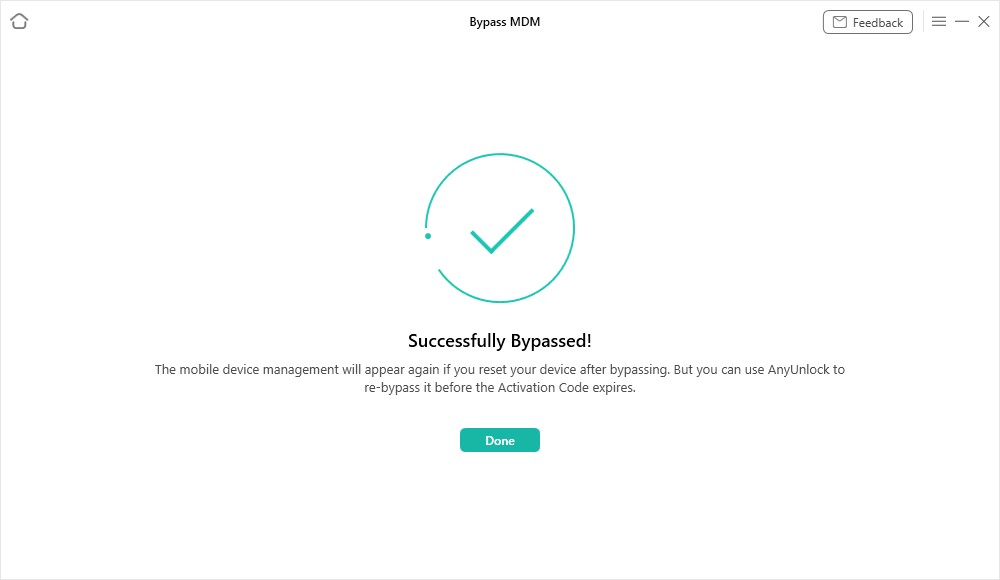
Bypass MDM Successfully
This may erase remote management data—always back up first.
Way 2. Use Apple Configurator
Apple Configurator is another way to resolve the issue of having no option to remove the MDM profile. It is a free macOS app that is designed to manage, configure, and restore iOS devices. Through this method, you are allowed to perform a system reinstall, which results in the deletion of the currently set MDM profile.
Step 1: Download Apple Configurator 2
Get it from the Mac App Store and install.
Step 2: Connect Your Device
Link your iPhone/iPad to the Mac via USB.
Step 3: Select and Restore
In Apple Configurator, choose your device, go to Actions > Restore. Confirm the action.
Step 4: Wait for Completion
The tool erases everything, reinstalls iOS, and removes the MDM. Your device will restart as new—restore from backup afterward.
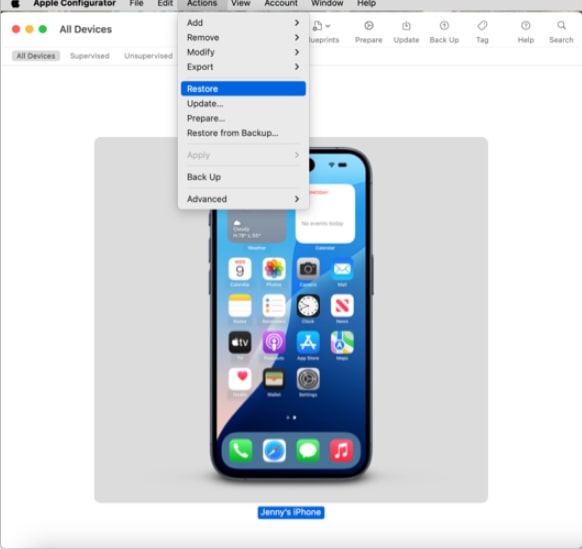
Restore from Backup
Warning: This wipes all data; back up via iCloud or iTunes first. It may not remove deeply embedded remote MDM.
Way 3. Contact the Administrator
For organization-managed devices, the safest, most legal approach is reaching out to the admin who installed the MDM—they can remove it remotely using their credentials.
When to use this:
- The device is still organization-owned.
- You’ve left the organization but remain enrolled.
- You prioritize compliance and data safety.
Contact IT support for a policy-compliant removal, ensuring your device aligns with Apple’s guidelines.
Part 3. Can Jailbreak Remove MDM?
Some users are confused and ask if the jailbreaking of an iPhone or iPad can really remove the MDM profile. In some cases, jailbreak methods can deactivate certain limitations; however, these are not a trustworthy or proper way to get rid of MDM entirely. Jailbreaking alters iOS in a manner that Apple does not permit, leading to security risks, unstable performance, and the loss of warranty coverage.
In a situation where the jailbreak can serve as a temporary MDM control, the profile is still likely to be back after the device is updated, reset, or re-enrolled. Further, most jailbreak toolsets have a complicated process to operate and may also put your device at risk of malware.
Suppose you really want to have a permanent and secure solution. In that case, it is much better to use a tool like AnyUnlock, the official Apple Configurator, or get removed by the administrator instead of jailbreaking.
Part 4. FAQs
Q1. What is the meaning of the term ‘No Option to Remove MDM Profile’?
When it is said that there is no option to remove the MDM profile, the latter is installed on your iPhone or iPad with such restrictions that prevent users from removing it manually. Profiles of MDM with locked options are typically found on school or company-managed devices, where the administrator has control over them.
Q2. Is it possible for a factory reset to get rid of MDM profile?
A factory reset is not capable of removing MDM from the device. Usually, the device will be re-enrolled in the same MDM system once it is set up again after a reset. You need a resource like AnyUnlock, Apple Configurator, or administration support to get rid of it completely.
Q3. Will it be data lost if MDM is removed?
Indeed, the data erasure from the device depends on the method used. Some methods, like Apple Configurator and remote MDM bypass, cause total data erasure, while the tool AnyUnlock can free the local device management without deleting the content.
Part 5. Conclusion
It is typical that, if the “Remove Management” feature is not present on an iPhone or iPad, the device is under the control of a certain organization. Even though this situation may be limiting, the problem can still be solved in a number of ways – for example, by employing software such as AnyUnlock, an Apple Configurator reset, or, most simply, by asking the administrator for removal. People might see jailbreaking as a quick way out, but it comes with a lot of risk and is not dependable. The wise method of restoration of complete functionality and safekeeping of your device is by choosing the proper method.



Wanda Norris is a junior author in iMobie specializing in iOS tips and solutions. She keeps a close eye on every iOS update to provide practical, easy-to-understand guides that help users solve problems and master their Apple devices.
Product-related questions? Contact Our Support Team to Get Quick Solution >
