How to Remove Certificate from iPhone 17/iOS 26
To remove certificate from iPhone, first confirm that it’s a root or installed certificate. You can only disable root certificates. To remove installed certificates, delete their MDM profile in Settings. If you don’t have the MDM login details, use AnyUnlock to bypass it and remove the certificate without a password in minutes.
Your iPhone or iPad comes with certificates that keep your online activities secure. But sometimes, you may find unwanted certificates on your device. These can limit your phone’s features and expose your data to attackers. Fortunately, you can remove them and ensure your device stays safe. In this guide, you’ll learn what these certificates are, how to check and remove certificate from iPhone 17/iOS 26 in easy steps.
You may also like: Can’t Remove Configuration Profile from iPhone [Solved]
What is a Certificate on iPhone/iPad?
A certificate is a digital file that creates secure connections between your phone and your online activities. These can be browsing, reading emails, setting up company WiFi, or using device management. Your iPhone or iPad already has trusted root certificates from well-known authorities. But you or your workplace can also install additional certificates to enroll and manage devices.
To verify identities, a certificate includes various critical details. It shows who it is for and who issued it. It also has the public key for checks, a digital signature, and the start and expiry dates. When a certificate expires, your device shows a warning pop-up. The same happens if the certificate is revoked or not trusted. In this case, the best option is to check and remove the certificate by hand.
How to Check iPhone Root Certificates
Root certificates are the top-level digital files built into the iOS system. These are more important than manually installed certificates because your device uses them to verify the authenticity of all other certificates. If one of these is turned off or compromised, it allows hackers to fake secure connections. That’s why it’s important to check them if you’re seeing any errors related to certificates. Here’s how to check:
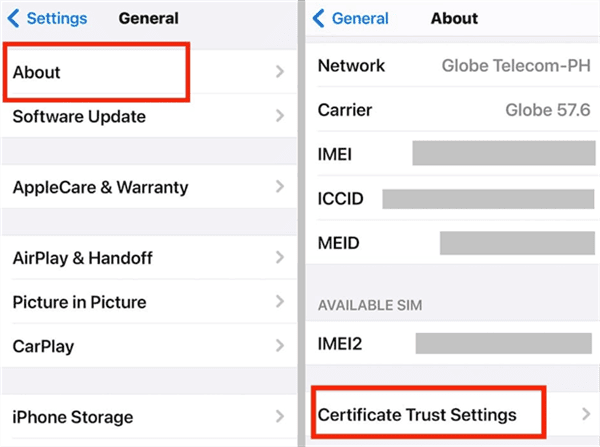
Step 1. Open the “Settings” app. Tap “General”.
Step 2. Select “About” and tap “Certificate Trust Setting” near the bottom.
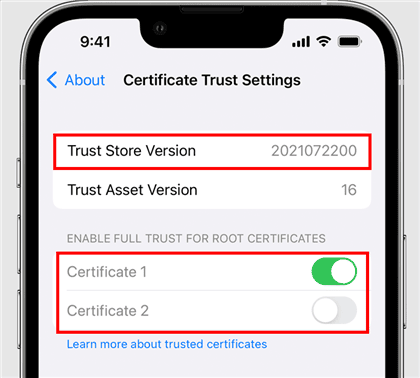
Step 3. Check the Trust Store Version to ensure it’s the latest. Below it, you can switch on any disabled roots. Or, turn off the ones you don’t recognize.
How to Delete Certificate from iPhone in Settings
Apart from the roots, your phone may have certificates from your workplace. These are added within the configuration profiles installed by your company. You can find and remove these under the Settings app.
Here are the steps to remove certificate from iPhone 17/iOS 26.
Step 1. Go to your phone’s “Settings” app. Then tap “General.”
Step 2. Scroll down and select “VPN & Device Management.”
Step 3. You will see all installed profiles on your device. Tap on the profile you want to remove. Then, press “Remove Profile.”

How to Remove iPhone Certificate Without Password
If you want to remove certificate from iPhone locked with MDM, it is not so easy. You will need to enter the MDM removal password, which only your company’s IT admin knows about. And if you’ve factory reset your device, it will get locked with MDM, making your device useless.
With AnyUnlock, you don’t have to worry about these limitations. It helps you remove both local and remote device management and all associated certificates in just minutes. You can bypass remote management without needing any login details or jailbreaking your device. Even better, it can remove local MDM entirely without erasing your phone’s data.
Key Features of AnyUnlock:
- Remove both remote and local MDM profiles in just a few clicks.
- Bypass remote MDM without admin credentials or jailbreak.
- Safely remove local device management with no data loss.
- Easy to follow instructions without needing any technical knowledge.
- Works with all iOS devices running iOS 7 or later.
- Available to use on both Windows and Mac computers.
Download AnyUnlock now and remove iPhone certificate without password.
Free Download * 100% Clean & Safe
Steps to Remove iPhone Certificate Without Password:
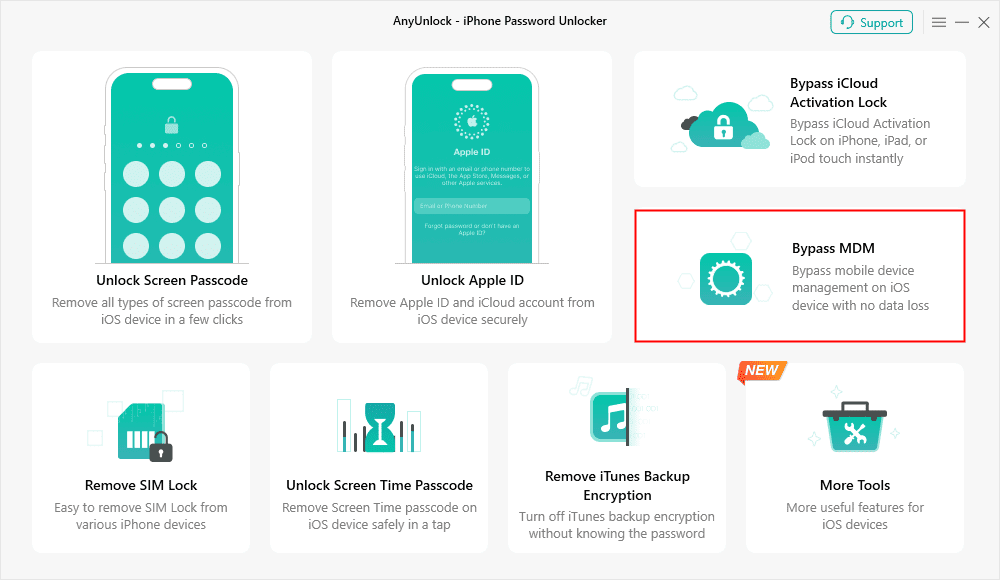
Step 1. Launch AnyUnlock and select “Bypass MDM” from the main screen.
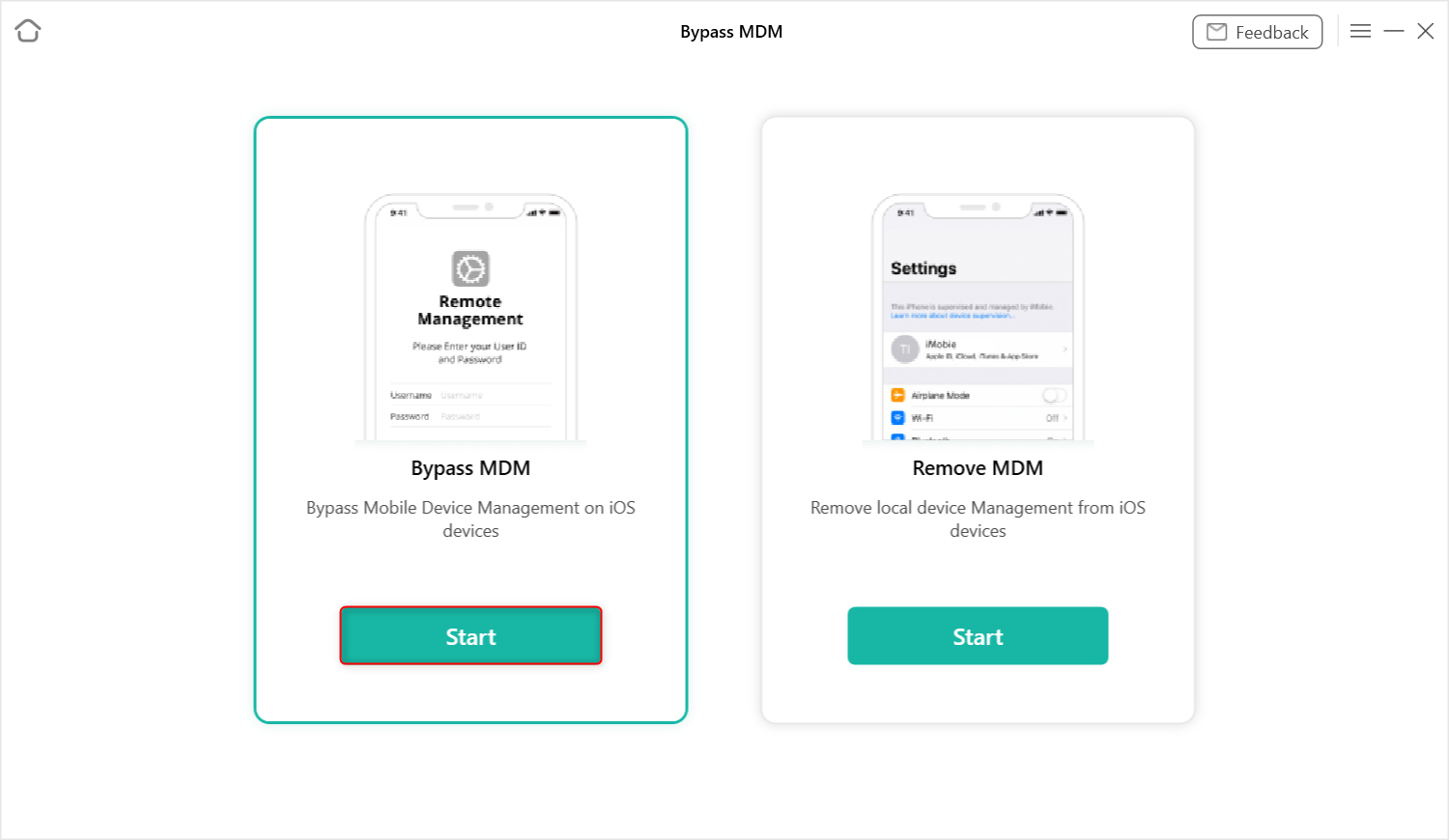
Step 2. Select the “Bypass MDM” option to remove remote device management. Then, click the “Start” button.
Step 3. Connect your iOS device to your PC. Once AnyUnlock detects your phone, you will see the following screen. Select “Bypass Now” from here.
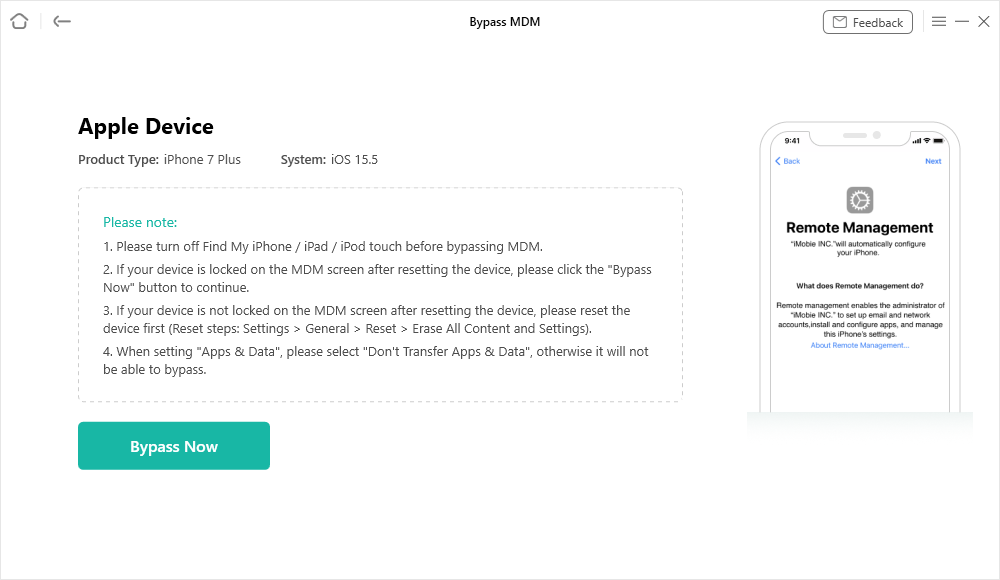
Step 4. Open the remote management screen on your iOS device. Then, click “Continue.” If you don’t know how to access it, click “Please click to view” and follow the instructions.
Step 5. After clicking “Continue,” you will see a dialogue window. Click “Confirmed” to verify you’re on the remote management screen.
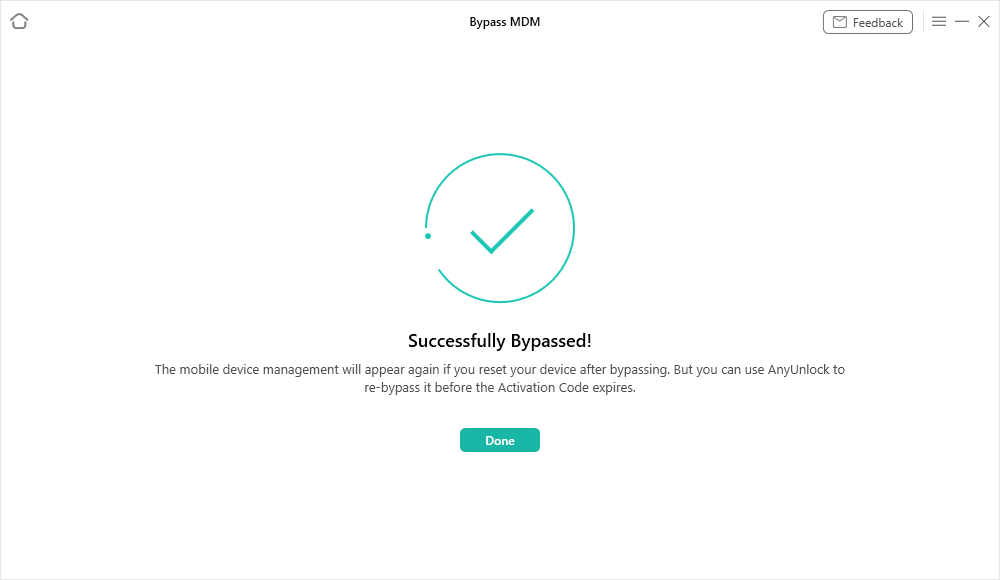
Step 6. AnyUnlock will start the process of bypassing the MDM lock. Wait for it to complete. You will see the “Successfully Bypassed” window once done.
FAQs About Removing a Certificate from the iPhone
Q1. Why can’t I remove certificate from iPhone?
Some certificates are built into iOS by default. These are system root certificates and cannot be deleted. You can only choose to trust or untrust them. Other certificates link to an MDM or configuration profile. In this case, removal is blocked until that profile is deleted. You must also lift MDM restrictions before removing them.
Q2. Is it safe to remove a certificate on your iPhone?
It is safe to remove expired or untrusted certificates. Removing these helps protect your device against security risks. However, valid certificates from your workplace, VPN, or Wi-Fi are different. Removing them can break access to various services and apps. Make sure to check the certificate’s role before you delete it.
Q3. What is the difference between a profile and a certificate on iPhone?
The main difference is that a profile is a complete package that holds multiple items. It can include settings, restrictions, and certificates together. Meanwhile, certificates are limited to verifying identities and protecting your device’s online connections. Since certificates are part of profiles, removing a profile also removes the tied certificates.
Conclusion
Certificates are digital IDs that help keep your phone’s connections safe online. When any certificate errors occur, you can turn them off or remove certificate from iPhone or iPad using your device’s settings. If you don’t know the admin password, AnyUnlock can help you bypass MDM lock and delete certificates without needing any admin login details. It’s super easy to use and requires no technical steps. If you want to secure your phone and keep it in control, download and try AnyUnlock now.
Free Download * 100% Clean & Safe



Joy Taylor is a seasoned technical writer with over a decade of experience in mobile technology. At iMobie, she specializes in producing in-depth content on iOS data recovery, iPhone unlocking solutions, and iOS troubleshooting.
Product-related questions? Contact Our Support Team to Get Quick Solution >
