Imagine tapping your favorite modified game, only to be blocked by a frustrating ‘untrusted developer’ error. In an instant, your essential apps are turned into dead icons. When you discover that TweakBox is not working or won’t install apps anymore, it feels like losing control of your device. You might worry that app certificates will just keep getting revoked, or fear that finding a replacement will expose your phone to malware. You want a straightforward installation process without a highly complicated setup, and you absolutely do not want to risk your security with iOS jailbreak apps.
This guide provides a secure, tested solution. We will explore the best TweakBox alternatives available today, focusing on reliable tools that restore your access quickly, safely, and entirely without jailbreaking. More importantly, we are going to show you exactly how to set them up step-by-step.
Table of ContentsHide
Choosing Your Replacement: Sideloading vs. Web Installers
Before downloading any specific tool, it is essential to pause and understand how these systems actually work. When seeking a dependable replacement for TweakBox, you generally have two main methods to choose from: PC-based app sideloading and browser-based web installers.
Choosing the right method depends entirely on your technical comfort level and how much you value long-term stability over instant gratification. Browser-based platforms operate similarly to the old TweakBox, allowing direct installations via Safari using shared enterprise certificates. While convenient, they are highly fragile. Conversely, app sideloading requires a computer but offers a significantly higher success rate.
Here is an analytical breakdown of both methods to help you make an informed decision on how to proceed:
| Feature | PC-Based Sideloading | Browser-Based Web Installers |
| Underlying Mechanism | Uses your personal Apple ID to sign apps locally | Relies on shared enterprise certificate apps |
| Success Rate | Very High (Rarely crashes unexpectedly) | Low to Medium (Frequent sudden crashes) |
| Time Cost | 10-15 minutes initial setup via Mac or PC | 1-2 minutes directly on the mobile device |
| Technical Skill | Moderate (Requires basic software installation) | Low (Tap, trust profile, and install) |
| Safety Risk | Low (You control the specific files installed) | Moderate (Higher risk of malicious advertisements) |
If you want a fast procedure without extra hardware, web installers are tempting. However, to permanently avoid the untrusted developer errors that constantly break your applications, dedicating a few minutes to PC-based sideloading is the superior, long-term solution.
Top iOS Alternatives to TweakBox: Sideloading Tools
If you are exhausted by constant application crashes, adopting a reliable iOS sideloading tool is the best move you can make.
Here is a critical expert insight that most other guides miss: Many users blame specific third-party app stores when apps stop working, but the real issue almost always comes from Apple’s enterprise certificate revocation system. This is exactly why sideloading tools that use your personal developer certificates tend to be much more stable. By switching to an AltStore setup or a similar iOS app installer that relies on your own Apple ID, your installations finally become dependable.
Recommended App Sideloading Tools
We highly recommend two primary tools for this process. Both are free, safe, and widely trusted by the sideloading community:
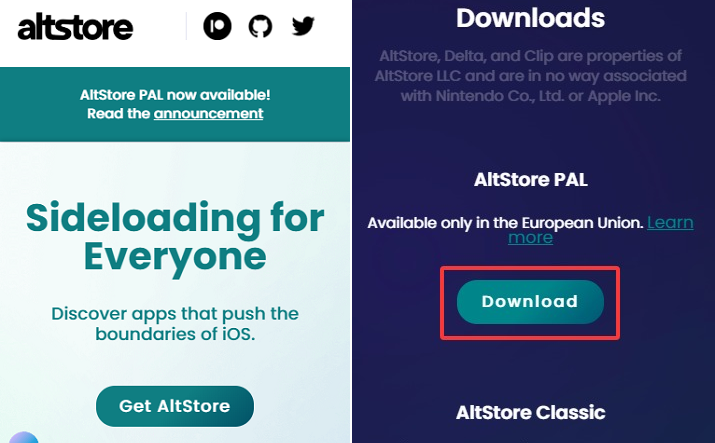
- AltStore (Official Site: altstore.io): The most recognized solution to sideload iOS apps. It requires a Mac or Windows PC to run a background server application called AltServer. This server communicates securely with your iPhone over your local Wi-Fi network to install and refresh your applications.

- Sideloadly (Official Site: sideloadly.io): A powerful, highly customizable tool that offers wireless sideloading and easy drag-and-drop functionality for IPA files. It allows you to modify application names and versions before installation.
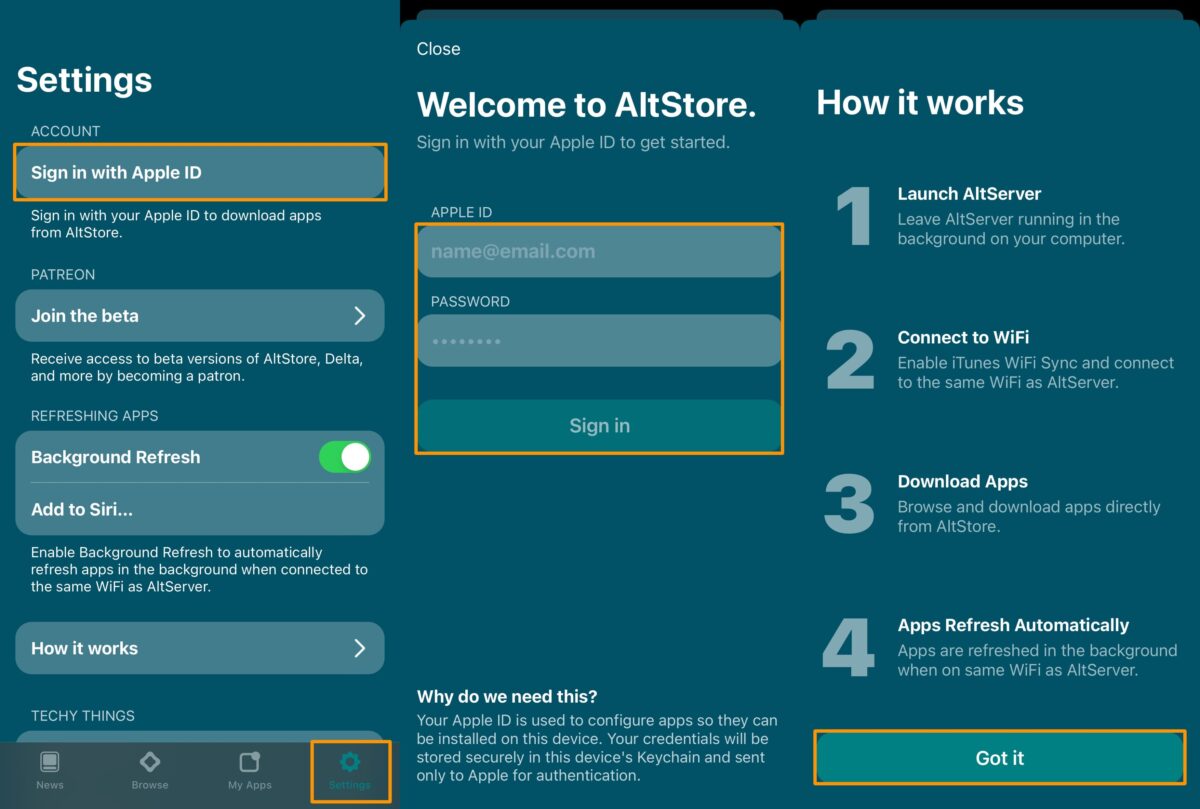
Step-by-Step Guide: How to Install AltStore
Many guides simply list AltStore and leave you to figure it out. Setting up a background server sounds intimidating, but it is actually quite straightforward if you follow these exact steps:
Crucial Warning for Windows Users: Before you begin, you must download iTunes and iCloud directly from Apple’s website. Do not use the versions from the Microsoft Store. The Microsoft Store versions lack specific background services that AltServer needs, and the installation will completely fail if you use them.
Step1. Prepare Your PC/Mac: Download AltServer from the official website (altstore.io). For Windows, ensure you have the direct-download versions of iTunes and iCloud installed and running.
Step2. Install AltServer: Extract the downloaded AltServer ZIP file and run the installer.
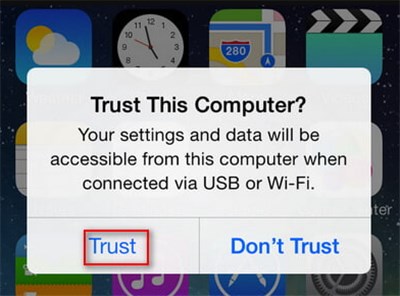
Step3. Connect Your iPhone: Plug your iPhone into your computer using a reliable USB cable. Unlock your phone and tap “Trust This Computer” if prompted.
Step4. Enable Wi-Fi Sync: Open iTunes (or Finder on a Mac). Navigate to your device’s summary page and check the box that says “Sync with this iPhone over Wi-Fi.” Click Apply.
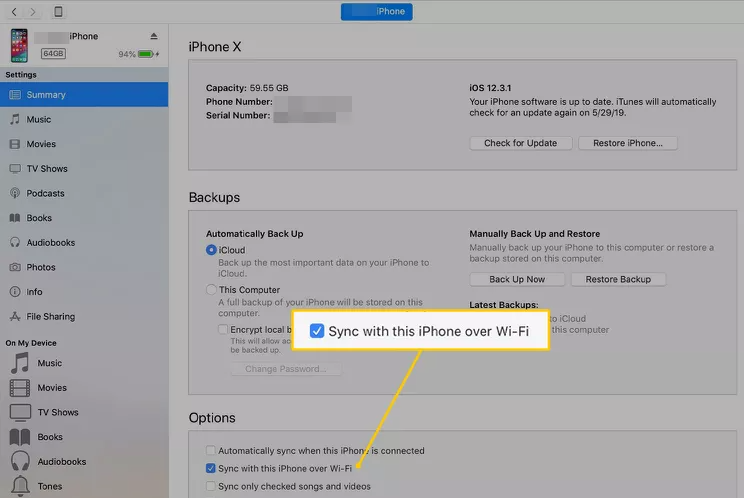
Step5. Launch AltServer: Open the AltServer program on your computer. It won’t open a traditional window; instead, it will appear as a small diamond icon in your system tray (Windows, bottom right) or menu bar (Mac, top right).
Step6. Install the App: Click the AltServer icon, hover over “Install AltStore,” and select your connected iPhone from the dropdown menu.
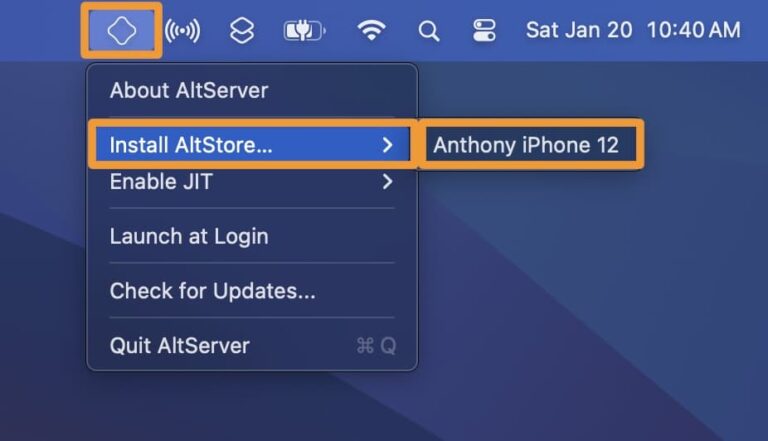
Step7. Enter Apple ID: You will be prompted to enter your Apple ID and password. This information is sent directly to Apple to generate your free, personal developer certificate. (If you are uncomfortable using your main account, you can create a secondary “burner” Apple ID just for this).
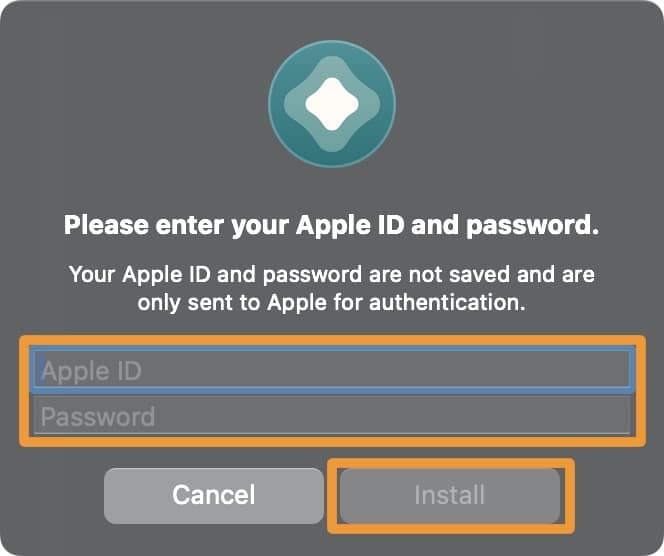
Step8. Wait for Completion: Within a minute or two, the AltStore app icon will appear on your iPhone’s home screen.
Step9. Trust Your Certificate: Before you can open AltStore, go to your iPhone’s Settings > General > VPN & Device Management. Tap on your Apple ID under “Developer App” and select “Trust.”
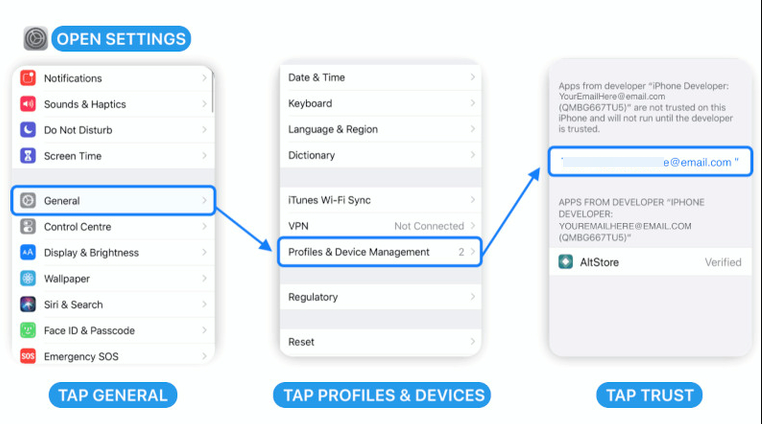
Step10. Start Sideloading: Open AltStore, navigate to the “My Apps” tab, and use the “+” icon in the top left to browse your files and install any.ipa file you have downloaded!
Commercial Transparency: Free vs. Paid Developer Accounts
When using free tools like AltStore or Sideloadly with a standard Apple ID, your personal certificate expires every 7 days. You must connect to your home Wi-Fi network with AltServer running on your computer to “refresh” this timer.
If you want a nearly maintenance-free solution, you can purchase an official Apple Developer Account directly from Apple’s developer portal. This costs $99 per year. Doing so extends your app’s certificate limit from 7 days to a full 365 days, completely eliminating the need for weekly background refreshes. While not necessary for everyone, it is the ultimate premium fix for power users.
Best Browser-Based Sites Like TweakBox
If you do not own a computer or simply want the fastest possible installation, browser-based platforms offer a direct experience. These apps operate entirely through Safari, requiring zero cables.
When evaluating an alternative app store, platforms like Scarlet (usescarlet.com) stand out for their massive libraries and user-friendly interfaces. However, you must proceed with caution. Because these sites rely on shared corporate certificates rather than your personal Apple ID, they are highly vulnerable to being shut down by Apple. This results in the dreaded revoked apps scenario, where your software will suddenly crash until the unofficial app store acquires a new certificate.
Step-by-Step Installation Procedure
To install applications from a web-based platform, follow this standard procedure:
Step1. Open the Safari browser on your iOS device and navigate to your chosen platform’s official site (e.g., usescarlet.com).
Step2. Locate the application you wish to download and tap the “Install” button.
Step3. A system prompt will appear asking to download a configuration profile. Tap “Allow.”
Step4. Open your iOS Settings app. Tap the new “Profile Downloaded” banner near the top of the menu.
Step5. Tap “Install” in the top right corner, enter your device passcode, and confirm the installation.
Step6. Navigate to Settings > General > VPN & Device Management.
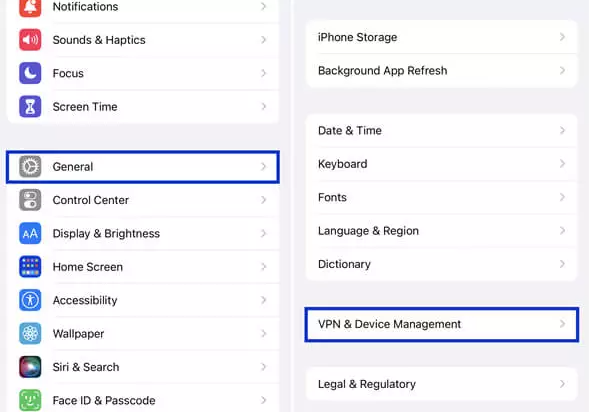
Step7. Find the newly installed enterprise certificate under the “Enterprise App” section, tap it, and select “Trust.”
While this method provides immediate access to your downloaded mods, remember to frequently back up any local data stored within these applications, as sudden revocations are always possible.
Top Android Alternatives to TweakBox
Many users facing persistent iOS restrictions eventually consider switching hardware platforms entirely. If you are part of this audience, finding a reliable Android alternative is remarkably straightforward. Unlike Apple’s tightly guarded ecosystem, Android 11–14 devices are natively designed to easily support external software.
On Android, you do not have to worry about weekly certificate refreshes, background servers, or sudden enterprise revocations. Instead, you simply use an APK installer to download and run applications directly.
Top Android Marketplaces
Several reputable platforms serve as excellent third-party app stores for the Android ecosystem:
- Aptoide (aptoide.com): A massive, community-driven marketplace that operates entirely independently of the Google Play Store.
- HappyMod (happymod.com): A specialized platform focusing purely on modified APK files, featuring community ratings to verify working downloads before you install them.
- F-Droid (f-droid.org): A highly secure catalog reserved exclusively for Free and Open Source Software (FOSS), making it one of the safest platforms available.
How to Install Third-Party Apps on Android
Step1. To use any Android-based replacement, you must first grant your device permission to install external files. Follow this brief procedure:
Step2. Open your Android Settings app.
Step3. Navigate to Apps (or Apps & Notifications, depending on your device manufacturer).
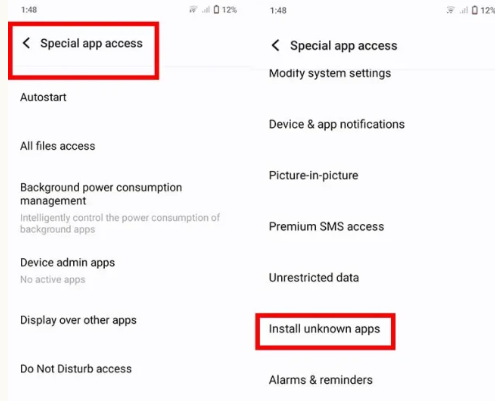
Step4. Select Special app access.
Step5. Scroll down and tap Install unknown apps.
Step6. Select the web browser you will use to download the files (e.g., Chrome) and toggle the switch to Allow from this source.
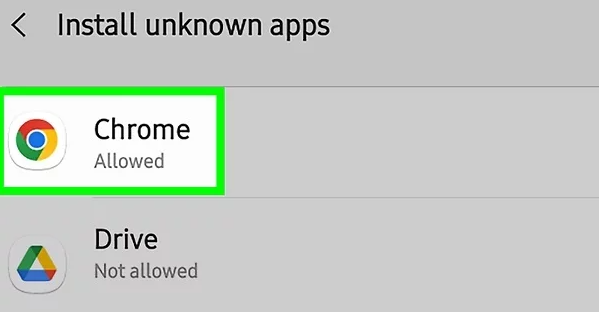
Once enabled, you can seamlessly download and execute any APK file directly from your chosen marketplace.
A More Stable Alternative for Pokémon GO Location Changing
For many users, one of the biggest reasons for searching TweakBox alternatives is to install Pokémon GO spoofing apps. However, relying on modified IPA files through unofficial stores often leads to revoked certificates, login failures, crashes, or even permanent account bans.
A more stable approach is to use a desktop-based GPS changer like Fonelora Location Changer. Unlike modified Pokémon GO clients, it changes your device’s GPS location externally while allowing you to continue using the official Pokémon GO app. This helps reduce many of the risks associated with sideloaded spoofing apps.
Fonelora Location Changer supports both iPhone and Android devices and offers features such as teleport mode, joystick movement, and route simulation for more natural gameplay.
How to Change Pokémon GO Location with Fonelora Location Changer
Step 1. Download and Install Fonelora Location Changer
Download and install Fonelora Location Changer on your Windows PC or Mac.

Step 2. Connect Your Device
Use a USB cable to connect your iPhone or Android device to the computer. Once connected successfully, the map interface will load automatically.

Step 3. Choose a Location Mode
Select a movement mode based on your needs, then search for any location or coordinates worldwide.
Step 4. Set a Natural Movement Route
Adjust the walking speed and create a realistic route to simulate natural in-game movement more safely.
Step 5. Start Changing Your GPS Location
Click the move button to apply the new GPS location instantly. Your in-game character will begin moving according to the selected route.

Why Unofficial App Stores Stop Working: The Revoke Problem
To truly understand why tools fail, we need to look behind the scenes at how mobile security operates.
When you experience that initial frustration—tapping an icon only to be met with an error—it is easy to assume the app store itself is broken. In reality, you are witnessing the automated mechanics of Apple’s enterprise certificate revocation system.
Apple provides enterprise certificates to large corporations so they can distribute internal applications to their employees without going through the public App Store. However, developers of unofficial app stores heavily abuse this system. They acquire these corporate certificates and use them to sign and distribute modified applications to millions of regular users.
The Revocation Lifecycle
- Distribution: The unofficial store signs thousands of applications using one corporate ID.
- Detection: Apple’s security algorithms continuously scan for unusual certificate behavior. When they detect massive public downloads tied to a single corporate ID, it flags a violation.
- Revocation: Apple instantly invalidates the certificate on their servers.
- Failure: The next time your device connects to the internet, iOS sees the invalid certificate and immediately blocks the application from opening.
This ongoing technical battle is exactly why browser-based stores are so unstable, and why PC-based app sideloading techniques remain the superior, crash-resistant solution.
Safety, Security Risks, and Troubleshooting
While exploring free alternatives, security must remain your top priority. The landscape of third-party software is heavily populated with deceptive websites designed to serve malicious advertisements or steal personal data. Always use the official URLs provided in this guide rather than guessing on Google.
It is important to clearly differentiate these solutions from iOS jailbreak apps. Modern sideloading tools are significantly safer because they do not remove your device’s core security layers or modify the root system files. However, engaging in any modded apps download still carries inherent risks.
ECURITY WARNING: RED FLAGS FOR UNSAFE SITES: Protect your device and personal data by immediately leaving any website that displays the following behaviors:
1.Paywalls for Free Tools: Demanding payment or credit card information for a “premium profile” or VIP access to tools that should be free.
2.Forced Utility Downloads: Forcing you to download unrelated utility apps, VPNs, or games before “unlocking” your requested file.
3.Lack of Basic Encryption: Sites lacking standard HTTPS security (look for the missing padlock icon in your browser’s address bar).
4.Fake “Download” Buttons: Pages littered with multiple fake download buttons that actually lead to aggressive advertising networks.
Common Troubleshooting Steps
If your installations fail or crash repeatedly, follow these corrective procedures:
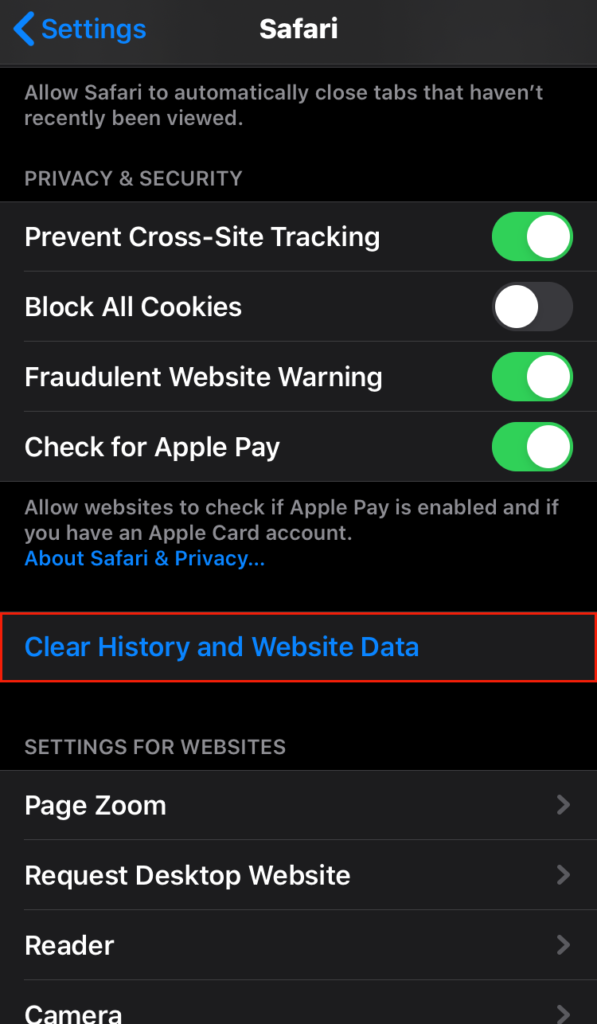
Step1. Clear Safari Cache: If a web installer fails to load a profile, go to Settings > Safari > Clear History and Website Data, then try the procedure again.
Step2. Verify Device Storage: Sideloading tools often fail cryptically if your device has less than 2GB of free storage available.
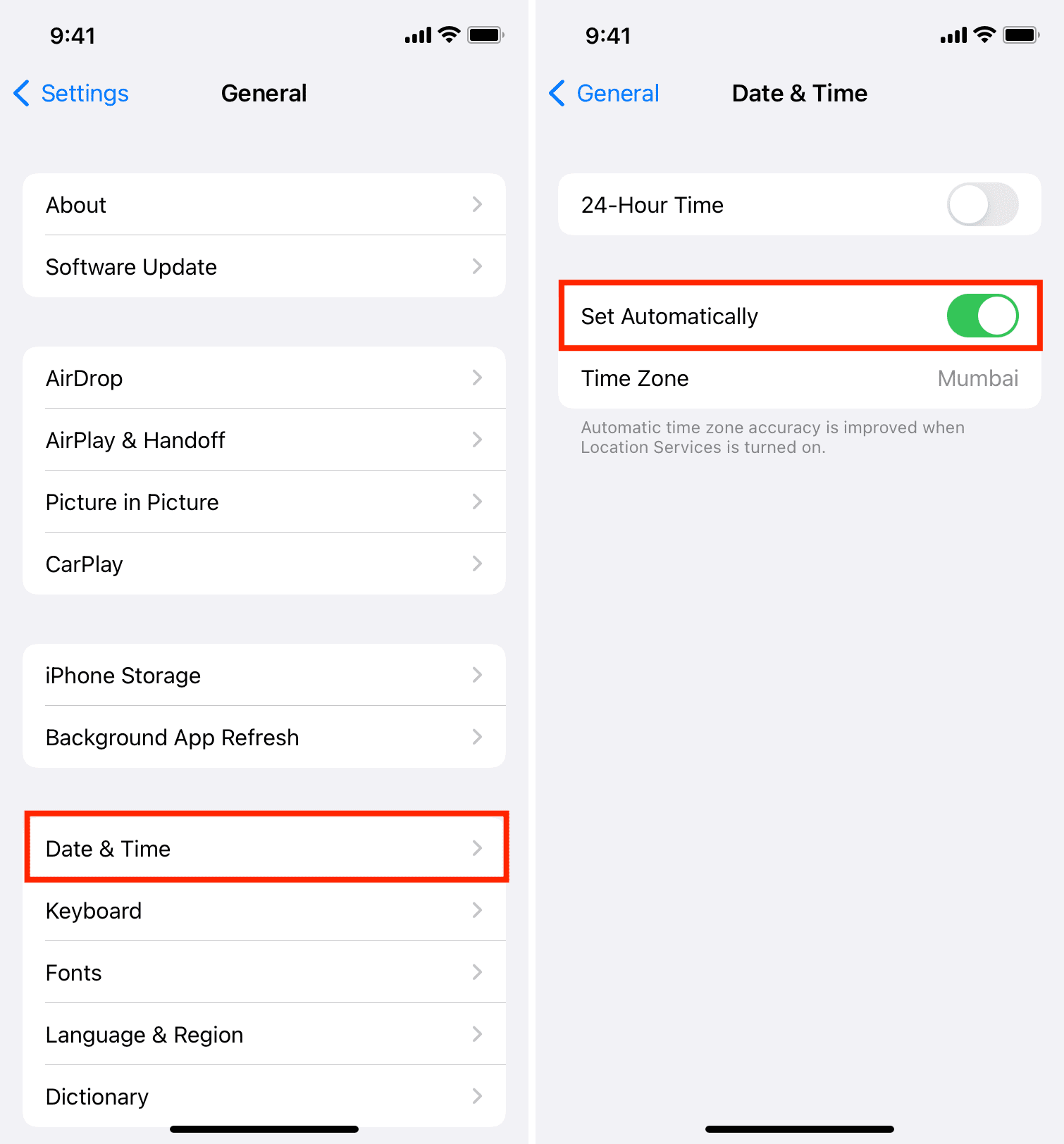
Step3. Check Date & Time: Ensure your iOS device is set to update time automatically. Incorrect system clocks will cause certificate validation to fail instantly.
Frequently Asked Questions
What are the best TweakBox alternatives in 2026?
As security measures continuously evolve, the most stable solutions for 2026 remain PC-based sideloading tools. AltStore and Sideloadly currently lead the market in reliability. For browser-based solutions, Scarlet remains a popular temporary choice.
Why is TweakBox not working anymore?
TweakBox and similar platforms rely on shared enterprise certificates to distribute apps. Apple actively detects and revokes these certificates, which instantly breaks the apps installed on your device.
Is there a safe alternative to TweakBox for iPhone?
Yes. PC-based sideloading tools like AltStore are considered the safest method. They use your personal Apple ID to sign apps locally, meaning you do not have to rely on sketchy third-party profiles.
Can I install tweaked apps without jailbreaking my iPhone?
Absolutely. All the methods detailed in this guide serve as a way to install apps without a jailbreak. They use built-in developer features to authorize applications safely.
Are these alternatives legal or safe to use?
The tools themselves (like AltStore or Sideloadly) are entirely legal and safe, acting merely as installation vessels. However, the safety and legality of the specific modified applications you choose to download depend entirely on the file’s origin and copyright status.
What is the difference between AltStore and other app installers?
Browser-based installers use shared corporate certificates that Apple frequently revokes. AltStore uses your personal Apple ID to generate a private certificate, making it highly resistant to widespread revocations.
Why do apps from third-party stores get revoked?
When Apple detects that a single corporate certificate is being used by thousands of public users to bypass the App Store, they revoke the certificate to enforce their security policies.
How do I install an alternative app store on iOS?
You can either use a PC to set up AltStore for a stable, long-term solution (following our 10-step guide above), or download a configuration profile directly from Safari using a platform like Scarlet for a quicker, temporary fix.
Are there alternatives for Android?
Yes, Android users have excellent options. Platforms like HappyMod, F-Droid, and Aptoide serve as dedicated third-party app stores where you can directly download and install APK files natively.
Why do apps from unofficial app stores stop working suddenly?
This happens when the enterprise certificate used to install the application is revoked by Apple, or if a sideloaded app passes its 7-day expiration timer without being refreshed via your local Wi-Fi.
Is there a working alternative for Pokemon Go spoofers?
While many users originally sought platforms like TweakBox specifically for location modification, installing location-spoofing software has become heavily restricted. While modified IPA files exist and can be loaded via Sideloadly, the game’s developer uses aggressive anti-cheat detection that frequently results in permanent account bans.
Learn More: How to Change Location in Pokémon Go: A Tested Guide>
Conclusion
When apps from unofficial stores suddenly stop working, it can quickly become frustrating—especially when revoked certificates, installation failures, and constant re-signing interrupt the apps you rely on most. Instead of repeatedly searching for another unstable third-party app store, a more reliable approach is to use trusted sideloading tools and stable desktop-based solutions that do not depend on shared enterprise certificates.
For users looking to access location-based apps or GPS tools more safely, Fonelora Location Changer offers a more stable alternative to modified IPA installations. Unlike many apps distributed through unofficial stores, it works without relying on constantly revoked certificates or risky jailbreak methods. You can change your device’s GPS location directly while continuing to use official apps normally on both iPhone and Android devices.
By combining reliable sideloading methods like AltStore with safer desktop tools such as Fonelora Location Changer, you can reduce crashes, avoid many common installation problems, and regain better control over your device experience without exposing your data to unnecessary security risks.


Hot Topics
