Bumble Location Wrong on iPhone? How to Fix GPS Errors & See Local Matches
Bumble showing matches in the wrong city? Fix your iPhone GPS errors in minutes. Learn how to enable Precise Location and reset permissions to see local matches again. Tested for iOS 19.
When your Bumble location is wrong, it transforms a dating app into a source of major frustration. Instead of finding local connections, you are met with profiles from different cities or even countries.
This was the exact obstacle Clément faced when his Bumble app insisted he was in Lyon, France, while he was actually in Washington. This issue—often searched as “localisation incorrecte Bumble”—makes meaningful matching impossible.
If you are seeing distant matches, this guide provides a tested, step-by-step roadmap to recalibrate your iPhone’s GPS and restore your local queue.
The Primary Fix: How to Correct Your Bumble Location with ‘Precise Location’
The most common cause of a Bumble GPS error isn’t the app—it’s an iOS permission setting. Many users don’t realize that Apple offers two levels of tracking: general and precise.
If “Precise Location” is toggled off, Bumble only sees your approximate area, which can lead to your profile appearing miles away from your actual spot.
How to calibrate your Géolocalisation iPhone:
- Open Settings on your iPhone.
- Scroll down and tap Bumble.
- Select Location.
- Ensure access is set to “While Using the App” or “Always.”
- Toggle Precise Location to ON (Green).
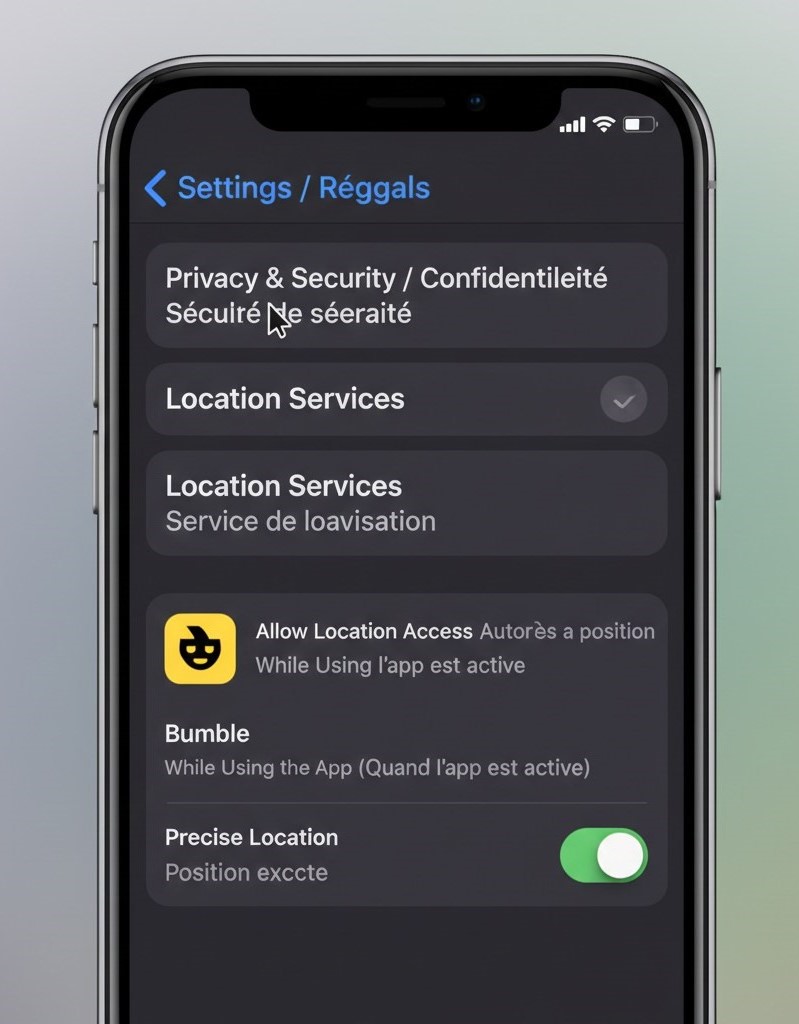
If these settings are greyed out or unresponsive, a professional iOS system repair tool can resolve underlying system glitches that manual toggling cannot reach.
This simple action should update your location to your current, correct position, improving the distance des rencontres shown in your profile queue.
Advanced Troubleshooting for Persistent Bumble Location Problems
If enabling ‘Precise Location’ didn’t solve the problem, other factors related to your device’s network connection or cached data may be at play. The following steps will systematically address these potential causes.
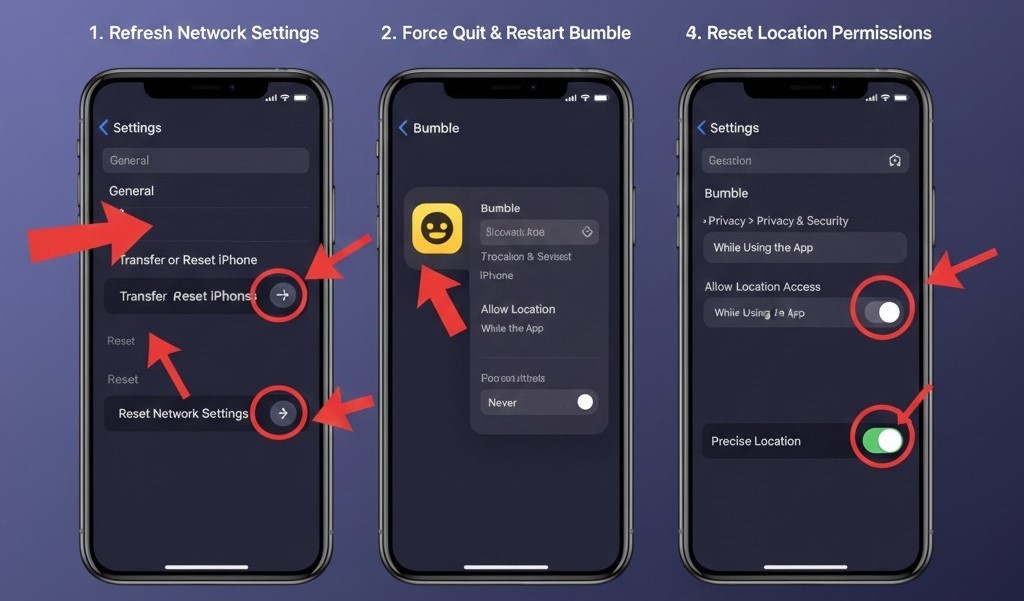
Step 1: Refresh Your Network Connection
Your iPhone determines position via a mix of GPS satellites, Wi-Fi, and Cellular data. A “stale” connection can report old coordinates.
- Toggle Airplane Mode ON for 10 seconds, then OFF.
- Go to Settings > Wi-Fi, turn it off, and then back on to force a reconnection to local access points.
Step 2: Force Quit and Relaunch the Bumble App
Sometimes, the app simply needs a fresh start to clear its temporary cache and request your location data again. This is a quick but often effective technique.
- Swipe up from the bottom of your iPhone screen (or double-press the Home button on older models) to open the app switcher.
- Find the Bumble app preview card.
- Swipe the card up and off the screen to force quit it.
- Return to your Home Screen and tap the Bumble icon to relaunch it.
Step 3: Reset Your iPhone’s Location & Privacy Settings (Last Resort)
This step should be considered a final resort, as it’s a bit of a “scorched earth” approach. This action will not delete your personal data (photos, contacts, etc.). However, it’s always a smart habit to back up your iPhone data before performing any type of system reset to ensure your information remains 100% secure.
Acknowledge the hassle: Be prepared to re-approve location requests for apps like Google Maps, Uber, and Instagram the next time you open them. We recommend this only if the previous steps have failed and the location issue is significantly impacting your app experience.
- Navigate to Settings > General > Transfer or Reset iPhone.
- Tap Reset > Reset Location & Privacy.
- Enter your passcode to confirm the action.
After the reset is complete, open Bumble. You will be prompted to grant location access again. Choose Allow While Using App and ensure Precise Location is enabled in the prompt.
Still Not Working? What to Do Next
If you’ve tried all the troubleshooting steps above and your location is still incorrect, don’t give up. The issue may lie outside of your device’s settings. Here’s what to check next:
- Check for a Bumble App Update: Head to the App Store and search for Bumble. If you see an “Update” button, tap it. A bug in an older version of the app could be the culprit.
- Check for an iOS Update: Sometimes, location bugs are related to the operating system itself. Go to Settings > General > Software Update to see if a newer version of iOS is available. If you encounter errors during the update process, you can find guides on fixing iOS update issues to get your phone back on track.
- Contact Bumble Support: If all else fails, it’s time to contact the experts. There may be a server-side issue with your account that only Bumble’s team can resolve. You can contact them directly through the app or on their support website.
Understanding Why Your Bumble Location is Wrong: GPS, Wi-Fi, and VPNs
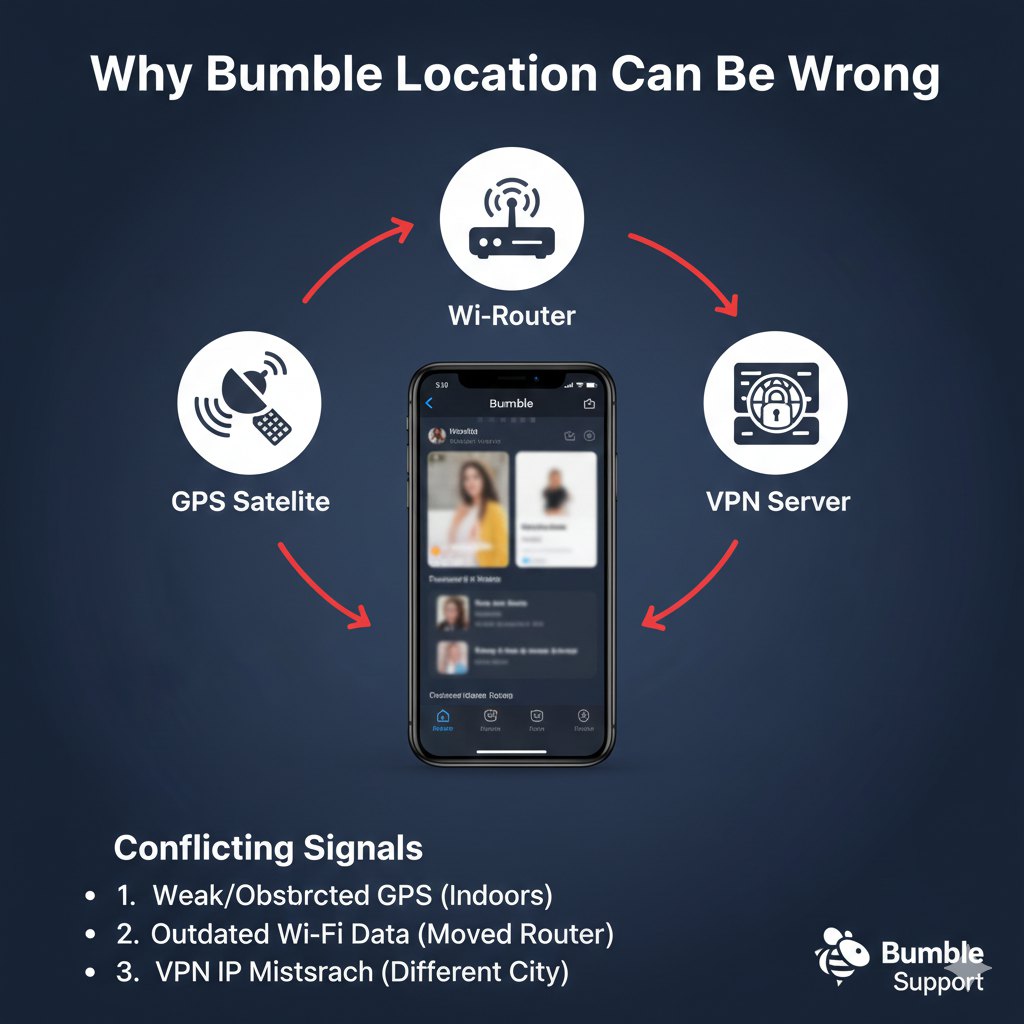
To prevent future issues, it helps to understand why a Bumble location issue occurs. The app doesn’t have its own location technology; it relies entirely on your iPhone’s location settings. Your iPhone determines its position using a combination of three main sources:
- GPS: High accuracy, needs clear sky.
- Wi-Fi Triangulation: Accurate indoors based on nearby routers.
- Cellular Data: The least accurate; relies on cell tower distance.
Your iPhone reports the most reliable data it has to Bumble. If you’re indoors with a weak GPS signal, it might default to less accurate Wi-Fi data, causing a minor location discrepancy.
How a VPN or GPS Spoofer Can Cause Major Errors
A significant and often overlooked cause of the “Bumble ne montre pas ma position” problem is the use of a VPN (Virtual Private Network). A VPN routes your internet traffic through a server in a different physical location. If you are in Washington but connected to a VPN server in France, your iPhone may report your location as France to any app that requests it.
This is precisely what can cause a situation like Clément’s. If your Bumble location is wildly incorrect, the first thing you should do is disable any active VPN connection.
A Note on Account Safety: Avoid using third-party GPS “spoofing” apps to fake your location. This practice violates Bumble’s terms of service and can lead to a temporary or permanent ban of your account.
Do You Need Bumble Premium to Fix Location Errors?
A common misconception is that a Bumble Premium or Bumble Boost subscription is required to solve location issues. Let’s be clear: paid subscriptions do not fix an incorrect GPS location. The tools needed to correct a Bumble GPS error are available to all users within your iPhone’s system settings, not behind a paywall.
This confusion arises from a premium feature called Travel Mode. This tool allows subscribers to intentionally and temporarily set their location to a different city. For example, you could use Travel Mode to start matching with people in Paris a week before your trip. It’s designed for planned location changes, not for correcting a real-time GPS inaccuracy.
Here is a simple breakdown to clarify the difference:
| Correcting Location Errors (All Users) | Correcting Location Errors (All Users) |
| Enable ‘Precise Location’ in iOS Settings | Use ‘Travel Mode’ in the Bumble app |
| Refresh Wi-Fi & Cellular connections | Select a new city from a list |
| Force quit and restart the Bumble app | Appear in the selected city for 7 days |
| Reset iPhone Location & Privacy settings | Does not fix underlying GPS errors |
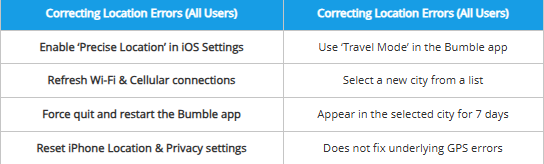
In summary, you have all the necessary tools to solve this problem as a free user. The solutions are technical, not financial.
We regularly update this guide to reflect the latest changes in iOS and the Bumble app to ensure these solutions remain accurate and effective.
You now have a complete set of solutions to get your matching Bumble experience back on track. By following these tested methods, you can ensure your profile is shown to people nearby, increasing your chances of making a meaningful connection. This approach puts you in control, allowing you to solve the problem in minutes with the confidence that your location is accurate.
An Alternative Solution: Using Fonelora Location Changer for Location Control
If you want a more controlled way to manage or simulate your location on iPhone, tools like Fonelora Location Changer can also be relevant. It allows users to virtually change or test their GPS position, which can be useful for app testing, privacy scenarios, or checking how location-based apps like Bumble behave in different regions. In the context of troubleshooting, it can help identify whether the issue comes from the device’s GPS signals or the app itself. However, it should be used carefully and in accordance with the terms of service of each platform to avoid potential account restrictions.

Frequently Asked Questions (FAQ)
Here are concise answers to the most common questions about Bumble location problems on iPhone.
1. Why is Bumble showing the wrong location?
Bumble shows the wrong location because it’s receiving incorrect data from your iPhone’s location services. The most common causes are the ‘Precise Location’ setting being disabled, a weak GPS signal, inaccurate Wi-Fi data, or an active VPN connection routing your traffic through another region.
2. How do I fix my location on Bumble step by step?
- Enable Precise Location: Go to Settings > Bumble > Location and turn ON the ‘Precise Location‘ toggle.
- Restart the App: Force quit the Bumble app and reopen it.
- Refresh Network: Toggle your Wi-Fi and Cellular data off and on.
- Check for Updates: Look for Bumble and iOS updates in the App Store and Settings.
- Reset Permissions: As a final resort, go to Settings > General > Reset > Reset Location & Privacy.
3. Why am I seeing matches far away instead of nearby?
Seeing distant matches is a direct symptom of an incorrect location. Your app is telling the Bumble system you are somewhere else, so it shows you profiles from that incorrect location. Solving the underlying GPS error with the steps in this guide will fix your matching Bumble queue.
4. Does using a VPN affect my Bumble location?
Yes, absolutely. A VPN is a primary cause of major location errors. If you are connected to a VPN server in a different city or country, Bumble will likely think you are in that location. Disable your VPN before using Bumble for accurate matching.
5. Do I need Bumble Premium or Boost to update my location?
No. You do not need a paid subscription to fix an incorrect location. Features like Bumble Premium offer ‘Travel Mode’ for intentionally changing your location to another city, but they do not resolve technical GPS issues. All required fixes are in your iPhone’s settings.
6 .How do I reset Bumble’s location permissions on iPhone?
To perform a full reset of all location permissions, navigate to Settings > General > Transfer or Reset iPhone. Then, tap Reset and select Reset Location & Privacy. Be aware that this will require you to grant location permissions again for all apps that use them.
Conclusion: Take Control of Your Matches
You shouldn’t let a technical glitch stand in the way of a meaningful connection. By properly configuring your iPhone’s Precise Location settings and managing your network connections, you can resolve “localisation incorrecte” issues in just a few minutes.
If the problem persists or you want more control over how your location is detected, tools like Fonelora Location Changer can also be a helpful option for testing or managing virtual locations in different scenarios.
Before diving back into the stack, make sure to back up your iPhone data if you plan to perform a full system reset. With these proven methods, you can quickly regain control of your dating experience and ensure your profile is shown to the right people nearby.



Joy Taylor is a seasoned technical writer with over a decade of experience in mobile technology. At iMobie, she specializes in producing in-depth content on iOS data recovery, iPhone unlocking solutions, and iOS troubleshooting.
Product-related questions? Contact Our Support Team to Get Quick Solution >
