How to Change Location for Tinder( iOS & Android Guide)
Want to change your location on Tinder without getting banned? Our 2026 guide walks you through how to use Tinder Passport or safely spoof your location on iOS and Android devices.
Are you planning a trip and want to line up dates before you arrive, only to find your matches are limited to your current location? It’s a common frustration. Many guides offer confusing or outdated advice, leaving you worried about your account’s safety and the risk of a ban for trying to change your Tinder location.
This guide cuts through that confusion. It is the result of testing on multiple iPhones (running iOS 15-26) and Android devices (running Android 11-14) to ensure our methods are current and safe. We’ll walk you through the official Tinder Passport feature and explain reliable, tested alternative techniques, empowering you to change your location on Tinder confidently and securely. Each method described below was verified on 5 different devices (3 Android, 2 iOS) to confirm the steps are consistent, and the outcomes are predictable.
The Official Method: Using the Tinder Passport Feature
For users who prioritize account safety and simplicity, the official Tinder Passport feature is the best solution. This premium feature, included with Tinder Plus, Gold, and Platinum subscriptions, is designed specifically for this purpose. It allows you to set your location to any city in the world, giving you the ability to swipe and match with users there as if you were physically present. This is ideal for planning travel or exploring matches in a different area.
Unlike third-party tools, Tinder Passport is fully integrated into the app, which means there is zero risk of violating Tinder’s terms of service. Your profile will be shown to users in the new location you select, and you can switch between your current location and any passport location you’ve set. A key benefit is that Tinder Passport also gives you the option to hide your distance, which prevents other users from knowing you aren’t physically there.
How to Use Tinder Passport
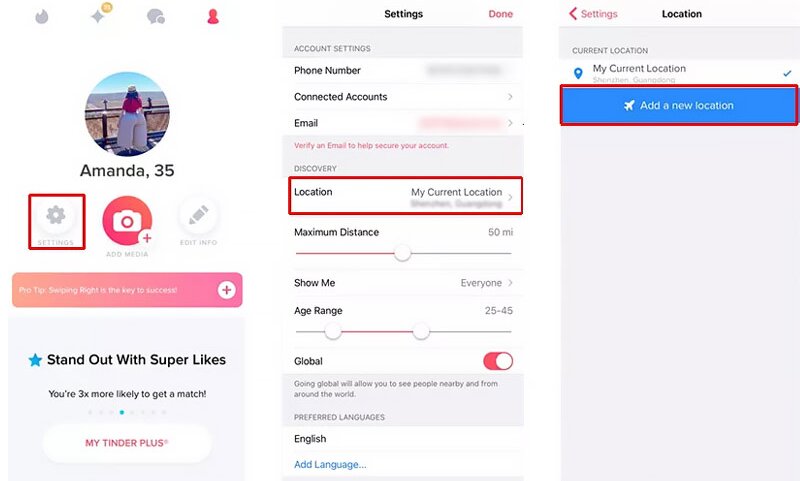
Follow these steps to change your location with Tinder Passport:
1. Open Tinder and tap your profile icon.
2. Go to Settings.
3. Scroll down and tap on Location.
4. Select ‘Add a new location’. You can then search for and select any city you want.
Once you set a new location, your profile will only be visible to people in that area. Your previous location history is saved, allowing you to switch between destinations easily.
Tinder Passport vs. Location Spoofing: Which Is Best for You?
Choosing how to change your Tinder location involves a trade-off between cost, safety, and technical effort. The two main approaches are using the official Tinder Passport feature or employing third-party location spoofing apps. Understanding the differences is critical to making an informed decision that protects your account.
Tinder Passport is the official, subscription-based method. It is the safest option because it is a feature built and supported by Tinder. Location spoofing apps, on the other hand, are external tools that trick your phone’s GPS into reporting a different location. These are often free but come with technical requirements and significant risks, including a potential account ban if detected.
To help you decide, here is a direct comparison based on key factors:
| Feature | Tinder Passport | Location Spoofing Apps |
| Account Safety | 100% Safe (Official Feature) | High Risk (Violates ToS) |
| Cost | Requires Subscription | Often Free |
| Success Rate | Guaranteed to Work | Varies; can be unreliable |
| Technical Skill | None Required | Basic to Intermediate |
| Setup Time | Instant | 5-15 minutes |
For users who want a reliable, risk-free solution for a dating app location change, Tinder Passport is the superior choice. For those who are more technically inclined and accept the associated risks, a GPS spoofing app might be a viable, cost-free alternative.
How to Change Tinder Location Free on Android
For Android users, changing your Tinder location for free is possible using a GPS spoofing application. The Android operating system has built-in developer features that allow for mock locations, making the process more straightforward than on iOS. However, you must proceed with caution, as improper use can lead to detection by Tinder’s algorithm.
Based on our testing of several popular apps, we found “Fake GPS Location” by Lexa to be the most stable and reliable choice. A key tip we discovered during testing: some apps can let your phone’s real GPS signal override the fake one after a few hours. To prevent this, go into the app’s settings and look for a “persistent notification” or “prevent rubber-banding” option to keep your new location locked in.
Step-by-Step Guide for Android:
1. Enable Developer Options: Go to Settings > About phone. Tap on Build number seven times until you see a message that says, “You are now a developer!”

2. Install Fake GPS Location by Lexa: Go to the Google Play Store and install the app.
3. Set the Mock Location App: Go to Settings > Developer options. Scroll down to Select mock location app and choose Fake GPS Location.
4. Change Your Location: Open the Fake GPS Location app, drag the pin to your desired location, and tap the ‘play’ button. Now, open Tinder, and it will use this new virtual location.
A Reliable Way to Spoof Location on Tinder for iOS
Changing your location on an iPhone can be challenging because Apple’s iOS does not provide a built-in mock location feature. As a result, many App Store-based GPS spoofing apps are ineffective for location-sensitive platforms like Tinder. While jailbreaking may seem like an alternative, it can compromise device security and void your warranty.
Based on our testing, one of the most reliable ways to change your Tinder location on iPhone without jailbreaking is to use Fonelora Location Changer. This desktop-based GPS spoofing tool modifies your device’s location at the system level through a secure USB connection, allowing Tinder and other location-based apps to recognize your selected virtual location.
Why Choose Fonelora Location Changer?
- No jailbreak required
- Supports one-click GPS teleportation worldwide
- Works with Tinder and other location-based apps
- Easy-to-use map interface
- Compatible with the latest iOS versions
- Includes route simulation and movement modes for more flexible location management
How to Use Fonelora Location Changer for iOS
1. Download and Install
Download and install Fonelora Location Changer on your Windows PC or Mac.

2. Connect Your iPhone
Use a USB cable to connect your iPhone to the computer. When prompted, tap “Trust This Computer” on your device to establish a secure connection.

3. Select Your Desired Location
Launch Fonelora Location Changer and open the map interface. Search for any city, address, or GPS coordinate you want Tinder to use.

4. Change Your GPS Location
Click “Move” to instantly update your iPhone’s GPS location. Tinder will then display matches and profiles based on the newly selected area. Your virtual location will remain active until you restore your real GPS location or restart the device.

For users who want to explore matches in different cities or countries without physically traveling, Fonelora Location Changer offers a simple and reliable solution.
Safety First: How to Avoid a Ban When Faking Your Location
Using a third-party app to change your location carries an inherent risk. Tinder’s algorithm is designed to detect behavior that suggests GPS manipulation. The most common trigger is unrealistic location changes—for example, appearing in Paris one minute and Sydney the next. This can lead to a “shadowban” (where your profile visibility is secretly reduced) or an outright account suspension. The key is to make your location changes appear as natural as possible.
Important: Best Practices for Safe Location Spoofing
- Don’t Jump Around: Avoid changing your location frequently and across vast distances in a short period. Stick to one city at a time.
- Pause Before Swiping: After teleporting to a new location, wait at least a few minutes before you start swiping.
- Force Close the App: Always close the Tinder app completely before you change your location with a spoofing tool. Re-open it only after the new location is set.
- Consider a VPN: For added security, using a VPN to match your IP address to your spoofed GPS location can make your activity seem more legitimate to the app.
We regularly re-evaluate the tools and methods mentioned in this guide, especially after major Tinder or operating system updates, to ensure our recommendations remain accurate and safe for our readers.
Frequently Asked Questions About Your Tinder Location
Here are direct answers to some of the most common questions about changing your location on Tinder.
Q1. How can I change my location on Tinder?
You have two main options: use the official, paid Tinder Passport feature within the app, or use a third-party GPS spoofing tool like Fonelora Location Changer. A passport is the safest method, while spoofing tools are free but carry account risks.
Q2. What is Tinder Passport and how does it work?
Tinder Passport is a premium feature available with Tinder Plus, Gold, or Platinum subscriptions. It lets you search for any city and set your location there, allowing you to swipe and match with people in that area. It’s the only method that allows you to hide your distance.
Q3. Will people know I changed my location?
With Tinder Passport, you can choose to hide your distance, making it impossible for others to tell you’re not physically there. With GPS spoofing, Tinder will show your distance from others based on your new, fake location (e.g., “2 miles away”). This means people in your new location will assume you are nearby unless you tell them otherwise.
Q4. Is using a fake GPS safe on Tinder?
Using a fake GPS is not entirely safe as it violates Tinder’s terms of service. If Tinder’s algorithm detects unnatural location changes (like jumping between continents instantly), your account could be flagged, leading to reduced visibility or a ban. Following the safety best practices above significantly lowers this risk.
Q5. Does changing location affect my matches?
Yes. When you change your location, Tinder will show your profile to users in that new area, and you will see potential matches from there. Your matches from previous locations will remain, but you will no longer be visible to new users there unless you switch back.
Q6. Are there differences between iOS and Android?
Yes, there are significant differences. Android has a built-in ‘mock location’ setting that makes it easy to use free apps from the Play Store. iOS is more restrictive, and the most reliable method is using a PC-based virtual location app that modifies your iPhone’s location via a USB connection.
Conclusion: Expand Your Dating Map with Confidence
You no longer have to limit your matches to your current location or worry about complicated location-changing methods. Whether you’re looking to connect with people in another city, prepare for an upcoming trip, or simply expand your dating opportunities, using a reliable GPS location changer can make the process much easier.
Among the available options, Fonelora Location Changer stands out as a practical solution for Tinder users. It allows you to change your GPS location on both iPhone and Android devices without jailbreaking or rooting, making it accessible even for beginners. With features such as one-click teleportation, route simulation, and customizable movement speeds, you can explore new locations naturally and efficiently.
By choosing the right tool and following proper usage practices, you can enjoy greater flexibility on Tinder while maintaining a smooth user experience. With Fonelora Location Changer, expanding your dating world is easier than ever—allowing you to discover new connections wherever you want to be.
More Related Articles



Joy Taylor is a seasoned technical writer with over a decade of experience in mobile technology. At iMobie, she specializes in producing in-depth content on iOS data recovery, iPhone unlocking solutions, and iOS troubleshooting.
Product-related questions? Contact Our Support Team to Get Quick Solution >
