This guide is based on resolving real-world testing roadblocks—like my own struggles testing dynamic food delivery apps—where combining DevTools with a dedicated IP VPN and locale adjustments proved to be the only foolproof method for bypassing strict HTML5 Geolocation API checks. The procedures outlined below have been successfully verified across more than 50 different testing scenarios spanning Windows, macOS, and Linux desktop environments.
Facing a locked geographic environment when you need to run critical tests can be a significant obstacle. When I was testing a dynamic food delivery website, I needed to verify restaurant options in New York, London, and Tokyo. I activated a standard VPN, but to my frustration, Chrome still detected my real location, displaying my local city’s menus. I quickly realized that while my IP changed, websites still knew my real physical location via the browser’s hardware sensor data.
If your simulated location only works on some websites but not others, or if you are tired of clicking through slow menus to override your coordinates, you are not alone. This guide provides a proven, developer-first procedure to configure your testing environment safely. You will learn the exact tools and workflows to bypass detection, match your timezones, and simulate any region seamlessly.
Table of ContentsHide
Decision-Making Guide: Choosing the Right Spoofing Method
Before you attempt to alter your browser’s location, you must choose the right technique for your specific project. Different testing scenarios require different levels of simulation. A simple layout check might only need a quick DevTools adjustment, while rigorous QA testing across strict regions demands a more robust, multi-layered setup.
Here is an objective comparison of the most common methods available to developers and testers:
| Spoofing Method | Success Rate | Technical Skill | Safety / Privacy Risk |
|---|---|---|---|
| Native Chrome DevTools | Moderate (API only) | Medium | Very Low |
| Premium / Dedicated VPN | Moderate (IP only) | Low | Low |
| DevTools + VPN + Locale | Very High | Medium | Low |
| System-Level GPS Spoofer | High | High | Medium |
| Third-Party Extensions | Low to Moderate | Low | High (WebRTC leaks, data scraping) |
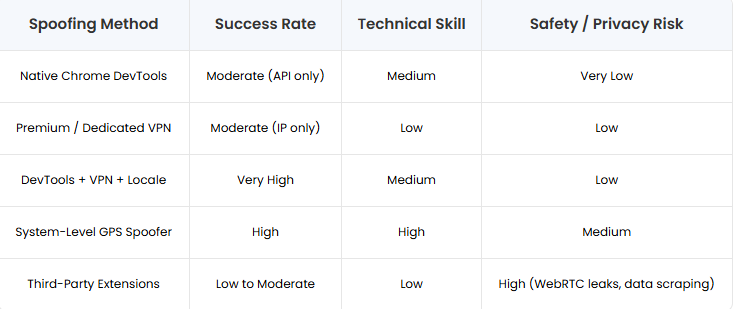
If you need to quickly test website location detection without installing third-party software, native browser tools are your safest choice. Many users rely on browser extensions out of convenience, but these often fail to update underlying browser sensors, leak WebRTC data, and can pose significant security risks. For professional debugging, relying on a manual native tool—or a strategic combination of tools—provides the highest success rate with the lowest risk of data leaks.
-
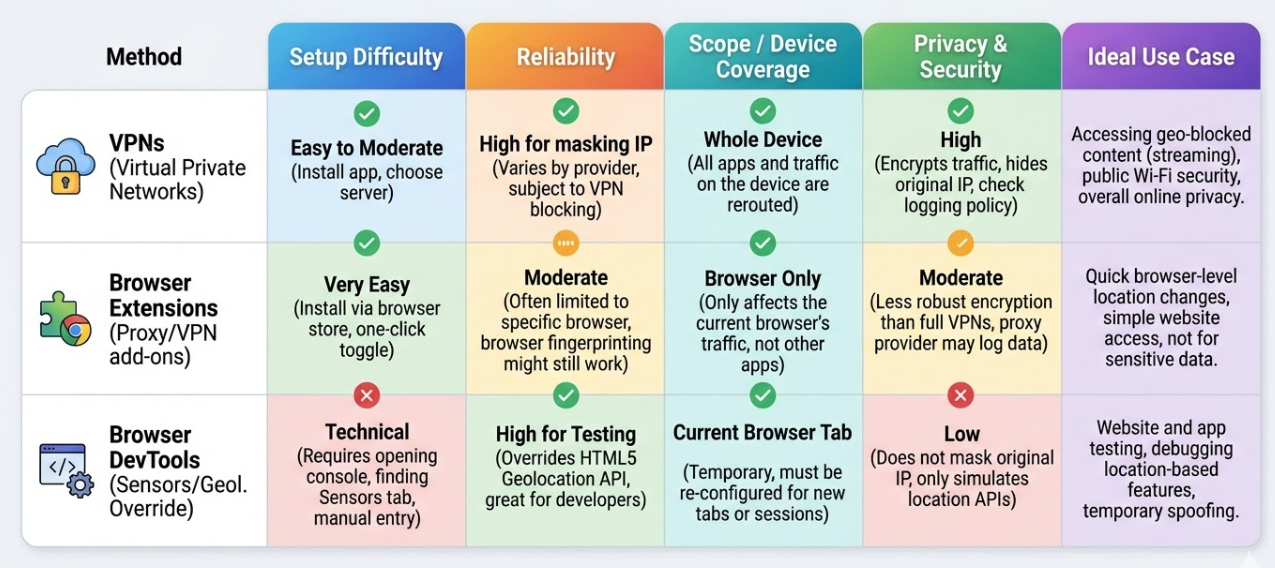
Decision matrix comparing geolocation methods
How to Spoof Location in Chrome Using Native DevTools (The Fast Way)
If you want a safe, native way to simulate different country location parameters, Chrome’s built-in overrides are exactly what you need. This method requires zero third-party installations.
While many tutorials will tell you to click through multiple hidden menus to find this feature, professional developers use the Command Menu to access it instantly. Here is the most efficient procedure to inject mock coordinates directly into your testing environment:
- Access Developer Tools: Navigate to your target website and press Ctrl+Shift+I (Windows/Linux) or Cmd+Option+I (Mac) to open the inspector.
- Open the Command Menu: Press Ctrl+Shift+P (Windows/Linux) or Cmd+Shift+P (Mac) to launch Chrome’s quick command palette.
- Open Sensors Panel: Type “Sensors” in the command menu and press Enter to open the Sensors panel at the bottom of DevTools.
- Apply Mock Coordinates: In the Sensors panel, choose a preset location like “Tokyo” or select “Other…” to enter custom latitude and longitude.
- Refresh the Page: Keep DevTools open and refresh the website. The page will now use your mocked location via the HTML5 Geolocation API.
Learn More:Phone Spoofing App Guide: Protect Your Location Safely >
If keeping DevTools open takes up too much screen space, click the three-dot menu (⋮) in the top-right corner of the DevTools panel and select “Undock into separate window.” This lets you browse the site normally while keeping your mocked location active in the background.
-
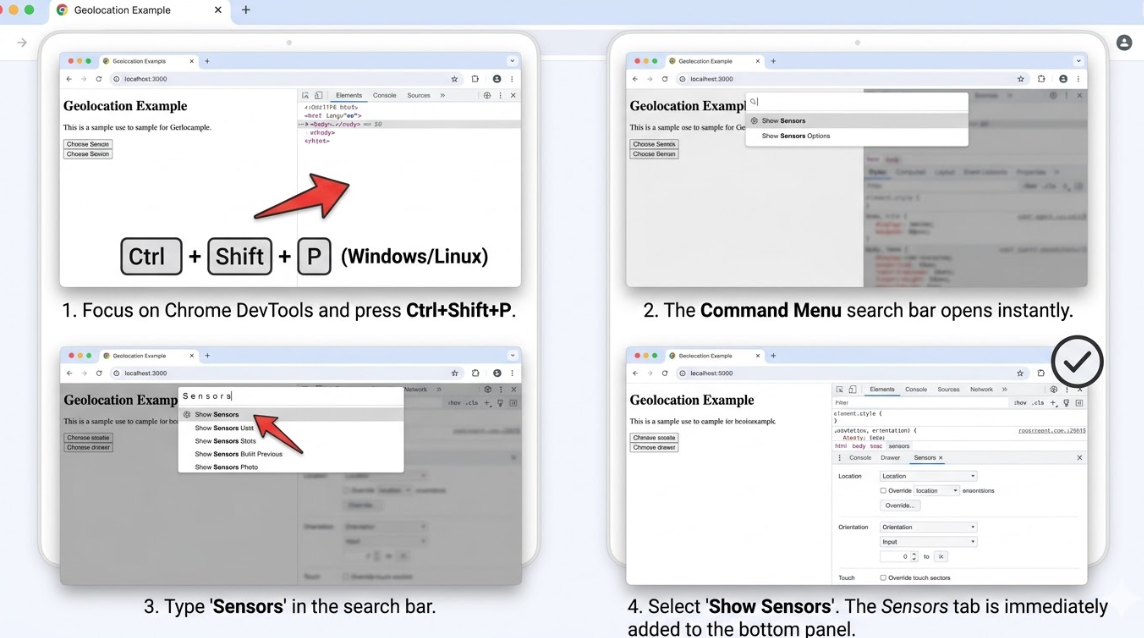
How to use Ctrl+Shift+P to access the developer tools sensors tab instantly Learn More:Soft Ban in Pokémon GO: What It Is and How to Fix It>
The Pro Technique: DevTools + VPN + Timezone Matching
Many testers find themselves frustrated when they discover their DevTools trick only works on some websites but not others. If you changed your IP with a VPN but websites still block you—or if you used DevTools and the site still routed you to your real city—you are encountering a common technical overlap.
Here is the professional insight that solves this issue: The Chrome DevTools geolocation override only affects the browser’s HTML5 API response. It does absolutely nothing to hide your IP address. Conversely, a VPN changes your IP but leaves your browser’s physical GPS/Wi-Fi triangulation data exposed. Furthermore, strict dynamic websites look at your Timezone and Accept-Language headers. If you spoof your GPS to Tokyo and use a Japan VPN, but your browser timezone is still set to EST, the site will flag the mismatch and block you.
Effective testing requires a multi-layered procedure.
The Professional Procedure:
- Layer 1 (Network): Connect your VPN to a server in your target city (e.g., Tokyo). Avoid free VPNs—use a provider with dedicated IPs and strong WebRTC leak protection for more reliable results.
- Layer 2 (API): Open Chrome DevTools, go to the Sensors tab, and input coordinates that match your selected location.
- Layer 3 (Timezone & Locale): In the Sensors tab, click “Manage…” and create a custom location. Make sure to set the correct Timezone ID (e.g., Asia/Tokyo).
- Match Browser Locale: Open the Command Menu (Ctrl+Shift+P), search for “Network conditions,” and disable “Use browser default.” Then enter the appropriate locale code (e.g., ja-JP).
Aligning your IP, GPS, Timezone, and Locale signals ensures absolute testing success against even the strictest enterprise firewalls.
Learn More:How to Spoof Find My iPhone: A Guide to Real Privacy Control>
Alternative Solution: Simplify Location Testing with Fonelora Location Changer
While Chrome DevTools is excellent for quick browser-based testing, it requires manual configuration and only affects the browser’s Geolocation API. If you frequently test location-based services or need a more convenient workflow, a dedicated location simulation tool like Fonelora Location Changer can significantly reduce setup time.
Unlike DevTools, Fonelora Location Changer allows you to modify your device’s location with a few clicks, eliminating the need to repeatedly enter coordinates or keep developer tools open during testing. You can instantly switch between cities such as New York, London, Tokyo, or Sydney, simulate realistic movement routes, and maintain consistent location data across supported applications.
Key advantages include:
- One-click teleport to any location worldwide
- Custom route simulation for movement-based testing
- Faster switching between multiple test regions
- User-friendly interface suitable for both developers and non-technical testers
How to Change Your Location with Fonelora Location Changer
1.Download and launch Fonelora Location Changer on your computer.

2.Connect your iPhone or Android device via USB and complete the connection process.

3.Select Teleport Mode from the main interface.

4.Enter the city, address, or GPS coordinates you want to test, such as New York, London, or Tokyo.
5.Click Move to instantly update your device’s virtual location.

6.Open Chrome or your target application and refresh the page to verify location-based content from the selected region.
Essential Coordinates & Troubleshooting
When you need to test multiple locations quickly, hunting down precise latitude and longitude figures slows down your workflow. Use this quick-reference cheat sheet for your testing environments:
- New York, USA: 40.7128 (Lat), -74.0060 (Lon) | Timezone: America/New_York
- London, UK: 51.5074 (Lat), -0.1278 (Lon) | Timezone: Europe/London
- Tokyo, Japan: 35.6895 (Lat), 139.6917 (Lon) | Timezone: Asia/Tokyo
- Sydney, Australia: -33.8688 (Lat), 151.2093 (Lon) | Timezone: Australia/Sydney
- Berlin, Germany: 52.5200 (Lat), 13.4050 (Lon) | Timezone: Europe/Berlin
Troubleshooting Common Failures
Even with the correct coordinates, you might hit a few roadblocks.
Problem: Location spoofing only works temporarily and resets after a page refresh.
Solution: DevTools overrides only stay active while the DevTools panel is open. If you close it before or during a refresh, Chrome will revert to your real location. Always keep DevTools open (you can undock it into a separate window to save screen space).
Testing at Scale: Chrome Profiles and Automation
Typing manual coordinates into DevTools is fine for quick one-off checks, but if you are a QA tester verifying 20 different cities a day, it becomes incredibly tedious.
For testing at scale, developers should move away from the manual UI and utilize automation or dedicated testing profiles.
Using Puppeteer / Playwright:
If you are writing automated end-to-end tests, you can bypass the DevTools UI entirely by passing the geolocation context directly in your scripts. In Puppeteer, you can grant the browser context permission and set the exact coordinates in just a few lines of code:
// Grant permission and spoof to London const context = browser.defaultBrowserContext(); await context.overridePermissions(‘https://your-test-site.com’, [‘geolocation’]); await page.setGeolocation({ latitude: 51.5074, longitude: -0.1278 });
Using Dedicated Chrome Profiles:
Alternatively, you can create separate Chrome profiles for specific regions (e.g., “Chrome – UK Test”, “Chrome – Japan Test”). While Chrome removed the simple –geo-override startup flag a few versions ago, you can still bind specific VPN proxy extensions and locale settings to these distinct profiles. When you open the “Japan Test” profile, your network layer and language headers are automatically set, reducing your manual setup time down to just confirming the DevTools Sensor coordinates.
Learn More:If You Delete Life360 Does It Still Track You? The Real Answer>
Understanding the Tech: IP Location vs. GPS Location
To effectively debug location-based features, you must understand how modern websites detect where you are. Location detection relies on multiple independent systems, which clarifies exactly why basic spoofing methods often fail.
1. IP-Based Location Detection
Every time you connect to a website, your device sends an IP (Internet Protocol) address. Web servers use databases to map this IP address to a physical region. A VPN tool changes this IP address, altering your perceived location at the network layer.
2. The HTML5 Geolocation API
Modern websites frequently ask for explicit permission to read your location for higher accuracy. When allowed, the site calls the browser’s Geolocation API. On a desktop computer, this API gathers data from nearby Wi-Fi networks (Wi-Fi positioning) to estimate your location. On mobile devices, it directly pings the hardware GPS chip.
When you use the Chrome DevTools override, you are intercepting this specific API call. You are forcing the browser to hand the website fake coordinates instead of the real Wi-Fi or GPS data. However, this does absolutely nothing to hide your network IP address. Managing both the network layer and the browser layer simultaneously is the only reliable way to accurately test these environments.
Frequently Asked Questions
- How do I quickly open the Location sensors in Chrome?
- Open DevTools (Ctrl+Shift+I), then press Ctrl+Shift+P to launch the Command Menu. Type “Sensors” and hit Enter.
- Why does Chrome still show my real location after using a VPN?
- A VPN only masks your IP address. Websites using the HTML5 Geolocation API can still access your real location via device sensors or Wi-Fi unless you override it in DevTools.
- How do I fix a timezone mismatch when testing different countries?
- In the DevTools Sensors tab, click “Manage…” and set a custom location with the correct Timezone ID (e.g., Europe/London). Also update your Accepted Language in the Network conditions tab.
- Can websites detect that I am spoofing my location?
- Yes, if only one layer (IP or GPS) is spoofed. Align your VPN region, DevTools coordinates, timezone, and locale settings to significantly reduce detection risk.
Conclusion
Accurate location testing requires more than simply changing your IP address. Modern websites often verify multiple signals, including GPS coordinates, timezone, and browser locale, which is why a VPN alone frequently fails.
Chrome DevTools provides a reliable way to override geolocation for manual testing. For users who need a faster and more convenient solution, Fonelora Location Changer simplifies the process with one-click location changes, route simulation, and quick switching between regions.
Whether you’re testing geo-restricted content, local search results, or location-based applications, the right combination of tools can help you create a consistent testing environment and verify regional experiences with confidence.


