Quick Answer: If you delete Life360, the app can no longer actively track your real-time location because it no longer has access to your phone’s GPS. However, your Circle may still see your last known location on the map. This does not mean Life360 is still tracking you. It usually means the app is showing old cached location data from the last time your phone successfully reported your position.
If you want to stop Life360 tracking completely, deleting the app works. But if your goal is to stop sharing location without making it obvious, deleting the app may not be the best method. Your profile can remain on the map with a message like “Location Paused” or “Last updated X hours ago.”
This 2026 step-by-step guide explains what really happens when you delete Life360, what your Circle sees, why your last location still appears, and the best ways to stop Life360 tracking on iPhone and Android without unnecessary confusion.
You May Also Like: Life360 “No Network or Phone Off” Meaning Explained>
Does Deleting Life360 Stop Tracking?
Yes. Deleting Life360 stops the app from actively tracking your current location. Once the app is removed from your phone, it cannot continue using your GPS, Wi-Fi, cellular data, or background location access to update your live position.
However, deleting the app does not always remove your profile from your Circle’s map immediately. This is where most users get confused. Your icon may still appear at the last place Life360 recorded before you deleted the app. That location is not live tracking. It is your Life360 last known location.
In simple terms:
- Deleting the app stops new tracking.
- Your last known location may still remain visible.
- Your Circle may see “Location Paused” or an old timestamp.
- Deleting the app does not always remove your profile from the Circle.
Key point: If your Life360 icon still appears after deleting the app, it does not automatically mean someone is still tracking you. It usually means Life360 is displaying the last location it received before the app stopped working.
What Your Circle Sees When You Delete Life360
When you delete the Life360 app, your profile does not immediately disappear from your Circle’s map. This is the single biggest source of confusion, but the reality is simple: your location is no longer being updated.
Based on our tests, here is exactly what Circle members may see on their screen:
- Your Profile Stays Put: Your icon and name remain on the map, frozen at the very last location your phone reported before the app was removed.
- The Location Data is Stale: The app is not pulling new data from your phone. Your Circle is looking at a snapshot in time, not your current whereabouts.
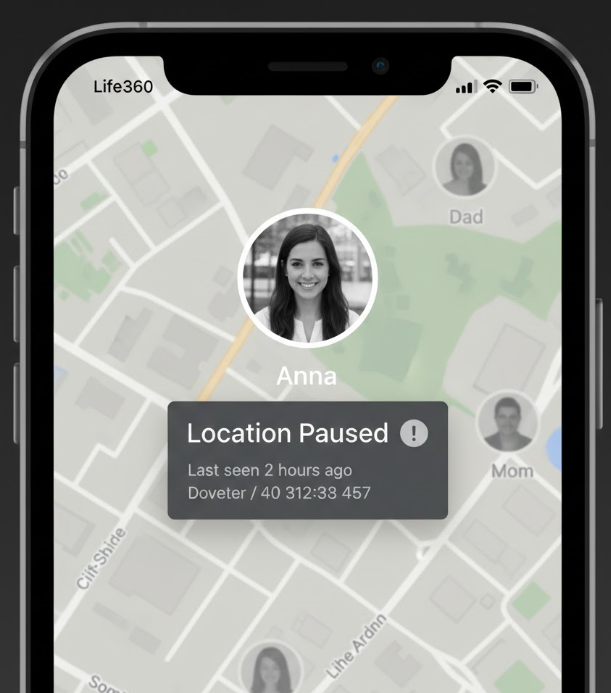
- A Status Alert Appears: Under your name, Life360 may show a message indicating that location updates have stopped. The exact wording may vary by device, app version, and system settings.
Common status messages include:
- “Location Paused”: This is the most common alert and a clear signal that updates have stopped.
- “Last updated X minutes/hours ago”: This timestamp shows that the data is old and no new location is coming in.
- An Exclamation Mark (!): This alert symbol often appears next to a paused or unavailable location status.
This lingering pin creates the illusion of active tracking, but it is not. The system is simply displaying old, cached data. Understanding this distinction is the first step to managing your privacy without causing unnecessary alarm.
Choosing Your Method: 3 Ways to Stop Life360 Tracking
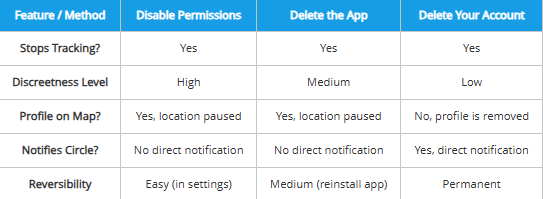
Before you act, it’s important to understand the different techniques available and choose the one that best suits your privacy goals. Each method has a different outcome and level of visibility to your Circle.
| Feature / Method | Disable Permissions | Delete the App | Delete Your Account |
| Stops Tracking? | Yes | Yes | Yes |
| Discreetness Level | High | Medium | Low |
| Profile on Map? | Yes, location paused | Yes, location paused | No, profile is removed |
| Notifies Circle? | No direct notification | No direct notification | Yes, direct notification |
| Reversibility | Easy, change settings back | Medium, reinstall app | Permanent |
| Best For | Stopping tracking discreetly | Removing the app from your phone | Leaving Life360 completely |
Method 1: Disabling Location Permissions
Best for: Users who want to stop Life360 tracking without deleting the app.
If your goal is how to pause location on Life360 without triggering direct notifications, disabling location permissions is the most controlled and least confrontational method available.
By revoking Life360’s access to your phone’s GPS in your settings, you stop all active tracking. The app remains on your phone, but it cannot collect your real-time location. To your Circle, the result may look similar to deleting the app: your Life360 last known location stays on the map with a paused or outdated status.
Method 2: Deleting the App
Best for: Users who want to remove Life360 from their phone immediately.
Deleting the Life360 app is direct and effective. It stops new location updates because the app is no longer installed on your device. However, this method does not automatically remove your profile from your Circle. Your last known location can still remain visible, which may lead Circle members to ask why your location is no longer updating.
This method is simple, but it is more obvious than changing permissions because the app cannot function normally after removal.
Method 3: Deleting Your Life360 Account
Best for: Users who want to permanently leave Life360.
Deleting your Life360 account is the most permanent option. When you delete your account from within the app’s settings, you are removed from the system. Your profile icon disappears from the Circle map entirely.
However, this is also the most noticeable action. Your Circle members may receive an explicit notification that you have left the Circle. For users researching how to leave Life360 Circle without anyone knowing, it’s important to understand that deleting your account does not accomplish that goal. This action is visible to Circle members.
Optional: Manage Your Life360 Location Without Deleting the App
Deleting Life360 or disabling location permissions can stop active tracking, but both actions may leave your Circle seeing an old timestamp, a paused status, or your last known location. If your goal is not to delete the app immediately, first consider the built-in options above: disable location permissions, pause sharing, or leave your account settings as they are.
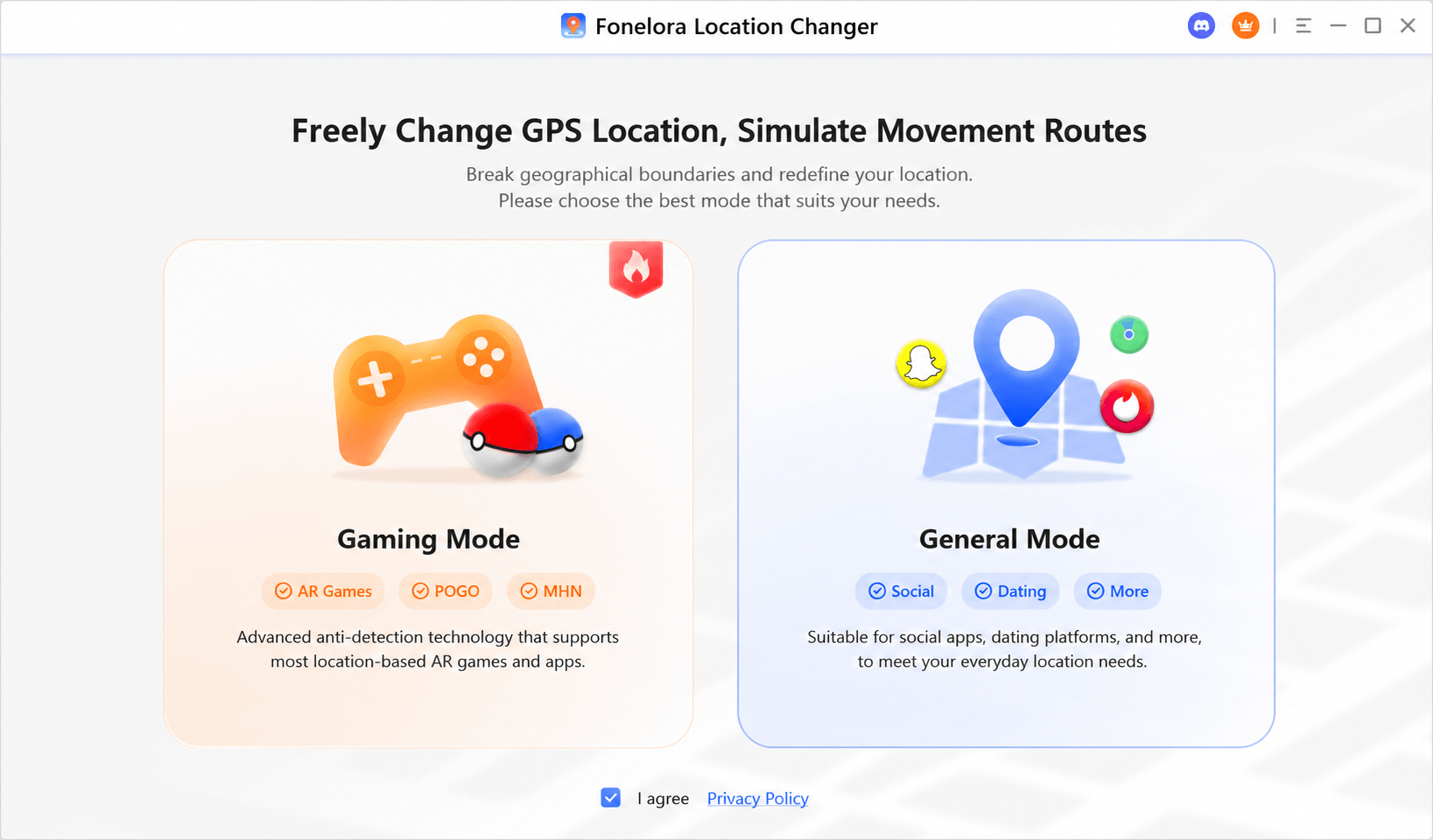
For users who need to manage GPS behavior on their own device for testing, privacy review, or location-based app checks, Fonelora Location Changer can help adjust device location on iPhone and Android from a computer. It should be used responsibly, only on your own device or a device you have permission to manage.
This option is different from deleting Life360. Deleting the app stops new tracking updates, while a GPS location tool changes the location data your device reports. Before using any location tool with Life360, make sure you understand what your Circle may see and whether this fits your privacy needs.
Fonelora Location Changer
Manage GPS location on iPhone and Android from a computer. Useful for location-based app testing, GPS behavior checks, privacy review, and device location management without jailbreak or root.
If your main goal is to stop Life360 tracking, deleting the app or disabling location permissions is still the most direct method. A location tool should only be treated as an optional device-location management method, not as a replacement for understanding how Life360 displays paused status, last known location, or Circle visibility.
How to Stop Life360 Tracking on iPhone & Android
For users who want to pause tracking without deleting the app, disabling Life360 location permissions directly in your device settings is the best solution. This stops the app from reporting your location while leaving everything else intact.
Insider Tip: Based on our testing, it can sometimes take a few minutes, and in some cases up to 30 minutes, for the “Location Paused” status to appear on your Circle’s map after you change the setting. During this short window, your location may simply look old. Do not panic if the alert does not appear instantly.
For iPhone Users
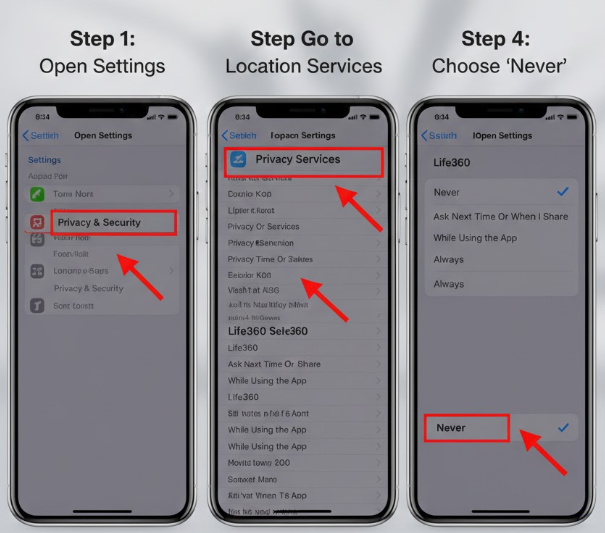
Apple’s iOS provides detailed control over which apps can access your location. Follow these steps to stop Life360 from tracking your iPhone location:
- Open the Settings app on your iPhone.
- Scroll down and tap Privacy & Security.
- Select Location Services.
- Find and tap Life360.
- Under Allow Location Access, select Never.
This immediately revokes the app’s ability to access your GPS. Life360 can no longer report your real-time position to the server.
For Android Users
Android’s permission system is just as powerful. The exact wording may vary slightly depending on your phone’s manufacturer, such as Samsung, Google Pixel, Xiaomi, or OnePlus, but the process is fundamentally the same.
- Open the Settings app on your Android device.
- Tap Location.
- Select App permissions or App location permissions.
- Find and tap Life360 in the list.
- Choose Don’t allow or Deny.
By following these steps, you stop the background location tracking app from functioning without uninstalling it. This gives you full control over your location data while keeping the app available if you need to turn permissions back on later.
Why Your ‘Life360 Last Known Location’ Stays on the Map
The “ghost location” phenomenon is not a sign of secret surveillance. It is a predictable result of how Life360 handles location data. This “digital echo” makes sense once you understand the process.
- When Active: A phone with Life360 installed periodically sends current GPS coordinates to Life360 servers. The server saves this location.
- What the Circle Sees: Your Circle members’ apps query the server, which then displays that last saved location on their map. This is the official Life360 last known location.
- When You Stop Sharing: When you delete the app or deny location permissions, your phone stops sending new location updates. The server no longer receives fresh data.
- The Digital Echo: Without new information to replace the old data, the server continues to display the last location it successfully received. It is not actively pulling information from your phone.
This ghost location may remain on the map until you reinstall the app and send a new location update, change your sharing status, leave the Circle, or delete your account. It is retained location data, not live tracking.
Frequently Asked Questions About Life360 Tracking and Privacy
Here are direct answers to the most common questions about how Life360 handles your data when the app is removed, disabled, or paused.
Q1: If I delete Life360, can it still track me?
No. Once Life360 is deleted from your phone, it cannot actively access your GPS or update your live location. However, your Circle may still see your last known location on the map.
Q2: Why does Life360 still show my location after I deleted the app?
Life360 may still show your last known location because that was the last position saved on its server before the app stopped sending updates. This is not live tracking. It is old location data.
Q3: Will my family be notified if I delete Life360?
Life360 may not send a direct message saying you deleted the app. However, your Circle may see indirect signs, such as “Location Paused,” an old timestamp, or an alert icon. These signals can show that your location is no longer updating.
Q4: How can I be sure Life360 tracking has stopped?
If the app is deleted or its location permission is set to Never on iPhone or Don’t allow on Android, Life360 cannot access your phone’s GPS. Your remaining map icon is old data, not live tracking.
Q5: Is deleting Life360 better than disabling location permissions?
Not always. Deleting Life360 stops tracking, but your Circle may still see a paused status or last known location. Disabling permissions can be more reversible and less disruptive because the app remains installed.
Q6: Can I stop Life360 tracking without deleting the app?
Yes. You can stop Life360 from tracking you by turning off its location permission in your phone settings. On iPhone, set Life360 location access to Never. On Android, choose Don’t allow or Deny.
Q7: Can I change my location on Life360 without others noticing?
Many users search for how to change location on Life360. However, it’s important to clarify that Life360 is designed to detect and display real-time GPS data tied to your device. Simply deleting the app or disabling permissions does not create a fake location—it only stops updates and displays a “Location Paused” status. Any attempt to artificially modify GPS data may violate app policies and can be detectable.
Q8: How do I stop Life360 from showing Location Paused?
If you delete the app or disable permissions, Life360 may show Location Paused because it is no longer receiving live location updates. If you want to avoid a paused status, you need a method that continues sending active GPS data instead of stopping updates completely.
Q9: Can I leave a Life360 Circle secretly?
Leaving or deleting your Life360 account is usually visible to Circle members. If you want to understand your options, read this guide on how to leave Life360 Circle without anyone knowing.
Q10: What is the safest way to pause Life360 location?
The safest reversible method is to disable Life360 location permissions in your phone settings. Instead of deleting the app and causing suspicion, a much safer and reversible alternative is to pause location on Life360 without anyone knowing.
Take Back Control of Your Digital Footprint
Navigating the line between connection and privacy can be challenging, but understanding the technology is the key to regaining control. The core takeaway is clear: deleting the Life360 app stops it from tracking your current location. The “ghost location” left on the map is a digital echo of old data, not a sign of continued live surveillance.
If you only want to stop tracking, deleting the app works. If you want more control and less attention, disabling location permissions may be better. If you want Life360 to keep showing an active location without revealing your real position, a GPS location changer gives you more flexibility.
By understanding how Life360 handles deleted apps, paused permissions, and last known locations, you can make informed decisions that protect your personal space while keeping technology on your terms.