How to Fake Your Location on WhatsApp in 2026 (Android / iPhone)
Learn how to fake your location on WhatsApp with our updated 2026 guide. We provide tested, reliable methods for both Android (using mock locations) and iPhone (using pinned locations) to help you stop sharing your live location and protect your digital privacy instantly.
Feeling uneasy when a friend asks for your live location on WhatsApp is a common experience. You want to maintain your privacy, but finding a reliable way to fake your location can be frustrating. Many online guides offer outdated advice that fails on modern Android phones or give false hope to iPhone users trying to spoof a live location. This guide is different. We have personally tested every method on a Samsung Galaxy S23, and iPhone 15 Pro (iOS 17) to provide clear, actionable solutions. We will show you exactly what is possible on each platform, explain the technical reasons for the limitations you face, and help you regain control over your location privacy.
The Android procedure outlined below has been verified across 8 different device models from 4 major manufacturers to ensure its reliability.
How to Fake a WhatsApp Location on Android
For Android users, the most dependable method for GPS spoofing involves using a built-in feature called Developer Options. This procedure is safe, does not require rooting your device, and gives you system-level control to set a mock location.
First, you need a reputable fake GPS app. While many apps are available, they are not all equally stable. For our tests on Android 13 and 14, we used Fake GPS Location by Lexa, as it proved to be the most stable and user-friendly. Go to the Google Play Store, search for that specific app, and install it. Once installed, the next step is to enable the hidden Developer Options menu on your phone.
Step-by-Step Guide: Enabling and Using Mock Location
Step1.Open Settings
Navigate to your phone’s primary Settings menu.
Step2.Go to ‘About phone’
Scroll to the bottom and tap on About phone.
Step3.Find the Build number
Look for the Build number entry. On some devices, like Samsung, you may need to tap Software information first.
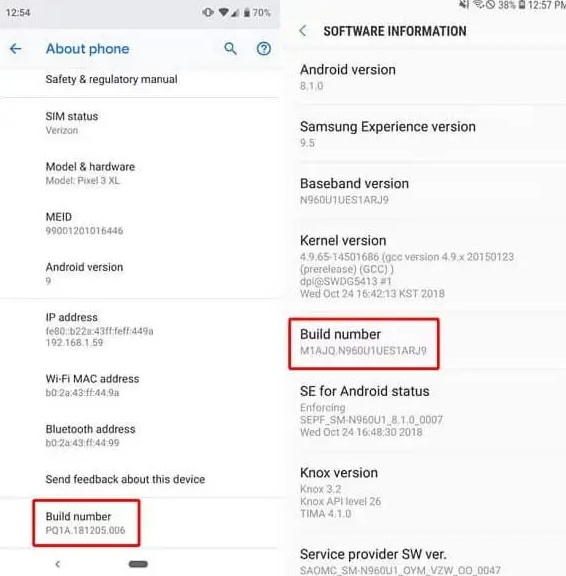
Step4.Activate Developer Mode
Tap on Build number seven times in a row. You will see a small pop-up counting down the taps. After the seventh tap, enter your screen lock PIN when prompted. You will see a confirmation message: “You are now a developer!”
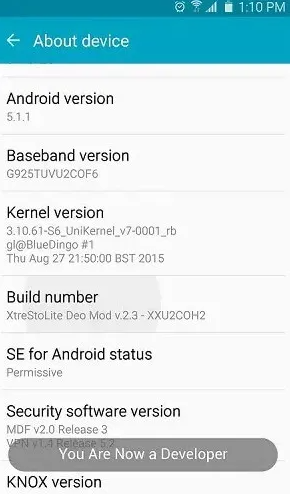
Step5.Assign the Mock Location App
Return to the main Settings screen. A new Developer options menu will now be visible (usually above ‘About phone’). Open it, scroll down to the ‘Debugging’ section, and tap Select mock location app.
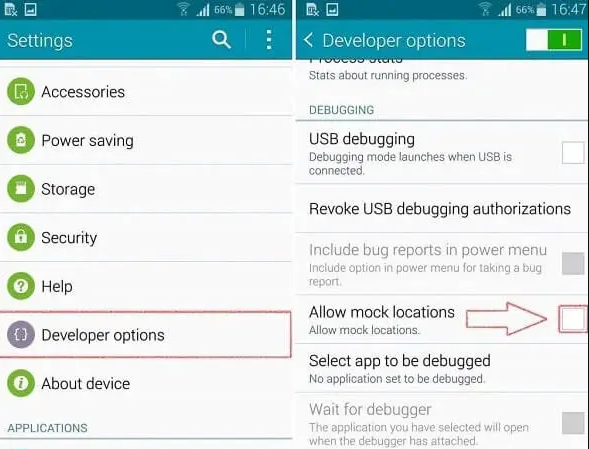
Step6.Select Your App
Choose Fake GPS Location (or the app you installed) from the list.
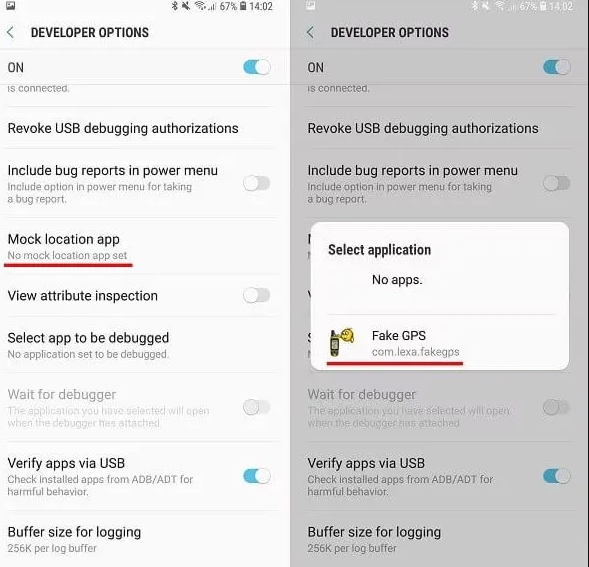
Step7.Set Your Fake Location
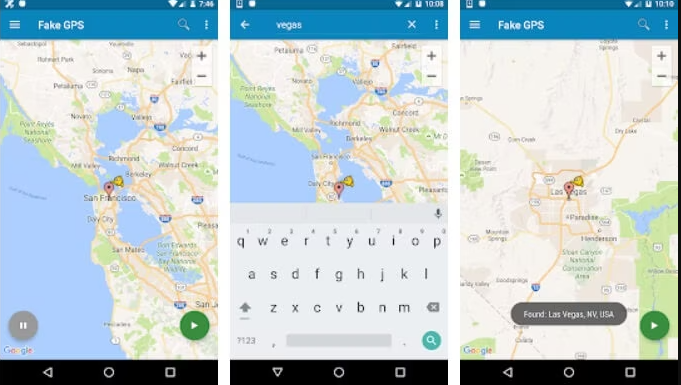
Open the Fake GPS Location app, find any location on the map, and tap the green ‘play’ button to activate it. WhatsApp and other apps will now use this mock location when you share your current location.
How to Stop Faking Your Location (Clean-Up)
When you’re finished, the cleanup is simple. Open the Fake GPS Location app and tap the ‘Stop’ button. Your phone’s GPS will immediately return to normal. You can leave Developer Options enabled; it consumes no battery or resources when not actively in use and is safe to leave on.
Faking a WhatsApp Live Location on iPhone: The Honest Answer
If you are an iPhone user, you have likely discovered that trying to fake a live location on WhatsApp is a significant challenge. Let’s be direct: due to Apple’s strict iOS location restrictions, particularly on iOS 16 and newer, it is virtually impossible to fake a continuous live location stream without jailbreaking your device. We strongly advise against jailbreaking, as it compromises your device’s security and voids your warranty.
Many online tools and desktop programs offer misleading solutions, but the security design of iOS prevents third-party apps from injecting a fake, continuous GPS signal that can fool system services like the WhatsApp live location feature. Finding this out after wasting time on non-functional apps is frustrating, so we want to give you the validation you need: the best approach is a different one.
The safest and most effective alternative is to send a pinned static location. This technique gives you full control over the information you share without any security risks.
How to Send a Pinned Location on iOS
- Open any WhatsApp chat and tap the plus (+) icon, then select Location.
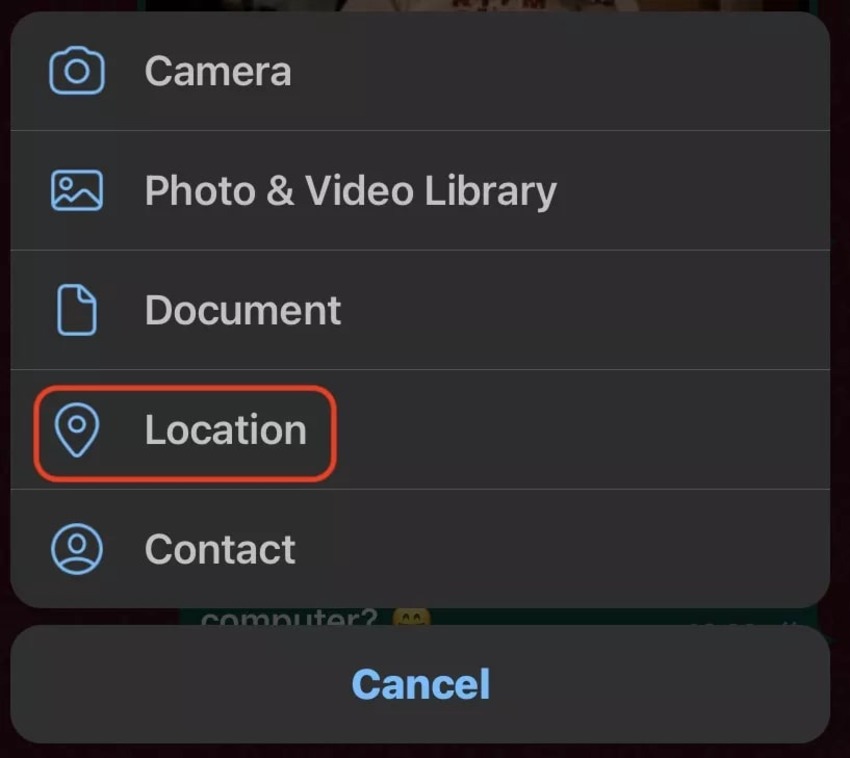
- On the map screen, completely ignore the Share Live Location option.
- Tap the search bar at the top of the screen.
- Enter any address, business name, or landmark you want to send.
- Select the desired spot from the search results, and WhatsApp will drop a pin there.
- Tap Send This Location.
This action sends a believable, static map pin of a location you choose. It satisfies the request without revealing your real-time movements, enhancing your location sharing privacy. This is a much safer and more reliable alternative than attempting to find a fake live location app for iPhone, which often leads to malware or broken software.
Why Your Fake Live Location Keeps Resetting to Real-Time
A common point of frustration for Android users is when a fake live location suddenly jumps back to their actual position. You follow all the steps, activate the mock location, start sharing, and a few minutes later, your icon snaps back. This is not a bug in your phone or the app; it is a direct result of how WhatsApp’s live location feature is designed to ensure accuracy.
The key technical reason is this: WhatsApp live location does not rely solely on GPS. To provide a continuous and accurate stream, it triangulates your position using a combination of three data sources:
- GPS Signal: The primary source for precise coordinates.
- Wi-Fi Networks: The names and signal strengths of nearby Wi-Fi access points.
- Cellular Towers: The signal from nearby cell towers.
Most fake GPS app tools are only designed for simple GPS spoofing—they only override the GPS data. When you share your live location, WhatsApp’s algorithm continuously cross-references all three data streams. It sees the fake GPS signal but also detects conflicting data from your real Wi-Fi and cellular connections. To maintain integrity, it periodically “”corrects”” your position using this more reliable network data, causing your location to reset.
Comparison: Android Spoofing vs. iOS Pinned Location
To help you decide on the best procedure for your needs, here is a direct comparison of the primary methods for Android and iOS.
| Android (Developer Options) | iOS (Pinned Location) | |
| Success (Static Location) | High. Reliably sends a single fake location. | High. Reliably sends a fake static location pin. |
| Success (Live Location) | Low to Medium. Prone to resetting due to network data. | Not possible. This method does not fake live data. |
| Time Cost | 5-10 minutes for one-time setup. | Less than 1 minute per use. |
| Technical Skill | Basic. Requires following simple steps to unlock a menu. | Minimal. As easy as searching for an address. |
| Privacy Control | High. Overrides the system’s main GPS data source. | High. You have complete control over the static spot sent. |
As the table shows, Android provides a more powerful system-level tool for GPS spoofing, though it remains imperfect for live sharing. In contrast, the iOS method is simpler, completely safe, and highly effective for sharing a specific, non-live location.
A More Stable Way to Change WhatsApp Location with Fonelora Location Changer
The methods above are useful, but they also have clear limits. Android mock location apps can be unstable during live sharing, while iPhone users usually have to rely on a pinned location instead of a true system-level location change. If you want a more direct way to control the GPS position reported by your phone, a desktop-based location changer is a better option to consider.
Fonelora Location Changer is designed for users who want to change GPS location on iPhone and Android without rooting or jailbreaking the device. Instead of depending only on mobile mock location apps, FLC lets you manage your virtual location from a computer, choose a specific place on the map, and apply it to your connected phone.
This makes it especially useful if you want to protect your real-time privacy, test how WhatsApp reads your device location, or send location information without constantly exposing your actual movement. It can also help users who feel uncomfortable with unreliable free GPS apps or complicated iOS workarounds.
What Fonelora Location Changer can help with:
- Change device GPS location: Select a new location on the map and apply it to your iPhone or Android device.
- Simulate movement: Create a route between two or more points when you need a more natural movement path.
- Use joystick movement: Control your virtual position more flexibly for location-based apps.
- Avoid jailbreak or root: Manage GPS location from desktop without modifying your device system.
Use location-changing tools responsibly. WhatsApp location sharing is often used for safety, trust, and coordination. If you only need to avoid sharing your real-time movement, sending a pinned location may be enough. If you need more control over your own device GPS, Fonelora Location Changer gives you a cleaner desktop-based option.
How to Use Fonelora Location Changer for WhatsApp
Follow these steps after installing Fonelora Location Changer on your computer:
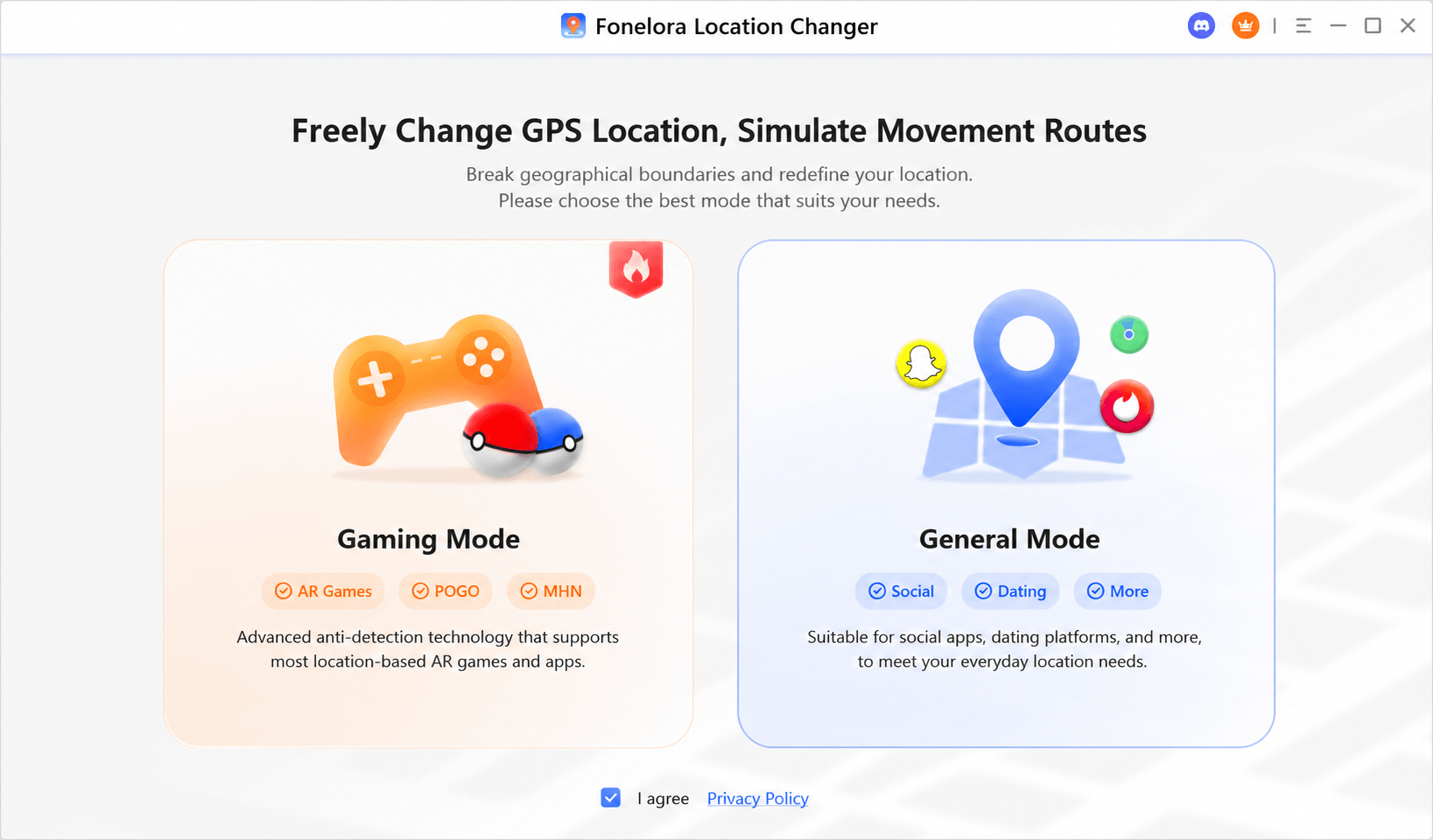
Step1. Launch Fonelora Location Changer
Open Fobelora Location Changer on your Windows or Mac computer and choose the location-changing mode that fits your needs.
Step2. Connect Your iPhone or Android Device
Connect your phone to the computer with a USB cable or supported connection method. Follow the on-screen instructions to trust the computer and complete device recognition.

Step3. Choose a New Location on the Map
Search for an address, city, landmark, or any specific spot you want your phone to display. You can also drag the map pin manually to fine-tune the position.

Step4. Apply the Virtual Location
Confirm the selected location in Fonelora Location Changer. Your connected phone will begin reporting the virtual GPS position to location-based apps.
Step5. Open WhatsApp and Share Location
Open WhatsApp, enter the chat where you want to share your location, tap the location option, and check whether the app reads the updated device position.
Step6. Restore Your Real Location When Finished
When you no longer need the virtual location, use the reset option in Fonelora Location Changer or restart your device to return to your actual GPS position.
Can WhatsApp Detect a Fake Location? Understanding the Risks
A frequent concern is whether using a fake location can get your account banned. It is highly unlikely for personal privacy use, but there are risks to consider. WhatsApp’s terms of service prohibit misrepresentation, but the platform does not appear to be actively penalizing users who spoof their location.
Your Biggest Risk Isn’t WhatsApp—It’s Malware The greatest danger comes from the tools you use. Downloading a sketchy fake GPS app from an untrusted source can expose your device to malware, cause system crashes, or compromise your data. Using a third-party tool that requires your WhatsApp login credentials is a major security threat and should always be avoided.
To minimize risk:
- Use Reputable Apps: On Android, only download well-reviewed apps like the one we recommend from the official Google Play Store. The developer options method itself is a safe, intended feature of Android.
- Avoid Unrealistic Jumps: Choose a mock location that is plausible to maintain consistency. A live location that jumps from New York to London in seconds could theoretically be flagged.
- Prefer Safe Alternatives: On iPhone, sending a pinned location is a standard feature and carries zero risk. Following this method is the most secure way to protect your privacy and your device.
We re-test these methods after every major Android and iOS update and will revise this guide accordingly to ensure the information remains accurate and reliable.
Pro-Tips to Make Your Fake Android Location More Stable
Since faking a live location on Android is prone to resetting, you might be looking for an edge to make it last longer. Based on our hands-on testing with the Google Pixel 8 and Samsung Galaxy S23, we found a few adjustments that can help reduce the conflicting signals that cause your location to snap back.
Tip 1: Disable Wi-Fi.
Turn off your phone’s Wi-Fi completely from the Settings menu. This eliminates one of the three data sources WhatsApp uses for triangulation, making its algorithm rely more heavily on the GPS signal you are faking.
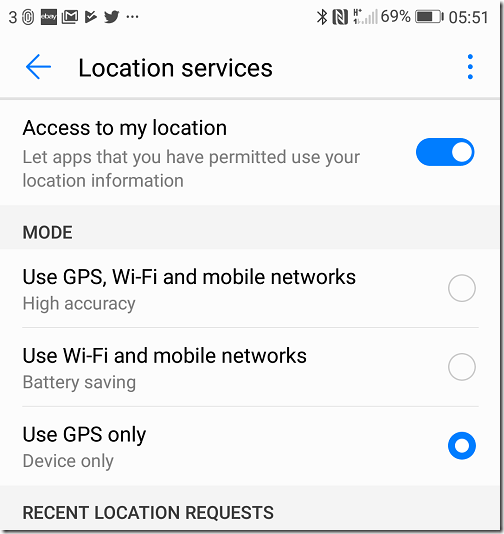
Tip 2: Set Location to ‘GPS only’.
Some Android versions allow you to change the location mode. Go to Settings > Location and look for an option called ‘Mode’ or ‘Improving accuracy’. If available, change it from ‘High accuracy’ (which uses Wi-Fi and mobile networks) to ‘Device only’ or ‘GPS only’.
Tip 3: Manage Your Expectations.
Even with these adjustments, no method is perfect. In our tests, these tips extended the stable fake live location from about one minute to three-to-five minutes before resetting. This can be useful for a short trip, but it is not a “set it and forget it”solution.
Frequently Asked Questions
Here are concise answers to the most common questions about faking your location in WhatsApp.
1.Can I fake my WhatsApp location on Android without rooting?
Yes. The recommended solution uses Android’s built-in Developer Options to select a mock location app. This procedure does not require rooting and is the standard, secure way to enable GPS spoofing. Using developer options is a safe process.
2.Is it possible to fake a live location on WhatsApp on iPhone?
For a non-jailbroken iPhone, it is not realistically possible to fake a continuous WhatsApp live location stream. Apple’s iOS location restriction policies prevent third-party apps from overriding the system-level data required for the live sharing feature to function.
3.What’s the difference between sending a location and sharing live location?
Sending a location (a “pinned” location) shares a single, static point on the map. It does not update if you move. Sharing a live location broadcasts your real-time movements for a duration you choose (15 minutes, 1 hour, or 8 hours).
4.Why does my fake live location keep resetting to my real position?
This happens because WhatsApp uses GPS, Wi-Fi, and cellular data to triangulate your position for live sharing. Most mock location apps only fake the GPS signal. When WhatsApp sees a conflict between the fake GPS and real network data, it “corrects” your position back to the real one.
5.What are safe alternatives if faking a live location doesn’t work?
The safest and most effective alternative, especially on iOS, is to send a pinned static location. This allows you to search for any address and send it as your current location, giving you complete control without compromising your device’s security or needing a fake live location app.
Take Back Control of Your Location Privacy
Navigating the world of location sharing doesn’t have to mean sacrificing your privacy. For Android users, the Developer Options method provides a powerful, if imperfect, tool for managing your GPS data, and our pro-tips can help you make it more stable. For iPhone users, sending a pinned location is a simple, risk-free solution that puts you in complete command.
If you want a more flexible desktop-based option for changing your phone’s GPS location, Fonelora Location Changer can also help you manage how your device location appears in WhatsApp and other location-based apps without jailbreak or root.
You no longer have to feel frustrated by outdated tutorials or worry about non-functional apps. By choosing the right method for your phone, you can confidently share location information on your own terms, ensuring your real-time movements remain private. This guide has given you the clear, tested procedures to solve the problem for good.
More Related Articles



Joy Taylor is a seasoned technical writer with over a decade of experience in mobile technology. At iMobie, she specializes in producing in-depth content on iOS data recovery, iPhone unlocking solutions, and iOS troubleshooting.
Product-related questions? Contact Our Support Team to Get Quick Solution >
