Life360 “No Network or Phone Off” Meaning Explained (2026 Guide)
Confused by the “No Network” or “Phone Off” status on Life360? This guide explains the main causes, including connectivity issues and device settings, and provides a simple checklist plus step-by-step fixes to restore accurate location tracking.
It’s a moment of anxiety every parent understands. You open Life360 to check on a loved one, but instead of a precise location, you see the vague and worrying message: “No Network or Phone Off.” Your mind immediately races. Is their phone dead? Are they in an area with no service, or has something gone wrong?
If you’re searching for what does no network or phone off mean on life360, you need a clear, expert answer to cut through the confusion and fear. This guide provides just that. The most important thing to know is that this message is often a simple technical issue, not a sign of an emergency. We will demystify this common status, give you a logical checklist to assess the situation calmly, and provide step-by-step troubleshooting methods based on extensive, hands-on testing.
Quick Answer
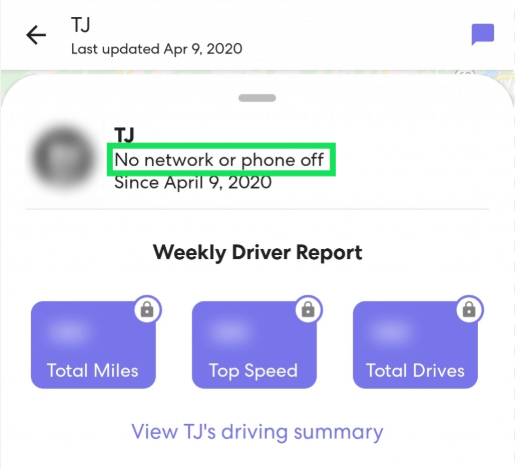
“No Network or Phone Off” on Life360 means the app cannot receive a fresh location update from the user’s device.This usually happens when the phone is turned off, has no internet connection, or location sharing is blocked in settings.
In most cases, it is a technical issue rather than an emergency.
What “No Network or Phone Off” Really Means
This status is a general fallback message used by Life360 when it cannot determine the exact reason for missing location data. Instead of showing multiple error types, Life360 groups them into one label: The device is not sending location updates to Life360. This can happen even if the phone is still working.
Main Reasons Why Life360 Shows This Status
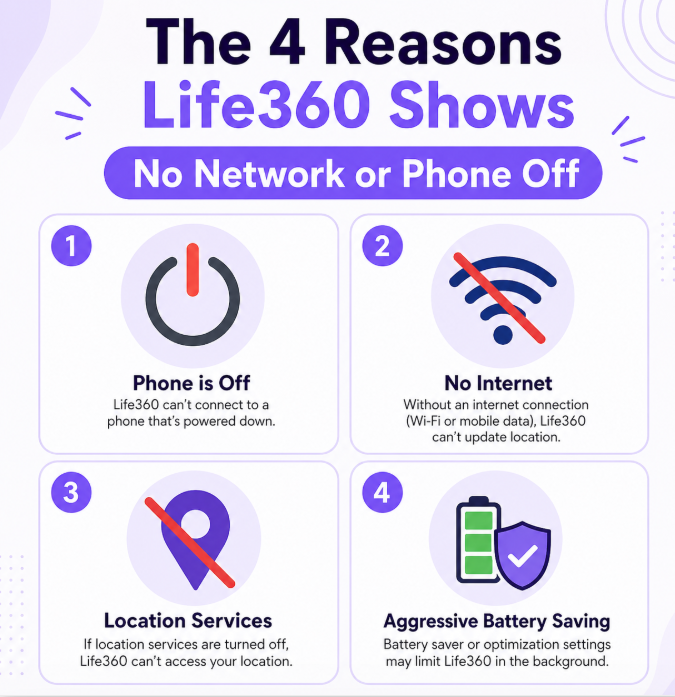
1. Phone is turned off or battery is dead
If the device has no power, it cannot send GPS or network signals.
How to confirm:
- Last seen time is old (hours ago)
- Battery was already low before disconnection
2. No internet connection (Wi-Fi or mobile data)
The phone may still be on, but unable to transmit data.
Common causes:
- Weak signal area
- Airplane mode enabled
- Network outage
3. Location services are disabled
If GPS access is turned off, Life360 cannot track location.
This includes:
- Location Services OFF
- App-level permission denied
- “Never allow” GPS access
4. Background restrictions or battery saving mode
Modern systems may block apps running in the background.
Especially common on:
- iOS
- Android
Battery optimization may temporarily stop Life360 from updating.
Before You Panic: 4-Step Diagnostic Checklist
Use this checklist to quickly understand what is happening.
1. Check “Last Seen” time
- Recent (minutes ago) → temporary signal issue
- Long time ago → likely phone off or no network
2. Check battery level (last update)
- Very low battery → likely dead phone
- High battery → software or network issue
3. Check last known location
Ask:
- Was it indoors?
- Was it in a subway, mall, or rural area?
These places often block signals.
4. Try calling or texting
- Rings normally → phone is on, app issue
- Goes to voicemail → phone off or no signal
You May Also Like: Does Life360 Work in Airplane Mode? The 2026 Tested Answer>
How to Fix Life360 Location Issues (iPhone & Android)
If your checklist investigation suggests the problem is a technical setting—and you’ve made contact with your loved one—you can often fix it by adjusting key permissions. These steps are a solution for later to prevent the problem from reoccurring, not a fix you can apply remotely in the moment of panic.
These settings must be changed on your loved one’s phone; you cannot fix them from your own device. (Note: If you are the family member searching for why your phone triggered this status for your parents, these are the settings you need to check.) Once you’re in contact with them, have them walk through these steps to ensure their phone is configured for reliable location sharing.
iPhone Fix (Life360 not updating location iPhone)
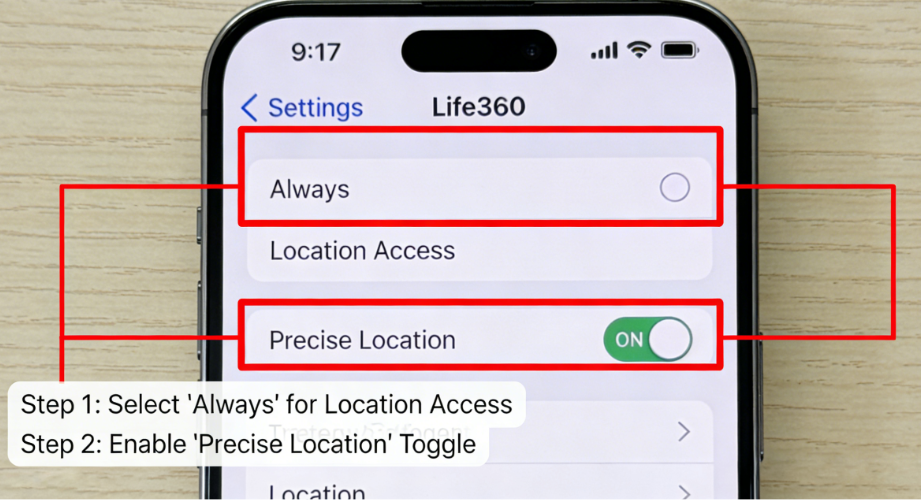
1. Enable Location Services
Settings → Privacy & Security → Location Services
- Turn ON
- Set Life360 → Always Allow
- Enable Precise Location
2. Enable Background App Refresh
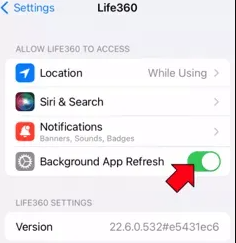
Settings → General → Background App Refresh
- Turn ON
- Enable Life360
3. Allow Cellular Data
Settings → Cellular
- Enable Life360 access
Android Fix (Life360 location not updating Android)
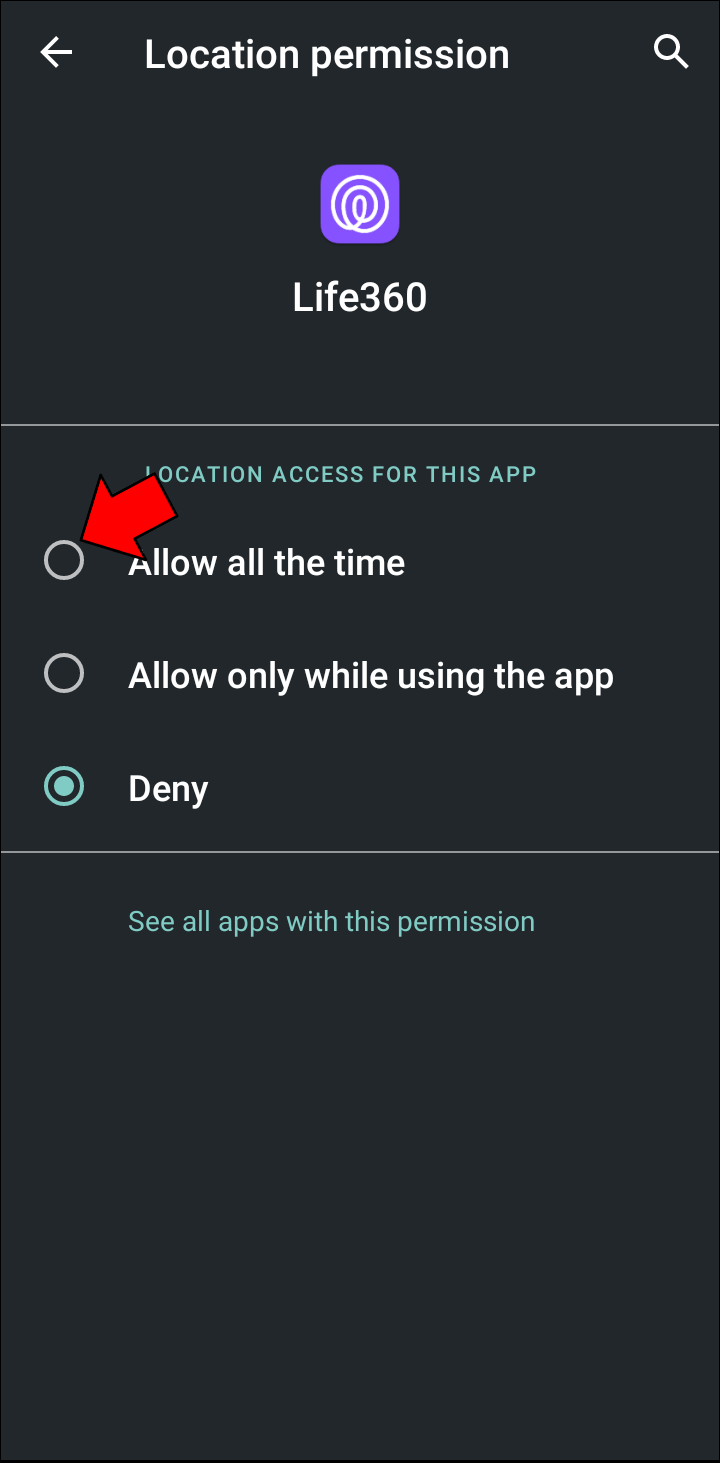
1. Enable location permission
Settings → Location → App permissions
- Life360 → Allow all the time
- Enable Precise location
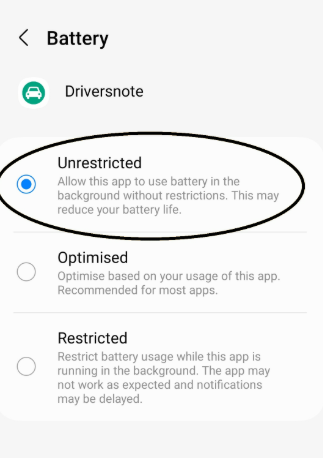
2. Disable battery restrictions
Settings → Apps → Life360 → Battery
- Set to Unrestricted
3. Enable background data
Settings → Apps → Life360 → Mobile Data & Wi-Fi
- Turn ON background data
- Allow unrestricted data usage
Advanced OS Issues Affecting Life360 (Updated for iOS 26 & Android 16)
Modern smartphone operating systems have introduced aggressive battery management systems that frequently “kill” background apps, triggering a false “No Network” status on Life360 even when the phone is on and connected.
For iOS Users (Apple Intelligence & Advanced Standby):
Disable Performance Management: If an iPhone’s battery health drops below 80%, iOS automatically throttles background processes. Go to Settings > Battery > Battery Health & Charging to check if performance management is restricting Life360.
For Android Users (Aggressive OEM Sleep Modes):
Lock the App in RAM: On Samsung (One UI) or Xiaomi devices, swipe up to open the App Switcher, long-press the Life360 card, and select the Lock icon. This prevents the OS from clearing Life360 from the memory cache during periods of inactivity.
Balancing Family Safety and Digital Privacy
If you’ve gone through the checklist and verified that the device is working, but the “No Network” status keeps appearing, the cause might not be a glitch. For families with older teens or college students, constant 24/7 tracking can create friction. To seek personal space, a young adult might intentionally flip on Airplane Mode or kill their cellular data, triggering that worrisome status for parents.
Sometimes, a “No Network” status isn’t caused by a technical glitch, but rather by an individual intentionally turning off their connection
to seek personal space. For families with older teens or young adults, constant, real-time tracking can occasionally lead to friction. Open communication about digital boundaries is often the most effective fix.
Here is how families can navigate this delicate balance without losing peace of mind:
- Utilize Native Features: Life360 allows users to “Pause” location sharing within a specific circle. This updates the status transparently as “Location Paused,” letting family members know it was a conscious choice rather than a technical error or emergency.
- Set Schedule-Based Check-ins: Agree on specific windows (like commuting times) when location sharing is active, allowing for more privacy during personal hours.
Beyond Troubleshooting: A Proactive Approach to Location and Privacy
Sometimes, location sharing issues aren’t just technical glitches. For families with older teens and young adults, conversations about privacy, trust, and digital boundaries are essential. Constant tracking can feel invasive, leading them to turn off services and causing you to worry. In these situations, a more advanced tool can help facilitate a mutual compromise.
Fonelora Location Changer provides a way to manage location data with more nuance than Life360’s simple on/off switch. It allows a family to set a stable, fixed location for a device, which can be part of an agreed-upon solution that respects everyone’s needs.
For example, a family might agree that while a young adult is on their college campus, their location can be set to the main library, providing privacy for their day-to-day movements while still offering peace of mind. It transforms location management from a source of conflict into a collaborative conversation about boundaries.
How this agreed-upon solution is set up:
1. Connect the Device: Download and launch Fonelora Location Changer on your computer, then connect the member’s iPhone or Android that requires the privacy buffer.

2. Choose a Mode: Select Teleport Mode to instantly set the device’s GPS baseline location.

3. Set an Agreed Location: Enter the specific address or coordinates (like the college campus) and click “Move.” The device’s location will update across all apps, including Life360, to the location chosen by the family, preventing the stressful “No Network” alert while preserving personal space.

Frequently Asked Questions About Life360 Statuses
What does ‘No Network or Phone Off’ mean on Life360?
It means Life360 cannot receive location updates because the device is offline, powered off, or blocked from sharing location.
Does it always mean the phone is off?
No. It can also mean:
- No internet connection
- GPS disabled
- App restricted in background
Can someone fake this status?
Yes. Users can trigger it by:
- Turning on Airplane Mode
- Disabling location services
- Turning off the phone
Why is Life360 not updating location?
The most frequent reasons that life360 location is not updating are poor network connectivity, incorrect phone settings (Location Services, Background App Refresh), low power mode, or battery optimization settings that force-close the app.
How do I fix Life360 not working?
Check:
- Location services ON
- App permissions enabled
- Background refresh allowed
- Network connection stable
Conclusion
Dealing with ambiguous “No Network” messages is stressful, turning a tool meant for peace of mind into one that causes worry. Instead of guessing, you now have a clear method to diagnose the problem and specific technical solutions to fix it. By understanding what the message truly means and communicating openly with your family, you can build trust and ensure technology works for you, not against you. For families ready to have deeper conversations about privacy, a dedicated tool provides the control and flexibility needed to find a solution that works for everyone. Solutions like Fonelora Location Changer are regularly updated to ensure compatibility with the latest iOS and Android versions, offering a reliable technical bridge to maintain both family peace of mind and individual digital boundaries.
More Related Articles



Joy Taylor is a seasoned technical writer with over a decade of experience in mobile technology. At iMobie, she specializes in producing in-depth content on iOS data recovery, iPhone unlocking solutions, and iOS troubleshooting.
Product-related questions? Contact Our Support Team to Get Quick Solution >
