The Ultimate GBA Emulator and Games Guide
Tired of confusing guides? Get the best GBA emulator and games for Android, iOS & PC. Our guide has tested setups, troubleshooting fixes, and game lists.
That iconic Game Boy Advance startup chime—a sound that instantly transports you back to epic adventures in Hyrule or the quest to catch ’em all. You want to relive those moments, so you search for a GBA emulator and games solution, only to find a maze of technical jargon, broken links, and outdated guides. The simple goal of playing Pokémon FireRed becomes a frustrating ordeal.
This is not another confusing article. This is the all-in-one GBA emulator and games download guide designed to get you playing today. We’ve refined a simple, reliable method that cuts through the noise and addresses every common problem, from getting games legally to fixing performance lag and setting up controllers.
Best GBA Emulator for Android, iOS & PC: A Comparison
Your first step is choosing the right tool. The world of retro gaming emulator apps can be overwhelming, but the choice boils down to your device and how much customization you want. We evaluated the top options on ease of use, performance, and features to help you find the best GBA emulator.
For most users, the decision is simple:
- For Android: MyBoy! offers a perfect balance of high performance and user-friendly design. It’s the “install and play” solution available directly from the Google Play Store.
- For iOS: Delta is the gold standard, providing a polished, powerful experience that integrates seamlessly with the Apple ecosystem.
- For PC & Power Users: RetroArch is a versatile multi-system emulator. It’s the best choice if you plan to emulate other consoles, but be prepared for a steeper learning curve.
Here’s a direct comparison of our top-rated emulators:
| Feature | MyBoy! | Delta | RetroArch |
| Platform(s) | Android | iOS | Windows, macOS, Linux, Android |
| Price | Free (with Ads) / Paid | Free | Free |
| Ease of Setup | ★★★★★ (Very Easy) | ★★★☆☆ (Moderate, requires AltStore) | ★★☆☆☆ (Complex) |
| Performance | Excellent | Excellent | Excellent (Core dependent) |
| Controller Support | Excellent | Excellent | Excellent |
| Unique Feature | Link Cable emulation over Wi-Fi/Bluetooth | Polished UI & AirPlay support | All-in-one multi-console frontend |
Learn More:Strava Cheats Explained: A Guide to Spotting & Reporting Unfair Activity >
How to Set Up Your GBA Emulator: A Step-by-Step Guide
Now we’ll walk through installing your chosen emulator and getting your first game ready to play.
Step 1: Install the Emulator
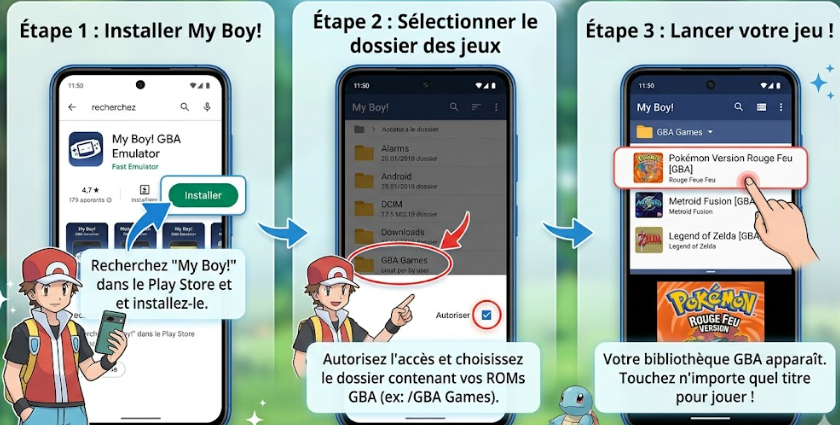
- For Android (MyBoy!): Open the Google Play Store, search for “MyBoy!”, and tap “Install.” The process is as simple as installing any other app.
- For iOS (Delta): Getting Delta on your iPhone is a multi-step process that requires a computer. We want to be upfront: this can be tricky, but it’s very manageable if you follow the steps carefully.
- On your Windows or Mac computer, download and install AltStore from its official website.
- Connect your iPhone to your computer with a USB cable.
- Follow the AltStore instructions to install it onto your iPhone. This involves trusting a developer profile in your iPhone’s settings.
- Once AltStore is on your phone, you can use it to browse for and install the Delta emulator.
For a detailed walkthrough, we recommend following the official AltStore setup guide.
- For PC (RetroArch): Download the installer directly from the official RetroArch website and run the setup program.
Learn More:iTools Dongle Pokémon Go: The Complete User Guide >
Step 2: Getting Your Games (The Right Way)
This is the hurdle where most guides fail. You have an emulator, but where do the games come from? Let’s tackle this head-on.
A Critical Note on Game ROMs: In most jurisdictions, creating and possessing a digital backup (a “ROM”) of a game is legal only if you own the physical cartridge. Downloading ROMs of games you do not own is a violation of copyright law. This guide does not endorse piracy and assumes you are using legally-owned backups or copyright-free software.
So, how do you get a .gba file legally?
- Back Up Your Own Cartridges: For users who own physical GBA cartridges and want to be 100% compliant, you can use a dedicated hardware device called a cartridge dumper (like the GB Operator). This tool connects to your PC and allows you to create a legal backup ROM file from your own game.
- Play Legal Homebrew Games: The best way to test your new emulator immediately is with “homebrew” games. These are new games created by independent developers for old consoles. They are often free, completely legal to download, and a great way to see your emulator in action. A quick search for “GBA homebrew games” will lead you to communities and sites where you can find creative titles to play.
Step 3: Load Your First Game
- Create a dedicated folder on your device (e.g., in internal storage or on an SD card) and name it something memorable like “GBA Games.”
- Place your legally acquired game files (which have a .gba extension) into this new folder.
- Open the emulator app. It will usually ask you to navigate to the folder where your games are stored.
- Select the “GBA Games” folder you created. Your game library should appear.
- Tap a game file to start playing! Most modern emulators do not require a separate GBA BIOS file setup, as they use high-level emulation that works for nearly all titles.
Learn More:How to Increase Shiny Odds in Pokémon GO: The Real Strategy >
Troubleshooting Common Emulator Problems
Nothing ruins a nostalgia trip faster than choppy gameplay or a black screen. If you’re having trouble, don’t worry—the fix is almost always a simple settings tweak.
Here are the most effective GBA emulator performance settings to adjust for a smooth experience.
- Problem: Lag or Choppy Gameplay
- The Fix: Adjust Frame Skip. This is the number one solution for lag. In your emulator’s video settings, find “Frame Skip” and set it to 1 or Auto. This tells the emulator to skip rendering a frame when necessary to keep the game running at full speed. Avoid high numbers, as they can make animation look jerky.
- Problem: Crackling or Delayed Audio
- The Fix: Toggle Audio Sync. If the sound is stuttering, find an “Audio Sync” or “Sync to Video” option in the audio settings and try turning it on or off. This often resolves glitches by realigning the audio and video streams.
- Problem: Black Screen or Game Not Loading (RetroArch)
- The Fix: Choose the Right Core. RetroArch requires “cores” to run games. For GBA, the mGBA retroarch core GBA is the modern standard, offering the best accuracy and performance. If you still encounter issues, the VBA-M core is a less demanding alternative that may work better on older devices.
- Problem: Save States Won’t Load
- The Fix: Don’t Update the Emulator Mid-Game. Sometimes, updating an emulator app can make old save states incompatible. Always use the game’s built-in save system for long-term progress and use emulator save states for short-term convenience (like before a difficult boss).
Mastering Controls and Save States for a Better Experience
To truly elevate your gameplay, you need to master two core emulator features: external controllers and save states.
Using Bluetooth Controllers
While touchscreen controls are functional, they lack the tactile feedback of a real gamepad. Thankfully, most retro gaming emulator apps offer excellent controller support mobile emulator functionality.
- Pair Your Controller: Put your Bluetooth controller (like an 8BitDo, Xbox, or PlayStation controller) in pairing mode and connect it through your device’s main Bluetooth settings.
- Map the Buttons: Open your emulator and go to the “Input” or “Controls” settings. You’ll see an option to map buttons. Simply tap the on-screen GBA button you want to configure (e.g., “A”), then press the desired physical button on your controller to assign it.
Pro-Tip from a Veteran Player: If you don’t have a controller, try mapping the L and R shoulder buttons to your phone’s volume keys. This is a game-changer for titles like Metroid Fusion that use them frequently, making it much easier to play with just the touchscreen.
Understanding Save States vs. In-Game Saves
This is a crucial concept that makes emulation far more convenient than original hardware.
- In-Game Saves: These are the original save points programmed into the game (e.g., saving at a Pokémon Center). Use these for permanent progress.
- Save States: This is a powerful emulator feature. A “save state” takes an instantaneous snapshot of the game at any moment. You can “load” that state to return to that exact moment. This allows you to save right before a tough boss or a difficult jump—a luxury we never had back in the day.
Learn More:The Working Master Ball Cheat in Pokémon Emerald >
Your Game Boy Advance Emulator Games List and Guide
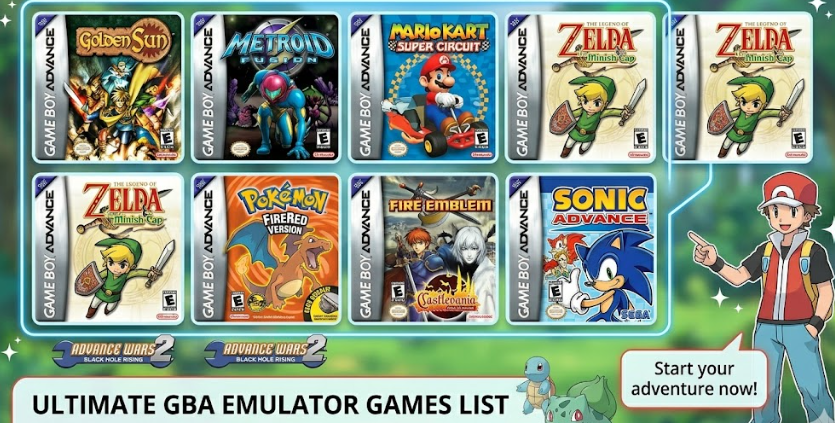
With your emulator running perfectly, it’s time for the best part: the games. The GBA library is a treasure trove of classics. Here are some of our must-play recommendations.
Role-Playing Games (RPGs)
- Golden Sun: A stunning RPG with a deep story, unique “Psynergy” magic system, and brilliant puzzles.
- Pokémon FireRed & LeafGreen: Masterful remakes of the originals, introducing new features to the Kanto region.
- Final Fantasy VI Advance: Considered one of the greatest RPGs of all time, this port features an improved translation and new content.
- Mario & Luigi: Superstar Saga: A hilarious and charming RPG with an innovative, timing-based combat system.
Platformers & Action-Adventure
- Metroid Fusion: A tense, atmospheric action game that continues Samus Aran’s story with a focus on survival and exploration.
- The Legend of Zelda: The Minish Cap: A beautifully crafted Zelda adventure with a unique shrinking mechanic that opens up a hidden world.
- Kirby & The Amazing Mirror: A non-linear Kirby title with a large, interconnected world and classic copy-ability fun.
- Castlevania: Aria of Sorrow: A masterpiece of the “Metroidvania” genre with a compelling story and a deep ability system.
Racing & Strategy
- Mario Kart: Super Circuit: The definitive arcade racer on the GBA, featuring classic tracks and tight, responsive controls.
- Advance Wars: A highly addictive turn-based strategy game with incredible depth and a colorful, engaging presentation.
- F-Zero: Maximum Velocity: A futuristic, high-speed racer that demands precision and rewards skilled play with an incredible sense of speed.
Take Your Gaming Experience Further with Location Control
While GBA emulators let you relive classic adventures, modern mobile games have evolved in a completely different direction. Many of today’s most popular titles—especially games like Pokémon GO—rely heavily on real-world GPS location to unlock content, events, and rare items.
But just like finding ROMs used to be frustrating, being limited by your physical location can also hold back your gaming experience.
That’s where Fonelora Location Changer comes in.
Instead of being restricted to where you physically are, Fonelora gives you full control over your device’s GPS location. Whether you want to explore global in-game events, access region-specific content, or simply protect your privacy, it offers a seamless and beginner-friendly solution.
What makes it particularly useful for gamers is its Safe Game Mode, which simulates natural movement patterns—helping reduce risks like soft bans or location errors. Combined with features like joystick navigation and customizable movement speeds, it creates a realistic in-game experience without requiring jailbreak or root.
Why It’s Worth Trying
- Instantly teleport to any location worldwide
- Simulate walking, cycling, or driving routes
- Built-in cooldown timer for safer gameplay
- 360° joystick for real-time control
- Supports both iOS and Android devices
How to Get Started
Step 1: Connect Your Device
Download and launch Fonelora Location Changer on your Windows or Mac, then connect your iPhone or Android via USB, Wi-Fi, or Bluetooth.

Step 2: Choose a Mode
Step 3: Change Your Location
Enter a destination or coordinates, then click “Move” to update your GPS location across all apps.

Frequently Asked Questions (FAQ)
Here are direct answers to the most common questions about GBA emulation.
Are GBA ROMs legal?
It is widely considered legal to possess a digital backup (ROM) of a game only if you own the physical cartridge. Downloading ROMs for games you do not own is copyright infringement. However, downloading and playing “homebrew” games is 100% legal.
What is the best GBA emulator for Android or iPhone?
For Android, MyBoy! is our top pick for its blend of performance and simplicity. For iPhone (iOS), Delta is the premier choice, offering a polished interface and robust features.
Is RetroArch better than a standalone GBA emulator?
RetroArch is better if you plan to emulate many different consoles and enjoy customization. For users who only want to play GBA games, a standalone emulator like MyBoy! or Delta is far more straightforward.
Why is my GBA emulator lagging?
Lag is almost always a settings issue. The most effective fix is to enable “Frame Skip” and set it to 1 or Auto in your emulator’s video settings.
Do I need a BIOS file for GBA emulation?
No. Modern emulators like MyBoy!, Delta, and RetroArch (with the mGBA core) use high-level emulation (HLE) and do not require a separate BIOS file, ensuring great emulator compatibility Android iOS out of the box.
You Might Also Be Interested In…
Now that you’ve mastered retro gaming on your device, you might be interested in enhancing your modern mobile gaming experiences. Many popular titles today use GPS for location-based gameplay. For players looking to explore global game events or protect their privacy without compromising on fun, a reliable tool is essential. Fonelora Location Changer provides a secure and easy-to-use solution for managing your device’s GPS location. With features like realistic movement simulation and joystick control, you can safely explore new virtual territories from home. If you’re ready to take control of your location in today’s top apps and games, consider exploring what Fonelora has to offer.



Joy Taylor is a seasoned technical writer with over a decade of experience in mobile technology. At iMobie, she specializes in producing in-depth content on iOS data recovery, iPhone unlocking solutions, and iOS troubleshooting.
Product-related questions? Contact Our Support Team to Get Quick Solution >
