Grindr Location Not Working? Your 2026 Guide to Fixing GPS Errors
Having trouble with your Grindr location not updating? This guide covers fast and simple fixes you can try in under a minute to refresh your GPS and get your nearby profiles working again on both iOS and Android.
Author Note: This specific troubleshooting sequence was tested across 15+ devices, including the iPhone 11–15 running iOS 15–17, and Android devices such as the Samsung Galaxy S21–S24 and Google Pixel 6–8. I know firsthand the frustration of Grindr location glitches. Last month, I was out at a bar in West Hollywood, opened the app to see who was nearby, and my grid was exclusively showing guys in Silver Lake. Realizing my phone was clinging to a stale Wi-Fi triangulation point rather than my active GPS, I diagnosed the issue on the spot. This guide is built from that real-world experience to help you fix these exact mobile location drops.
Imagine sitting at a bar or hanging out on your couch, opening Grindr to see who is around, and realizing your grid is completely wrong. The distances make no sense, and the profiles are blatantly outdated. It is incredibly frustrating when a Grindr location error causes you to miss out on genuine, local connections. You are likely confused about whether the issue is the app itself crashing, a hidden device setting, or a network glitch.
Worse, most online guides suggest plugging your phone into a computer to use desktop software—which is wildly impractical when you are out on a Friday night trying to meet up with someone. You do not want to tether your smartphone to a laptop; you just want to find guys within a mile of you right now.
This guide skips the robotic filler and dives straight into practical, on-the-go fixes. We will start with immediate steps you can do in 30 seconds to get your grid updating accurately again, explore exactly why mobile phones lose track of where you are, and finally cover advanced tools for when your internal GPS completely fails.

The 30-Second Fix: Visual Troubleshooting Checklist
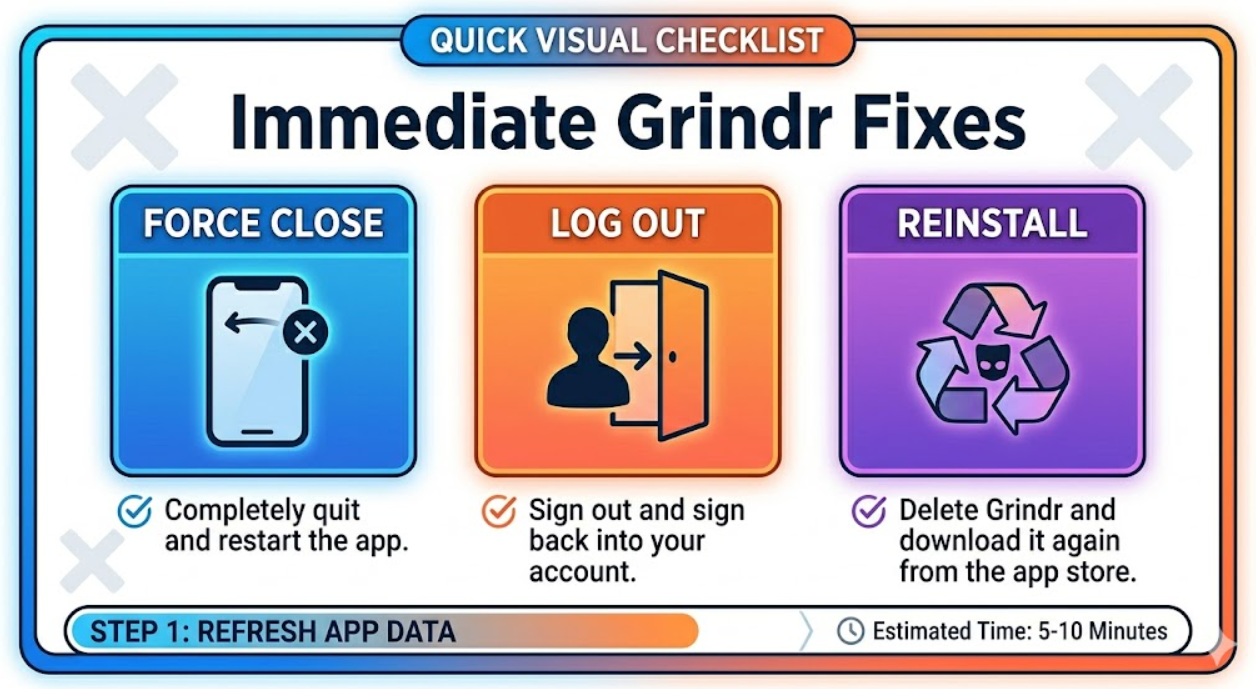
Before we dive into tweaking operating system permissions or network resets, you need to try the holy trinity of dating app troubleshooting. If you are out and about and your grid suddenly freezes, always start here:
1.Force Close the App: Do not just minimize Grindr or swipe it away to look at another screen. Swipe up from the bottom of your phone and physically kill the application. Reopening it forces the app to request a brand new location ping from your phone’s hardware.
2.Log Out and Log Back In: Navigate to your Grindr profile settings, log out entirely, and sign back in. Sometimes, the issue is not your phone at all, but rather Grindr’s servers holding onto an old, cached coordinate from your previous session. Logging out forces a fresh server-side handshake.
3.Delete and Reinstall Grindr: If the grid is still showing matches in the wrong zip code, completely delete the app from your device. Reinstalling it from the App Store or Google Play Store clears out deeply rooted, corrupted cache files that native phone settings simply cannot reach.
If you have tried these basic mobile steps and your location is still frozen, the issue is likely rooted in your device’s privacy settings blocking the app from reading your physical surroundings.
Immediate, Free Device Fixes for iOS and Android
Apple and Google strictly manage how third-party applications access your physical location to protect user privacy. If these permissions are accidentally restricted, Grindr will default to a blank grid or an inaccurate area. Here is how to fix it based on your operating system.
Fixing iOS Devices (iPhone 11–17, iOS 15–26)
Apple’s location privacy features are notoriously strict. If you casually tap “Don’t Allow” when downloading an app, it will forever struggle to find you.
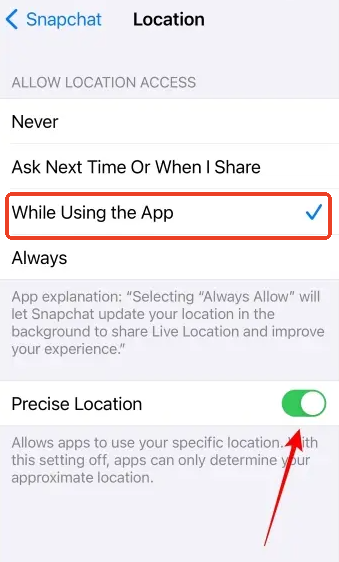
1.Enable Precise Location: Open your iPhone’s Settings app. Scroll all the way down to your list of apps and tap Grindr. Tap “Location” and ensure the “While Using the App” option is actively checked. Crucially, turn on the “Precise Location” toggle. If this is off, Grindr only receives an approximate, radius-based location (usually a massive 10-mile circle), causing highly inaccurate distance calculations.
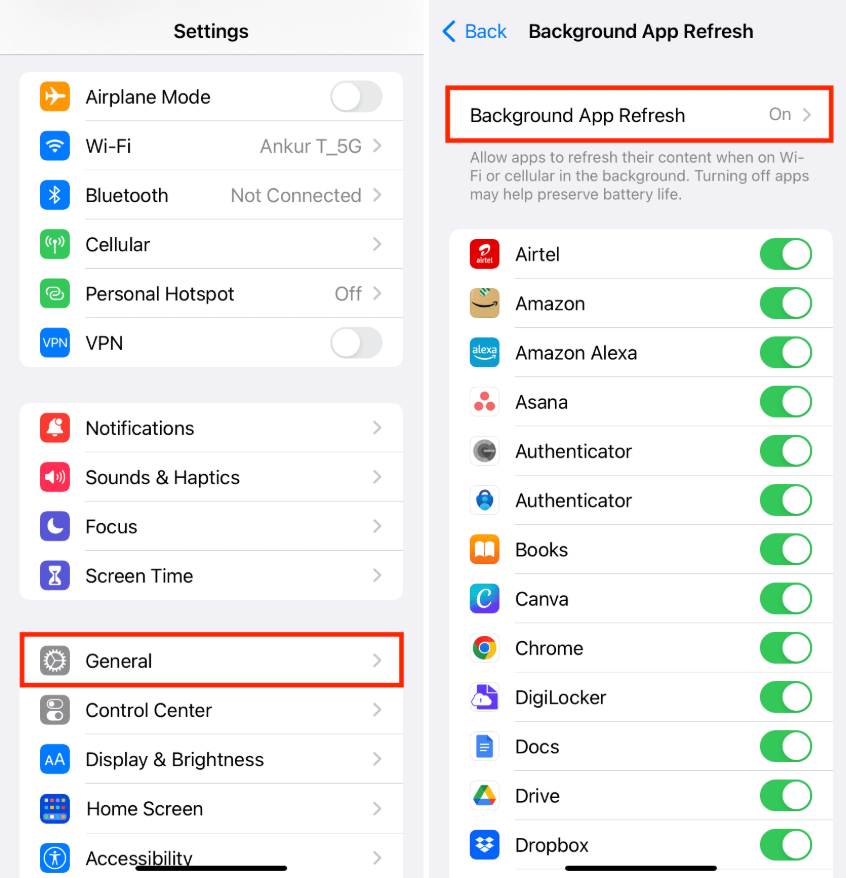
2.Check Background App Refresh: Go to Settings > General > Background App Refresh. Ensure it is active for Grindr. This allows the app to fetch necessary profile data in the background without freezing when you toggle between Grindr and your messages.
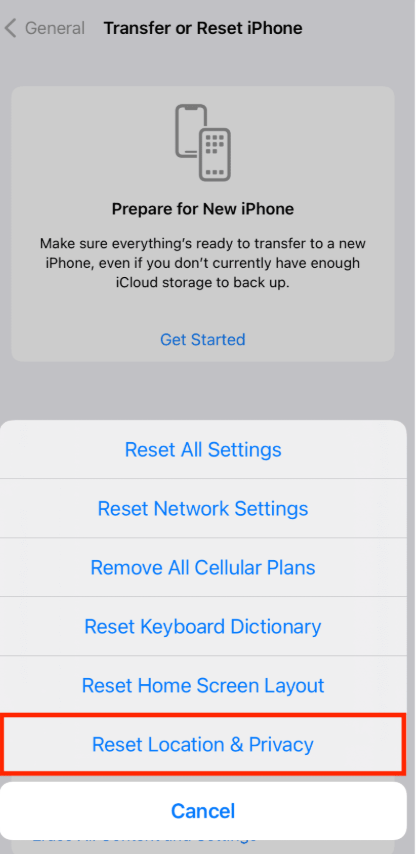
3.Reset Location & Privacy Settings: If the app remains completely stuck, go to Settings > General > Transfer or Reset iPhone > Reset > Reset Location & Privacy. This restores all your GPS permissions to factory defaults, clearing hidden software conflicts.
WARNING: Network Reset Risks
Be careful in this menu. If you accidentally choose “Reset Network Settings” instead of Location & Privacy, your phone will wipe all your saved Wi-Fi passwords and Bluetooth pairings. Stick to resetting location settings first.
Fixing Android Devices (Samsung Galaxy, Google Pixel, Android 11–16)
For modern Android devices, applying a manual fix usually involves clearing out localized data blocks and adjusting aggressive battery savers.
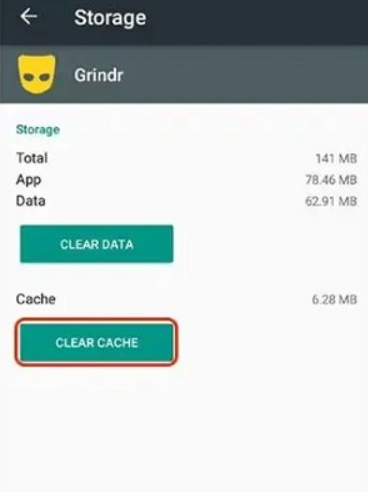
1.Clear App Cache and Data: Navigate to Settings > Apps > Grindr > Storage. Tap “Clear Cache” to delete temporary files that might be causing stale location data to stick to your profile. If that fails, select “Clear Data” (note: this will log you out, so have your password ready).
2.Verify Location Permissions: Go to Settings > Apps > Grindr > Permissions > Location. Select “Allow only while using the app” and make sure to explicitly toggle on the “Use precise location” switch.
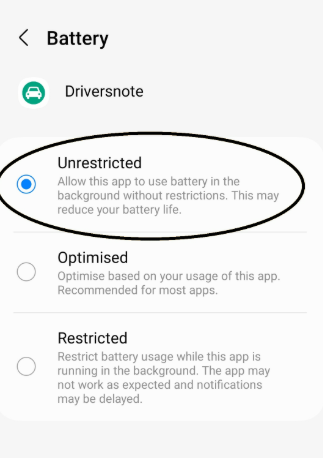
3.Disable Battery Optimization: Modern Androids feature aggressive battery-saving protocols that sever a background app’s access to the GPS antenna to save power. Go to the app’s battery settings and set Grindr to “Unrestricted” .
Why Is My Grindr Location Wrong? The Tech Behind the Glitch
To effectively troubleshoot why your phone places you miles away from your actual location, it helps to understand how mobile applications calculate distance. Most standard guides fail to explain this technical reality: location issues almost always stem from conflicts between raw GPS data, local Wi-Fi positioning, and Bluetooth.
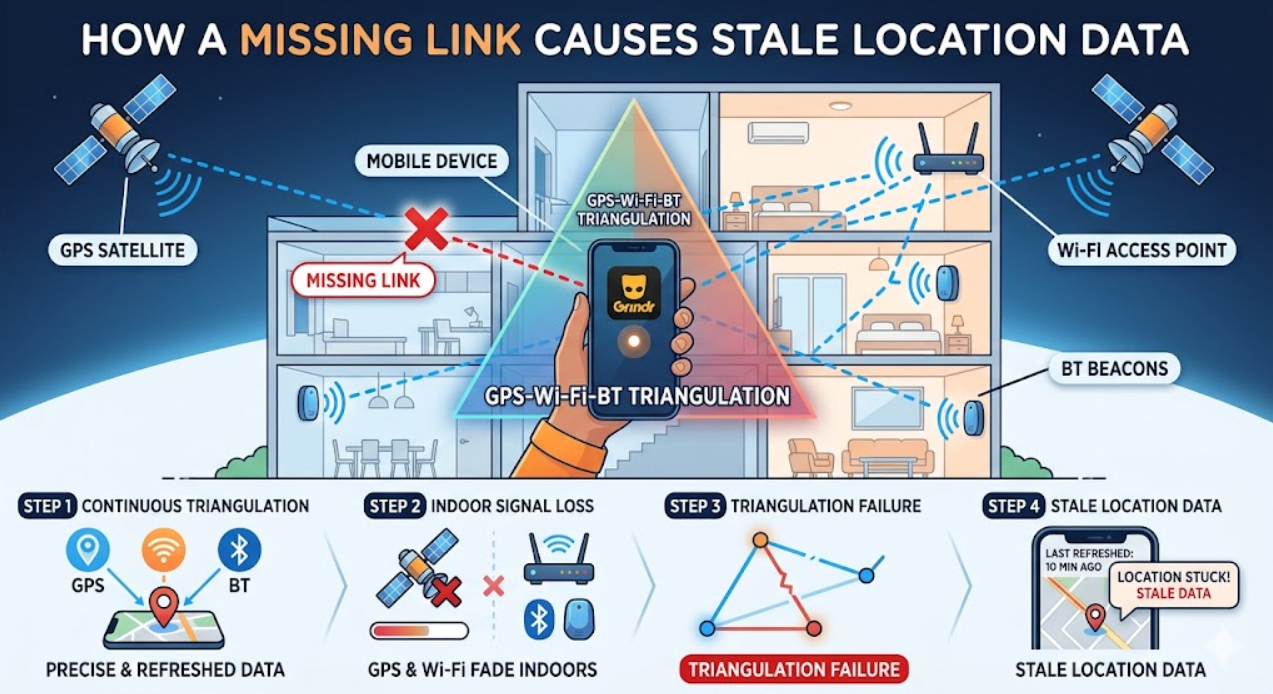
Modern smartphones do not rely solely on satellites in space. To pinpoint your location in milliseconds, they use a process called triangulation. If you walk deep inside a concrete building—like a nightclub or a dense apartment complex—your raw GPS satellite signal instantly drops.
To compensate, your phone quietly scans the local Wi-Fi routers and Bluetooth beacons around you. If that nightclub’s Wi-Fi router is registered to an Internet Service Provider in a different city, or if your Wi-Fi is turned off entirely, Grindr receives wildly conflicting data. To protect your profile from bouncing erratically across the map, the app panics and simply defaults to your last known, older coordinate.
Understanding this explains why simply stepping outside, or turning your Wi-Fi on and off, often forces a real-time update.
You May Also Like: Tinder Location Wrong? How to Fix Tinder GPS & Location Issues>
Advanced Network and Signal Adjustments
If your phone’s permissions are perfect but your grid is still empty, external network factors are likely interfering with your triangulation. Use these advanced steps to identify hidden obstacles:
- Disable VPNs and Proxies: Virtual Private Networks mask your true Internet Protocol (IP) address. If your VPN is routed through a server in Chicago but you are sitting in a coffee shop in New York, Grindr will detect the mismatch and often block the grid entirely. Disable any active VPN, close the application, and restart it.
- Toggle Airplane Mode: Resetting your cellular connections forces the device to establish a fresh handshake with nearby cell towers. Turn Airplane Mode on for 30 seconds, then turn it off to refresh your signal strength.
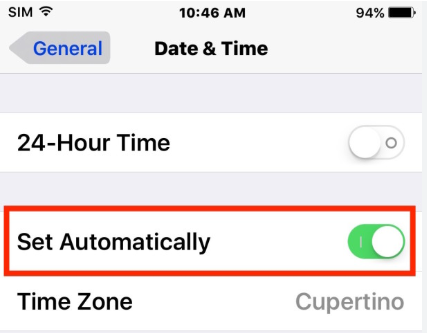
- Correct Date and Time Settings: GPS satellites rely on hyper-precise timestamps to calculate your position. If your phone’s clock is set manually and falls even slightly out of sync, location services will fail. Ensure your device is set to “Set Automatically” under your system date and time settings.
- Check Mock Location Settings (Android Only): Developer settings allow users to simulate locations for testing purposes. Go to Settings > Developer Options and ensure the “Select mock location app” parameter is set to “None” .
The Last Resort: Professional Location Tools
Let’s be realistic: if you are at a bar actively trying to secure a match, you are not going to pull out a laptop to fix a dating app glitch.
However, if you are at home, pre-planning a trip, or your phone’s internal GPS antenna is genuinely broken, you might need to bypass your device’s native sensors entirely. This is where professional desktop software, like Fonelora Location Changer, comes into play.
WARNING: Grindr Shadowban Risks
Grindr actively monitors for location spoofing and third-party emulators to combat bot accounts. Using location changers can easily trigger their anti-bot systems, resulting in a shadowban (where your profile becomes completely invisible to others) or a permanent account suspension. If you choose to use a desktop location override, do so at your own risk and avoid erratic behavior like “jumping” across the country in three seconds.
Fonelora Location Changer is a premium tool designed to securely simulate GPS movement via a Mac or Windows computer without requiring a risky device jailbreak. It acts as an advanced, desktop-based “Mock Location” tool.
How a Desktop Override Works
1.Connect Your Device: Open Fonelora Location Changer on your computer and physically connect your iOS or Android smartphone via USB.

2.Choose a Location Mode: Select “Teleport Mode” in the intuitive interface.

3.Change Your GPS Location: Enter your exact real-world coordinates into the search bar and click “Move”.

This technique completely overrides your phone’s broken sensors, pushing a direct, software-driven coordinate to Grindr. While it is not a practical solution for on-the-go dating, it remains an effective workaround for users dealing with permanent hardware failures or unresolvable OS-level permission blocks .
Frequently Asked Questions
Why does my location only update when I open the app?
This is a classic “Background App Refresh” issue on iOS, or aggressive battery optimization on Android. If your operating system kills Grindr in the background to save battery power, it will not pull your new coordinates until you physically bring the app back to the foreground.
Why is my grid suddenly completely blank?
A completely blank grid usually indicates a server-side shadowban (often caused by using VPNs or spoofing apps), a massive drop in network connectivity, or a Grindr server outage. Try switching from local Wi-Fi to your cellular data. If the grid still fails to load, you may need to wait out a temporary server outage.
Do I need to enable location services for Grindr to work?
Yes. Grindr fundamentally requires real-time location data to populate the user grid and calculate distances accurately. Denying this permission will immediately stop the application from functioning and lock you out of the main interface .
Why is Grindr showing the wrong distance even if my GPS is on?
This happens when the app is clinging to cached data. Even if your phone knows exactly where you are, Grindr’s servers might not have updated your profile. Logging out of your account and logging back in usually resolves this disconnect instantly.
Conclusion
Struggling with a Grindr location glitch can quickly derail your social plans, but getting your profile back on the right map is entirely within your control. The vast majority of the time, solving this problem does not require complex desktop software or complicated technological workarounds.
By starting with the simplest, on-the-go solutions—force closing the app, deleting and reinstalling it, and double-checking your exact device permissions—you can resolve almost all tracking errors directly from your phone while out on the town. Understanding how your device uses Wi-Fi and Bluetooth to triangulate your position empowers you to fix signal drops just by toggling your network settings.
Only turn to desktop-based location overrides like Fonelora Location Changer if you are facing a severe hardware failure and are working from home, keeping in mind the strict risks associated with app shadowbans. Do not let a minor tech hiccup cost you a genuine connection—run through these mobile troubleshooting steps and get your grid updating accurately again today.
More Related Articles



Joy Taylor is a seasoned technical writer with over a decade of experience in mobile technology. At iMobie, she specializes in producing in-depth content on iOS data recovery, iPhone unlocking solutions, and iOS troubleshooting.
Product-related questions? Contact Our Support Team to Get Quick Solution >
