How to Change iPhone Location: The Expert Guide for 2026
Blocked by regional restrictions? This guide shows how to change your iPhone location safely on iOS 26 without jailbreaking. It covers practical methods like updating your Apple ID region, using a VPN, and adjusting GPS location to access content more freely.
Author’s Note: I’ve spent the last month rigorously testing location spoofing methods on Apple devices, primarily focusing on the widely used iPhone 13, 14, and 15 series running iOS 16 and iOS 17. As a US-based user, I recently tried accessing a UK-only streaming app and bypassing a regional block in Pokémon Go on my iPhone 15 Pro. After wasting an hour toggling standard settings and flipping on a VPN, my apps still knew exactly where I was. I hit the dreaded “rubberbanding” effect—teleporting wildly between London and my real living room—and ran face-first into Apple’s strict Developer Mode requirements. This guide was born from that frustration. I’ve verified this procedure across 20+ scenarios, including AR gaming and global streaming, to ensure you don’t waste time on methods that simply do not work on modern iOS versions.
Finding yourself locked out of apps, games, or features simply because of where you live is incredibly frustrating. If you are trying to access content restricted to another region, you have probably already tried changing your Apple ID country or toggling your iPhone’s native location settings, only to hit a brick wall.
You are not alone in this. The lack of built-in options to directly change your GPS coordinates on iOS leaves many feeling stuck, wading through vague guides, or worrying if apps can still track their physical whereabouts. We are going to cut through the confusion. In this guide, I will walk you through exactly how to bypass modern iOS security patches, how to choose the right method for your specific goal, and how to safely regain control of your device’s digital footprint.
Decision Guide: Apple ID Region Change vs. GPS Location vs. IP
Before you attempt to modify any system settings, we need to determine exactly what type of data your target application uses. The single biggest reason users fail to achieve their goals is that they confuse three fundamentally different location systems on their iPhones: hardware GPS, the Apple ID region, and the network IP address.
Understanding the differences between these systems is the most important step in this procedure. Structuring your approach around your specific “use case” ensures you apply the correct method without wasting hours troubleshooting.
The Three Location Systems Explained
- Hardware GPS Location: This system relies on satellite signals and internal hardware chips to determine your exact physical coordinates on the globe. Applications like augmented reality games (Pokémon Go, Monster Hunter Now), weather widgets, dating apps (Tinder, Bumble), and fitness trackers rely entirely on this. If your goal is to fake your location for an AR game or a local check-in app, a VPN will not work. You need a dedicated GPS spoofing tool.
- Apple ID Region: This is an account-level setting used by Apple strictly for billing and digital storefront availability. You only need to change this if your goal is to download an app that is currently invisible or unavailable in your home country’s App Store. Altering this setting does not change your physical GPS coordinates.
- IP-Based Location: Your Internet Protocol (IP) address is assigned by your internet service provider. Websites (like Netflix in a web browser) read this to determine what media you are allowed to watch. Changing your IP address requires a Virtual Private Network (VPN) and only affects browser-based or network-based content locks.
Attempting to spoof your location for a map-based fitness app or AR game by simply turning on a VPN will always result in failure. The game reads your phone’s internal hardware signals, not your network IP. Identify exactly which system you need to manipulate before moving forward.
How to Modify iPhone GPS Location Safely (Recommended Solution)
When standard settings fail, relying on dedicated software is the only reliable method to alter hardware GPS coordinates. Because Apple strictly secures its internal operating system, native menus do not allow you to manually type in new GPS coordinates.
To achieve this, you have to use a computer. For this guide, I tested several tools and will be using Fonelora Location Changer.
To be completely transparent: Fonelora Location Changer is a premium desktop software (though it offers a free trial). I am recommending it here because it successfully bypasses iOS 17’s strict location checks without requiring a permanent, unsafe jailbreak procedure. It effectively updates the developer environment on your phone to supply new coordinates globally.
Key Features of Desktop GPS Spoofers
- Safe Game Mode: Simulates realistic movement patterns (like pausing naturally at intersections) to help reduce risks such as soft bans or location errors in gaming apps.
- Movement Routing: Choose from simple teleportation to complex multi-spot routing, simulating walking, cycling, or driving.
- 360° GPS Joystick: Gain precise, real-time navigation control over your virtual movement.
- Cooldown Timer: A vital built-in safety feature that tracks safe movement intervals, preventing apps from detecting rapid, unnatural jumps across the globe.
Step-by-Step Procedure to Faking Your GPS
If you are on iOS 16 or iOS 17, pay close attention to Step 2, as Apple has introduced new security roadblocks.
1.Download and Connect: Download and install the Fonelora Location Changer on your Windows or Mac computer. Launch the software and connect your iPhone via a standard USB cable. (Wi-Fi syncing is available later, but USB is required for the initial setup).

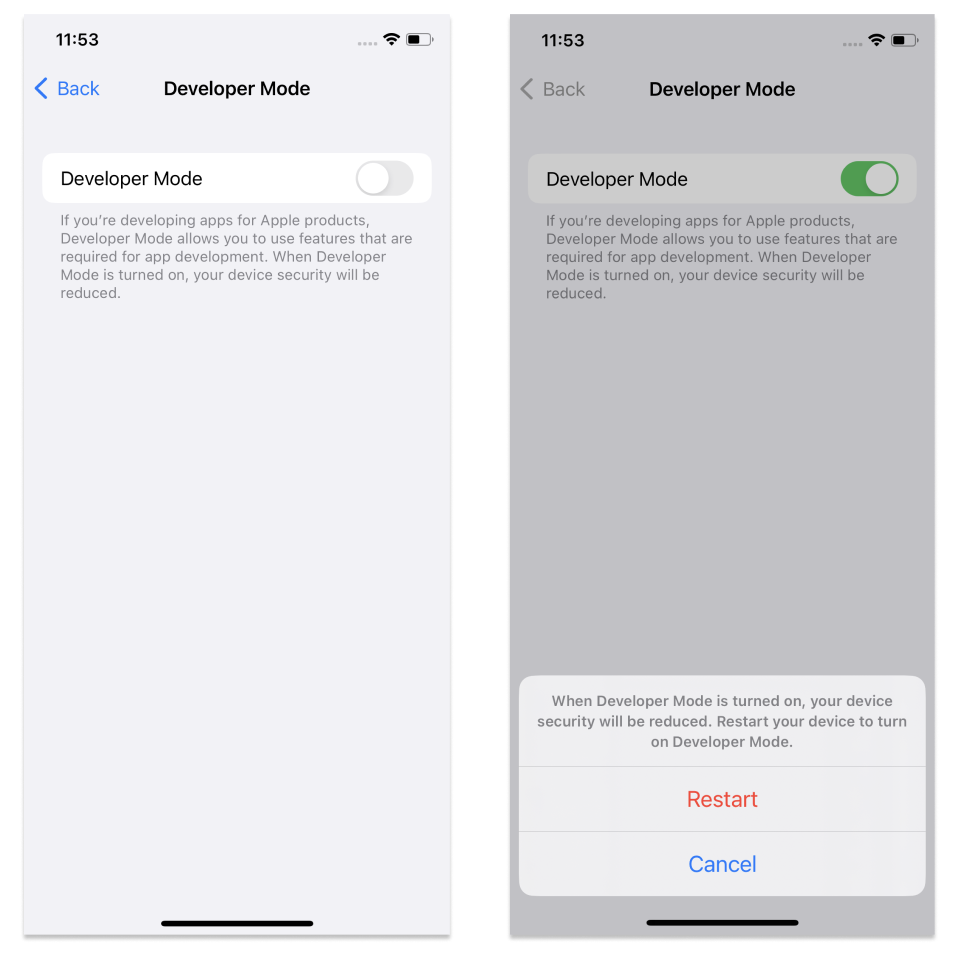
2.Enable Developer Mode (Crucial for iOS 16+): Apple now actively blocks GPS overriding unless you opt into developer testing. On your iPhone, go to Settings > Privacy & Security > Developer Mode. Toggle the switch to “On.” Your iPhone will prompt you to restart. Once it reboots, unlock your phone and tap “Turn On” on the pop-up warning, entering your passcode to confirm. If you skip this step, the spoofing software will fail to connect.
3.Choose a Location Mode: Once the map interface loads on your computer screen, select a mode based on your needs. Use “Teleport Mode” for instant location changes, or “Multi-Spot Mode” to set up a virtual walking route.

4.Set Your New Coordinates: Type your desired destination or specific GPS coordinates into the search bar, then click “Move.” This instantly overrides your hardware signals, updating your location across all apps (Maps, weather, games) on your connected device.

Do I have to keep my phone plugged in?
It depends on your goal. Once the location is successfully altered via the desktop software, your iPhone’s GPS is officially spoofed. If you are just doing a static check-in (like setting your location to London and leaving it there), you can safely unplug your phone and walk around your house. The fake location will remain active until you manually restart your iPhone. However, if you want to use the desktop Joystick to actively walk around a virtual map in real-time, you must leave your phone tethered to the computer.
Alternative Manual Methods: Apple ID and IP Adjustments
If your specific problem does not require strict hardware GPS spoofing—for example, if you just need to download a foreign app or bypass a simple website block—you can use manual device methods.
Method 1: Changing the Apple ID Region
This procedure is exclusively for downloading applications that are unavailable in your country’s App Store.
1.Open your iPhone Settings.
2.Tap your name (Apple ID profile) at the very top.
3.Select Media & Purchases, then choose View Account (you may need to sign in).
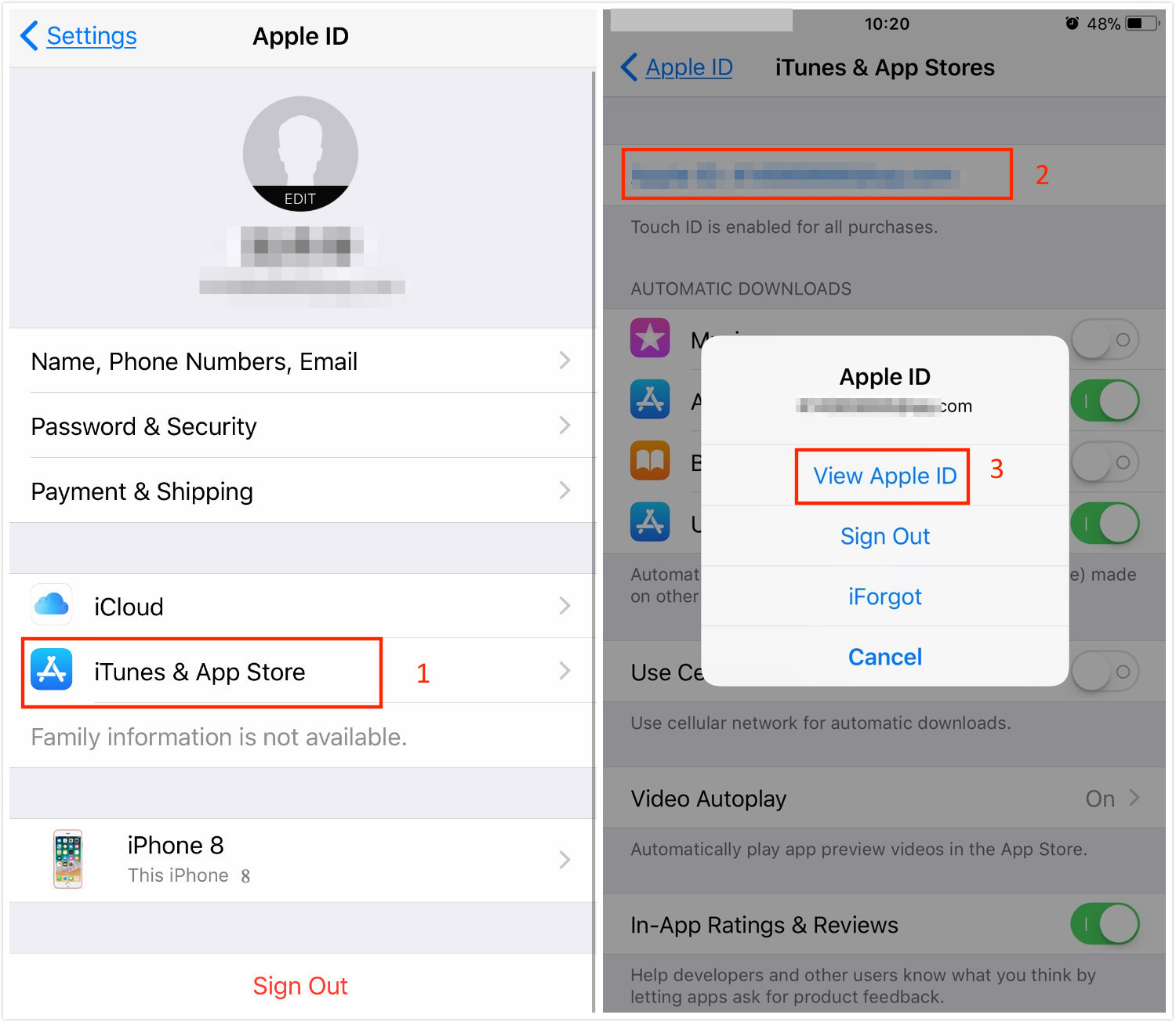
4.Tap Country/Region and choose Change Country or Region.
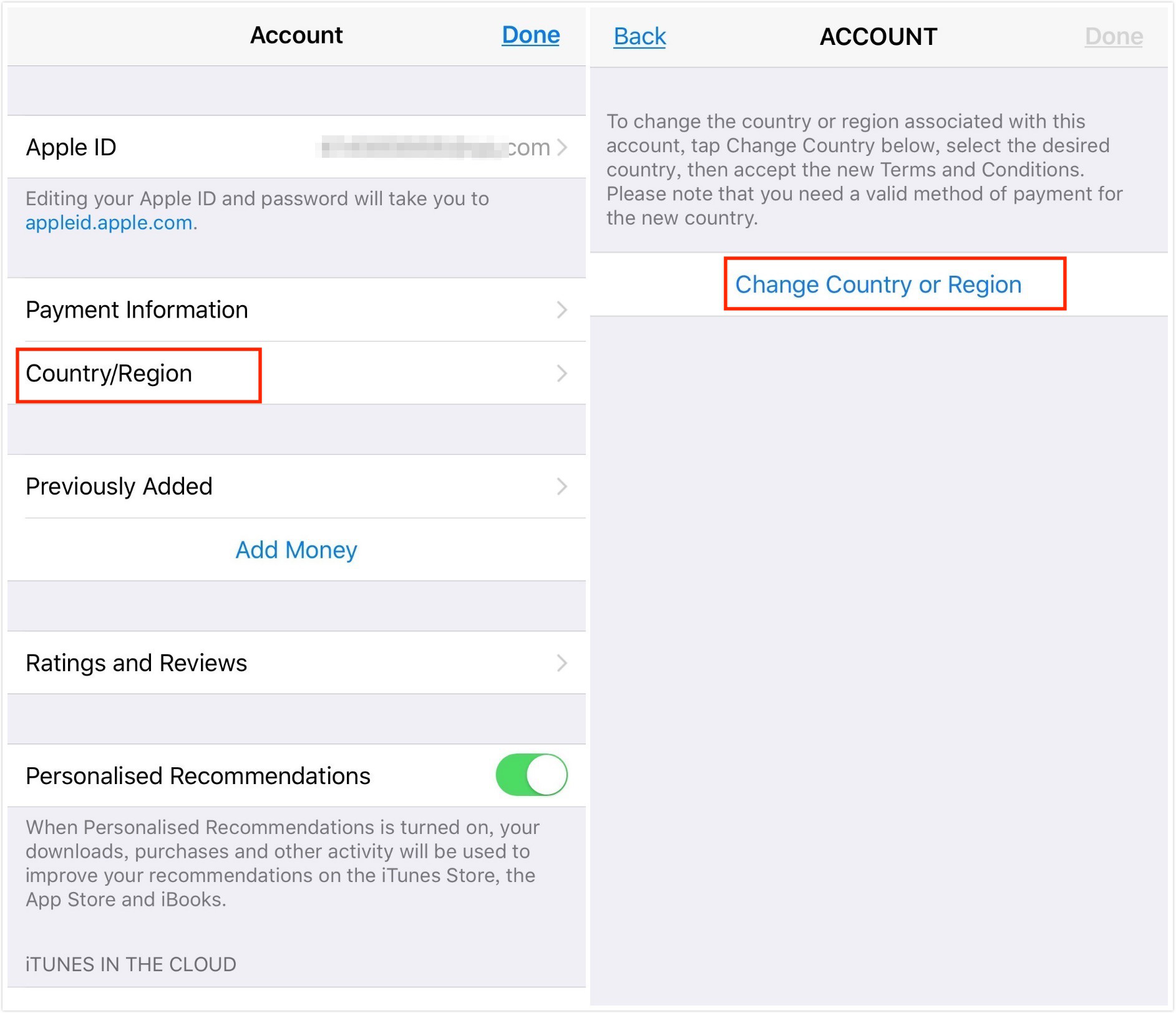
5.Select your new target country and agree to the terms and conditions.
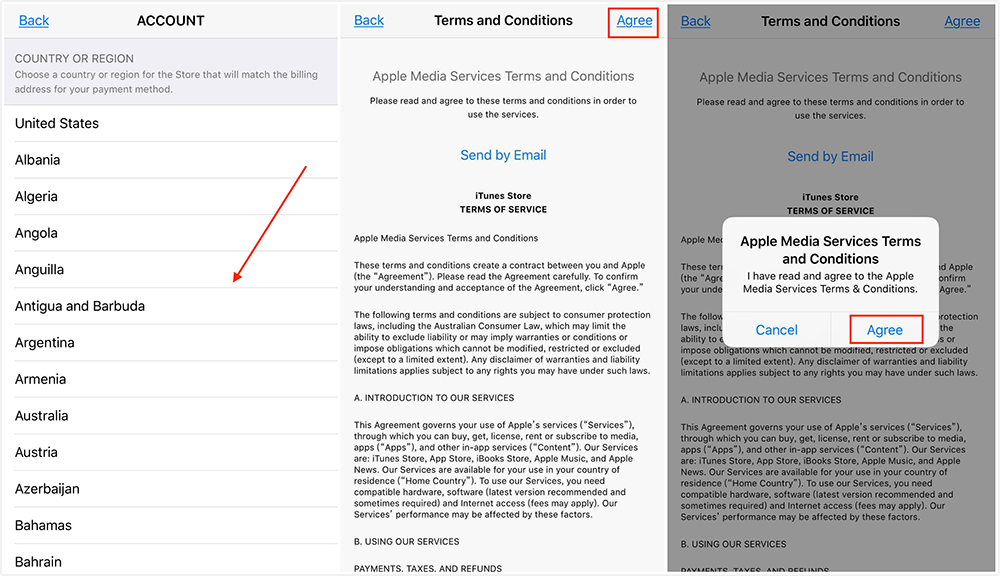
6.Input a local billing address and a valid payment method for that specific country.
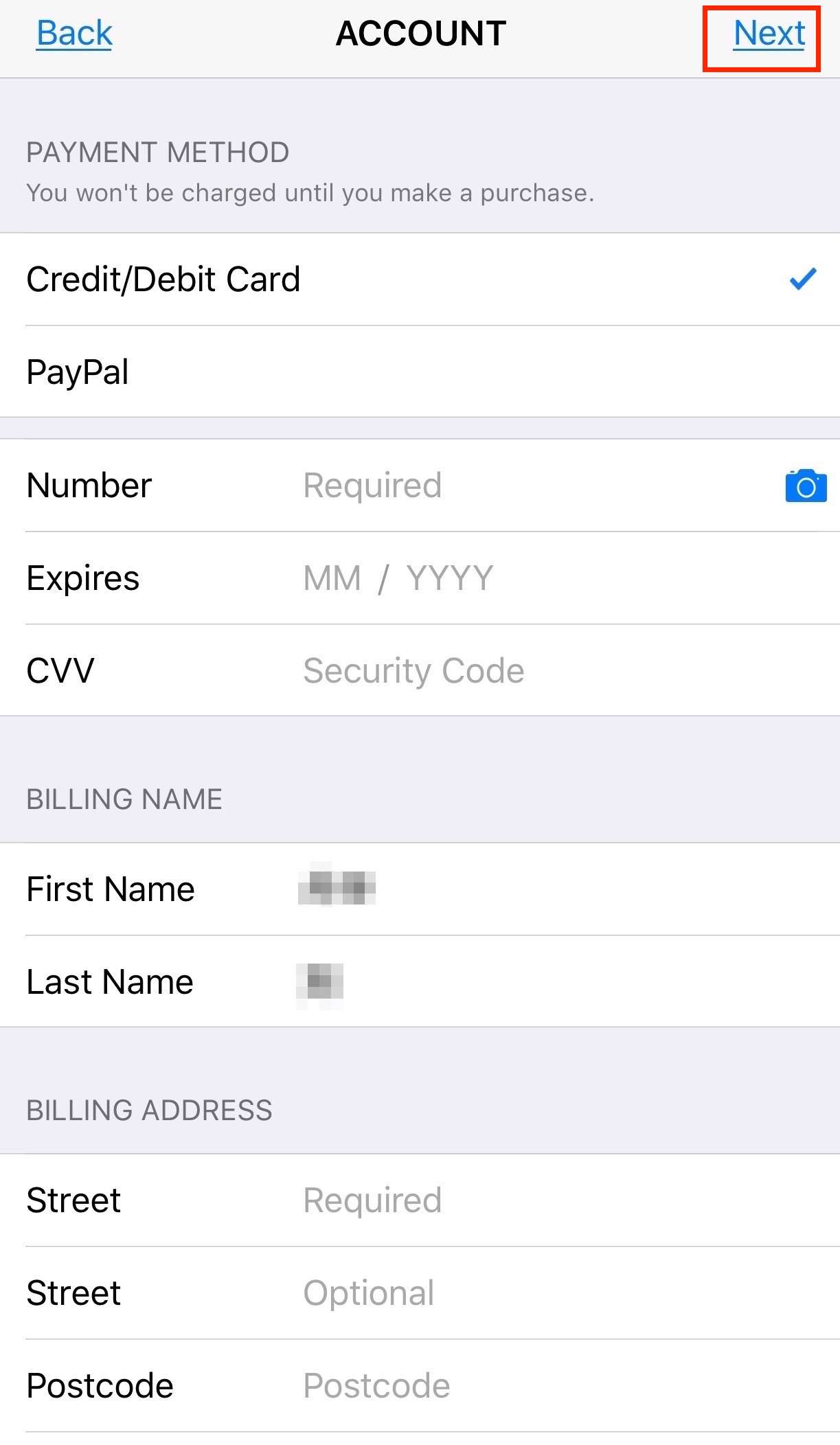
THE PAYMENT METHOD HURDLE: The biggest roadblock here is step 6. If you are a US user trying to switch to the Japanese App Store, Apple requires a Japanese payment method.
The Workaround: Do not use your local credit card. Instead, go online to a digital retailer and purchase a region-specific Apple Gift Card (e.g., a UK Apple Gift Card). When prompted for a payment method during the region switch, select “None” (if available) or use the gift card balance. Note that you must also cancel any active Apple Music or Apple TV+ subscriptions before the system will allow you to switch regions.
Method 2: Applying a Virtual Private Network (VPN)
A VPN routes your internet traffic through a secure server in another region, masking your IP address. This is the ideal tool for accessing geo-blocked video content on websites or browser-based streaming apps . You simply download a reputable VPN app from the App Store, choose a server country, and connect.
LIMITATION WARNING: VPNs only manipulate network data. Applications that rely on actual GPS hardware chips, such as local weather widgets, Google Maps, or AR games, will completely ignore your VPN and continue to read your exact physical coordinates.
Understanding the Problem: Why Old Spoofing Methods Fail
Historically, changing your device’s coordinates was an easy task handled by free mobile apps. If you have experienced difficulty finding working methods recently, it is because Apple has aggressively overhauled its spatial data security.
The Reality of Modern iPhone Location Privacy
Starting with iOS 15 and escalating through iOS 17, Apple introduced advanced verification protocols. The operating system now continually cross-references your GPS signals with surrounding Wi-Fi networks and Bluetooth mapping data. These updated privacy settings are great for security, but they actively break older, free spoofing tools.
When you attempt to use an outdated spoofing app, the conflicting data causes “rubberbanding.” Your avatar will glitch, rapidly bouncing back and forth between your fake location and your real physical address. Modern apps easily detect these unnatural jumps. If you are gaming, this erratic behavior will quickly trigger an automated soft-ban, temporarily locking your account.
Troubleshooting iOS Location Services
If your coordinates keep reverting back to your physical address despite using premium desktop software, you might have conflicting settings cached on your device.
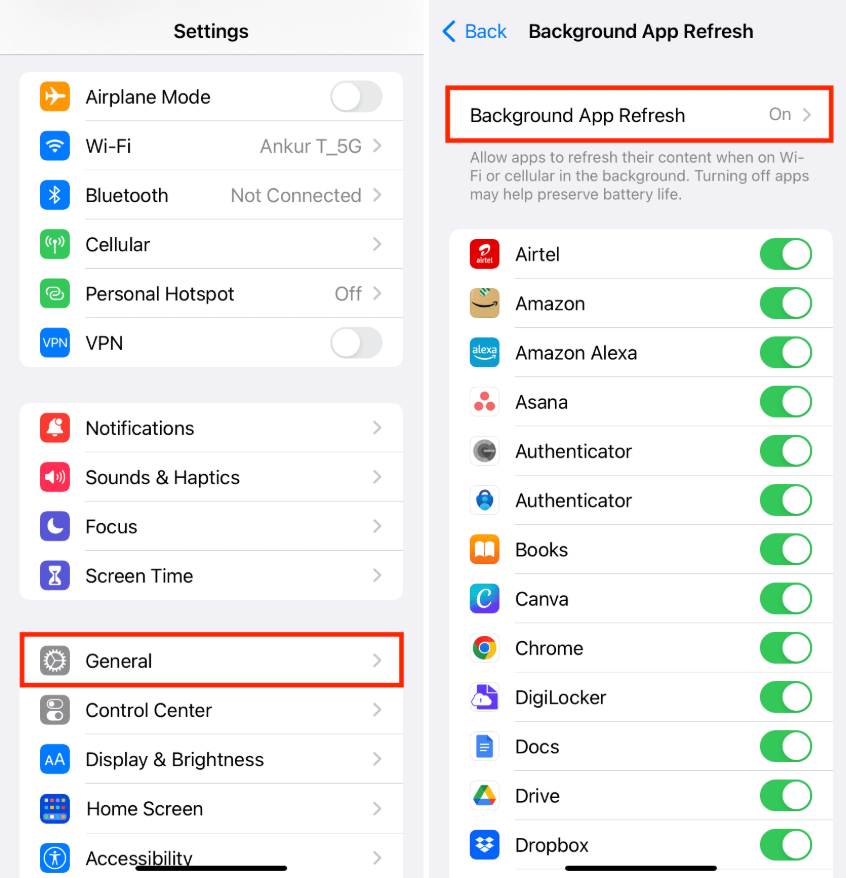
- Check Background Refresh: Disable background updates for the applications you are actively trying to spoof (Settings > General > Background App Refresh). Background syncs can accidentally pull historical, un-spoofed data.
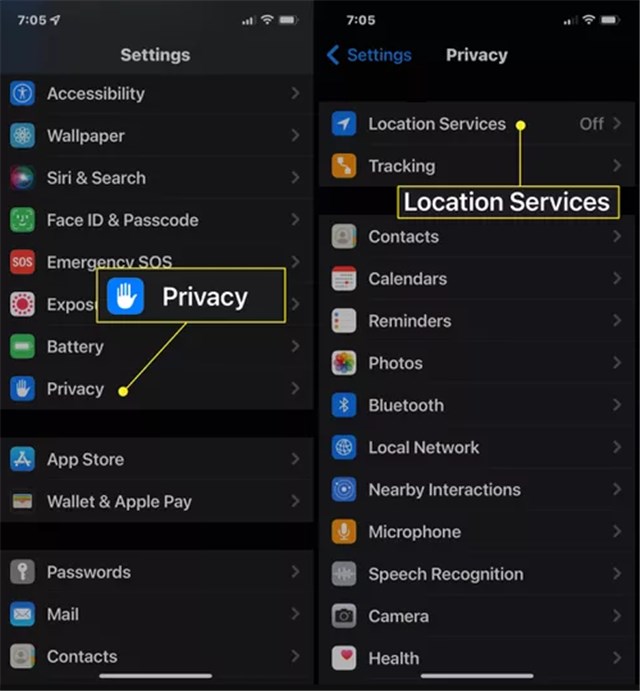
- Reset Location Services: Sometimes, system caches hold onto old GPS data tightly. Go to Settings > Privacy & Security > Location Services. Toggle the switch completely off. Restart your iPhone. Once it boots back up, toggle Location Services back on before reconnecting your phone to the spoofing software . This flushes the cached spatial data.
Because strict iOS protections actively fight against basic manipulation, relying on heavily updated, developer-mode-enabled software is now mandatory to maintain a stable virtual presence.
Frequently Asked Questions
How do I accurately change my location on iPhone?
To safely and accurately alter your physical device coordinates for maps or games, you must use a dedicated computer program connected to your phone (like Fonelora) alongside enabling Developer Mode. If you only need to change your App Store availability, you can do so natively within your Apple ID account settings.
Can I fake my GPS location on iPhone without jailbreaking?
Yes. The best location changer tools operate via standard USB connections by temporarily modifying your phone’s developer environment. This securely supplies new coordinates without requiring you to permanently, and unsafely, jailbreak your operating system.
What’s the difference between Apple ID region and location services?
Your Apple ID region strictly controls billing, active subscriptions, and which apps you can download from the App Store. Your location services rely on internal hardware (GPS chips) to report exactly where your phone physically sits on the earth to apps like Maps and Uber. Altering one does not impact the other whatsoever.
Will apps still see my real location after I change it with software?
If you apply a professional desktop solution to rewrite your coordinates via Developer Mode, apps will not see your real location. They will only process the simulated coordinates you have actively fed to the system.
Why is my spoofed location jumping back to my real house?
This “rubberbanding” happens if you are using an outdated tool that conflicts with recent iOS system updates, or if Wi-Fi scanning is overriding your GPS. Try toggling off your location services completely, restarting your device, and turning the services back on to clear conflicting cached data.
Conclusion
Navigating the maze of digital borders does not have to end in frustration. While the lack of built-in options to directly change your GPS location on an iPhone can feel incredibly restricting, applying the correct procedure based on your specific use-case changes everything.
Whether you were confused by how Apple ID regions differ from hardware GPS, or worried about getting banned in your favorite AR game due to rubberbanding, you now have a clear roadmap. By ensuring you enable Developer Mode on modern iOS versions and choosing the right tool—whether that is a gift card workaround for the App Store, a VPN for streaming, or a premium desktop tether for GPS spoofing—you can confidently bypass these hurdles.
Apple continuously updates iOS to patch location spoofing exploits. Premium desktop tools like Fonelora Location Changer frequently release patches to adapt to these new security measures. Always ensure your desktop spoofing software is updated to the latest version before updating your iPhone’s operating system to maintain a seamless experience.
More Related Articles



Joy Taylor is a seasoned technical writer with over a decade of experience in mobile technology. At iMobie, she specializes in producing in-depth content on iOS data recovery, iPhone unlocking solutions, and iOS troubleshooting.
Product-related questions? Contact Our Support Team to Get Quick Solution >
