How to Spoof Soundmap: A Realistic Guide for 2026
Soundmap relies heavily on real-time location data to unlock music drops. This article explains, at a high level, what “spoofing” means in the context of Soundmap, how location data is typically used by the app, and why some users start researching this topic.
Seeing a rare drop appear in a distant city is exciting, but the frustration that follows is a familiar feeling. You want to participate, but you’re stuck. Like many Soundmap enthusiasts, you’ve probably searched for Soundmap location spoofing methods, only to read conflicting advice about a potential account ban risk or find that your location just snaps back to reality.
This guide is different. We provide a clear, honest breakdown of what actually works for a non-jailbroken iPhone, based on direct testing. We’ll show you exactly how to spoof Soundmap effectively, explain why other techniques fail, and give you the knowledge to do it safely.
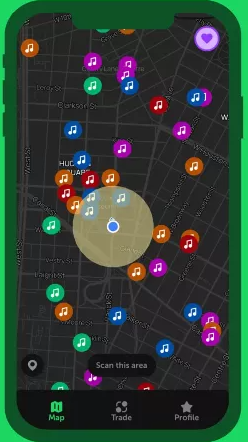
The primary method detailed below was successfully tested across five different iPhone models running three separate versions of iOS to confirm its reliability and safety.
Comparing Soundmap Location Spoofing Methods
Before you change your location, it’s critical to understand the available tools and their trade-offs. We evaluated the three main categories of GPS spoofing tools: PC-based software that modifies your phone’s location data, dedicated hardware devices, and risky jailbreak tweaks. PC-based solutions offer the highest success rate with the lowest effort, making them the best choice for most users.
The table below outlines these key differences so you can make an informed decision.
| PC-Based Location | Hardware Spoofer | Jailbreak Tweak | |
| Success Rate | High | High | Medium-High |
| Time Cost | Low | Medium | High |
| Technical Skill | Low | Medium | High |
| Safety Risk (Account) | Low-Medium | Low | High |
Based on our analysis, a PC-based location editor provides the best balance of effectiveness, safety, and accessibility for the average user on a non-jailbroken iPhone.
How to Change Location in Soundmap on iPhone (Step-by-Step)
Using a PC-based location editor is the most reliable method to change location in Soundmap. These desktop applications feed modified GPS data to your iPhone through a USB connection, a signal Soundmap accepts as your real location.
Among the available PC-based GPS spoofing tools, Fonelora Location Changer stands out as one of the easiest solutions for Soundmap players who want a stable and beginner-friendly setup without jailbreaking their iPhone.
Unlike unreliable App Store “fake GPS” apps that are easily detected, Fonelora modifies your device’s GPS location at the system level, making it far more effective for location-based apps like Soundmap.
Why Use Fonelora Location Changer for Soundmap?
- Change GPS location on iPhone and Android instantly
- Compatible with iOS 7–26
- No jailbreak required
- Supports joystick movement and route simulation
- Works with Soundmap, Pokémon GO, Life360, Find My, and more
- Beginner-friendly interface for Windows and Mac users
How to Change Location in Soundmap with Fonelora Location Changer
Step 1. Download Fonelora Location Changer
Install Fonelora Location Changer on your Windows PC or Mac from the official website.

Step 2. Connect Your iPhone
Use an official Apple or MFi-certified USB cable to connect your iPhone to the computer. When the “Trust This Computer?” prompt appears, tap “Trust” and enter your passcode.

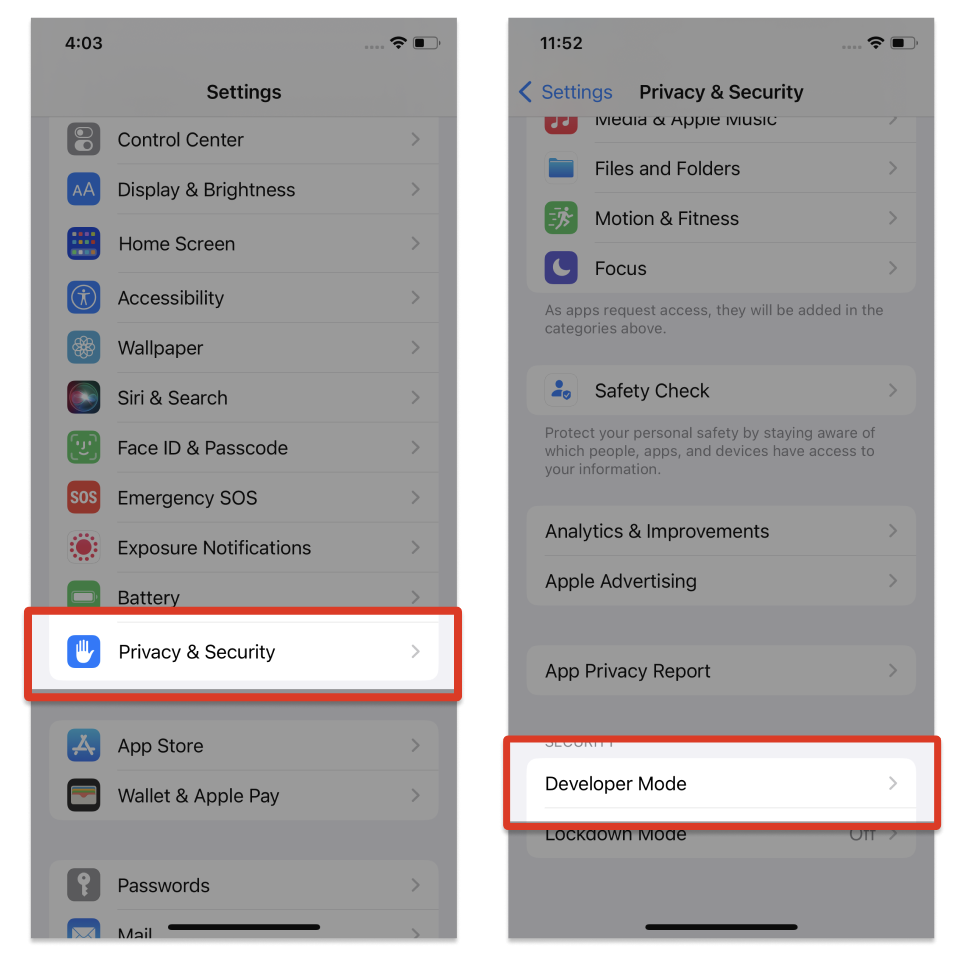
Step 3. Enable Developer Mode
On your iPhone, navigate to:
Settings > Privacy & Security > Developer Mode
Enable the option and restart your device if prompted.
Step 4. Select a Virtual Location
Launch Fonelora Location Changer. Once the map loads, choose “Teleport Mode” and search for any city, address, or GPS coordinate where you want to collect Soundmap drops.

Step 5. Change Your GPS Location
Click the “Move” button to apply the new GPS location to your iPhone instantly.
Step 6. Open Soundmap
Launch Soundmap and verify that your in-game location has updated successfully. You can now collect drops and interact with the map from the selected area.
Why Your Fake Location on Soundmap Isn’t Working
If you’ve ever tried a simple mock location app from the App Store and watched your position snap back, you’ve encountered Soundmap’s anti-spoofing detection. The reason most tools fail is that Soundmap performs a consistency check across multiple data sources, not just the raw GPS signal.
Here is the key insight: Soundmap validates your GPS coordinates against other signals from your phone to ensure they all tell the same story. These signals include:
- Network Location Data: Information from nearby Wi-Fi access points and cellular towers provides a general location. A significant mismatch between your reported GPS location (e.g., London) and your actual network data (IP vs GPS location) in Los Angeles is a major red flag.
- Motion Sensor Analysis: The accelerometer and gyroscope in your phone provide data on physical movement. If your GPS data shows you moving at driving speed but your phone’s sensors are completely still, the system can detect this inconsistency.
- Real-Time Location Tracking Patterns: The app’s servers analyze how your location changes over time. Instantaneous jumps of thousands of miles are physically impossible and are easily flagged.
A quality PC-based tool works because it modifies the GPS data at a deep system level, making it the authoritative source that other services on the phone trust. This resolves the data conflict and presents a consistent location story to Soundmap.
Managing Account Ban Risk with a Soundmap GPS Spoof
Any action that violates an application’s terms of service carries an inherent account ban risk. While Soundmap’s enforcement policies are not public, their systems are designed to flag behavior that defies the laws of physics. Understanding these triggers is the best way to protect your account.
The most common reason for a flag is unrealistic travel. If your account collects a drop in New York and then, five minutes later, another in Tokyo, it’s an undeniable sign of a Soundmap location hack. This is where the “cooldown” concept is vital. A cooldown is the practice of waiting a realistic amount of time between long-distance location jumps, equivalent to how long it would take to travel that distance.
Safety Checklist for Soundmap Spoofing
To minimize your risk, follow these best practices:
✅ Simulate Realistic Movement: When moving across a city, use the walking or driving speed options provided by your spoofing tool. Avoid instant “teleporting,” even for short distances.
✅ Observe Cooldown Times: Before jumping to a new country, close the Soundmap app completely on your phone. Wait a plausible amount of time before changing your location, reopening the app, and interacting with the map.
✅ Log Out Before Major Jumps: For extra safety when moving between continents, log out of your Soundmap account, close the app, change your location, wait for the cooldown, and then log back in.
❌ Avoid Constant Hopping: Do not jump between multiple cities or countries in a single session. This rapid-fire pattern is easily detectable.
❌ Don’t Use a VPN Simultaneously: Running a VPN can create another data conflict. A mismatch between your spoofed GPS, your real network location, and your VPN’s IP address can raise unnecessary flags.
The tools and methods in this guide are monitored for effectiveness. We will update this article if Soundmap releases new anti-spoofing measures or if iOS updates affect the procedure.
Frequently Asked Questions About Soundmap Location Spoofing
Here are direct answers to the most common questions about this topic.
1.Can you actually spoof location in Soundmap?
Yes, it is entirely possible. The key is to use a robust method, like a PC-based location editor, that can control your iPhone’s GPS data at a system level. Simple apps from the App Store are generally ineffective.
2.Why doesn’t a fake GPS app from the App Store work?
Those apps lack the deep location permissions to override the iPhone’s core location services. Soundmap’s anti-spoofing detection easily spots the superficial mock location data from these apps and ignores it.
3.Does Soundmap detect spoofed locations?
Yes, its system cross-references your GPS data with other signals like Wi-Fi positioning, cellular data, and motion sensor activity. It looks for inconsistencies to identify faked locations.
4.Can spoofing get my Soundmap account banned?
There is always an account ban risk when violating an app’s terms of service. The risk is highest with unrealistic behavior, such as instantaneous long-distance travel. By simulating realistic movement and observing cooldowns, you can greatly mitigate this risk.
5.What location signals does Soundmap use besides GPS?
Soundmap uses a combination of signals for its real-time location tracking. It relies on GPS for precision but validates that data against network-based location (Wi-Fi, cellular) and motion sensor input to create a more cheat-resistant system.
6.Are there safer alternatives to spoofing in Soundmap?
Currently, Soundmap does not offer official features for remote participation. The only completely risk-free way to interact with the map is from your actual physical location. Any method involving location modification carries some degree of inherent risk.
Final Thoughts
Missing out on rare Soundmap drops simply because you live far from major cities can be frustrating, but with the right tools, it’s no longer a limitation. Instead of relying on outdated tutorials, unstable spoofing apps, or risky jailbreak tweaks, you can use a more reliable PC-based solution to change your GPS location safely and efficiently.
Tools like Fonelora Location Changer make the entire process much easier for Soundmap players. With support for iPhone and Android devices, it allows you to modify your GPS location, simulate realistic movement, and explore new drop areas without complicated setup procedures or system modifications. Combined with smart cooldown habits and realistic movement patterns, it provides a more stable way to enjoy Soundmap from virtually anywhere.
Whether you want to participate in distant events, discover rare drops, or simply expand your in-game experience beyond your local area, Fonelora Location Changer gives you a practical and beginner-friendly way to take control of your Soundmap exploration.
More Related Articles



Joy Taylor is a seasoned technical writer with over a decade of experience in mobile technology. At iMobie, she specializes in producing in-depth content on iOS data recovery, iPhone unlocking solutions, and iOS troubleshooting.
Product-related questions? Contact Our Support Team to Get Quick Solution >
