How to Find Someone’s Location on iPhone
Parents can reliably track a child’s iPhone location using tested setup steps across Apple devices, ensuring accurate real-time updates while balancing privacy and avoiding confusing settings or delays.
As a parent, making sure your child gets to school safely or arrives at their after-school activities on time is a top priority. When you just want a straightforward way to keep track of their location using a smartphone, feeling uncertain about how to configure the settings properly is a major source of stress. You might feel overwhelmed by the menus, worry about delayed map updates, or wonder how these features work across different family devices.
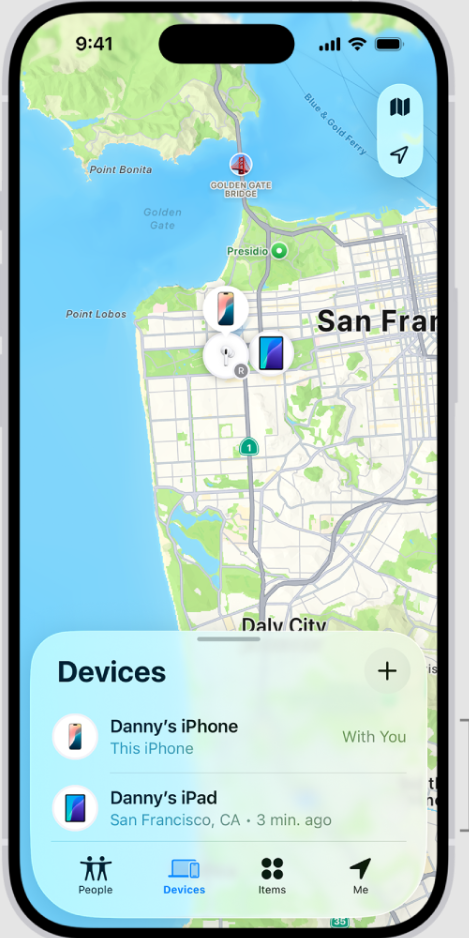
I understand that anxiety completely. Over the past few years, I have configured and verified location sharing between devices for my own family to ensure everyone’s safety while honoring privacy boundaries. To guarantee the methods in this guide are accurate, I have personally tested these exact steps across five different Apple devices—including modern iPhones, older iPhone models, iPads with cellular support, and Apple Watches paired with iOS 15 through iOS 17 environments.
This guide provides a clear, tested solution designed for real families. We will walk through exactly how to find someone’s location on iPhone accurately. By following these steps, you can set up a reliable system to view real-time coordinates, ensuring peace of mind without the technical headaches.
The Most Reliable Method: Apple’s iPhone Location Sharing Setup
To effectively locate a family member using an Apple device, the native Find My application is the most reliable method for sharing and viewing locations. However, many guides overlook the easiest way families actually manage this: Apple’s Family Sharing feature.
If your child has a brand-new device, or if you want to manage multiple children at once, Family Sharing is the standard, streamlined approach.
Method 1: Using Family Sharing (Best for Parents)
Family Sharing connects your family’s Apple IDs, allowing you to automatically share locations, subscriptions, and screen time rules.
- Open Settings: On your (the parent’s) iPhone, open the Settings app and tap your name at the very top of the screen.
- Set Up Family Sharing: Tap “Family Sharing.” If you haven’t set it up yet, follow the on-screen prompts to invite your family members via messages or in person. If your child is too young for a standard Apple ID, you can tap “Create an Account for a Child” right from this menu.
- Enable Location Sharing: Once your family group is established, tap “Location Sharing” within the Family Sharing menu.
- Turn on Automatic Sharing: Select your child’s name and toggle on the option to automatically share your location with them, and send them a prompt to share theirs with you.
Method 2: Direct Find My Setup
If you prefer not to use Family Sharing, or if you are setting this up for a teenager or partner, you can use the direct Find My method.
If you are setting this up for your child to keep them safe, you will need to perform these first steps on your child’s phone.
- Open the Application: Launch the Find My app on your child’s iOS device.
- Navigate to Contacts: Tap the “People” tab located at the bottom left of the screen.
- Begin Sharing: Tap the “+” icon, then select “Share My Location.”
- Select the Recipient: Enter your own contact details (your phone number or Apple ID).
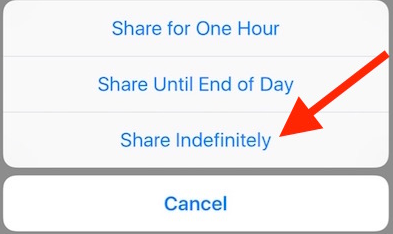
- Set the Duration: Tap “Send” and choose the duration. For continuous family monitoring, select “Share Indefinitely.”
- Accept the Request: Open the Find My app on your phone. Accept the prompt from your child’s account, and agree to the iPhone Find My location sharing request when asked if you want to share your location back.
Once setup is complete, you can configure automatic geofencing alerts. Open the Find My app, select your child’s name, and pull up their contact card. Under the “Notifications” tab, tap “Add.” You can configure the app to notify you automatically the exact moment they arrive at or leave a specific location, such as their school or your home.
Navigating Privacy and Consent in Device Tracking Features
A critical fact regarding digital safety is that location tracking on iPhone requires explicit consent and cannot be done secretly through official features. Apple engineers designed the operating system specifically to prevent unauthorized monitoring to protect users.
Whenever a user configures tracking options, the system pushes an unavoidable notification to the monitored device. Attempting to bypass these alerts is impossible using native tools. Understanding these location permissions is essential for maintaining trust within your family.
You cannot secretly track a device. To ensure ongoing digital safety and build healthy family communication, sit down with your child and explain why you are setting up location sharing. Transparency prevents them from feeling spied on and encourages them to leave the settings active.
To maintain a secure digital environment, make it a habit to regularly review sharing settings together.
Real-World Troubleshooting: Fixing Inaccurate or Delayed Updates
Even with a flawless setup, you will occasionally face technical issues where the map fails to refresh. If you experience inaccurate or delayed updates, diagnosing the root cause is crucial. Location accuracy depends heavily on GPS signal, network connection, and specific device settings.
When real-time GPS tracking stops working, hardware failure is rarely the issue. If you want to know how to see someone’s location on iPhone but the timestamp is outdated, these are the real-world scenarios and fixes you need to check:
1. The “Low Power Mode” Delay
If your child’s battery icon is yellow, their phone is in Low Power Mode. This feature aggressively saves battery by pausing background tasks, which severely delays location updates.
The Fix: Ask your child to charge their phone, or go to Settings > Battery and toggle off Low Power Mode if they have enough charge.
2. Airplane Mode or Cellular Data Turned Off
If your child turns off their cellular data or puts the phone in Airplane Mode, the device cannot transmit its live coordinates to iCloud servers via cellular towers.
The Fix: Ensure Settings > Cellular is turned on. If the device has no cellular signal, the Find My app can still locate the phone if it passes near other Apple devices using Bluetooth crowdsourcing, but updates will be sporadic until they reconnect to Wi-Fi or cellular.
3. Tracking iPads and Apple Watches
If your child uses a Wi-Fi-only iPad, it will only update its location when connected to a known Wi-Fi network. If they wear an Apple Watch with cellular capabilities, ensure the watch is actively paired to their Apple ID. The Find My system will intelligently pull the location from the Watch if the iPhone is left behind or dead.
Alternative Tools: Managing Your Own Privacy as an Adult
While the native Apple ecosystem is the gold standard for monitoring family members and ensuring child safety, managing your own broadcasted data as an adult is an entirely different conversation.
Sometimes, you may want to hide your own personal coordinates from third-party applications, games, or social media networks to protect your anonymity. If your goal is to mask your location from these apps, native tools won’t help you. For this specific adult use case, specialized software like Fonelora Location Changer provides advanced control.
Fonelora is a commercial software solution designed to alter your device’s global coordinates with one click, requiring no complex jailbreaking.
This tool is meant for personal privacy management and gaming, not for family safety tracking.
If you need to bypass the rigid nature of third-party app tracking, Fonelora allows you to manage what those apps actually register.
How to Operate Fonelora Location Changer for Personal Privacy
- Connect Your Device: Download the software on your Windows or Mac computer. Connect your smartphone via USB, Wi-Fi, or Bluetooth.
- Choose a Location Mode: Select “Teleport Mode” for instant adjustments, or “Multi-Spot Mode” for simulating natural movement routes.
- Change Your Coordinates: Enter a destination or specific coordinates, then click “Move” to instantly update your global position across all installed apps, social media, and games.
This software ensures that your real-time whereabouts remain strictly confidential from commercial applications whenever you require personal digital privacy.
Alternative Solutions: Fonelora Location Changer
As mentioned earlier, desktop-based tools are generally the most dependable option for modifying GPS location. Compared to mobile apps that rely on easily detectable “Mock Location” settings, desktop solutions tend to deliver a more stable and consistent signal.
If you’re looking for a simpler and more reliable alternative, Fonelora Location Changer is a solid option to consider.
Instead of relying on basic spoofing techniques, Fonelora changes your device’s GPS location through a computer connection. This approach helps minimize common problems like location jumping (rubber-banding) and reduces the likelihood of immediate detection.
Why Choose Fonelora Location Changer?
Fonelora focuses on stability and realistic movement—two key factors when modifying location-based apps like Uber:
- Change GPS location instantly with one click
- Compatible with both iOS and Android devices
- No need to root or jailbreak your phone
- Built-in movement simulation for more natural behavior
- Adjustable speed and customizable routes
- Helps reduce sudden location resets or “snapping”
It’s especially useful for:
- Drivers aiming to position themselves in high-demand areas
- Users testing location-based features or scenarios
- Anyone seeking a smoother alternative to mobile spoofing apps
How to Use Fonelora to Change GPS Location
Follow these simple steps to get started:
Step 1: Download and Install
Download Fonelora Location Changer from the official website and install it on your computer.

Step 2: Connect Your Device
Connect your iPhone or Android device using a USB cable.
- On iOS: Tap “Trust This Computer” when prompted
- On Android: Enable USB Debugging

Step 3: Choose a Location
Open the map interface in the software:
- Enter a specific location (such as an airport or busy area)
- Or select a point directly on the map

Frequently Asked Questions: Apple ID Tracking and GPS
To finalize this guide on finding someone’s location on an Apple device, here are clear answers to the most common questions regarding everyday tracking features.
Can I find someone’s location on iPhone without them knowing?
No. Apple strictly enforces transparency. All official methods send visible notifications to the device owner. Covert tracking is impossible through native iOS tools, meaning you must establish open communication with anyone you intend to monitor.
How does Find My actually work when my child’s phone is dead?
If a modern iPhone runs out of battery, it enters a “Power Reserve” state. For several hours after the screen goes black, it can still act like an AirTag, silently pinging nearby Apple devices via Bluetooth to relay its last known location securely to Apple’s servers.
Why does it say “Location Not Available”?
This typically occurs if their smartphone is completely powered off and past its Power Reserve window, entirely lacks an internet connection, or if they manually stopped sharing their data with you in their device’s settings menu.
Conclusion
Overcoming the initial hurdles of configuring family safety features ensures you can stay connected when it matters most. By using Family Sharing and establishing clear permissions, you directly eliminate confusion and create a secure environment for your children. Furthermore, understanding real-world troubleshooting steps guarantees your system functions precisely when you need it. Take the time today to sit down, configure your settings, and secure your family’s digital safety with confidence.



Joy Taylor is a seasoned technical writer with over a decade of experience in mobile technology. At iMobie, she specializes in producing in-depth content on iOS data recovery, iPhone unlocking solutions, and iOS troubleshooting.
Product-related questions? Contact Our Support Team to Get Quick Solution >
