When you simply want to explore location-based games or application features without physically traveling, encountering connection drops and rubber-banding back to your real position is incredibly frustrating. You spend hours downloading software, only to find your computer refuses to recognize your phone, or your avatar keeps jumping wildly across the map.
This guide gives you the exact, step-by-step methods to get your virtual coordinates working correctly across different operating systems, so you can stop wrestling with settings and finally gain better control over your device location.
How to Set Up iTools Virtual Location Properly
Getting the iTools software to recognize your device and successfully spoof your coordinates requires precise steps depending on your operating system. Merely plugging in a data cable is rarely enough, especially on newer firmware. Here is the exact PC-to-mobile connection sequence required to get started.
iOS Setup Guide (Crucial for iOS 16 & 17)
Apple has tightened security on recent iOS versions. If you are running iOS 16 or newer, older plug-and-play methods will fail, causing the software to crash or refuse the connection entirely.
- Install and Launch: Open the latest version of the iTools desktop application on your Mac or Windows computer.
- Connect the Hardware: Connect your iPhone using a certified Apple USB data cable. Avoid third-party charging-only cables.
- Establish Trust: Unlock your iPhone screen. When prompted, tap “Trust This Computer” and enter your device passcode.
- Enable Developer Mode (Crucial Step): Navigate to your iPhone’s Settings > Privacy & Security > Developer Mode. Toggle this switch ON. Your device will prompt a restart. Once restarted, unlock your phone and tap “Turn On” to confirm Developer Mode. Without this step, the software cannot communicate with iOS 16 or 17 devices.
- Access the Feature: In the desktop app, go to the “Toolbox” tab and click the “Virtual Location” icon. Input your desired coordinates into the search bar and click “Go”.
Android Setup Guide
Android devices require manual configuration in the system menus to allow third-party location overrides.
- Enable Developer Options: Go to your Android phone’s Settings > About Phone. Tap the “Build Number” seven times continuously until you see a pop-up saying, “You are now a developer!”
- Turn on USB Debugging: Navigate back to Settings > System > Developer Options. Scroll down and toggle on “USB Debugging”.
- Connect to PC: Plug your phone into your computer. A prompt will appear on your phone asking to “Allow USB debugging.” Check “Always allow from this computer” and tap OK.
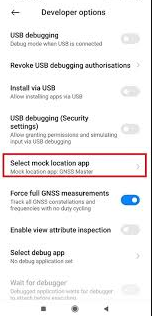
- Select Mock Location App: In the Developer Options menu, scroll down to find “Select mock location app.” Tap it and choose the companion app (or whatever bridge application your desktop software installed on your device).
- Apply Coordinates: Open the Virtual Location tool in your desktop client, type your destination, and execute the change.
Troubleshooting: When iTools Virtual Location is Not Working
Even when following instructions carefully, you might run into two major issues: the software failing to see your phone in the first place, or severe rubber-banding (where your GPS snaps back to your actual physical coordinates).
Fixing Device Connection and Recognition Failures
If the application says “Device not connected,” basic computer restarts often fail. You need to manually verify and update your computer’s USB drivers, as default drivers frequently mishandle mobile data transfer protocols.
Step-by-Step Driver Update for Windows PC:
1. Open the Device Manager on your computer (you can type “Device Manager” into the Windows Start menu).
2. For iOS Users: Expand the “Universal Serial Bus devices” category. Find the item named “Apple Mobile Device USB Device”. Right-click it, select “Update driver,” and choose “Search automatically for drivers.”
3. For Android Users: Expand the “Portable Devices” or “Other Devices” category. Look for your specific phone model, or an item labeled “MTP Device” or “ADB Interface” that has a yellow exclamation mark next to it. Right-click it, select “Update driver,” and install the proper manufacturer drivers.
Fixing Rubber-Banding and Location Reverting
When your spoofed coordinates keep snapping back to your real physical location, your device’s native GPS sensors are actively fighting the spoofed coordinates. Merely force-closing apps is usually not enough to stop this conflict.
On Android: Go to Settings > Location > Location Services > Google Location Accuracy and toggle it OFF. Additionally, disable “Wi-Fi scanning” and “Bluetooth scanning” in the Location menu. This stops the operating system from using nearby Wi-Fi routers to artificially correct your spoofed coordinates.
On iOS: Disable “Precise Location” for any applications you are using. Go to Settings > Privacy & Security > Location Services, tap the specific app from the list, and toggle off “Precise Location”.
Background Mechanics: Account Safety & Avoiding Soft Bans
Understanding how location masking works is vital for protecting your accounts, especially if you play geo-based games. When you use virtual GPS tools, the desktop client intercepts the operating system’s standard location requests and feeds them custom coordinates.
Many modern applications employ sophisticated mobile device tracking algorithms designed to detect impossible geographical jumps. If an app registers your activity in New York and then in Tokyo three seconds later, your account is highly likely to be flagged by automated security systems.
The Cooldown Timer Chart
To avoid penalties, you must optimize your simulation strategy. Instead of instantly teleporting across the globe, simulate a natural travel route using realistic speeds (walking, cycling, or driving). Furthermore, you must strictly follow a Cooldown Timer. A cooldown is the physical wait time required before interacting with an app at a new, distant location.
| Distance Traveled | Recommended Cooldown Time |
|---|---|
| 1 to 5 km | 1 to 5 Minutes |
| 10 to 25 km | 10 to 15 Minutes |
| 50 to 100 km | 30 to 45 Minutes |
| 250 to 500 km | 1.5 to 2 Hours |
| 1000+ km (Cross-Country/International) | 4 to 12+ Hours |
Wait the entire duration before opening your location-based app at the new destination. Gradual location changes significantly reduce detection risks in location-sensitive applications.
An Alternative Solution: Modern Virtual GPS Tools
If you have walked through the manual driver updates and OS configurations above and the traditional iTools method is still giving you a headache, you might want to evaluate dedicated modern software.
The traditional setup often demands higher technical skill and constant troubleshooting. The time cost is noticeable, especially on newer operating systems where location security is much tighter. If you want to bypass manual developer configurations entirely, modern professional software like Fonelora Location Changer offers a more streamlined, user-friendly method.
Fonelora is an all-in-one GPS solution designed to lower the technical barrier to entry. Rather than fighting with Apple Mobile Device drivers or Android ADB interfaces, its updated architecture establishes an automatic connection via USB, Wi-Fi, or Bluetooth.
| Feature / Criteria | Traditional iTools Method | Modern Software (e.g., Fonelora) |
|---|---|---|
| Setup Difficulty | High (Requires Developer settings & driver updates) | Low (Plug-and-play installation) |
| Connection Stability | Variable (Prone to disconnects on newer OS) | High (Optimized for latest iOS 17/Android 14) |
| Movement Control | Basic teleportation | Advanced (360° Joystick, multi-spot routing) |
| Account Safety | Manual cooldown tracking required | High (Built-in cooldown timers, safe movement modes) |
For users focused purely on smooth gaming or privacy control without the technical chore, tools like Fonelora include built-in mechanisms to perform a realistic map navigation simulation automatically. It features a 360° GPS joystick and integrated cooldown alerts, mitigating concerns about account restrictions when spoofing.
Alternative Solutions: Fonelora Location Changer
As mentioned earlier, desktop-based tools are generally the most dependable option for modifying GPS location on Uber. Compared to mobile apps that rely on easily detectable “Mock Location” settings, desktop solutions tend to deliver a more stable and consistent signal.
If you’re looking for a simpler and more reliable alternative, Fonelora Location Changer is a solid option to consider.
Instead of relying on basic spoofing techniques, Fonelora changes your device’s GPS location through a computer connection. This approach helps minimize common problems like location jumping (rubber-banding) and reduces the likelihood of immediate detection.
Fonelora Location Changer
Realistic GPS movement simulation, flexible route control, easy no-modification setup, and support for gaming, social, privacy, and location-based testing in one platform.
Why Choose Fonelora Location Changer?
Fonelora focuses on stability and realistic movement—two key factors when modifying location-based apps like Uber:
- Change GPS location instantly with one click
- Compatible with both iOS and Android devices
- No need to root or jailbreak your phone
- Built-in movement simulation for more natural behavior
- Adjustable speed and customizable routes
- Helps reduce sudden location resets or “snapping”
It’s especially useful for:
- Drivers aiming to position themselves in high-demand areas
- Users testing location-based features or scenarios
- Anyone seeking a smoother alternative to mobile spoofing apps
How to Use Fonelora to Change GPS Location
Follow these simple steps to get started:
Step 1: Download and Install
Download Fonelora Location Changer from the official website and install it on your computer.

Step 2: Connect Your Device
Connect your iPhone or Android device using a USB cable.
- On iOS: Tap “Trust This Computer” when prompted
- On Android: Enable USB Debugging

Step 3: Choose a Location
Open the map interface in the software:
- Enter a specific location (such as an airport or busy area)
- Or select a point directly on the map

Frequently Asked Questions About the iTools Fake GPS Location
Q1: Is iTools virtual location safe to use?
The desktop software itself is safe to install, but changing your GPS coordinates carries inherent risks depending on the specific app’s terms of service. To minimize detection, adhere strictly to the cooldown chart provided above and avoid sudden, long-distance teleportation.
Q2: How do I fix connection issues with iTools?
First, verify your hardware connection with a data-certified cable. Second, access your computer’s Device Manager to manually update the “Apple Mobile Device USB Driver” (for iOS) or the “ADB/MTP Interface” driver (for Android). Finally, ensure your device screen remains unlocked during the connection sequence.
Q3: Can virtual location be used for all apps?
While it changes the system-wide coordinates, some high-security apps may still detect the spoofing through secondary tracking methods like Wi-Fi network scanning, Bluetooth proximity, or IP address matching.
Conclusion
Once you successfully set up your environment, gaining full control over your digital coordinates opens up a wide array of global location-based features. However, always remember to stay aware of individual app policies regarding location manipulation. Relying on gradual location changes and strictly following cooldown periods will greatly reduce your detection risks over the long term.
Dealing with frustrating compatibility drops and stubborn location tracking does not have to be an endless technical chore. By applying the precise developer settings for Android and iOS, manually correcting your USB drivers, and adjusting native location accuracy toggles, you can establish a stable connection with iTools. If manual configuration remains overwhelming, modern plug-and-play alternatives like Fonelora Location Changer offer an excellent, reliable backup plan. Taking the time to properly configure your connection guarantees a much smoother, safer experience across your favorite geographic applications.
Fonelora Location Changer
- Bluetooth Hardware Simulation for Safer GPS Spoofing
- Realistic Movement & Route Simulation
- No Root or Jailbreak Required
- All-in-One Solution for Games, Social Apps & Privacy