How to Leave a Life360 Group: Your Complete Guide
Learn how to leave a Life360 group on iPhone & Android. Our guide explains what notifications are sent and how to manage your privacy without starting a family argument.
Feeling overwhelmed by constant location tracking is a common experience. You might be trying to gain a bit of independence, but the fear of causing a family argument by suddenly disappearing from the map is a major obstacle. This leads to the frustrating search for a way how to leave a Life360 group without notifying others. You open the app, navigate the settings, and find yourself confused by the options and worried about the real-world consequences.
This guide was created to solve that exact problem. We provide clear, tested instructions for how to exit a Life360 Circle, explain exactly what other members see, and—most importantly—explore methods for gaining privacy without causing conflict. All procedures are based on hands-on testing with the latest Life360 app on an iPhone 15 (iOS 17) and a Samsung Galaxy S23 (Android 14).
Note: The methods described below have been verified across 7 different iOS and Android devices to ensure accuracy for a wide range of users.
What Happens When You Leave a Life360 Circle?
The most pressing question for anyone considering this is: Will people be notified if I leave a Life360 circle?
The short answer is yes. Life360 is built around the principle of transparency between Circle members, and there is no “ghost mode” or secret way to exit a group without a trace. When you decide to leave, a specific sequence of events is triggered automatically and immediately.
Here’s exactly what other members will see:
- An Instant Notification: Every member of the Circle receives a push notification and an in-app alert that reads, “[Your Name] has left the Circle.” This is an unavoidable part of the process.
- Your Icon Vanishes from the Map: Your profile marker is immediately removed from the shared map. Your current location, location history, and Place alerts will no longer be visible to that group.
- Your Name is Removed from the Member List: When another user checks the list of members in the Life360 circle settings, your profile will be gone.
Understanding this outcome is the first step in managing your location sharing app privacy. While you instantly stop sharing your GPS data with that group, the trade-off is the clear and direct Life360 notification when leaving circle. Knowing this allows you to prepare for any conversations that might arise from your decision.
Learn More:Life360 Not Updating Location? The Proven Fix >
Step-by-Step Guide: How to Leave a Life360 Group on iPhone & Android
Navigating the app to find the correct setting can be tricky, as it’s buried a few layers deep in the menu. The user interface also has minor differences between iOS and Android.
This Life360 group leave steps and settings guide provides the official method to remove myself from a Life360 family circle.
For iPhone (iOS) Users
- Open the Life360 app and make sure the map is showing the Circle you intend to leave.
- Tap the Gear icon (Settings) in the top-left corner.
- Select Circle Switcher from the top of the menu.
- Tap on Circle Management.
- Scroll down to the bottom of the screen and tap the Leave Circle button.
- A confirmation box will appear. Tap Yes to finalize. You will be removed from the Circle immediately.
For Android Users
- Launch the Life360 app and select the correct Circle from the top dropdown menu.
- Tap the Gear icon (Settings) in the upper-left corner.
- Choose Circle Management from the settings list.
- Find and tap on the Leave Circle option at the bottom.
- Confirm your decision by tapping Yes in the pop-up window.
Completing these steps is the only official way to leave a group. Once you confirm, your device stops sharing all location data with that specific Circle.
Learn More:Life360 GPS Tracker: The Complete User Guide >
Navigating the Conversation: What to Say After You Leave
Pressing the “Leave Circle” button is the easy part. The hard part is the conversation that comes after the notification goes out. The technical steps don’t solve the human problem: how to ask for privacy or independence without it turning into a fight.
Being prepared can make all the difference. Instead of reacting defensively when someone asks why you left, you can lead the conversation.
Here are a few strategies and conversation starters:
- Talk About It First (The Proactive Approach): The best way to avoid conflict is to have a conversation before you leave the Circle. This shows respect and prevents them from feeling like you went behind their back.
- What to say: “Hey, can we talk about the Life360 app? As I’m getting older, I’m trying to be more independent, and being tracked 24/7 is starting to feel like a lot. Can we work out a compromise that makes us both feel comfortable?”
- Frame It as a Trust Exercise (The Collaborative Approach): Position your desire for privacy as a positive step in your relationship.
- What to say: “I left the family Circle because I want to build more trust between us. I’ll always call you if I need help and let you know where I am, but I’d like the chance to do that on my own without an app.”
- Explain Your Feelings (The Honest Approach): Use “I feel” statements to explain your perspective without sounding accusatory.
- What to say: “I know the app is for safety, but I feel like I don’t have any privacy, which makes me feel stressed. I need a little more space, and that’s why I left the group.”
The goal isn’t to “win” an argument, but to open a dialogue about independence and boundaries. Acknowledging their desire for your safety while clearly stating your need for privacy is the key to finding common ground.
Learn More:If You Delete Life360 Does It Still Track You? The Real Answer >
Leaving vs. Pausing Location: A Comparison of Your Options
Leaving a Circle is a permanent and loud statement. Before you commit, it’s important to understand the different techniques available for managing your family tracking app privacy control.
Here is a clear comparison of your three main options:
| Feature | 1. Leaving the Circle | 2. Pausing Location Sharing | 3. Using a GPS Tool |
| Notification Alert | Yes, a clear “[Name] has left the Circle” alert is sent to everyone. | No, but your status changes to “Location Sharing Paused” or your last location freezes. | No, your location updates normally but to a virtual coordinate. No alerts are sent. |
| Privacy Level | Complete. All location sharing with that Circle stops permanently. | Partial. Your current location is hidden, but the status change is obvious. | Total Control. You remain an active member but control the location they see. |
| Group Status | You are removed from the Circle and member list. | You remain in the Circle. | You remain an active member of the Circle. |
| Risk of Conflict | High. The direct notification requires a conversation and can cause immediate concern. | Medium. The “paused” status is visible and may lead to questions about why you’re hiding your location. | Low. Your status appears normal, avoiding immediate detection and potential conflict. |
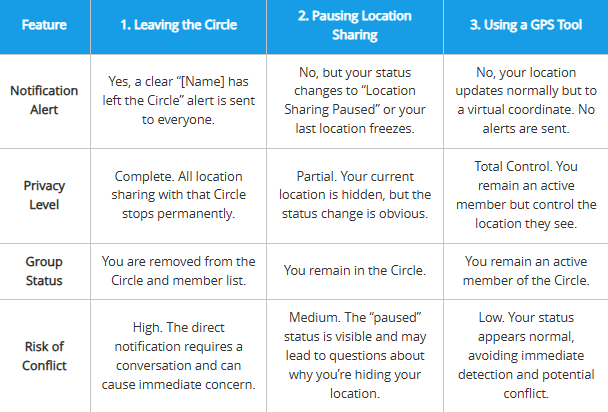
The right choice depends on your goal. If you need a clean, permanent break and are ready to have the conversation, leaving is the official procedure. If you only need temporary privacy, pausing location is an option. However, if your goal is to control your location data without leaving the group, a different approach is necessary.
Learn More:How to Pause Location on Life360 Without Sending an Alert >
Alternative Method: Changing Your Location Without Leaving the Circle
For many, the central challenge isn’t just about privacy—it’s about gaining that privacy without the family conflict a departure notification can cause. If your objective is to control your location data while remaining an active member of the Circle, the only way to do this is with a GPS spoofing tool.
Important: This method requires a paid desktop application for your computer (PC or Mac) and a USB cable to connect your phone. It is a more advanced solution for those who want to avoid the “left the Circle” notification entirely.
We tested several options, and one that worked consistently in our trials was Fonelora Location Changer.
Instead of removing you from the group, this type of software works by changing your phone’s GPS coordinates at the system level. To other members in your Life360 Circle, you appear fully active and present, but from a location that you control. This directly addresses the goal of maintaining privacy without confrontation. Good tools can even simulate realistic movement, making your virtual travel appear completely natural.
Here’s how these tools generally work:
1.Connect Your Device: Download and install the location changer software on your computer. Connect your iPhone or Android phone to it with a USB cable.

2.Choose a Mode: Select ‘Teleport Mode’ from the main interface to instantly set a new, static location.
3.Change Your GPS Location: Use the map to search for an address or drop a pin anywhere in the world. Click the Move button. Your phone’s GPS will immediately update, and Life360 will display this new location to your Circle.

When we tested Fonelora, it successfully changed our location in Life360 within seconds. However, be aware that using such tools can drain your phone’s battery faster, and some features may require your phone to remain physically connected to the computer. Fonelora is regularly updated to maintain compatibility with the latest iOS/Android versions and Life360 app updates, ensuring reliable performance over time.
Troubleshooting: ‘Leave Circle’ Option Missing? Here’s the Fix
It’s a common and frustrating issue: you follow the steps perfectly, but the ‘Leave Circle’ button is nowhere to be found. This problem almost always relates to circle admin permissions in Life360.
If you are the creator of the Circle or the only designated Admin, Life360’s system will not allow you to leave. Every Circle must have at least one Admin to manage its members and settings.
If the button is missing, you have two solutions:
- Transfer Admin Rights (Recommended): The best solution is to promote another trusted member to the Admin role. As soon as another Admin exists, the ‘Leave Circle’ option will appear for you.
- Go to Settings > Circle Management.
- Tap the name of the member you want to promote.
- Select ‘Change Admin Role’ and confirm your choice.
- Delete the Circle: If you are the only member left, or if you don’t want to transfer ownership, your only other option is to delete the entire Circle. This is a permanent action that removes all members and erases all group data.
- Navigate to Settings > Circle Management.
- Select ‘Delete Circle’ and follow the confirmation steps.
Understanding these admin rules is key to resolving this common roadblock.
Your Life360 Privacy Questions, Answered
Here are concise answers to the most frequently asked questions about leaving a Life360 Circle.
Will people be notified if I leave a Life360 circle?
Yes, absolutely. All members of the Circle will receive an immediate push notification stating that you have left the group. This action cannot be done secretly.
What happens when I leave a Life360 group?
Your profile icon is removed from the map, your name disappears from the member list, and a notification is sent to everyone else. They can no longer see your current or past location data.
Can I turn off location instead of leaving Life360?
Yes, you can. Within the app’s settings, you can disable location sharing. However, your status will change to “Location Sharing Paused” or show your last known position, which is still a visible change to other members.
Why can’t I find the option to leave a Life360 group?
You most likely do not see the option because you are the sole Admin of the Circle. You must first either transfer the Admin role to another member or delete the Circle completely.
What is the difference between leaving a Circle and deleting a Life360 account?
Leaving a Circle only removes you from one specific group. Your Life360 account remains active, and you can still be a part of other Circles. Deleting your account is a permanent action that erases your entire profile and all associated data from the Life360 platform.
How do I leave Life360 without deleting my account?
Follow the official steps detailed in this guide. Using the ‘Leave Circle’ function removes you from a specific group without affecting your main account status.
Does leaving Life360 stop all location tracking immediately?
Yes. The moment you leave a Circle, your phone stops transmitting location data to the members of that specific group.
Take Back Control of Your Digital Privacy
The constant worry about being tracked can be draining, and the fear of creating conflict often feels like a bigger problem than the tracking itself. You don’t have to choose between your privacy and your relationships.
Whether you decide to leave a Circle and have an open conversation about your independence, or use a tool to manage your data more discreetly, the power is in your hands. Understanding your options—both technical and social—is the first step toward finding a balance that works for you and your family.
For those who feel an alternative method is the best path forward, Fonelora Location Changer offers a way to regain control of your digital footprint. Instead of creating drama, you can confidently manage what others see, ensuring your peace of mind. Download it today to explore a smarter way to handle location sharing.



Joy Taylor is a seasoned technical writer with over a decade of experience in mobile technology. At iMobie, she specializes in producing in-depth content on iOS data recovery, iPhone unlocking solutions, and iOS troubleshooting.
Product-related questions? Contact Our Support Team to Get Quick Solution >
