Life360 GPS Tracker: The Complete User Guide
Is your Life360 GPS tracker showing an inaccurate location? Our guide explains how it really works and provides simple, step-by-step fixes for iOS & Android.
With over a decade of experience in mobile technology and a passion for location-based gaming, we have spent countless hours testing solutions for players just like Alex. He has personally tested dozens of apps across iOS 15-17 and Android 6-14 to find what truly works, understanding the technical details and the frustration of being a rural player firsthand.
For many Pokémon GO trainers, especially those in rural or less-populated areas, the game can feel frustratingly limited. If you’ve ever felt stuck with few PokéStops, sparse Pokémon spawns, or no way to join exciting raids happening in distant cities, you know the challenge well. This guide was created to solve that exact problem. We’re not just going to tell you how a fake GPS for Pokémon GO works; we’re going to recommend the specific, tested tools that get the job done reliably.
This guide provides a complete, step-by-step method for using a Pokémon GO GPS changer on both iOS and Android. Our recommendations are based on direct, hands-on experience, so you can stop searching and start exploring.
How Life360 GPS Tracking Actually Works
To trust the map, you first need to understand how it’s made. A common misconception is that the Life360 GPS tracker relies only on GPS. In reality, it uses a sophisticated hybrid system that intelligently blends multiple technologies to find a location. This multi-layered approach is the key to understanding why accuracy can change from one moment to the next.
Here are the three core location methods the Life360 family GPS tracking service uses:
- Global Positioning System (GPS): This is the most accurate tool in the system. Your phone’s built-in GPS receiver communicates directly with satellites orbiting the Earth to calculate its position, often within a few feet. This method works best outdoors with a clear, unobstructed view of the sky.
- Wi-Fi Positioning: When a person is indoors, GPS signals are often blocked. To solve this, Life360 scans for nearby Wi-Fi networks. It then cross-references the unique IDs of these networks with a global database of their known physical locations to estimate the phone’s position. It’s less precise than GPS but significantly more reliable indoors.
- Cell Tower Triangulation: In areas with poor GPS and few Wi-Fi signals (like rural roads), the app uses a fallback method. It measures the signal strength from multiple nearby cell towers to triangulate a general location. This is the least precise method but serves as a crucial backup when other signals are unavailable.
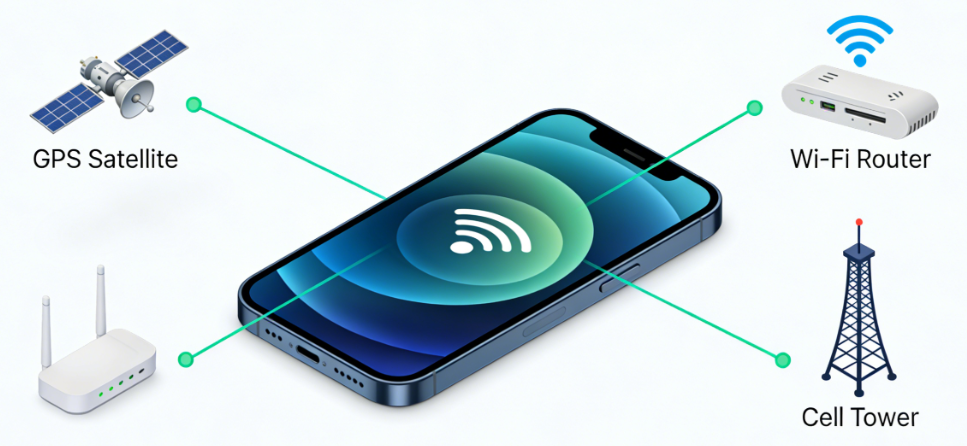
Life360’s software constantly analyzes the available data and reports the best possible location estimate. When a family member enters a building, the app seamlessly switches from high-precision GPS to Wi-Fi positioning. This is why you might see their location pin “stuck” at school for a few minutes after the final bell—the app is waiting for them to step outside and reacquire a strong GPS signal.
Understanding Life360 Location Accuracy: What to Realistically Expect
Now that you know how the technology works, it’s easier to set realistic expectations for Life360 location accuracy. The precision you see on the map is not a constant; it’s a dynamic calculation based on the device’s environment and settings. Understanding this context helps prevent unnecessary worry.
Here’s how common scenarios affect tracking performance:
- Indoors vs. Outdoors: Outside, a strong GPS signal can provide accuracy within 5-10 meters (16-32 feet). The moment someone walks into a large building like a school, mall, or grocery store, the phone loses that GPS signal. It switches to Wi-Fi and cellular data, which can widen the accuracy circle to 50 meters or more.
- Dense Cities vs. Rural Areas: In cities, tall buildings can block and reflect GPS signals, an effect known as an “urban canyon.” This can cause the location pin to drift or “jump” short distances. Conversely, in rural areas with fewer cell towers and Wi-Fi networks, location updates may be less frequent, or the accuracy circle may be larger.
- Driving: The app uses the phone’s motion sensors to detect when someone is driving and adjusts its update frequency. The data from Life360 driving reports GPS is generally very accurate on open highways but can be temporarily affected by tunnels or dense urban centers.
Learn More:How to Change Location on Life360: Guide for Privacy & Control>
A Practical Guide to Fixing Common Life360 Location Issues
When a location isn’t updating or seems consistently inaccurate, the cause is almost always a device setting, not a problem with the app itself. Aggressive power-saving features on both iPhones and Androids are the number one culprit, as they prevent Life360 from running in the background to collect location data.
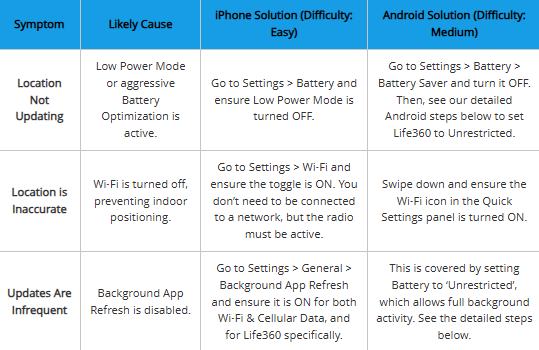
Use this decision guide to diagnose the symptom and apply the correct fix.
| Symptom | Likely Cause | iPhone Solution (Difficulty: Easy) | Android Solution (Difficulty: Medium) |
| Location Not Updating | Low Power Mode or aggressive Battery Optimization is active. | Go to Settings > Battery and ensure Low Power Mode is turned OFF. | Go to Settings > Battery > Battery Saver and turn it OFF. Then, see our detailed Android steps below to set Life360 to Unrestricted. |
| Location is Inaccurate | Wi-Fi is turned off, preventing indoor positioning. | Go to Settings > Wi-Fi and ensure the toggle is ON. You don’t need to be connected to a network, but the radio must be active. | Swipe down and ensure the Wi-Fi icon in the Quick Settings panel is turned ON. |
| Updates Are Infrequent | Background App Refresh is disabled. | Go to Settings > General > Background App Refresh and ensure it is ON for both Wi-Fi & Cellular Data, and for Life360 specifically. | This is covered by setting Battery to ‘Unrestricted’, which allows full background activity. See the detailed steps below. |
Correctly Set Up Life360 Location Permissions on iPhone & Android
For any family safety tracking app to function reliably, it must have the correct permissions. This is the single most important setup step. The requirements for enabling background location tracking iPhone Android differ slightly, and Android phone manufacturers often hide the most important settings. It is crucial to configure every device in your Circle correctly.
iPhone (iOS) Location Permission Settings
- Navigate to Settings > Privacy & Security > Location Services.
- Confirm that Location Services at the very top is turned ON.
- Scroll down the list of apps and tap on Life360.
- Under ‘Allow Location Access,’ you must select Always. This allows the app to report location even when it’s not open on the screen.
- Ensure the Precise Location toggle is enabled. This gives the app access to high-accuracy GPS data.
Advanced Guide to Android Location & Battery Settings
Android’s flexibility is great, but it means battery settings are in different places depending on the brand. The key is to find Life360’s specific app settings and grant it two things: “Allow all the time” location access and “Unrestricted” battery usage.
While the app is built for sharing, it also includes privacy controls that allow users to [pause Life360 without an alert] when they need downtime.
Step 1: Universal Location Permissions
- Navigate to Settings > Apps and find and tap on Life360.
- Tap on Permissions > Location.
- Under ‘Location access for this app,’ select Allow all the time.
- Make sure the Use precise location toggle is enabled.
Step 2: Brand-Specific Battery Settings (The Critical Step)
This is where most issues occur. You must prevent Android from automatically putting Life360 to sleep to save power.
For Samsung Galaxy Phones (One UI):
- From Life360’s ‘App info’ screen, tap Battery.
- Select Unrestricted. This is the most important setting.
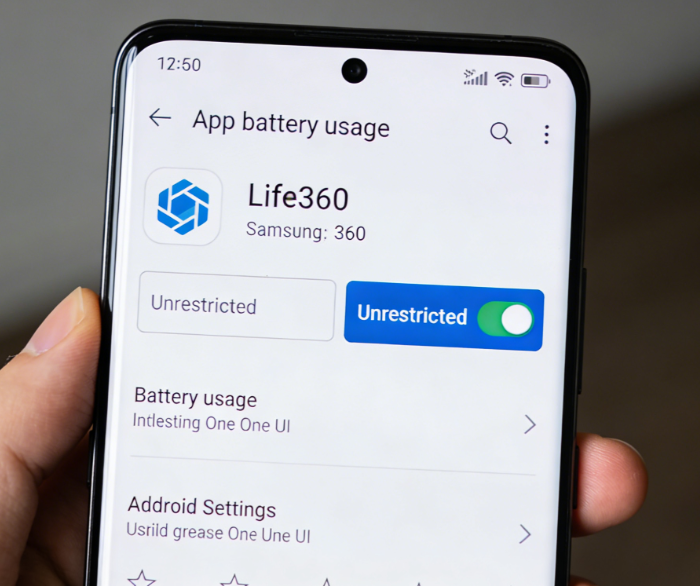
Samsung Pro-Tip: Check “Deep sleeping apps” Samsung’s software can be overly aggressive. Even after setting battery to ‘Unrestricted’, the OS can automatically add Life360 to a “sleep” list.
- Go to Settings > Battery > Background usage limits.
- Tap on Deep sleeping apps.
- If Life360 is on this list, tap the three dots in the top right, select Remove, choose Life360, and tap Remove at the bottom.
- Do the same for the Sleeping apps list. This is a non-obvious step that solves persistent update issues for many Samsung users.
For Google Pixel Phones (Stock Android):
- From Life360’s ‘App info‘ screen, tap Battery.
- You will see ‘App battery usage‘. Select the Unrestricted option. This ensures the system won’t limit the app’s background activity.
What If It Still Doesn’t Work? A Final Checklist
You’ve followed every step. You’ve double-checked every permission and battery setting on every phone. But one person’s location is still an hour old. This is incredibly frustrating, but don’t give up. Before assuming the app is broken, run through these less common but equally important checks.
- Check for App Updates: An outdated version of Life360 can cause compatibility issues with a newly updated operating system. Go to the Google Play Store or Apple App Store on the problematic device and check if an update is available for Life360.
- Verify Phone Connectivity: Is the phone actually on and connected to the internet? Ask the person to open a web browser and visit a site. A lack of Wi-Fi or cellular data means the phone has no way to report its location.
- Check Life360’s System Status: Very rarely, the problem might be on Life360’s end. While they don’t have a public status page, you can check a service like Downdetector or search Twitter for “Life360 down” to see if other users are reporting a widespread outage.
- The Simple Reboot: Sometimes, a phone’s GPS or networking services can get stuck. A simple restart of the device often forces these services to reset and can resolve mysterious tracking issues.
Privacy and Consent: Using Life360’s Circle Location Sharing Responsibly
Using a location-sharing tool effectively requires a foundation of trust. A primary concern for families is balancing safety with privacy. It’s essential to understand that Life360 Circle location sharing is designed around consent. It is not a spy tool.
Here’s how the consent model works:
- Voluntary Installation: Every member must download the app on their own device, create their own account, and willingly join a Circle.
- Mutual Sharing: You can only see the location of people who have agreed to share their location with you in that Circle.
- User Control: Any member can leave a Circle or uninstall the app at any time, which immediately stops all location sharing from their device.
Life360 also provides features that give members more control. For example, a user can create a temporary “Bubble,” which shows their presence in a general area without revealing their exact pinpoint location. This can be a great compromise for teens who want more privacy while still giving a parent peace of mind.
Many users also ask how to pause location on Life360. Officially, Life360 does not offer a direct “pause” button. However, location sharing can stop if:
- Location permissions are changed to “While Using the App”
- The app is uninstalled
- The user leaves the Circle
- Internet connectivity is disabled
Keep in mind that Circle members may see a “Location sharing paused” or “Location permissions off” status. For this reason, it’s always better to discuss privacy expectations openly rather than trying to disable tracking without communication.
The best way to use any family safety tracking app is to have an open conversation about it. Discussing why you’re using it, how the technology works, and agreeing on family-wide boundaries builds the trust needed for the tool to be a positive part of your safety plan.
Need More Control Over Your Device GPS Location?
The settings above are designed to make Life360 tracking more accurate and transparent. In most family safety situations, the best solution is still to configure permissions correctly and communicate openly with Circle members. However, some users may also need a way to test how location-based apps read GPS data, troubleshoot whether their phone is reporting the wrong position, or manage their own device location more flexibly.
For those situations, Fonelora Location Changer can be a useful desktop-based option. It helps iPhone and Android users change their device GPS location from a computer without jailbreak or root access. Unlike turning off permissions, which may trigger visible warnings in Life360, a GPS location changer focuses on the location your phone reports to location-based apps.
This does not replace honest communication in a family Circle, but it can be helpful for personal privacy management, app testing, or checking how GPS-dependent apps behave in different locations.
Use location-changing tools responsibly. Life360 is often used for safety and consent-based sharing, so any privacy decision should be paired with clear expectations whenever possible.
How to Use Fonelora Location Changer
Here is the simple workflow:
Step 1. Install and open Fonelora Location Changer on your computer.
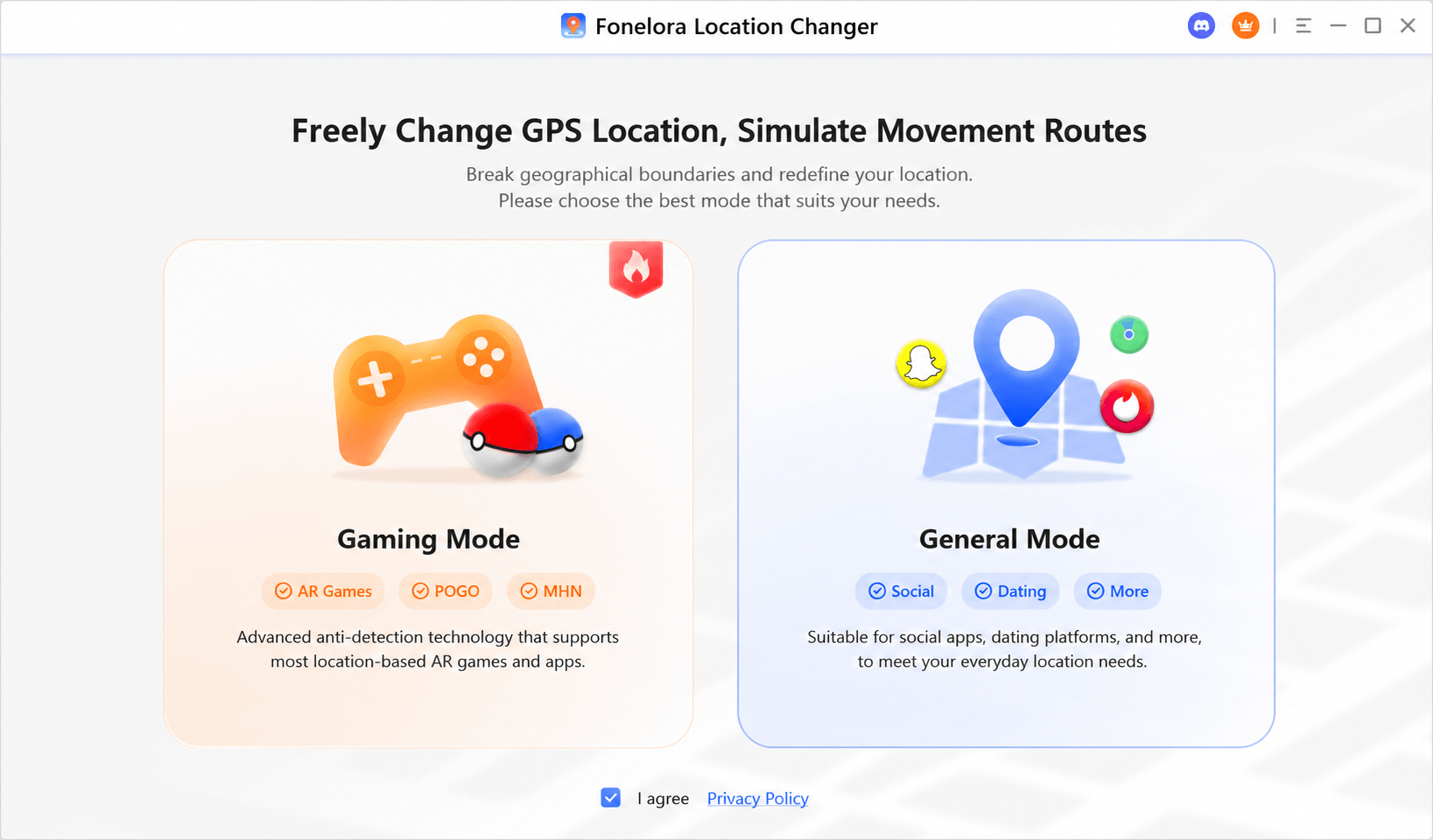
Step 2. Connect your iPhone or Android device and follow the on-screen setup instructions.

Step 3. Select the mode that meet your requirment.
Step 4. Apply it and wait for your location change.

As operating systems like iOS and Android update their privacy and battery settings, the core principles in this guide—ensuring the app has constant location access and unrestricted background activity—will remain the same. We will continue to update this article to reflect any major changes in Life360 or device settings.
Understanding how your Life360 GPS tracker works transforms it from a source of confusion into a reliable tool. The frustration you felt can be resolved by simply ensuring the app has the resources it needs to do its job. By setting the correct permissions and disabling aggressive battery savers, you create the stable foundation needed for consistent performance. Take a few minutes to check the settings on your family’s devices today. This small investment of time provides the clarity you need to truly gain peace of mind.
Learn More:How to Get Around Life360: Proven Privacy Workarounds & Fixes>
Your Life360 GPS Tracker Questions, Answered
Here are concise answers to common questions that go beyond the basic setup.
Q1: Does Life360 drain a lot of battery?
Life360 is designed to be battery-efficient, using about as much power as other common apps that use location services, like Google Maps or Waze. It uses more battery when you are actively driving (as it updates more frequently) and less when you are stationary. If you notice excessive drain, it’s often a sign of a poor network connection, as the phone’s GPS and cellular radios have to work harder. Ensuring the battery setting is ‘Unrestricted’ on Android can paradoxically improve efficiency, as it lets the app run smoothly instead of constantly fighting the OS to restart.
Q2: What does the “Location permission is off” warning mean?
This message appears in the app when Life360 does not have the permissions it needs to run in the background. It means the Location setting on that person’s phone has been changed from ‘Always’ (iPhone) or ‘Allow all the time’ (Android) to something more restrictive, like ‘While Using the App’ or ‘Ask Next Time’. The app will only be able to update their location when they have it open on their screen. To fix this, follow the detailed permission steps outlined in this guide for their specific device.
Q3: Does Life360 tell you when someone checks your location?
No, Life360 does not notify users when someone in their Circle views their location. There is no alert, notification, or history log that shows when another member checks the map.
However, Life360 does show certain activity indicators, such as when someone opens the app or when a location was last updated. This sometimes leads users to wonder: does Life360 tell you when someone checks your location? The answer remains no — location viewing itself is not tracked or reported.
This design reinforces that Life360 is built around mutual transparency within a Circle, rather than secret monitoring.



Joy Taylor is a seasoned technical writer with over a decade of experience in mobile technology. At iMobie, she specializes in producing in-depth content on iOS data recovery, iPhone unlocking solutions, and iOS troubleshooting.
Product-related questions? Contact Our Support Team to Get Quick Solution >
