Life360 Circle Colors Meaning: A Complete Guide
Confused by the Life360 circle colors meaning? This guide explains purple, green, orange, and grey circles so you can interpret your family map with confidence.
You open the Life360 map to check if your child arrived at school safely, but then you see it: their circle, usually a steady green, has suddenly changed to orange. A moment of concern sets in. Does this mean their phone is offline, their battery is dead, or something else entirely? This feeling of uncertainty is a common source of worry for parents, as the subtle visual cues can be confusing and the app’s official documentation is often sparse.
This guide provides the clear, practical answers you’re looking for. To ensure accuracy and address common points of confusion, all information is the result of extensive hands-on testing. We will demystify every location sharing color, icon, and subtle change so you can interpret your family’s map with confidence, not concern.
Life360 Circle Colors Explained: A Visual Legend
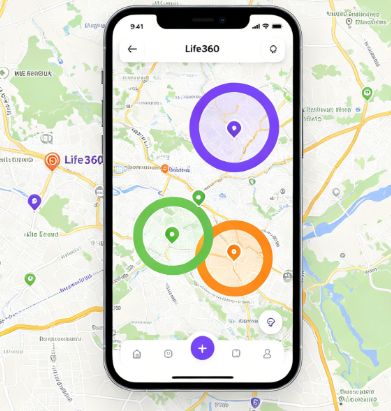
Here is a complete breakdown of the Life360 circle colors, so you can accurately interpret every status on your map. It’s important to know that these colors are not related to circle admin settings or permissions; they are dynamic indicators that reflect a member’s real-time device status, such as location accuracy, battery level, and movement.
Learn More:How to Pause Location on Life360 Without Sending an Alert >
Purple Circle: High-Accuracy GPS Location
A purple circle around a member’s photo is the best-case scenario. It indicates that their device is reporting its location with high accuracy, using a strong, direct GPS signal. This is the most precise location the app can provide. You will also see a purple circle around a Place alert (e.g., “Home” or “School”) when a member arrives or departs, which confirms the event was logged correctly with a precise location fix.
Parent’s Tip: When you see purple, you can be confident that the location pin is exactly where your family member is, often within a few feet. It’s the standard for outdoor locations with a clear view of the sky.
Green Circle: Standard Location & Active Status
A green circle is the most common indicator you’ll see on the map. It signifies that location tracking is active, the member’s device is online, and the app is updating as expected.
- Static Green Circle: The member is at a specific location, and the app is actively communicating with their device. This is the standard circle member status Life360 for any online, stationary user.
- Green Circle with Car Icon: If the member is driving and has Drive Detection enabled, a small car icon will appear inside their circle. This provides real-time updates on their trip, speed, and route.
- Movement (Walking or Biking): Life360 does not currently have specific icons for walking or biking. In these cases, you will simply see the standard green circle moving across the map.
Parent’s Tip: Think of the green circle as the “all is well” signal. It means the app is working, the phone is on, and location data is being shared.
Orange Circle: Low Battery or Connection Issue
An orange circle serves as a proactive warning. While it can occasionally signal a temporary network issue, its primary meaning is low battery life on the member’s device.
- Low Battery: You’ll typically see the circle turn orange when the phone’s battery drops below 20%. This is often accompanied by a battery icon with a lightning bolt inside the circle and a “Low Battery” notification sent to the Circle.
- Connection Glitch: Sometimes, an orange circle can appear when there’s a temporary network issue or the app is struggling to get a precise GPS fix, leading to a slight delay in updates. However, this is less common and usually resolves quickly.
A frequent point of confusion is whether the color is orange or yellow. Based on our testing across multiple devices, the app uses a warm, orange-hued color. It may appear slightly more yellow on certain screen calibrations, but its meaning is identical.
Parent’s Tip: When you see an orange circle, it’s a good time to send a quick text: “Hey, looks like your phone battery is low. Don’t forget to plug it in when you get a chance!” This turns a moment of potential worry into a helpful, low-stress reminder.
Learn More:If You Delete Life360 Does It Still Track You? The Real Answer >
Grey Circle: Offline or Location Paused
A grey circle means Life360 is not actively receiving location data from that member. The map will display their last known location, often with a timestamp like “Last seen 30 mins ago,” but it will not update until the device comes back online.
This can happen for several reasons:
- Their phone is turned off or has run out of battery.
- They have no internet connection (no Wi-Fi or cellular data).
- They have manually paused location sharing within the Life360 app.
- The device’s operating system has location services for Life360 (e.g., in an aggressive battery-saving mode).
Parent’s Tip: A circle that flashes grey for a few seconds might just mean they’ve entered an area with no signal, like a subway or a school basement. It’s usually not a cause for alarm unless it stays grey for an extended period (e.g., over 5-10 minutes), which could indicate one of the issues listed above.
Why Do Circle Colors Change? Understanding Real-Time Updates
A sudden color change on the Life360 map can be alarming, but it’s rarely a cause for panic. These colors are dynamic indicators that communicate a real-time shift in a device’s status. Understanding these triggers is the key to interpreting the map correctly.
So, what does it mean when a circle changes color? It signals a shift in one of these key factors:
- GPS Signal Strength: If a family member enters an area with a weak GPS signal, like a parking garage or a dense urban canyon, their purple (high-accuracy) circle may revert to green. The app is simply communicating that it’s now relying on less precise data from Wi-Fi or cellular networks to approximate their location.
- Battery Level: A transition from green to orange is almost always tied to the device’s battery dipping below the 20% threshold. The app flags this to let you know the device may soon go offline, giving you a chance to reach out.
- Movement and Driving: When a member starts a drive, their green circle will update to include the car icon. You might also notice the circle “pulsing”—fading in and out slightly. This is not a warning; it’s a visual cue indicating the app is actively tracking a trip in progress and refreshing the location at a high frequency.
- Connection Status: If a member’s phone loses its internet connection or if the Life360 app is force-closed, the circle will eventually turn grey. This transition isn’t always instant; the app may try to reconnect for a few minutes before showing the member as offline.
Learn More:Life360 GPS Tracker: The Complete User Guide >
Better Control Over What Life360 Shows
Understanding what each color means in Life360 is essential—but some users also want more control over how their own location appears on the map.
For example, you might want to:
- Test how circle colors change under different conditions
- Check how quickly alerts trigger when entering or leaving a Place
- Avoid sharing your exact real-time location in certain situations
In these cases, tools like Fonelora Location Changer can be helpful—not as a replacement for Life360, but as a way to better understand and manage how location data is displayed.
What Fonelora Can Help You Do
Fonelora allows you to simulate GPS movement and location changes on your device in a controlled way. This makes it easier to test how Life360 reacts without needing to physically move.
Some practical uses include:
- Testing color changes: Simulate movement to see how circles shift between green, orange, or grey
- Geo-fencing checks: Verify if Place alerts trigger correctly when entering/exiting zones
- Privacy control: Limit how precisely your real location is shared
- Movement simulation: Understand how driving or walking affects status indicators
Key Features
- Teleport Mode: Instantly change your GPS location anywhere
- Route Simulation: Create realistic movement paths
- Joystick Control: Adjust location in real time
- Cooldown Timer: Helps maintain natural movement behavior
- No Root/Jailbreak Required: Works on both iOS and Android
Quick Setup Guide
Step 1: Install Fonelora Location Changer on your computer
Step 2: Connect your iPhone or Android device

Step 3: Choose a mode (Teleport, Route, or Joystick)
Step 4: Set your desired location and apply changes

Frequently Asked Questions
What do the different Life360 circle colors mean?
Each color represents a specific status. Purple means high GPS accuracy. Green means the device is online with active location tracking. Orange indicates a low battery (usually under 20%) or a connection issue. Grey means the member is offline or has paused location sharing.
Why did my child’s circle just change color on the map?
A color change reflects a shift in their device’s status. Common reasons include their phone’s battery running low (green to orange), entering an area with a poor GPS signal (purple to green), starting a drive (a car icon appears), or the device losing its internet connection (green to grey).
Are circle colors the same on iPhone and Android?
Yes, the core color meanings are identical across both iOS and Android to provide a consistent user experience. While there might be minor stylistic differences in the app’s interface—like the exact shade of orange or the font used—a purple, green, orange, or grey circle signifies the same status regardless of the device.
Can I customize Life360 circle colors for my family?
No, you cannot perform any Life360 circle customization. The Life360 family circle color code is standardized across all accounts. This ensures that all users can interpret the status indicators universally and accurately, as each color is tied directly to a specific device function.
How do I interpret overlapping circles on Life360?
Overlapping circles simply mean that multiple members of your Circle are in the same location or very close to each other. Don’t panic; this is common when family members are at the same school or event. As you zoom in on the map, the circles will separate to show each member’s individual position more clearly.
Learn More:Life360 Not Updating Location? The Proven Fix >
Your Guide to Confident Map Interpretation
You no longer need to feel a jolt of worry when a circle on your Life360 map changes color. You now have the knowledge to interpret these dynamic indicators for what they really are: helpful updates on battery life, GPS signal, and movement. That initial moment of panic when a circle turned from green to orange can be replaced with the calm, confident understanding that it’s likely just a reminder to charge a phone.
By learning to read these visual cues, you can transform the Life360 map from a source of occasional anxiety into a reliable tool for connection and peace of mind. You’re not just tracking a location; you’re understanding the context behind it.



Joy Taylor is a seasoned technical writer with over a decade of experience in mobile technology. At iMobie, she specializes in producing in-depth content on iOS data recovery, iPhone unlocking solutions, and iOS troubleshooting.
Product-related questions? Contact Our Support Team to Get Quick Solution >
