How Do I Pause My Location on Life360? (2026 Guide)
Want to pause your Life360 location without causing family drama? Learn what actually happens when you disable location sharing, use Airplane Mode, adjust phone permissions, or try GPS location changers.
Being a college student seeking a bit of personal space shouldn’t require a technical degree or cause an instant panic within your family group chat. If you have a family tracking app installed and find yourself asking, “how do I pause my location on Life360,” you are experiencing a very common modern dilemma. You don’t want to disappear forever or leave your Circle; you simply need a few hours of privacy to decompress, go on a date, or hang out without answering twenty questions.
The problem? Searching for a solution usually leads to confusing Reddit threads arguing over whether Airplane Mode works, or YouTube videos pushing methods that ultimately get you caught. You need an honest breakdown of what actually happens when you mess with your phone settings.
This guide outlines the official in-app pause settings, exact step-by-step instructions for tweaking phone permissions, and a transparent look at third-party GPS tools. Most importantly, we will tell you exactly what your Circle members will see on their screens for each method.
Testing Note: To ensure total accuracy, these procedures were rigorously tested across 15+ different iOS and Android smartphones under real-world driving and walking scenarios.
Choosing Your Approach: Pausing Life360 Location vs. Hiding It
Before changing any settings, you must identify your specific privacy goal. Here is a critical concept that most guides completely miss: “pausing your Life360 location” and “making Life360 look normal while not sharing” are entirely different goals.
The official in-app Location Sharing toggle is the most straightforward method, but Life360 is built around transparency. If you pause it officially, the app will explicitly tell your family. Phone-level methods, such as disabling iPhone Location Services or turning off Android Background Data, may stop your pin from moving, but they create visible warning states like “location unavailable” or “no network.”
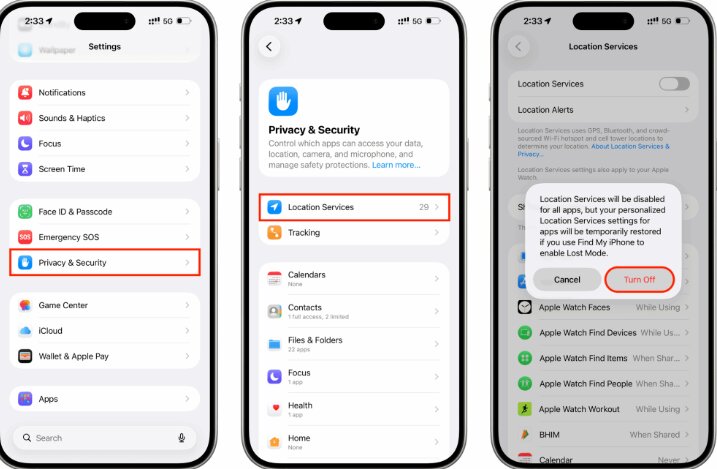
To help you choose the right procedure, we have mapped out the three most common approaches, what they actually do, and what the other people in your Circle will see:
| Privacy Method | What It Does | What Your Circle Members See | Best Use Case |
|---|---|---|---|
| Official In-App Toggle | Stops real-time GPS tracking completely. | “Location Sharing Paused” banner under your name. | Users who have open relationship boundaries and can communicate about privacy. |
| Location Changers (Fonelora) | Feeds simulated GPS coordinates to your device at the developer level. | A normal, active pin resting at your chosen simulated location. | Users who need a few hours of privacy without raising immediate red flags on the map. |
| OS-Level Tweaks (Airplane Mode, etc.) | Cuts off the app’s ability to ping servers or access GPS. | “Location Unavailable,” “No Network,” or “Phone Off” warnings. | Rarely recommended due to high suspicion and loss of critical safety features. |
How to Turn Off Location Sharing on Life360 (The Official Method)
The cleanest technical procedure to stop sharing your location is using the official in-app settings. It does not require altering your phone’s core operating system or relying on third-party tools. However, you must be prepared for the social tradeoff: it is not invisible.
If you use this method, your Circle members will see a clear banner beneath your name on their map stating, “Location Sharing Paused.”
Here is exactly how to do it:
- Open the Life360 app on your iPhone or Android device.
- Tap on the Settings gear icon, typically located in the upper left corner of the screen.
- Select the Circle Management option. (If you are in multiple Circles, ensure you select the correct one).
- Tap on Location Sharing.
- Toggle the switch to the Off position.
Real-World Testing Detail: Once, the map freezes at your exact coordinates when you flipped the switch. However, Life360 can sometimes glitch and briefly display your last known driving speed even after pausing. If you are going to use the official pause toggle, it is best to do so when you have come to a complete stop.
Do Airplane Mode, Battery Saver, or App Permissions Pause Life360?
Many online tutorials claim you can disable location sharing invisibly by tweaking your phone settings. Unfortunately, this is outdated advice. Modern versions of iOS and Android are heavily integrated with Life360, and altering these settings rarely results in a stealthy pause. Instead, they trigger specific warning flags.
Here is exactly what happens—and how to do it if you still want to try:
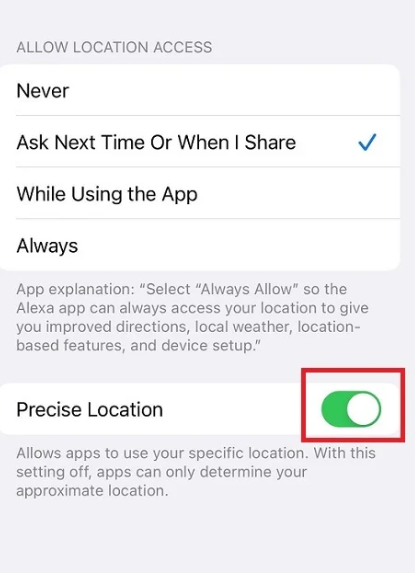
Disabling Precise Location
If you revoke Precise Location, Life360 won’t know exactly what building you are in, but it will still know your general neighborhood. On a family member’s phone, this creates a hazy, large grey circle around your avatar with the words “Approximate Location” clearly visible.
- On iPhone (iOS 17/18): Go to Settings > Life360 > Location and toggle off Precise Location.
- On Android (14/15): Go to Settings > Apps > Life360 > Permissions > Location and toggle off Use precise location (or turn off Google Location Accuracy).
Enabling Airplane Mode or Disabling Data
Turning off your Wi-Fi and cellular data or enabling Airplane Mode completely cuts off the app’s ability to ping its servers. Your pin will freeze, but your family will know why.
- The Reality Check: In our testing, it takes about 2 to 5 minutes after engaging Airplane Mode for Life360’s servers to realize you are gone. Once they do, a highly visible “No Network” or “Phone Off” indicator will appear beneath your name on everyone else’s phones.
Battery Saver and Background App Refresh
Engaging Low Power Mode (iOS) or Battery Saver (Android) restricts app activity when your screen is off.
- On iPhone: Disabling Background App Refresh (Settings > General > Background App Refresh) means Life360 won’t update when minimized.
- The Reality Check: The app is specifically designed to flag this. Within minutes of minimizing the app, it will display a “Location Unavailable” or “Background Data Restricted” warning to your Circle.
🚨 EXPERT WARNING: Do Not Rely on OS Tweaks to Hide
None of these system-level workarounds provide a clean, unnoticeable pause. They merely replace the official “Location Sharing Paused” banner with a highly suspicious error message like “No Network.” If your goal is to avoid an argument, intentionally triggering a “Location Unavailable” error often causes more panic than just officially pausing the app. Furthermore, cutting data disables vital safety features like Crash Detection.
How to Pause Life360 Without Triggering Warnings (The Fonelora Method)
If you are a student heading out for the night and you need to freeze your location without triggering a “Paused” banner or a suspicious “No Network” warning, your only real technical option is modifying your GPS data at the device level.
One tool built for this is Fonelora Location Changer, a desktop application (available with a free trial and paid license tiers) that feeds simulated GPS coordinates to your phone.
A major question many students have is: If it’s a desktop app, how does it help me when I’m out at a party or the library?
The answer lies in how the software interacts with your phone’s developer settings. You do not need to carry an open laptop around with you. When you plug your phone into your computer and use Fonelora to set a location (e.g., your dorm room or the campus library), it temporarily overwrites your phone’s internal GPS cache. When you unplug your phone, that fake location sticks. Your iPhone or Android will continue broadcasting that resting location to Life360 while you go freely about your evening.
Here is the procedure:
Connect Your Device: Download and install Fonelora on your PC or Mac. Launch the software and connect your smartphone via USB.

Choose a Location Mode: Select Teleport Mode from the top menu for a stationary location, or use Multi-Spot Mode to simulate a walking route.

Set the GPS Coordinates: Enter your desired destination (like the library) into the search bar and click “Move.”

Unplug and Go: Your phone’s GPS is now updated across all apps. You can unplug the USB cable and leave your laptop behind.
How to Reset: The fake location will remain active on your phone until you physically restart the device. To return to normal, simply turn your phone off and back on again, and your real GPS will snap back into place .
Life360 Bubbles & Establishing Healthy Boundaries
Returning to the scenario of seeking temporary privacy, frustration often hits when you realize technical workarounds either cost money or look suspicious to your family. Rather than fighting the technology, the best free solution might be a compromise using the official Life360 Bubble feature.
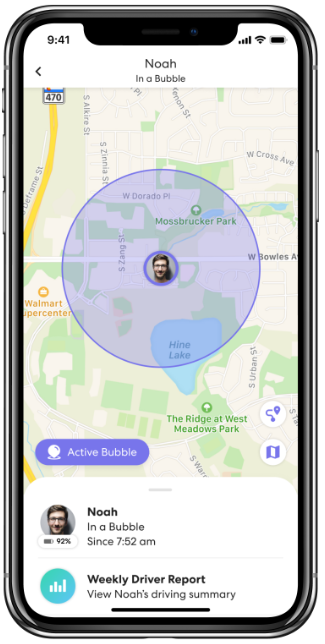
A Bubble allows you to maintain consent-based tracking while securing personal space. Instead of showing a precise location pin, a Bubble displays an approximate geographic radius (up to 25 miles).
How to Create a Life360 Bubble
- Open the Life360 map and tap on your avatar.
- Tap Create a Bubble.
- Adjust the size of the radius (drag the slider to make it larger or smaller).
- Set the duration of the Bubble (from 1 to 6 hours).
- Confirm your settings.
While your Circle members will see that you are inside a Bubble, they will not see your exact street address or the specific building you are in. This feature is specifically designed to respect privacy and establish healthy boundaries while keeping safety features active in case of an emergency.
If you find yourself constantly searching for ways to hide your location because you feel over-monitored, it may be time for an honest privacy conversation with your family. Open communication is vital. If location tracking is being used coercively or making you feel unsafe, prioritize your well-being and seek support from trusted campus resources or counselors.
Frequently Asked Questions About Life360 Privacy
Can I pause Life360 location without leaving my Circle?
Yes. You can disable location sharing within the app’s settings without exiting the group. You will remain in the Circle, but your map status will update to “Location Sharing Paused.”
Will Life360 send a text when I pause location sharing?
Life360 does not send an active SMS text message or a push notification to your family’s lock screens when you turn off tracking. However, the “Location Sharing Paused” banner will appear immediately on the map for anyone who opens the app to check.
Can people still see my last location after I pause Life360?
Yes. Once you officially pause sharing, your map pin will freeze at the exact coordinates where you toggled the setting off. Your Location History leading up to that moment will also remain visible to premium members.
What is the difference between turning off Life360 location sharing and turning off phone location services?
Turning off the in-app setting safely pauses sharing but keeps core features (like Crash Detection) active in the background, cleanly displaying “Paused.” Turning off your device’s global GPS permissions completely breaks the app and triggers a suspicious “Location Unavailable” warning to your Circle.
Will deleting the Life360 app stop location sharing?
Deleting the application removes its ability to track your phone. Your Circle will see your last known location right before you deleted it, accompanied by a “Location Tracking Paused” or “No Network” status, depending on your device’s final server ping before the app was uninstalled.
Follow-up Note: Mobile operating systems update constantly. Desktop location tools generally receive regular software patches to maintain compatibility with major iOS and Android updates, but system-level phone tweaks (like turning off precise location) are frequently patched by Life360 to ensure greater transparency for parents.
Finding the balance between family safety and personal independence takes effort. Whether you choose the official in-app setting or opt for a third-party procedure, you now know exactly what your Circle members will see on their screens. If you need to maintain a normal map presence to avoid misunderstandings for a night out, tethered GPS options provide a reliable workaround. However, for long-term peace of mind, utilizing features like Bubbles or having an open conversation about digital boundaries will always be the most sustainable solution.



Joy Taylor is a seasoned technical writer with over a decade of experience in mobile technology. At iMobie, she specializes in producing in-depth content on iOS data recovery, iPhone unlocking solutions, and iOS troubleshooting.
Product-related questions? Contact Our Support Team to Get Quick Solution >
