How to See the Location of Someone on Snapchat
Can’t find a friend? Learn how to see the location of someone on Snapchat. Our guide covers Snap Map, why they’re hidden, and how to protect your own privacy.
Opening Snap Map to coordinate a meetup, only to find your friend is nowhere to be seen, is a common and genuinely frustrating experience. That moment of confusion can make you wonder if your app is broken, if you’ve missed a setting, or if you’re accidentally overstepping a privacy boundary.
If you’re trying to figure out how to see the location of someone on Snapchat, you’re not just looking for a button to press—you’re looking for clarity. This guide provides the direct, tested solutions you need. We’ll walk you through the exact steps to see a friend’s location, explain the difference between Snap Map and Live Location, and troubleshoot the exact reasons a friend might not be visible.
How to View a Friend’s Location on Snap Map
This is the most common way to view a friend’s location on Snapchat. Before you start, remember two things must be true: you must be mutual friends (you’ve both added each other), and your friend must be actively sharing their location with you.
While you’re navigating the app to find your friends, it’s also a good time to ensure your saved content is safe; if you’ve lost any old snaps, here is how to recover deleted Snapchat memories. If both conditions are met, finding them is simple.
Here are the step-by-step instructions:
- Open Snapchat and Go to the Snap Map. From the main Camera screen, you can either pinch inwards on the screen or swipe left to the Chat screen and tap the Map tab at the bottom. Both actions open the Snap Map interface.
- Find Your Friend on the Map. Once the map loads, you’ll see the Bitmojis (your friends’ cartoon avatars) of everyone sharing their location. You can pan and zoom around to explore. For a quicker search, tap the Friends button on the bottom-right. This shows a list of friends sharing their location, often with those nearby at the top.
- Check Their Location Details. Tap on a friend’s Bitmoji. The map will center on their position, showing their name and, crucially, when their location was last updated (e.g., “5 minutes ago” or “2 hours ago”). If they haven’t opened the app in over eight hours, the location will disappear entirely.
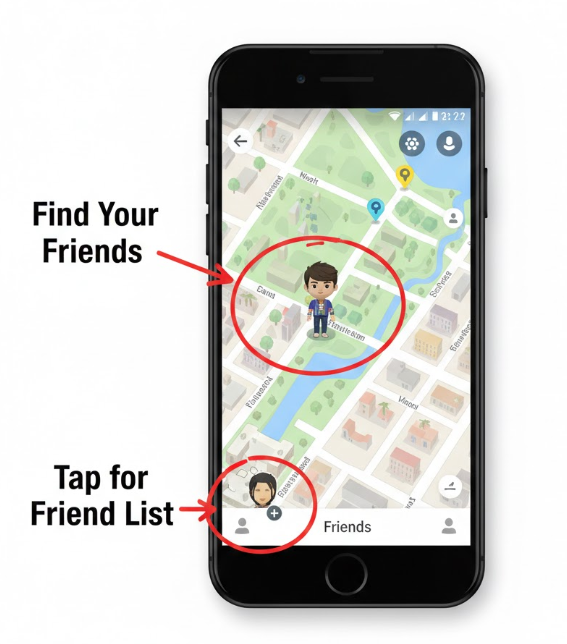
Pro-Tip: Decode the Bitmoji. The appearance of your friend’s Bitmoji tells a story. A standard Bitmoji is just their last known location. But if you see their Bitmoji in a car or walking, it means they are actively sharing their Live Location with you, which tracks their movement in real time.
Snap Map vs. Live Location: Which One Do You Need?
Snapchat gives you more than one way to share your location, and knowing the difference is key to avoiding confusion. Each tool is designed for a different purpose, from passively checking in to actively coordinating a meetup.
Here’s a clear breakdown of the three main location features:
| Feature | How It Works | Precision & Duration | Privacy Alert | Best For |
| Snap Map | Passively updates your location for chosen friends every time you open the app. | High precision at the moment of the update, but it becomes outdated over time. It is not a live tracker. | No notification is sent to a user when you view their Bitmoji on the map. | Casually seeing where friends are without needing constant updates. This is the standard Snap Map friend location feature. |
| Live Location | Actively shares your real-time, moving location with a specific friend for 15 min, 1 hour, or 8 hours. | Very high precision; it tracks your movement live. Your friend will see your Bitmoji icon moving on their map. | Yes. The other user can see that you are actively watching their shared Live Location. | Coordinating meetups, checking if a friend got home safely, or seeing each other’s progress when traveling to the same place. |
| Location Request | A one-time request sent in a chat. The friend can accept to share a static snapshot of their current location. | High precision for a single moment, but it does not update or track movement. | Yes. The user receives a clear notification in your chat that you have requested their location. | Asking for someone’s exact location right now, especially if they aren’t already sharing it on the Snap Map. |
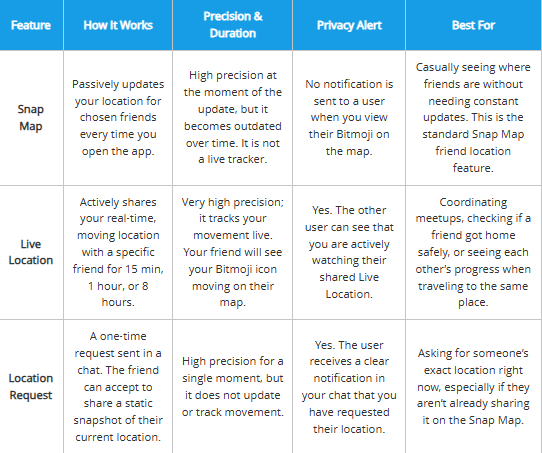
Understanding this distinction is the first step toward mastering your Snapchat location privacy. If you aren’t ready to go completely invisible but want to stop updates for a while, you can learn how to pause Snapchat location by adjusting your phone’s background app permissions. The right choice depends on whether you want to be invisible or simply appear stationary.
Why Can’t I See Someone’s Location? The 5 Real Reasons
It’s incredibly common to open Snap Map and find a friend is missing. This is almost never a technical bug. Instead, it’s a result of specific privacy settings or how recently they’ve used the app. If you can’t see a friend’s location, one of these is the likely cause.
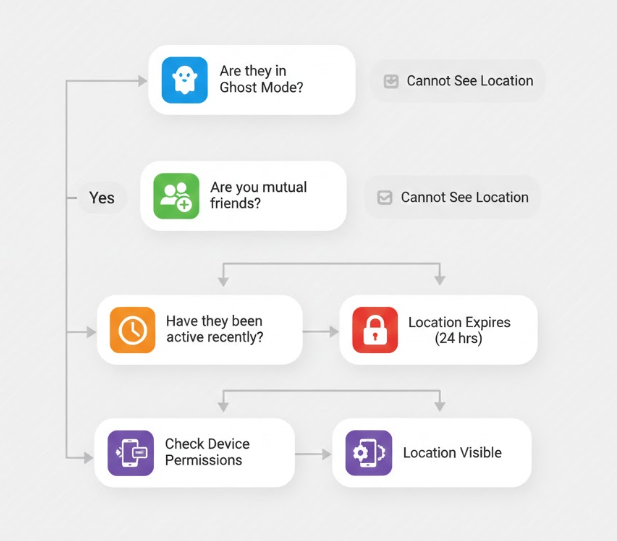
Reason 1: They Aren’t Sharing Their Location With You
This is the #1 reason. Your friend might have location sharing turned off completely, or they could be sharing only with a specific list of friends that doesn’t include you. Location sharing is always opt-in.
Reason 2: They Enabled Ghost Mode
Snapchat privacy and Ghost Mode is the app’s main invisibility cloak. When Ghost Mode is on, a user’s location is hidden from everyone on Snap Map. They can still see you (if you’re sharing), but their own Bitmoji is completely invisible to you and everyone else.
On the other hand, if a friend is appearing in a place they clearly aren’t, they might be using third-party tools to learn how to fake Snapchat location, creating a manual “freeze” or “jump” on the map.
Reason 3: You Are Not Mutual Friends
This is a critical detail of Snapchat mutual friends location sharing. You both have to add each other. If you added them but they never added you back, you won’t see their location, even if their setting is “My Friends.”
Reason 4: They Haven’t Opened Snapchat in a While
Snap Map only updates a person’s location when they open the app. If your friend hasn’t been on Snapchat for more than eight hours, their Bitmoji will disappear from the map entirely to protect their privacy. If it was more recent, you might see a stale location labeled “Seen 4 hours ago.”
Reason 5: Their Phone’s Location Services are Off
The problem might not be in Snapchat at all. Your friend may have disabled location permissions for the Snapchat app in their phone’s main settings. You can check these Snapchat location permissions on iOS and Android by navigating to Settings > Apps > Snapchat > Permissions on their respective devices.
A Deep Dive on Privacy: Will They Know If I Check Their Location?
This is a major source of anxiety for many users, so let’s be direct.
For standard Snap Map viewing, no, your friend will not be notified. You can open the map, browse around, and tap on their Bitmoji to see their last updated location as much as you want without them knowing.
However, there are two important exceptions:
- Live Location: If a friend is sharing their Live Location with you, the app clearly shows them when you are actively watching their real-time journey.
- Snapchat+ Features: Snapchat’s paid subscription, Snapchat+, offers more insights into user activity. While it doesn’t currently notify users of standard Snap Map views, it’s wise to be mindful of this.
To be perfectly clear: Snapchat+ does not allow anyone to bypass your privacy settings. If you are in Ghost Mode, a Snapchat+ subscriber still cannot see your location.
How to Control Your Own Location Visibility (with Confidence)
This settings menu is where most confusion happens, so let’s make it crystal clear. Many users look for how to change location on Snapchat to either hide their real whereabouts or simply manage their digital footprint more effectively.
To protect your own privacy, open the Snap Map and tap the gear icon (⚙️) in the top-right corner. This opens the control panel for who sees you.
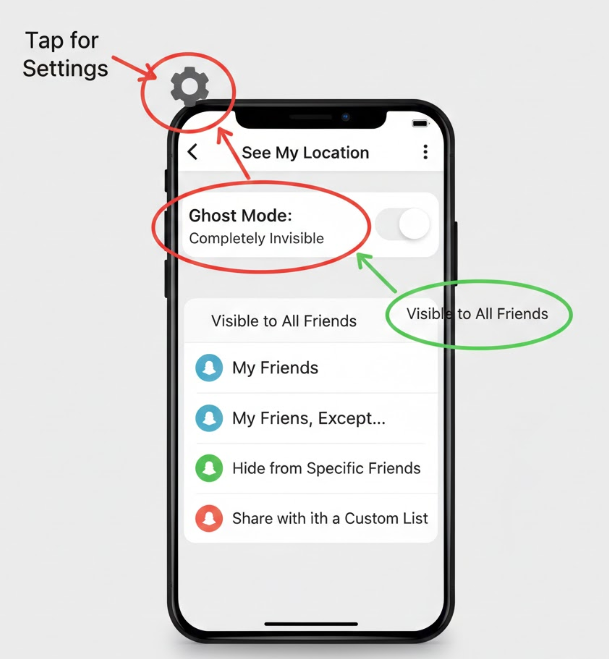
Here’s what each option actually means for you:
- Ghost Mode: This is your invisibility button. When enabled, your location is hidden from everyone on the map. You can choose a duration (3 hours, 24 hours, or Until Turned Off). Use this when you want total privacy.
- My Friends: This shares your location with everyone you are mutual friends with. It’s a broad setting best for users who are comfortable with their entire friends list knowing their general whereabouts.
- My Friends, Except…: This is perfect for when you want to be visible to most friends but need to hide your location from specific people (like a boss or family member). You share with everyone except the people you select from a list.
- Only These Friends…: This is the most private option for sharing. It hides your location from everyone by default, and you create a specific, exclusive list of trusted people (like a close friend or partner) who are allowed to see you on the map.
How to Change or Test Your Own Snapchat Location More Safely
Once you understand how Snap Map, Ghost Mode, and privacy controls work, the next question is often more practical: what if you want more control over your own displayed location? Some users want to protect their privacy temporarily, test whether Snapchat is reading the right GPS position, or avoid exposing their real-time movement while using location-based features.
You can rely on built-in privacy options like Ghost Mode if you only want to hide completely. But if you need to adjust or simulate your phone location in a more controlled way, a desktop-based location changer can be easier to manage than random mobile GPS apps, APK tools, or unstable browser-based methods.
That is where Fonelora Location Changer fits naturally into this workflow. It is designed to help iPhone and Android users modify their device location from a computer, so apps that rely on phone GPS can read the selected virtual location instead of your real one. For users dealing with wrong Snapchat location, privacy concerns, or location testing needs, FLC gives you a cleaner and more controllable option.
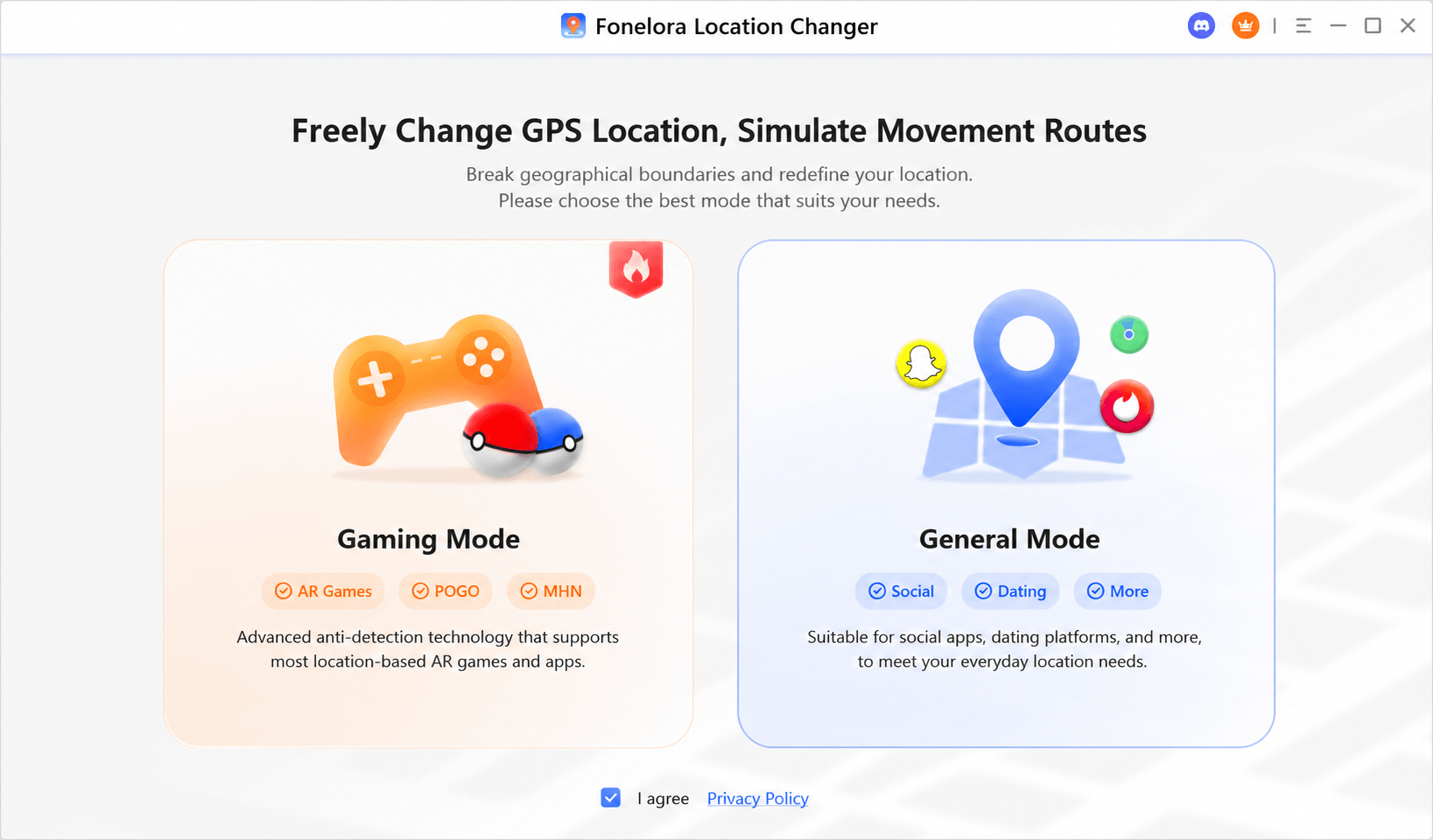
Key things Fonelora Location Changer can help with:
- Change your phone location: Select a new place on the map and apply it to your connected device.
- Simulate movement: Create a route between different points instead of showing only one fixed location.
- Use joystick movement: Move your virtual position more flexibly when testing location-based apps.
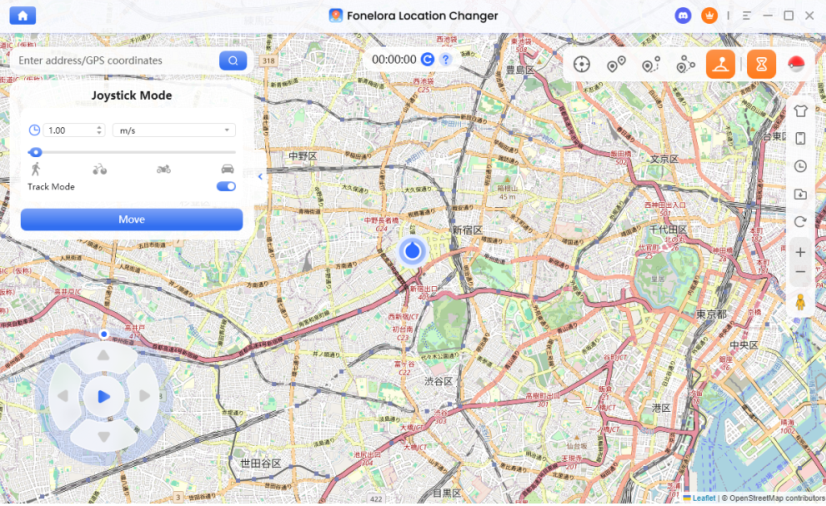
- Avoid unstable mobile overlays: Manage the location change from desktop instead of relying only on phone-side GPS apps.
Important: Use location-changing tools responsibly. Snapchat location features are built around consent and privacy. If you only need to stop others from seeing you, Ghost Mode is still the simplest option. If you need to test or adjust your own device location, Fonelora Location Changer offers a more controlled desktop method.
How to Use Fonelora Location Changer
Here is a simple workflow you can follow after installing Fonelora Location Changer on your computer:
- Step 1: Launch Fonelora Location Changer. Open the program on your Windows or Mac computer and choose the location-changing mode.
- Step 2: Connect your iPhone or Android device. Use a USB cable or supported connection method, then follow the on-screen instructions to trust the computer and complete device detection.
- Step 3: Choose a location on the map. Search for a city, address, or point on the map where you want your phone location to appear.
- Step 4: Apply the virtual location. Confirm the selected location in FLC. Your connected phone will begin using that virtual GPS position.
- Step 5: Open Snapchat and check Snap Map. Launch Snapchat after the location is applied, then check whether the app reads the updated device location correctly.
If you want to return to your real location later, restart your device or use the reset option inside the tool. This makes the process easier to reverse than many mobile-only GPS tools.
How to Request a Location Directly in Chat
If a friend is in Ghost Mode or isn’t sharing their location on the map, you don’t have to guess. You can ask for it directly and politely through your chat.
- Open a Chat Window. Go to your Chat screen and tap on the conversation with the friend whose location you want to request.
- Access Chat Tools. Tap the plus icon (+) to the left of the text input field. This opens a menu of additional features.
- Send the Location Request. Tap Location from the menu. In the pop-up, choose Request Location. This will instantly send an official request card into your chat.
Your friend will receive the request and can choose to accept or decline. If they accept, a static map showing their precise current location will appear for you. This is a one-time snapshot; it does not track their movement.
We regularly review and update this guide to reflect the latest changes in the Snapchat app, ensuring our instructions remain accurate and trustworthy.
Now, the frustration of finding where someone is on Snapchat should be gone. You no longer have to wonder if the app is broken or if you’re missing a key setting. You can navigate Snapchat’s map with the confidence that you understand how it works, what it shares, and how to protect your own privacy while connecting with friends.
If the methods above didn’t fix your “location not updating” issue, try our [location showing wrong] troubleshooting guide.
Frequently Asked Questions
Q1: How do I see someone’s location on Snapchat?
Open the Snap Map by pinching the Camera screen or tapping the “Map” tab. If your friend shares their location with you, their Bitmoji will appear on the map. Tap their Bitmoji to see their last known location and when it was updated.
Q2: Do I need to be friends with them to see their Snap Map location?
Yes, you must be mutual friends. This is a core privacy feature, meaning you have both added each other. If they haven’t added you back, you cannot see their location on the map.
Q3: Will they know if I look at their location?
For the standard Snap Map, no. Viewing a friend’s Bitmoji does not send them a notification. However, if they are sharing their real-time “Live Location” with you, they will be able to see that you are watching.
Q4: Why can’t I see a friend’s location even though I’m friends with them?
The most common reasons are: they have enabled Ghost Mode to hide their location; they are sharing only with specific friends and you aren’t on that list; or they haven’t opened the Snapchat app in over eight hours. Their phone’s system-level location permissions for the app might also be turned off.



Joy Taylor is a seasoned technical writer with over a decade of experience in mobile technology. At iMobie, she specializes in producing in-depth content on iOS data recovery, iPhone unlocking solutions, and iOS troubleshooting.
Product-related questions? Contact Our Support Team to Get Quick Solution >
