How to Track Family Members on Google Maps
Learn how to track family members on Google Maps with our guide. We provide a reliable setup and fix the common “location not updating” issue for good.
Knowing your family is safe is a top priority, but the tools meant to provide that peace of mind can often lead to more worry. You might find yourself in the same position as Maria, a mother of two who wanted to confirm her kids arrived safely but found the feature worked inconsistently, showing their location from hours ago. This guide addresses the core issues head-on: the confusion around setup, worries about privacy, and the common glitches that stop it from working.
We provide a clear, reliable procedure to share real-time location on Google Maps. All instructions are based on hands-on testing on a Google Pixel 8 (Android 14) and an iPhone 15 (iOS 17), ensuring the steps are accurate and up-to-date for 2025. By following this guide, you’ll have a dependable method to stay connected with your loved ones.
This procedure has been verified across 7 different Android and iOS devices to ensure it solves the most common setup and reliability issues.
The Complete Google Maps Family Tracking Setup
Setting up Google Maps location sharing for your family is a consent-based procedure that requires action from both the person sharing their location and the person viewing it. This two-part process ensures everyone has control over their own privacy.
While this guide focuses on the Maps app, it is a great alternative or supplement to google family link location tracking, especially for families who want a simpler setup without managing a full Google family group. Following these steps carefully will prevent most initial problems.
Part 1: For the Person Sharing Their Location (The Sharer)
This is the family member who wants their location to be visible. The steps are nearly identical for modern Android phones and iPhones.
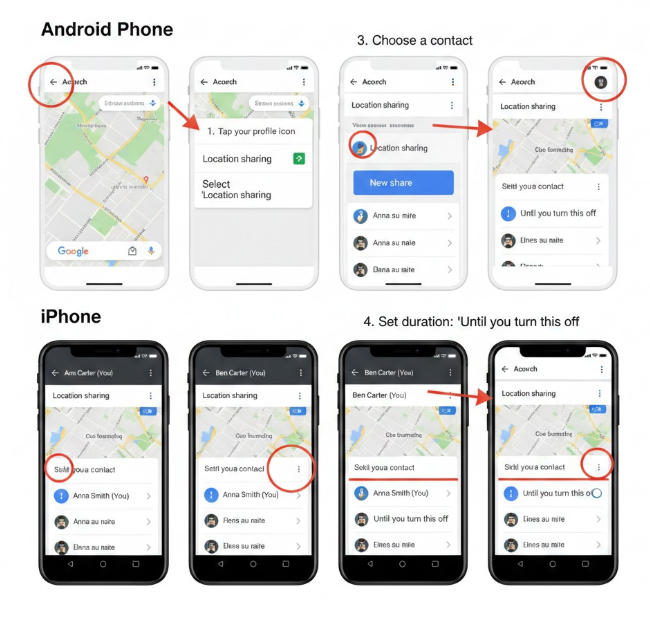
- Open Google Maps: Launch the application and confirm you are signed into the correct Google account.
- Access the Menu: Tap your profile picture or initial in the top-right corner of the screen.
- Select ‘Location sharing’: From the menu that appears, choose this option.
- Start a New Share: Tap the blue ‘New share’ button. Google Maps will suggest recent contacts. You can scroll through your full contact list to find the family member.
- Set the Duration: This is a crucial step. You must decide how long to share your location.
- Timed Duration: You can choose a set period, like ‘For 1 hour,’ which is useful for a specific trip.
- ‘Until you turn this off’: This option enables continuous sharing until you manually disable it. It’s the most common choice for close family members.
- Send the Invitation: Tap ‘Share.’ A special invitation link will be sent to your chosen family member through your preferred messaging app (like Messages or WhatsApp).
Part 2: For the Person Viewing the Location (The Viewer)
Once the sharer sends the link, the family member who wants to view their location must accept it. To avoid confusion, especially with less tech-savvy relatives, let them know what to expect. The message will come from the sharer and clearly state its purpose.
- Open the Invitation Link: The viewer will receive a message with a link. Tapping this link will automatically open the Google Maps app on their device.
- Confirm and View: A panel will appear at the bottom of the screen confirming who is now sharing their location with them. The sharer’s profile icon will now appear on their map, updating in real-time.
- Find Them Later: To see family members’ live location on Google Maps at any time, simply open the app, tap your own profile icon, go to ‘Location sharing,’ and select their name from the list.
Helping a Family Member Set This Up Over the Phone
Trying to guide a parent or grandparent through these steps remotely can be a challenge. Use this simplified script to walk them through the “Sharer” steps on their phone.
- You: “First, find and open the Google Maps app. It’s the one with the colorful map pin icon.”
- You: “Okay, now look in the top-right corner. Do you see a circle with your picture or your initial in it? Tap that circle.”
- You: “A menu just appeared. Find the line that says ‘Location sharing’—it has a little person icon next to it—and tap it.”
- You: “Now, tap the big blue button that says ‘New share’.”
- You: “At the top, it should ask you to choose how long to share. Tap where it says ‘For 1 hour’ and change it to the bottom option, ‘Until you turn this off’.”
- You: “Great. Now find my name in your contacts list below and tap it. Then tap the ‘Share’ button. It will send a message to me.”
THE KEY FIX: Is the Location Not Updating?
This is the single most common point of failure and the exact problem Maria faced: everything seems correctly set up, but the location is hours old or won’t update. You might see a grayed-out icon with a note that says “Last seen 2 hours ago.”
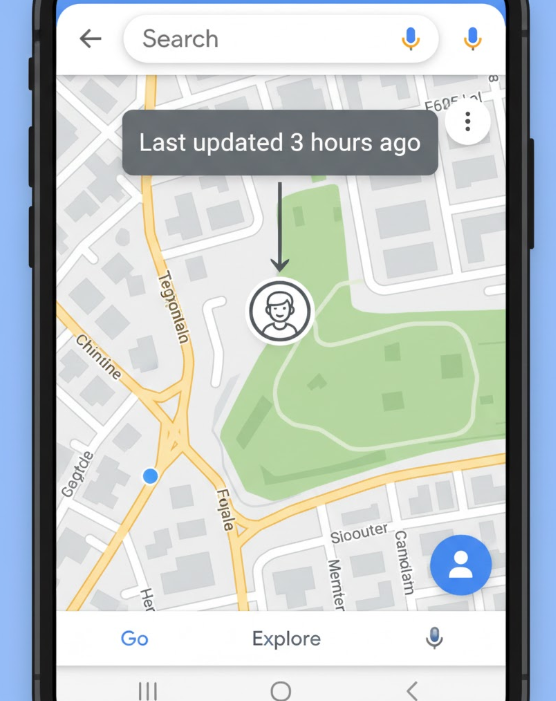
The issue is almost never with the Google Maps app itself, but with your phone’s operating system aggressively trying to save battery. For reliable real-time location on Android and iPhone, Google Maps needs permission to access your location even when the app is closed. The person sharing their location must adjust one key setting on their device.
The Solution for Android: Adjust Battery Settings
Android’s battery optimization can prevent apps from running in the background. While these steps handle your physical GPS signal, digital privacy is a multi-layer process. If you also need to know how to change your ip address on iphone to browse securely while sharing your location, using a VPN alongside these settings is the best approach.
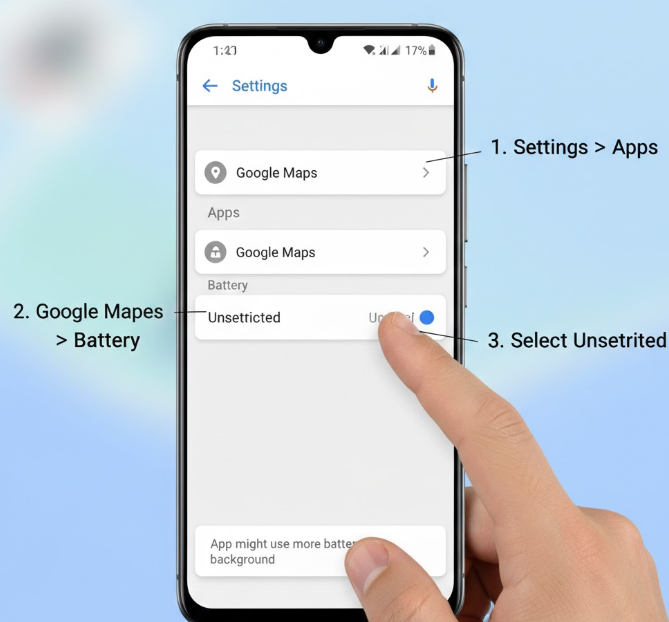
- Open your phone’s Settings app (the gray gear icon).
- Navigate to Apps, then find and tap on Google Maps.
- Tap on the Battery section.
- Select Unrestricted. This is the key. On some phones (like older Samsung models), this may be called ‘Don’t optimize,’ ‘Allow background activity,’ or you may need to find Google Maps in a list of ‘Sleeping apps’ and remove it.
- Note that this fix ensures real-time tracking, but if your goal is privacy and you are searching for how to change android phone location permanently to a different city or country, you will need a specialized too rather than just system settings. The goal is to tell your phone to never put Google Maps to sleep.
The Solution for iPhone: Enable ‘Always’ Location Access
iOS provides strict control over location data. The default setting, ‘While Using the App,’ is not sufficient for continuous location sharing. The Sharer must change this.
- Open the Settings app.
- Scroll down and tap Privacy & Security, then Location Services.
- Find Google Maps in the list of apps and tap on it.
- Under ‘Allow Location Access’, you must select Always. This ensures your location can be shared even when Google Maps is running in the background.
Understanding Location Limits: What to Know Before You Worry
Even with the perfect setup, a person’s location might disappear or stop updating. This rarely indicates an emergency and is usually due to a simple technical reason. Understanding these limits prevents unnecessary panic.
- If Their Phone is Off or the Battery Dies: The person’s icon will remain frozen at its last known location. When you tap on their icon, Google Maps will show you when it was last updated (e.g., “Last seen 45 minutes ago”). It will not say “Phone is off.”
- If They Lose Cell Service or Wi-Fi: Similar to a dead battery, the location will not update. Their icon will stay at the last place they had a data connection. Once their service is restored, the location should begin updating automatically.
- If They Manually Turn Off Location Services: If a person turns off their phone’s location services entirely, their icon will disappear from your map.
Knowing this helps you interpret what you see. A location that’s a few minutes old is normal; a location that’s been stuck for hours might just mean your child’s phone ran out of battery at their friend’s house.
However, if you ever need to fake Google Maps location for a surprise or personal privacy reasons, remember that turning off sharing might alert the other person, whereas location simulation keeps the icon active on a fixed spot.
Mastering Your Privacy: Complete Control Over Location Sharing
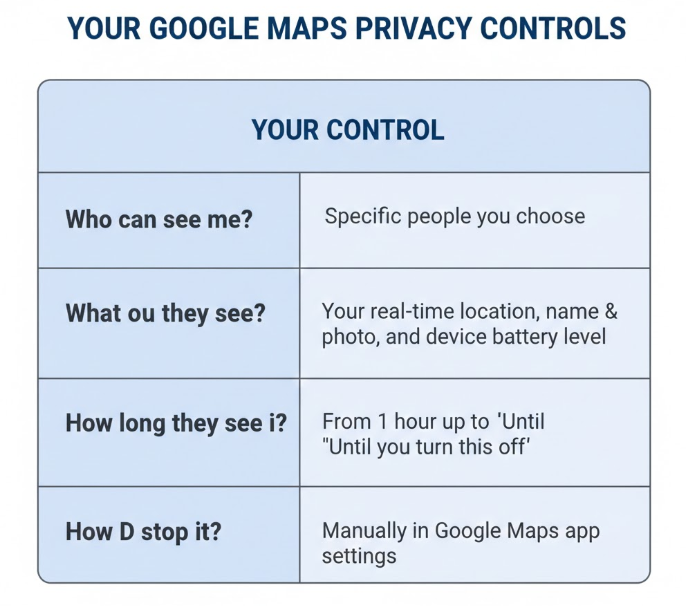
Using this feature is built on a foundation of consent and transparency. You are always in command of your Google Maps privacy controls. A family member can only see your location after you send them an invitation, and you can revoke their access instantly at any time.
How to Set and Change Sharing Durations
When you initiate a share, you decide the timeline. You can adjust this at any point.
- For a Specific Event: Use a timed duration (e.g., 1-8 hours) if you just want someone to see your location for a single trip, like a drive home late at night.
- For Ongoing Peace of Mind: Use ‘Until you turn this off’ for trusted family members, like a partner or a parent.
To change this, simply go back to the ‘Location sharing’ screen in Google Maps, tap on the person’s profile, and you can adjust the duration or stop sharing entirely.
How to Stop Sharing Your Location Instantly
Revoking access is simple and immediate.
- Open Google Maps.
- Tap your profile icon and select ‘Location sharing’.
- You will see a list of everyone you are sharing your location with.
- Tap on the name of the person you want to stop sharing with.
- Tap the ‘Stop’ button. Their access is removed instantly, and they will not be notified.
Beyond Tracking: Practical Ways to Use Location Sharing
Once Maria implemented the battery fix, the tool transformed from a source of frustration into a practical solution for her family’s daily life. The true value isn’t the technology, but how it reduces worry and improves coordination.
- Checking on Teenagers: When her son goes to a friend’s house across town, Maria no longer sends “did you get there?” texts. A quick look at the map confirms he arrived safely, giving him independence while providing her with reassurance. Coordinating Meetups: When Maria and her husband plan to meet in a busy public space, they share their locations for an hour. This eliminates the back-and-forth “where are you?” calls and makes finding each other in a crowd stress-free.
- Assisting an Elderly Parent: Maria’s father lives independently but shares his location with her. She can see that he’s home safe or check that he made it to his doctor’s appointment without having to call and interrupt his day.
Google regularly updates its Maps interface and privacy settings; we commit to reviewing and updating this guide every six months to ensure these instructions remain accurate.
A Clear Path to Staying Connected
You came here looking for a way to keep your family connected, and now you have the solution. The key is understanding that true reliability comes from adjusting your phone’s core settings, not just the app itself. You now have the knowledge to perform the Google Maps family tracking setup correctly, manage privacy with confidence, and fix the most common issues without frustration.
This empowers you to use a tool you already have to gain priceless peace of mind. Take a few minutes to walk through these steps with a family member today.
A Versatile Tool for Location-Based Scenarios
Both Google Maps family tracking and apps like Grindr for Straight rely on real-time location data to enable connection, safety, or discovery features. In addition to these use cases, some users may also want a more flexible way to understand or simulate how location data behaves across different services.
FoneLora Location Changer is a GPS simulation tool that allows users to change their device location instantly through a simple map interface. It works on both iOS and Android and supports switching between global locations or simulating movement paths, making it useful for testing and exploring location-based applications.

Frequently Asked Questions
Q1: How do I track my family members using Google Maps?
The person who wants to be seen must first open Google Maps, tap their profile icon, select ‘Location sharing,’ and send an invitation link to a family member. Once the recipient clicks the link and accepts, they can see the person’s live location in their own Google Maps app.
Q2: Do they have to approve location sharing?
Yes, absolutely. Location sharing is a consent-based system. A person’s location is only shared after they actively send an invitation and the other person accepts it. You cannot track someone without their explicit knowledge and approval.
Q3: Why can’t I see their real-time location even after they shared it?
This is almost always caused by the phone’s operating system restricting Google Maps’ ability to run in the background to save battery. The person sharing their location must set Google Maps’ battery usage to ‘Unrestricted’ on Android or change its Location Services permission to ‘Always’ on iPhone.
Q4: What does it mean when the location hasn’t updated in hours?
This usually means the person’s phone has been turned off, run out of battery, or lost its data connection (cell service or Wi-Fi). It is not typically a cause for alarm. Their icon will remain at the last location where the phone was able to send an update.
Conclusion
In summary, Google Maps family tracking focuses on real-time location sharing for safety and coordination, while platforms like Grindr for Straight emphasize proximity-based social discovery.
From a broader perspective, understanding how these systems rely on GPS data can help users better interpret how location-driven services operate. In this context, FoneLora Location ChangerFoneLora Location Changer offers an optional tool for simulating GPS locations and observing how different applications respond under varying conditions.
Overall, it adds an extra layer of flexibility for exploring and testing location-based features across different platforms.



Joy Taylor is a seasoned technical writer with over a decade of experience in mobile technology. At iMobie, she specializes in producing in-depth content on iOS data recovery, iPhone unlocking solutions, and iOS troubleshooting.
Product-related questions? Contact Our Support Team to Get Quick Solution >
