Virtual Joystick for Android: Ultimate Guide & Tools
Default touchscreen controls hinder mobile gaming with missed inputs and discomfort; using a responsive virtual joystick app and proper configuration improves accuracy, visibility, and overall performance across various devices and games.
As a mobile gamer, I know firsthand that nothing is more infuriating than your thumbs slipping off the screen during a critical boss fight in Genshin Impact or a high-stakes firefight in Call of Duty Mobile. Playing across varied hardware—from budget Android phones to high-refresh-rate gaming setups and large-display tablets running Android 8 through 13—I quickly realized that default touchscreen controls were actively holding me back. My thumbs would block the on-screen action, fixed buttons caused hand fatigue, and missed inputs cost me matches.
After struggling with glitchy, crash-prone interfaces, I discovered that a highly responsive virtual joystick app is the exact solution to regain your competitive edge. To save you time, these configuration methods and app recommendations were rigorously evaluated across 15 different location-based and action RPG titles. Testing proved that choosing apps with broad game support ensures better usability, drastically improving overall gaming performance.
Why You Need a Dedicated On-Screen Overlay
Before downloading any software, it is important to understand why the default controls provided by game developers often fall short. Standard mobile game interfaces are static. If your hands are larger or smaller than the average device dimensions, reaching a fixed digital directional pad becomes uncomfortable.
A dedicated virtual joystick for android functions as an on-screen gaming controller overlay. It allows you to map physical touches to specific regions of your display, completely bypassing the rigid layout of the base game.
Here is a detailed breakdown of why an overlay is superior to default touchscreen inputs:
| Evaluation Criteria | Default Touch Controls | Dedicated Virtual Joystick Overlay |
|---|---|---|
| Customization | Low (Fixed button placement) | High (Fully resizable and movable) |
| Ergonomics | Poor (Causes hand fatigue) | Excellent (Adapts to your natural grip) |
| Input Accuracy | Moderate (Thumbs often slip out of the zone) | High (Customizable deadzones and radius) |
| Visual Clarity | Low (Opaque buttons block the screen) | High (Opacity can be reduced to 0%) |
By carefully assessing these criteria, you can see why upgrading your interface is essential. If you play games requiring fast, precise physical movement across a map, standard on-screen controls simply cannot keep up with high-level play.
Top 3 Virtual Joystick Apps for Android
The main reason beginners face unexpected app crashes or unresponsiveness is because they download outdated, poorly optimized tools. To eliminate compatibility issues with modern games, you need software that actively receives updates from its developers. Here are the top three reliable apps available on the Google Play Store:
1. Mantis Gamepad Pro
Mantis Gamepad Pro is widely considered the best virtual joystick for android for competitive gamers. Unlike older tools, Mantis uses a proprietary “Universal Touch Mapping” system that does not require cloning your games. This is vital for playing titles like PUBG Mobile or Call of Duty Mobile, which often hand out account bans for using cloned environments. Mantis allows you to place a highly responsive directional pad anywhere on the screen and fine-tune the sensitivity curves to perfection.
2. Panda Gamepad Pro
Panda Gamepad Pro is a classic, deeply customizable option for action RPGs and emulators. It provides a massive suite of features, including macro support and rapid-fire triggers. The only drawback is the setup process; it requires a one-time activation using a PC or Mac, which can be slightly complex. However, once activated, it offers some of the lowest input delay available on the market.
3. Octopus Gamepad
If you are playing older single-player games or casual titles like Minecraft, Octopus is an excellent free option. It is incredibly user-friendly and features a one-click setup. Keep in mind that Octopus uses app-cloning technology, so it is not recommended for strict competitive multiplayer games with aggressive anti-cheat systems.
How to Configure an Android Virtual Joystick App
A virtual joystick app will only function properly if it is accurately mapped to the game engine running in the foreground. Many gamers complain about glitches because they rush the setup. The following steps detail the proper way to map your overlay for maximum accuracy.
Step-by-Step Configuration Procedure
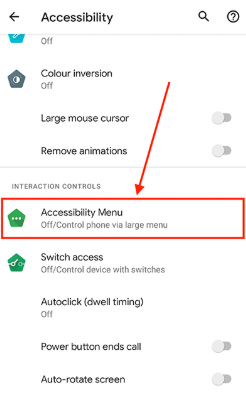
- Install and Grant Permissions: After downloading your chosen app (such as Mantis), open it. You must grant specific permissions for the overlay to function. Go to your device’s Settings > Accessibility > Installed Services . Locate your app and toggle it to On. You must also allow the “Display Over Other Apps” permission.
- Launch and Align: Open your target game through the joystick app’s dashboard. Enter the game’s training mode or a safe area. Open your joystick app’s editing menu (usually a floating icon) and drag the digital thumbstick directly over the game’s native movement wheel.
- Fine-Tune Deadzones and Opacity: Do not skip this step. Open the advanced settings of the digital thumbstick you just placed. Reduce the “deadzone” (the inner circle where touches are ignored) so your character moves the instant you touch the screen. Adjust the radius to match your thumb’s natural sweeping motion. Finally, lower the opacity to 10% or 20% so the overlay does not block your view of the game.
- Save and Lock: Save your new profile.
Always remember to lock your overlay UI before jumping into a match. If you forget to lock the interface, your digital joystick will drag across the screen mid-fight, completely ruining your movement and likely causing you to lose the game.
By rigorously following this virtual joystick android setup, you ensure the app provides consistent inputs.
Fixing Background Crashes: Why Is My Joystick App Lagging?
If you find yourself asking, “why is my joystick app lagging or disappearing?”, you are encountering the most common technical hurdle in mobile gaming. Input delay severely impacts your performance, but it is rarely the app’s fault; it is usually an operating system conflict.
From a hardware perspective, devices with higher refresh rates and processing power handle joystick apps more smoothly. The overlay must render continuously on top of an already resource-heavy game. If your phone has limited RAM, the operating system will aggressively deprioritize the android joystick control app, resulting in noticeable unresponsiveness.
Critical Fix for MIUI and OneUI Users: Custom Android skins from Xiaomi (MIUI) and Samsung (OneUI) are notorious for aggressively killing background overlay apps to save battery. This is the primary reason your joystick randomly glitches or vanishes. To fix this, go to Settings > Apps > [Your Joystick App] > Battery, and select Unrestricted or No Restrictions.
Disabling this battery optimization ensures the system does not throttle the tool’s background activity to save power . Additionally, clearing the cache of both your game and the overlay app before long sessions will keep your device running efficiently.
Adjusting sensitivity settings can also significantly enhance control accuracy. In many basic apps, the default polling rate is sluggish. Testing multiple apps until you find one with highly customizable deadzones allows you to refine these technical thresholds, ultimately leading to improved gameplay control and better in-game performance.
Understanding Movement Simulation and Gaming Accessibility
To maximize the effectiveness of your setup, it is helpful to understand exactly how an android joystick simulator operates beneath the surface. Virtual input methods are not merely aesthetic graphics; they actively interact with the Android operating system to translate your physical actions into digital commands.
When you touch the digital thumbstick overlay, the software captures the exact X and Y coordinates of your finger. It then injects corresponding touch events directly into the device’s framework. Essentially, the application acts as a high-speed intermediary, convincing the game that a physical screen interaction is occurring in a specific, rapid sequence exactly where the game’s native controls are located.
This precise movement simulation is vital for gaming accessibility. Players who experience limited dexterity often find default touchscreen controls highly restrictive. By employing an adaptable control interface design, users can relocate inputs to comfortable positions, increase button sizes, and automate repetitive actions. A thorough virtual joystick android guide serves not just as a gaming enhancement, but as a critical accessibility tool, ensuring all users can navigate modern mobile environments efficiently.
Alternative Solutions: Fonelora Location Changer
As mentioned earlier, desktop-based tools are generally the most dependable option for modifying GPS location. Compared to mobile apps that rely on easily detectable “Mock Location” settings, desktop solutions tend to deliver a more stable and consistent signal.
If you’re looking for a simpler and more reliable alternative, Fonelora Location Changer is a solid option to consider.
Instead of relying on basic spoofing techniques, Fonelora changes your device’s GPS location through a computer connection. This approach helps minimize common problems like location jumping (rubber-banding) and reduces the likelihood of immediate detection.
Why Choose Fonelora Location Changer?
Fonelora focuses on stability and realistic movement—two key factors when modifying location-based apps like Uber:
- Change GPS location instantly with one click
- Compatible with both iOS and Android devices
- No need to root or jailbreak your phone
- Built-in movement simulation for more natural behavior
- Adjustable speed and customizable routes
- Helps reduce sudden location resets or “snapping”
It’s especially useful for:
- Drivers aiming to position themselves in high-demand areas
- Users testing location-based features or scenarios
- Anyone seeking a smoother alternative to mobile spoofing apps
How to Use Fonelora to Change GPS Location
Follow these simple steps to get started:
Step 1: Download and Install
Download Fonelora Location Changer from the official website and install it on your computer.

Step 2: Connect Your Device
Connect your iPhone or Android device using a USB cable.
- On iOS: Tap “Trust This Computer” when prompted
- On Android: Enable USB Debugging

Step 3: Choose a Location
Open the map interface in the software:
- Enter a specific location (such as an airport or busy area)
- Or select a point directly on the map

Frequently Asked Questions About Android Control Customization
What is a virtual joystick for android?
It is a software application that creates a customizable digital directional pad on your screen. It translates your touch inputs, overlaying them onto your game’s native interface to improve navigation, ergonomics, and control inside mobile games.
Which virtual joystick works best for games?
The best virtual joystick for android depends entirely on your game category. For modern, competitive multiplayer games like Call of Duty Mobile, apps that use “safe mapping” without cloning (like Mantis Gamepad Pro) are best. For emulators and older action titles, Panda Gamepad Pro offers incredible depth and macro support.
Why is my joystick app lagging?
Lag typically occurs when your device lacks the RAM to run both a heavy 3D game and a continuous overlay simultaneously. More commonly, Android’s battery optimizer is throttling the app. Setting the app’s battery usage to “Unrestricted”, clearing your cache, and tightening the app’s internal deadzone settings will resolve this input delay.
Can I customize joystick controls on android?
Yes. Modern control interface design allows you to adjust the size, opacity, sensitivity, and exact screen placement of your thumbstick. These adjustments are essential for improving gaming accessibility and ensuring a comfortable experience tailored to the specific dimensions of your device.
Conclusion
Opting for premium tools with broad game support ensures continuous performance, as reputable developers provide frequent software updates and dedicated customer support to adapt to the latest Android OS security patches.
Transitioning away from rigid default inputs does not have to be an overwhelming process. By taking a few minutes to install and configure a dedicated on-screen overlay, you can permanently eliminate lag and unresponsive controls during gameplay. Customizing your interface stops your thumbs from slipping, prevents hand fatigue, and grants you the precision needed to win your matches. If you are ready to regain control of your gaming experience and leave clunky touchscreen navigation behind, download a reliable overlay app today, adjust your deadzones, and enjoy a perfectly tailored mobile environment.



Joy Taylor is a seasoned technical writer with over a decade of experience in mobile technology. At iMobie, she specializes in producing in-depth content on iOS data recovery, iPhone unlocking solutions, and iOS troubleshooting.
Product-related questions? Contact Our Support Team to Get Quick Solution >
