What is a boot loop? An Android boot loop happens when your phone continuously restarts, showing the manufacturer logo over and over without ever reaching the home screen. The system is failing to load completely, forcing it to try again in an endless cycle.
Common causes include:
- Corrupted system updates: An update that was interrupted or installed incorrectly.
- Full storage: The operating system doesn’t have enough free space to execute its startup routine.
- Malicious or rogue apps: Third-party software interfering with core system files.
- Hardware failure: A physically jammed power button or a damaged motherboard.
Will a boot loop delete my photos and contacts?
No. The restart loop itself does not erase your personal data. Your photos, contacts, and messages are still safely stored on the device’s memory. The real danger of data loss comes from how you choose to fix it. While many online guides push you to immediately perform a factory reset, there are ways to troubleshoot this issue without wiping your device.
Step 1: Diagnose the Issue (Hardware vs. Software)
Before trying any technical software fixes, you need to determine if your phone is physically broken. Many ranking pages ignore this, but a software repair tool cannot fix a physically stuck button or a fried motherboard.
Use this checklist to inspect your Android device:
- Check the power button: Remove your phone case. Press the power button a few times. Does it click normally, or is it jammed flat against the frame? A stuck power button will continuously signal the phone to turn off and on.
- Clean the button housing: Use a toothpick or compressed air to carefully clean any dirt or sticky residue around the volume and power buttons.
- Remove the SIM and SD card: A corrupted SD card can occasionally cause the Android OS to hang and loop during the boot sequence. Eject the tray, remove your SIM and external SD storage, and see if the phone boots normally.
- Look for liquid damage: Did the phone recently get wet? Water damage can short-circuit the internal components, causing endless restarts.
- Check for severe drops: If the phone was recently dropped, internal connections or the motherboard itself may be damaged.
What to do next:
If you suspect liquid damage, a jammed button, or a broken motherboard, software fixes will not work. You will need to take the device to a professional repair shop. However, if your hardware looks perfectly fine and the buttons click normally, you are likely dealing with a software crash. Move on to Step 2.
Step 2: Safe Manual Fixes (Troubleshoot Without Losing Data)
Doing a normal restart is impossible during a boot loop because the screen is unresponsive. Instead, you need to use hardware button combinations to force a restart or access Recovery Mode.
Here are the safest manual fixes to try first, as they do not erase your personal data.
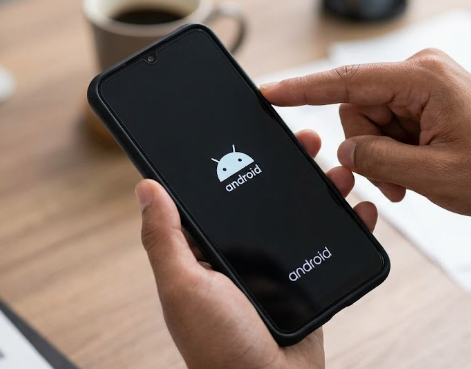
Fix A: Execute a Force Restart
A force restart cuts the power from the battery to the motherboard, simulating a battery pull.
1. Press and hold the Power button and the Volume Down button simultaneously.
2. Keep holding both buttons for 10 to 15 seconds.
3. Release the buttons when the screen goes black and the manufacturer logo reappears.
Fix B: Wipe the Cache Partition in Recovery Mode
If a force restart fails, clearing temporary system files can resolve corrupt update data. Reassurance: Wiping the cache partition clears temporary files but keeps your personal photos, apps, and contacts fully intact.
1. Connect your phone to a computer via USB cable (required for some newer Samsung models).
2. Press and hold the Power and Volume Up buttons simultaneously until the recovery screen appears.
3. Use the Volume buttons to navigate down to Wipe cache partition.
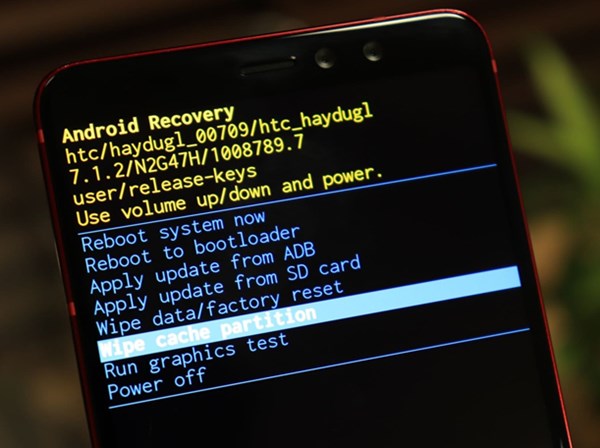
4. Press the Power button to select it, then confirm your choice.
5. Once completed, select Reboot system now.
Why these might fail: These basic options work well for minor glitches. However, if the Android operating system files are deeply corrupted, clearing the cache won’t be enough to break the loop.
Step 3: Use a System Repair Tool (The Safe Middle Ground)
If wiping the cache didn’t work, official troubleshooting guides usually tell you to perform a Factory Reset immediately. But jumping straight to a reset means losing all your unbacked-up data.
If you want to avoid a total data wipe, using a dedicated repair toolkit like DroidKit System Fix provides a safer middle ground. Rather than erasing your phone, DroidKit helps you reinstall Android OS firmware or repair the corrupted system through a guided desktop workflow.
DroidKit – Unlock Android Screen in 1 click
Easily recover data, fix system issues, and optimize your Android performance.
How the DroidKit System Fix workflow works:
1. Open DroidKit: Download and launch DroidKit on your PC or Mac, then choose the System Fix module.
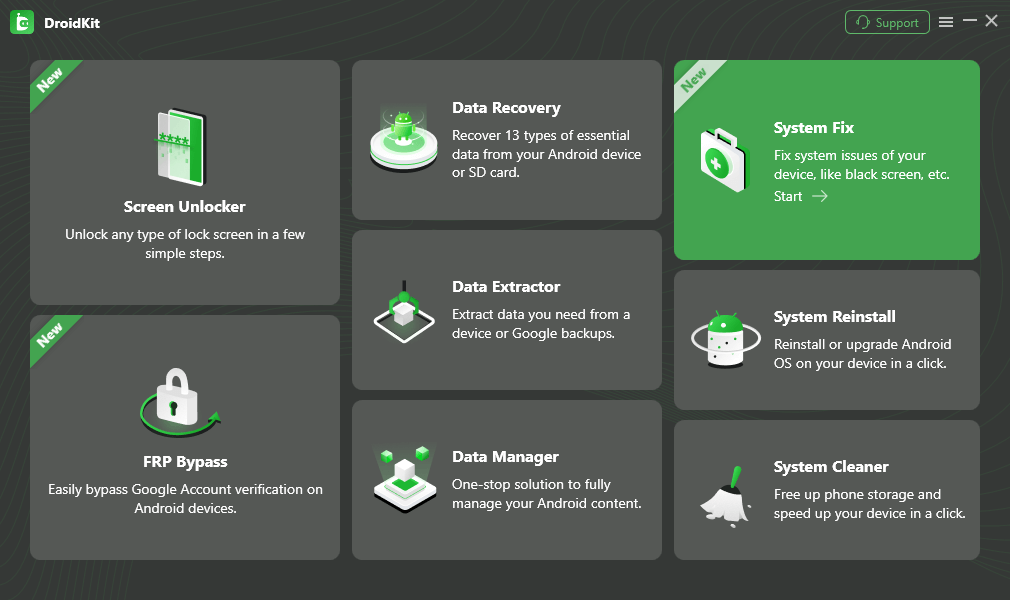
2. Connect your device: Plug your phone into the computer via USB so the software can detect it.
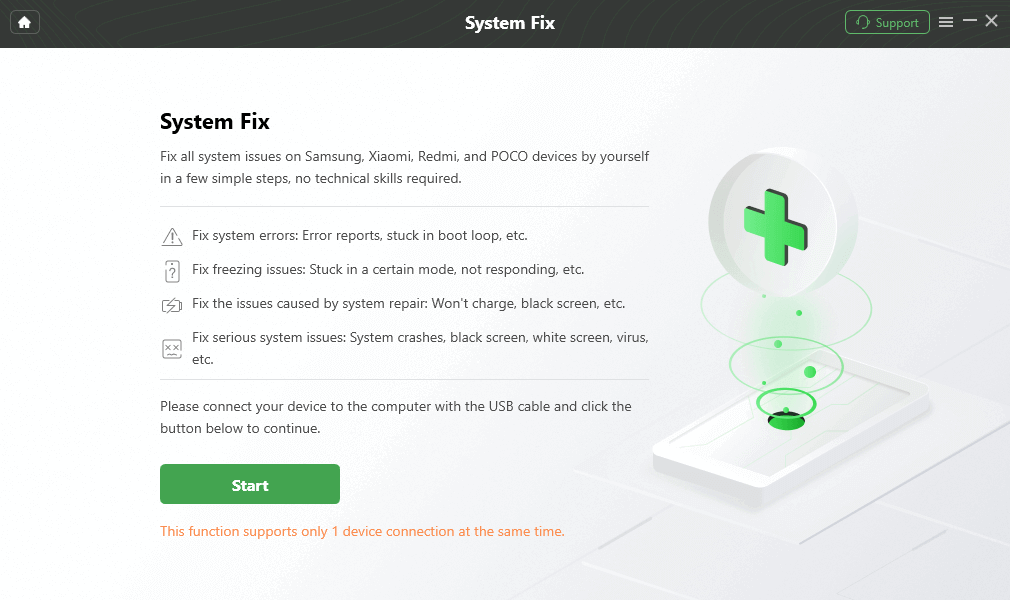
3. Check compatibility: DroidKit will verify if your specific device brand, model, and Android version are supported for software repair.
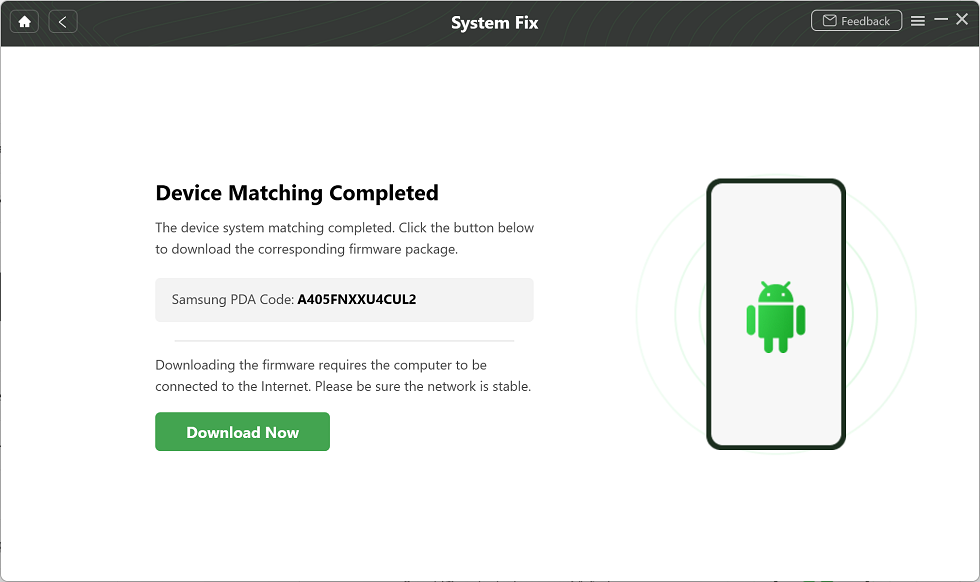
4. Download firmware & repair: Follow the on-screen prompts to download the correct firmware package. DroidKit will safely apply the firmware to repair the system crash.
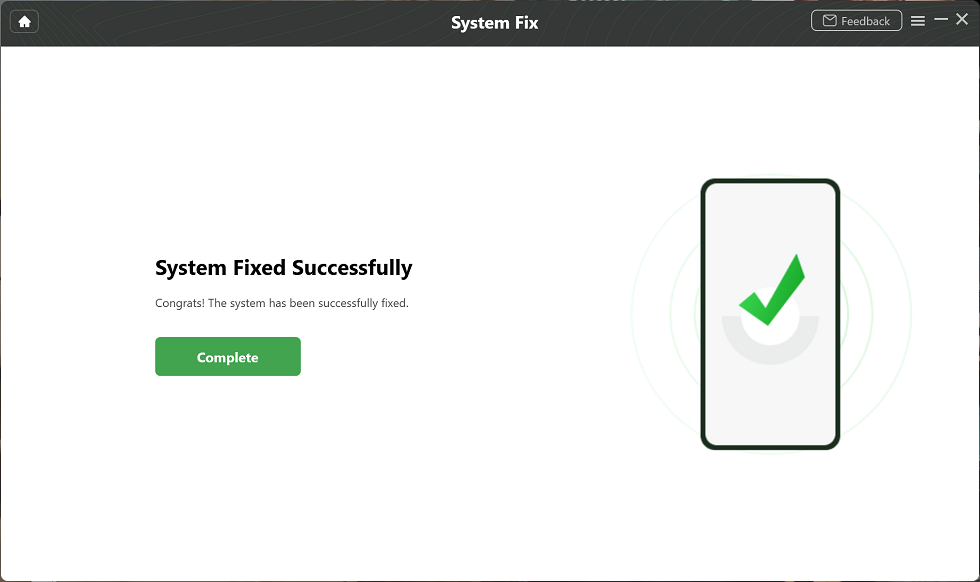
DroidKit System Fix is designed for supported Android software issues. It cannot repair a phone with physical hardware damage (like a broken motherboard), and success depends on your specific device model and system state. However, for software-induced boot loops, it is a practical alternative to try before giving up your data. Visit the DroidKit System Fix page to check if your specific device model is supported before proceeding to a factory reset.
Step 4: Factory Reset (The Last Resort)
If you have ruled out hardware damage, wiping the cache didn’t work, and system repair tools cannot resolve the corruption, a Factory Reset is the final software troubleshooting step available.
The consequence: A factory reset will permanently erase all local data on your device. Every photo, text message, contact, and app that is not backed up to a cloud service will be wiped clean.
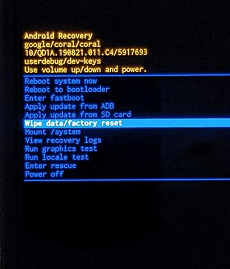
If you are forced to take this path, you can perform it from Recovery Mode by selecting Wipe data/factory reset using your volume and power buttons.
What about data recovery?
Once a factory reset is performed, local data recovery becomes incredibly difficult due to modern Android encryption. If you must reset, check your Google Drive or Google Photos accounts from a computer to see if your data was syncing automatically before the crash. If you need to explore what data might be extractable from your existing Google account backups after the reset, modules like Android data recovery can help you check what may still be recoverable, though results depend entirely on your backup status, storage condition, and overwrite conditions.
FAQ
Q1: Does a system update cause Android boot loops?
Yes. If an Android system update is interrupted (for example, if the battery dies midway) or if the downloaded update file is corrupted, the system cannot boot properly, resulting in a continuous restart loop.
Q2: How do I fix a boot loop without a factory reset?
First, check for a physically stuck power button and remove your SD card to rule out external corruption. Second, enter Recovery Mode and select “Wipe cache partition” to clear temporary files safely. Finally, try a dedicated guided repair workflow like DroidKit System Fix to repair the OS before resorting to a full reset.
Q3: Is a boot loop a hardware or software problem?
It can be either. Software issues like bad updates, full storage, or malware are common. However, physical hardware problems like a damaged battery, water-damaged motherboard, or jammed power button can cause the exact same looping symptom.
The Bottom Line on Fixing an Android Restart Loop
Dealing with a phone that won’t stop restarting is incredibly frustrating, especially when you are worried about losing your photos and contacts.
The safest diagnostic path is to check for physical hardware damage or corrupted SD cards first, then try safe manual fixes like wiping the cache partition in Recovery Mode. Remember, jumping straight to a factory reset is unnecessary and will permanently erase your unbacked-up data.
If basic soft resets fail and you want a safer option, DroidKit System Fix offers a guided middle ground. By helping you reinstall clean firmware for supported software issues without requiring complex technical skills, it provides a practical way to try and save your device before resorting to the nuclear option. Check if your specific device model is compatible and try addressing the software corruption safely.
DroidKit – Unlock Android Screen in 1 click
- Bypass FRP lock on Samsung, Xiaomi, Redmi, OPPO, POCO, Motorola, Lenovo, VIVO devices without Password.
- Remove all types of lock screen on Android devices without password.
- Fix system issues for Samsung, Xiaomi, Redmi, devices safely.
- Transfer, back up, and manage all Android data in 1 handy place.
More Related Articles


 DroidKit