Being locked out of your Android phone is incredibly frustrating, especially when you have precious photos and important messages trapped inside. If you’ve been searching for a way to bypass your lock screen, you’ve likely come across the term “File-Based Encryption” (FBE). But what does that actually mean for your trapped files?
Quick Answer:
Android File-Based Encryption (FBE) is a strict security feature that encrypts different files on your device with different, unique keys. This means your personal data remains completely locked and unreadable until you enter your specific PIN, password, or pattern.
Google first introduced File-Based Encryption in Android 7.0, and it became a mandatory, built-in feature for all new devices starting with Android 10. This encryption is the exact reason why no one—not a thief, and unfortunately, not even you—can simply plug a locked modern phone into a computer to get pictures off a locked Android phone without knowing the passcode.
How Android FBE Works (Without the Jargon)
To understand why your files are so heavily guarded, it helps to compare modern encryption to how older phones used to work.
Older Android devices used something called Full-Disk Encryption (FDE). You can think of FDE like putting all your belongings into one giant, locked safe. Once the phone was turned on and the main safe was unlocked, everything inside was accessible at once.
Modern File-Based Encryption (FBE) changes the rules completely. Instead of one giant safe, FBE puts different apps, files, and system functions into their own individual “locked safes.” Developers refer to the safe holding your personal data as “Credential Encrypted (CE) storage.” In everyday terms, this simply means “files that are completely locked until you enter your PIN.”
Because each file is locked individually using your specific passcode as the key, bypassing the lock screen is practically impossible. Without the exact PIN or pattern, your photos and messages aren’t just hidden—they are translated into scrambled, unreadable code. No local data recovery tool can simply bypass or “read” this scrambled code without the key.
Why Your Alarms Work Before You Enter Your PIN
If your personal data is entirely locked until you enter your PIN, and you are currently trying to figure out a forgot Samsung phone password issue, you might be wondering: “Why does my phone still ring, and why do my alarms go off right after I restart my phone, even before I unlock it?”
This happens because of a companion feature to File-Based Encryption called Direct Boot.
Direct Boot allows certain basic, essential phone functions to wake up and operate immediately after a restart, while keeping your private data locked down. It does this by placing these essential functions in “Device Encrypted” storage, which is available during Direct Boot, while keeping your personal files in “Credential Encrypted” storage, which requires your PIN.
Here are a few scenario examples of Direct Boot in action:
- Alarms ringing: Your morning alarm will still go off even if your phone restarted overnight for an update.
- Phone calls coming through: You can still receive emergency calls or standard incoming calls before unlocking the screen.
- Accessibility features loading: Essential text-to-speech or accessibility services activate immediately so all users can operate the lock screen.
While these basic triggers work perfectly, your personal photos, downloaded files, and private text messages will absolutely not load during Direct Boot. They remain safely scrambled until you provide the correct passcode.
The Hard Truth: Why You Can’t Bypass FBE on Modern Phones
If you search YouTube or tech forums for how to unlock locked Android phone without losing data, you will likely find thousands of tutorials claiming to have a secret bypass method. The hard truth is that these videos are either dangerously misleading or severely outdated.
Before File-Based Encryption became the standard, it was occasionally possible to exploit a software bug to remove a lock screen without erasing the phone. Today, Android’s built-in FBE makes this impossible.
Here is how older devices compare to modern ones:
| Feature | Older Androids (Pre-Android 7.0) | Modern Androids (Android 10+) |
|---|---|---|
| Encryption Type | Full-Disk Encryption (FDE) or None | Mandatory File-Based Encryption (FBE) |
| Data Protection | Weak against direct storage extraction | Individual files cryptographically scrambled |
| Can you bypass the lock without data loss? | Sometimes possible via system exploits | Impossible. Local data cannot be decrypted without the PIN. |
To be absolutely clear: no consumer software, hidden code, or PC tool can decrypt or bypass File-Based Encryption to recover your local files without the exact passcode. If a modern tool claims it can unlock your Android 10+ phone while keeping your local photos intact, it is not telling the truth.
Regaining Access: Why Unlocking Requires a Factory Wipe
If you have permanently forgotten your PIN and local data recovery is impossible, how do you actually get your phone working again?
The only authorized way to regain usability of a permanently locked, FBE-encrypted phone is to completely wipe the device back to its factory settings. While losing your local data is painful, this factory wipe is actually proof of Android’s strong security working exactly as intended. It ensures that if a thief stole your phone, they couldn’t get to your private life—they would be forced to erase the phone entirely just to use it.
If you own the device and are ready to accept this necessary data wipe to get your phone functioning again, a dedicated tool like DroidKit Screen Unlocker can help. Instead of wrestling with confusing button combinations or complex recovery menus, DroidKit provides a guided, step-by-step desktop workflow to safely factory reset and remove the lock screen from your authorized device, allowing you to set it up as new.
How to Actually Recover Your Data After a Permanent Lock
Since your local files were encrypted and the mandatory factory wipe deleted them, how can you get your photos, contacts, and messages back?
The realistic, authorized workaround lies in the cloud. If your Android phone was automatically syncing and backing up to your Google account before it was locked, that data lives safely on Google’s servers, completely unbothered by your phone’s local File-Based Encryption.
To retrieve this information, you can use DroidKit Data Extractor. This module provides a supported path to recover accessible data from a synced Google Account, bridging the gap when your local phone storage is wiped.

DroidKit – Unlock Android Screen in 1 click
The complete Android solution to save your lost data, revive your dead phone, and optimize your mobile experience in a way simple, smart, and secure.As a complete Android solution, DroidKit can easily help you recover lost data with/without backup.
Before You Start (Prerequisite Checklist):
- Lawful Google Credentials: You must know the exact email address and password for the Google account that was synced to the locked phone.
- Prior Cloud Backup: The phone must have been connected to the internet and actively backing up to Google before it was permanently locked. Local files cannot be magically sent to the cloud post-lockout.
- Account Permissions: You must be able to pass any standard Google security or two-factor authentication checks if logging in from a new computer.
Here is how the guided workflow works:
1. Open DroidKit on your computer and select the Data Extractor module (choose “From Google Account”).
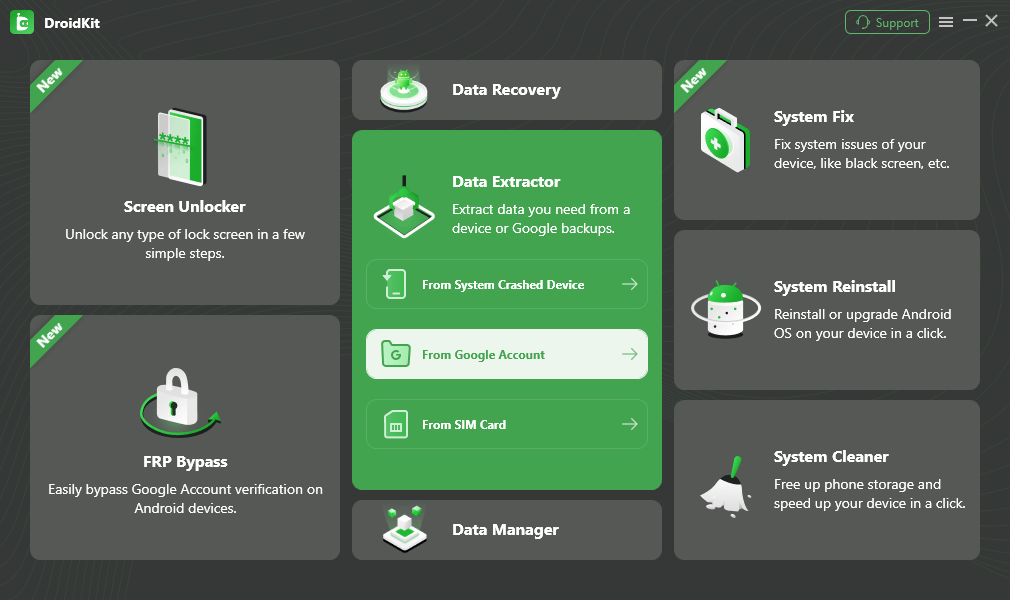
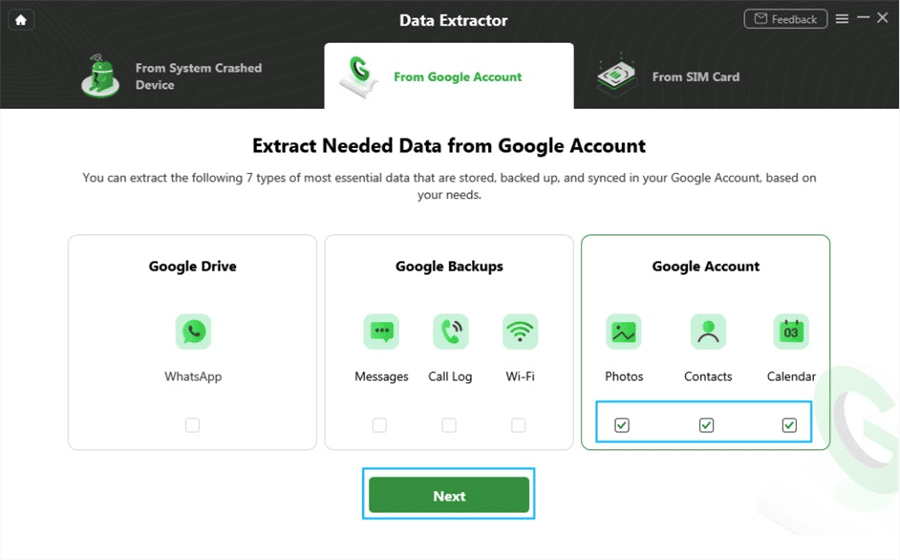
2. Review the data types you want to scan for, such as photos, contacts, or calendar events.
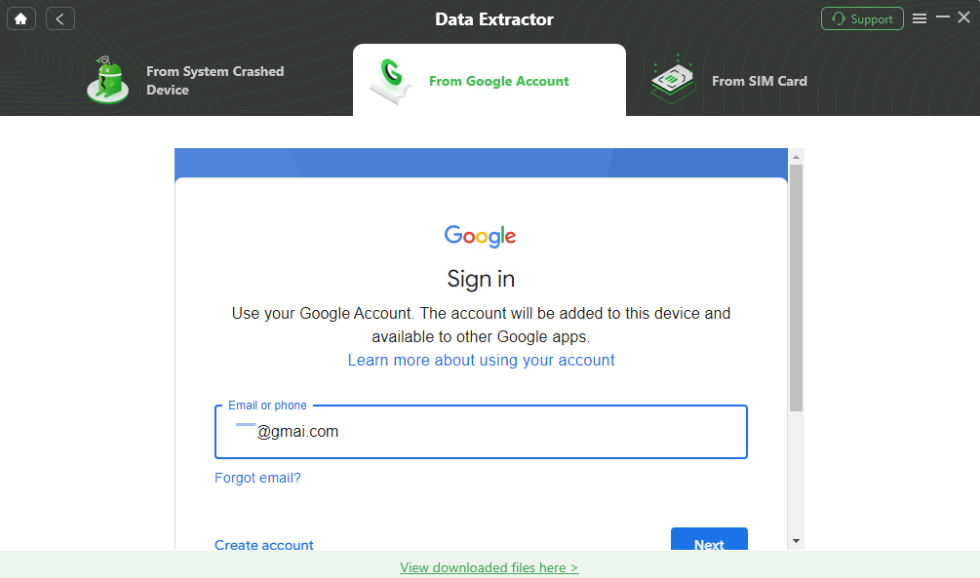
3. Sign in securely using your lawful Google Account credentials (the same account synced to the locked phone).
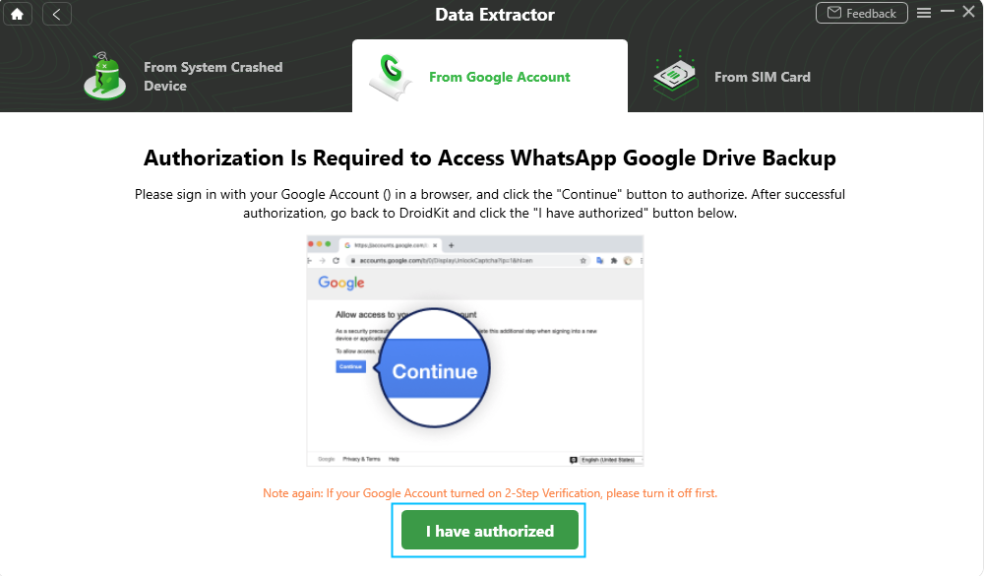
4. Grant the necessary permissions to allow DroidKit to access your cloud backups.
5. Preview the accessible data that DroidKit retrieves from your Google cloud storage.
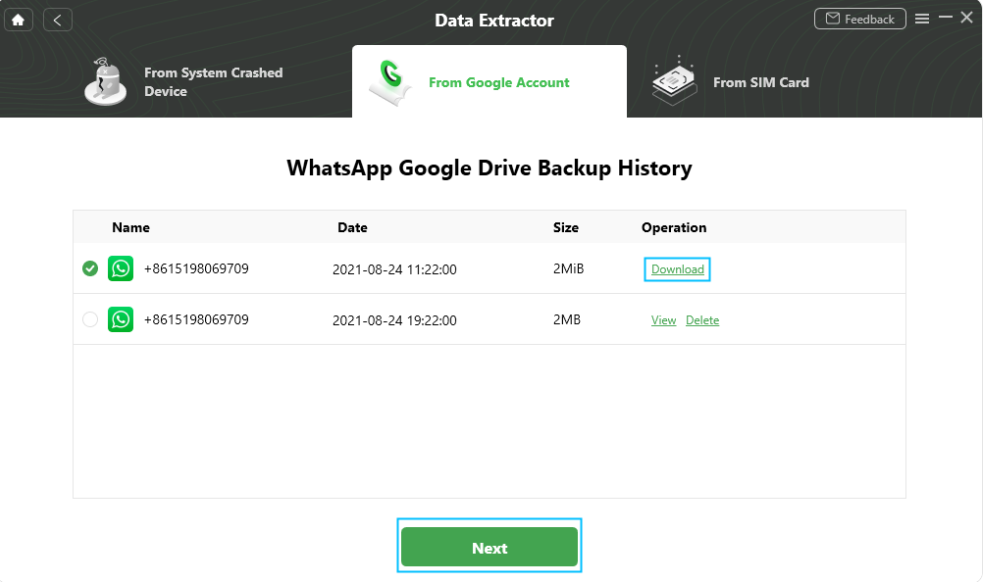
6. Extract and save your recovered files directly to your computer.
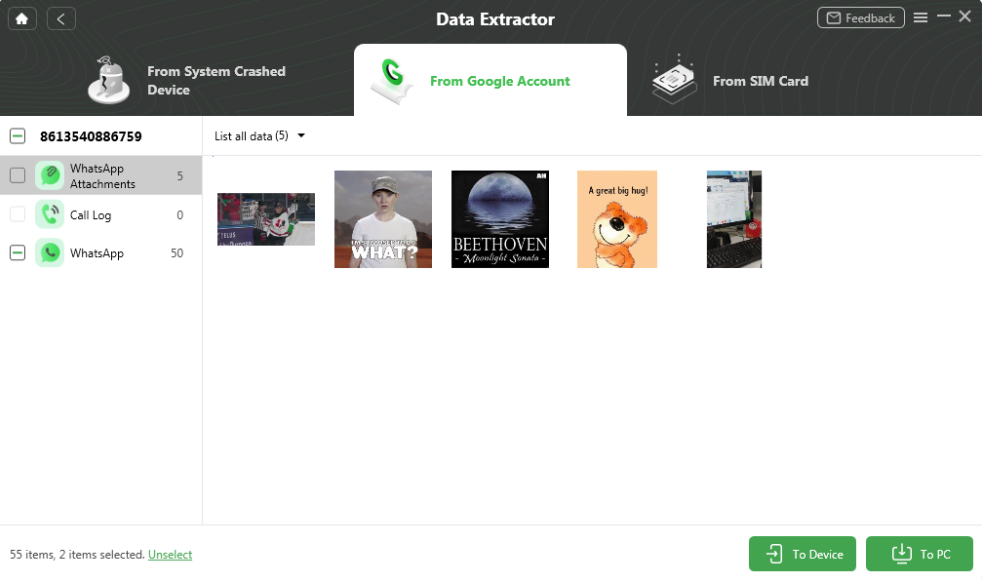
Remember, this process strictly requires your authorized Google Account login details and relies entirely on whether your locked phone was connected to the internet and backing up data prior to the lockout.
Frequently Asked Questions (FAQs)
Q1: What is Android File-Based Encryption?
It is a mandatory Android security feature that encrypts individual files with unique keys, ensuring your personal data stays completely locked and scrambled until you enter your specific PIN, password, or pattern.
Q1: What is the difference between FBE and Full-Disk Encryption (FDE)?
Older FDE locked the entire phone’s storage as one single unit. Modern FBE locks different files and apps individually, allowing basic functions (like alarms) to run on startup while keeping your private data tightly secured.
Q1: Can Android file-based encryption be bypassed?
No. On modern devices (Android 10 and newer), there is no way to bypass FBE to access local personal files without the exact passcode.
The Bottom Line: Security Over Convenience
Android File-Based Encryption is an excellent, world-class privacy feature. It guarantees that if your phone is ever lost or stolen, your personal life remains completely inaccessible to strangers. However, this high level of security trades convenience for safety, meaning you must remember your PIN.
If you find yourself permanently locked out, a factory wipe is an unavoidable reality of modern smartphone security. While it is tough to lose local files, your best safety net is always the cloud.
If you are ready to regain access to your device, you can use DroidKit Screen Unlocker to perform the necessary guided factory wipe. Then, turn to DroidKit Data Extractor to safely pull your surviving memories and contacts straight from your synced Google Account. Check your device compatibility and explore DroidKit’s modules to get your phone—and your digital life—back on track.
DroidKit – Unlock Android Screen in 1 click
- Bypass FRP lock on Samsung, Xiaomi, Redmi, OPPO, POCO, Motorola, Lenovo, VIVO devices without Password.
- Remove all types of lock screen on Android devices without password.
- Fix system issues for Samsung, Xiaomi, Redmi, devices safely.
- Transfer, back up, and manage all Android data in 1 handy place.
More Related Articles


 DroidKit