What Is a Bootloader? Locked vs. Unlocked Explained
Quick Answer: A bootloader is the hidden program that starts up before your Android operating system. It tells your phone how to boot up and loads the core software required to turn the device on.
When you buy a new Android phone, it almost always comes with a locked bootloader. A locked bootloader is programmed to only load the manufacturer’s official, approved operating system. It acts as a digital bouncer, rejecting any unauthorized software from running on your device.
An unlocked bootloader, on the other hand, removes this restriction. Unlocking it allows the device to boot custom, third-party software—often referred to as custom ROMs or custom kernels. This gives users total freedom to change how the operating system looks, feels, and functions.
Important Distinction: Don’t Confuse the “Locks”
Beginners often confuse different types of phone unlocking. To be completely clear:
- OEM Unlocking (Bootloader): Allows you to install custom Android software.
- SIM Unlocking (Carrier Lock): Allows you to use a SIM card from a different mobile network.
- Screen Unlocking: Removing a forgotten PIN, pattern, or password to access the phone’s apps and data.
This article focuses entirely on the bootloader (OEM unlocking).
Why Do Manufacturers Lock the Bootloader?
It is a common misconception that manufacturers lock bootloaders just to frustrate users who want to customize their phones. In reality, the lock serves crucial security and operational purposes.
First and foremost, a locked bootloader protects your personal data. Modern Android devices use a security feature called Verified Boot. During the startup process, the bootloader checks the operating system to ensure it hasn’t been tampered with. If malware or a thief tries to bypass your lock screen by loading a compromised version of Android, the locked bootloader will refuse to boot, keeping your private data secure.
Second, the lock acts as an anti-theft deterrent. If a phone is stolen, a locked bootloader prevents the thief from easily wiping the device and flashing new software to bypass Factory Reset Protection (FRP) and resell the phone.
Finally, there are commercial reasons. Some network carriers require manufacturers to lock the bootloader to prevent users from tampering with network settings, bypassing tethering restrictions, or removing carrier-installed bloatware. By locking the system, manufacturers and carriers guarantee that the device runs exactly as tested and certified.
The Pros and Cons of Unlocking Your Bootloader
Before you decide to alter your device’s core system, you need to weigh the benefits against some very strict limitations. Unlocking the bootloader changes how your phone interacts with the Android ecosystem.
Here is a quick summary of the differences:
| Feature | Locked Bootloader | Unlocked Bootloader |
|---|---|---|
| Security | High (Verified Boot enabled) | Lower (Vulnerable to tampering) |
| Customization | Low (Official OS only) | High (Custom ROMs, Root access) |
| App Compatibility | Full (Banking, Netflix HD work) | Limited (Fails SafetyNet/Play Integrity) |
| Warranty | Intact | Usually Voided |
| Data Status | Safe | Wiped completely during the unlock process |
While the table above covers the basics, here is a deeper look at the specific pros and cons.
Pros of an Unlocked Bootloader:
- Install Custom ROMs: You can replace your phone’s stock software with custom versions (like LineageOS) to get new features or update older phones that no longer receive official updates.
- Root Access: Unlocking the bootloader is the mandatory first step to “rooting” your device, granting you deep administrative control.
- Remove Bloatware: You can completely uninstall carrier or manufacturer apps that are otherwise permanently baked into the system.
- Full Customization: Allows for custom kernels that can underclock your processor for better battery life or overclock it for gaming performance.
Cons of an Unlocked Bootloader:
- Voids the Warranty: For most major brands, officially requesting an unlock code or toggling the unlock switch permanently voids your manufacturer warranty.
- Fails Security Checks: Unlocking breaks Android’s SafetyNet and Play Integrity checks.
- Broken App Functionality: Because of the failed integrity checks, high-security apps will refuse to run. This usually means you will lose access to banking apps, Google Pay, and high-definition streaming on apps like Netflix.
- Lowered Security: Without Verified Boot, your device is more vulnerable to malware and physical data theft.
The Data Risk: Unlocking Triggers a Factory Reset
There is a critical reality you must understand before proceeding: Unlocking the bootloader automatically and securely wipes all user data on modern Android devices.
This is a deliberate security feature. If anyone attempts to unlock the bootloader to bypass your lock screen, the phone will immediately trigger a factory reset. This ensures that while the device might be modified, your personal photos, messages, and accounts cannot be stolen. This data wipe is automatic and cannot be bypassed.
Because of this, you must back up everything you care about before you begin the unlocking process. If you skip this, you will face severe lost data after Android reset.
Pre-Unlock Backup Checklist:
- Check that your Google or brand cloud backups are fully synced.
- Export your two-factor authentication (2FA) codes to a secure location.
- Move local photos, videos, and downloaded files to a computer.
If you have a large amount of local data and want a clear, guided way to back it up to your computer before modifying your device, DroidKit Data Manager can help. Designed for supported Android phones, this module allows you to organize, preview, and transfer your photos, messages, and files safely to your PC or Mac.

DroidKit – Unlock Android Screen in 1 click
The complete Android solution to save your lost data, revive your dead phone, and optimize your mobile experience in a way simple, smart, and secure.As a complete Android solution, DroidKit can easily help you recover lost data with/without backup.
How to back up your data with DroidKit before unlocking:
1. Connect your phone to your PC or Mac via a reliable USB cable and open the Data Manager module in DroidKit.
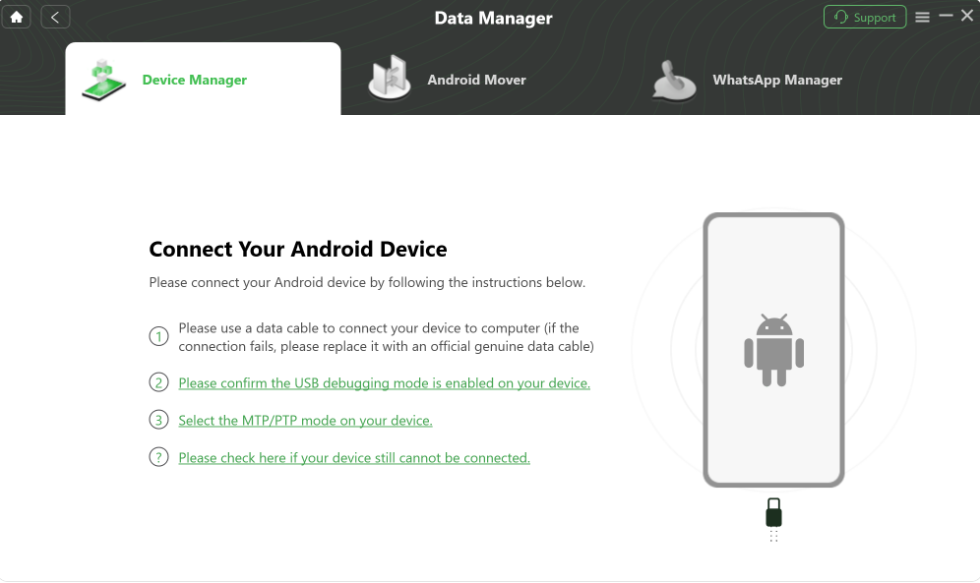
2. Preview and select the photos, videos, messages, or files you want to save off your device.
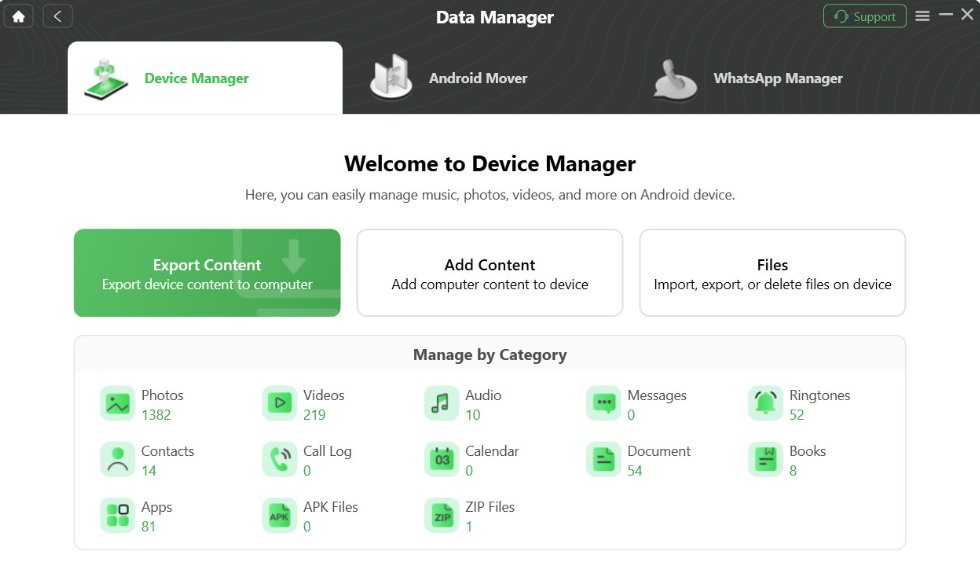
3. Export to your computer with a single click, ensuring your local files are safely stored before the mandatory factory reset begins.
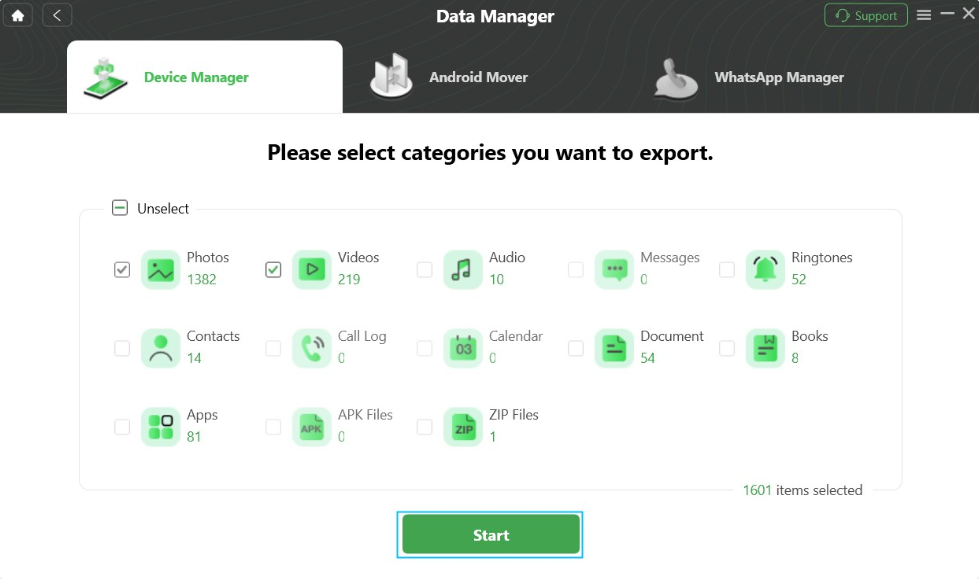
DroidKit does not unlock bootloaders or bypass the data wipe. It is strictly a pre-modification backup and data management tool.
The Bricking Risk: What If Unlocking Causes a Boot Loop?
Beyond data loss, the most stressful risk of modifying your bootloader is “bricking” your device. Manual Android SDK tools (like ADB and Fastboot) are the standard methods used to unlock bootloaders and flash Android system software. However, these command-line tools offer very little guidance.
If a file is corrupted, the USB connection drops, or you flash the wrong image, your phone can enter a “soft brick” state. This usually results in a boot loop—where the phone endlessly restarts—or gets stuck indefinitely on the manufacturer’s logo.
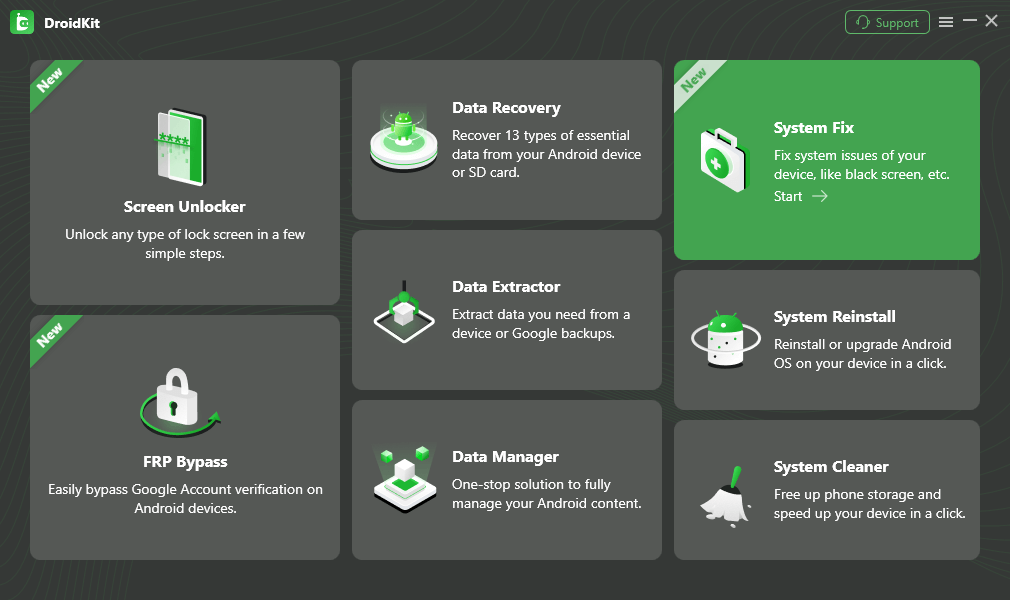
If your unlocking or flashing attempt goes wrong and you are left stranded with a crashed operating system, a dedicated toolkit can act as a safety net. DroidKit System Fix is designed to provide a guided recovery workflow for supported software-related boot loops, black screens, and stuck logos.
DroidKit – Unlock Android Screen in 1 click
The complete Android solution to save your lost data, revive your dead phone, and optimize your mobile experience in a way simple, smart, and secure.As a complete Android solution, DroidKit can easily help you recover lost data with/without backup.
How DroidKit System Fix acts as a fallback:
1. Open DroidKit on your PC or Mac and select the System Fix module.
2. Connect your stuck device using a reliable USB cable.
3. Review compatibility to ensure your device model and system state are supported.
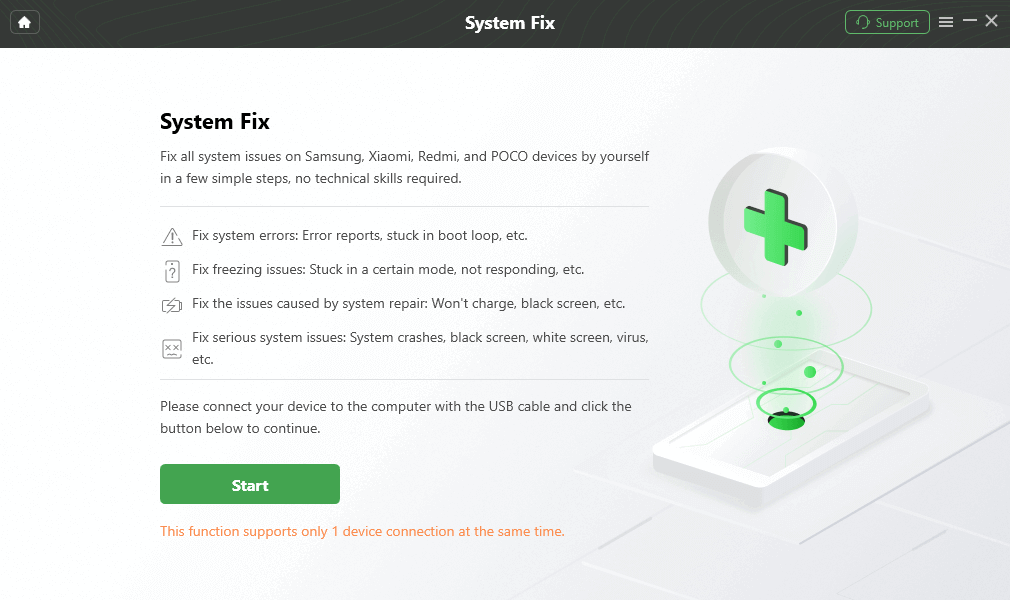
4. Follow the on-screen guided workflow to download the correct firmware and repair the crashed operating system.
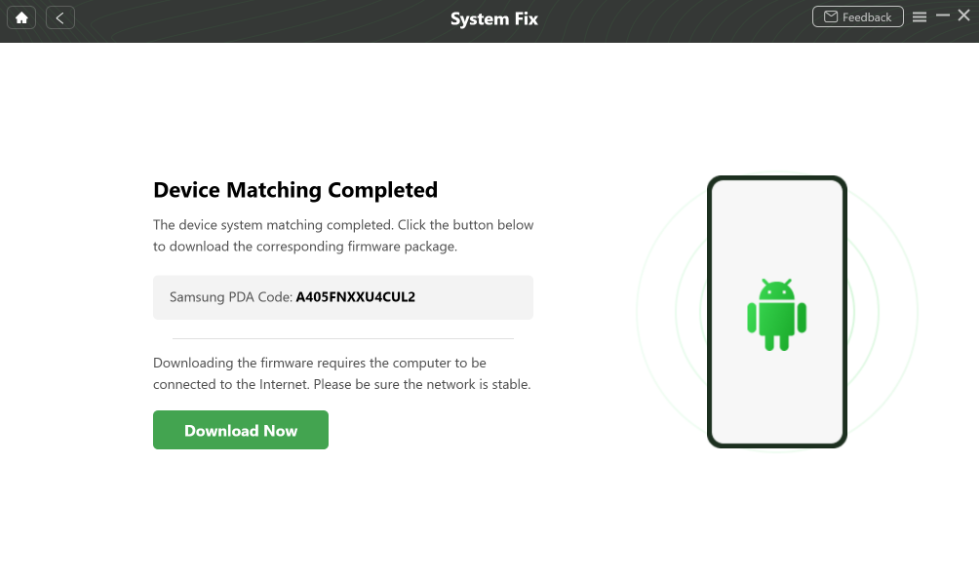
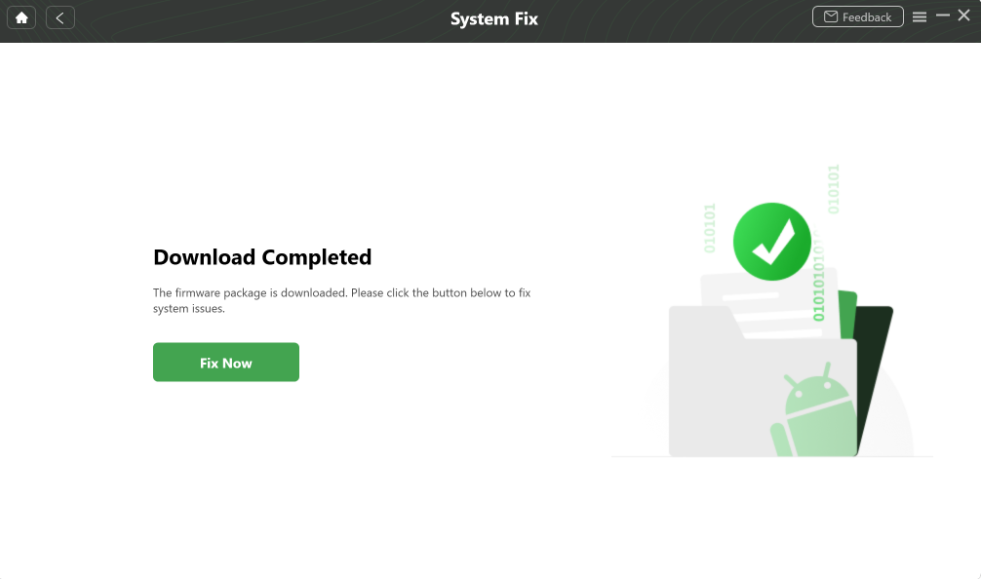
Software solutions like DroidKit can help recover from system crashes caused by improper flashing, but they cannot fix physical hardware damage. If you choose to modify your Android system, having a repair fallback ready ensures you aren’t left with an unusable device if the manual process fails.
How to Check if Your Bootloader Is Unlocked
If you bought a second-hand phone, or simply want to check your device’s current security status without typing complicated ADB commands, you can easily check via your device settings.
Step-by-Step Guide to Checking Bootloader Status:
1. Open your Android Settings app and scroll down to About phone.
2. Find the Build number and tap it rapidly 7 times. You will see a message saying “You are now a developer!” (You may need to enter your screen PIN).
3. Go back to the main Settings menu and open System > Developer options.
4. Look for a setting called OEM unlocking.
How to read the result:
- If the switch is toggled off and you can tap it, your bootloader is currently locked, but unlocking is permitted by the manufacturer.
- If the switch says “Bootloader is already unlocked” and is greyed out, the device is currently running an unlocked bootloader.
- If the switch is greyed out and cannot be toggled, your carrier or manufacturer has permanently bootloader unlocking for your specific model.
Some brands, like Samsung or Xiaomi, may require specific dialer codes or dedicated manufacturer apps to verify unlock status fully, but Developer Options is the best universal starting point.
Frequently Asked Questions
Q1: Can I relock my bootloader later?
Yes, in most cases, you can relock it using Fastboot commands once you have flashed the official stock ROM back onto the device. However, relocking will trigger another automatic data wipe, and it often does not restore your official warranty status.
Q2: Will banking apps still work with an unlocked bootloader?
Usually, no. Unlocking the bootloader breaks Android’s Play Integrity and SafetyNet security checks. Many banking apps, digital wallets (like Google Pay), and corporate security apps will block you from logging in until the bootloader is relocked.
Q3: Does OEM unlocking mean my phone is unlocked for any carrier?
No. OEM unlocking strictly refers to the bootloader, which allows you to install custom software. It has nothing to do with your cellular network. To use a different SIM card, you need a SIM/Carrier unlock from your mobile provider.
Final Thoughts: Should You Unlock Your Bootloader?
For the vast majority of Android users, leaving the bootloader locked is the smartest choice. A locked bootloader ensures your personal data remains encrypted, your phone is protected against theft, and your banking and streaming apps function normally.
Unlocking the bootloader is a path best left to advanced users, developers, and enthusiasts who want to install custom ROMs and accept the tradeoffs of voided warranties and compromised app compatibility.
If you do decide that the benefits of full device customization outweigh the risks, preparation is key. Remember that the process will automatically factory reset your phone. Before you begin, you can use safety tools like iMobie DroidKit to manage your backups. The Data Manager module can help you safely move local files to a computer, while the System Fix module acts as a guided fallback if a complex flashing process leaves your phone stuck in a boot loop. Modify at your own risk, but always have a recovery plan ready.
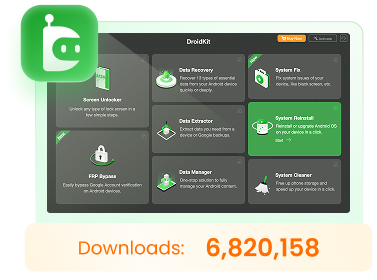
DroidKit – Unlock Android Screen in 1 click
- Bypass FRP lock on Samsung, Xiaomi, Redmi, OPPO, POCO, Motorola, Lenovo, VIVO devices without Password.
- Remove all types of lock screen on Android devices without password.
- Fix system issues for Samsung, Xiaomi, Redmi, devices safely.
- Transfer, back up, and manage all Android data in 1 handy place.
More Related Articles


 DroidKit