The Hard Truth: Can You Recover Data After a Factory Reset?
Quick Answer:
No. It is technically impossible to recover data directly from your Android’s local internal memory after a factory reset.
If you are frantically searching for a way to undo a reset and get your irreplaceable photos back, you need to know the technical reality before wasting money on software that promises miracles.
Since the release of Android 6.0, all modern Android devices use default encryption. When you perform a factory reset, the phone does not just delete your files—it permanently destroys the mathematical “master key” required to read them. Once that key is gone, your data is instantly turned into scrambled, unreadable code.
However, this does not mean all hope is lost. The only legitimate, proven recovery paths after a factory reset are extracting data from cloud backups (like a previously synced Google Account) or checking external storage (like an untouched SD card).
The Technical Reality: What Happens to the Encryption Key?
To understand why your files are gone, it helps to look at what exactly happens to your phone’s storage during a reset. Moving from denial to acceptance requires understanding the technical mechanism behind Android security before you attempt to recover data after factory reset Android.
Modern smartphones use either Full-Disk Encryption (FDE) or File-Based Encryption (FBE). This means everything stored on your device’s internal memory is heavily locked by default. The only way the phone’s processor can read your photos, messages, or app data is by using a unique “master encryption key” hidden deep inside a secure chip.
When you execute a factory reset, the phone doesn’t take the time to heavily overwrite every single file on your 128GB or 256GB storage drive. Instead, it does something much faster and more final: it instantly destroys the master encryption key.
Think of your phone’s storage like a massive, complex maze, and the encryption key is the only map. During a reset, the maze (your encrypted 1s and 0s) remains on the flash memory for a brief time, but you have burned the map. Without the key, those remaining 1s and 0s are mathematically impossible to decipher. Even professional law enforcement forensic teams cannot bypass a destroyed modern encryption key to read the files.
Standard Deletion vs. Factory Reset: Why the Difference Matters
You might be confused because you have seen forum posts or videos showing people successfully recovering deleted files from Android phones. Why does that work, but a factory reset doesn’t?
The answer lies in the survival of the encryption key. There is a massive technical difference between tapping “Delete” on a photo and wiping the entire device.
| Action | Encryption Key Status | Data Readable? | Recovery Possibility |
|---|---|---|---|
| Standard File Deletion | Intact | Yes (until overwritten) | Possible. Software can scan the storage to find files whose pointers were removed. |
| Factory Reset | Destroyed | No (permanently scrambled) | Impossible internally. No software scan can bypass the missing key. |
When you simply delete a file, Android just removes the invisible “pointer” that tells the operating system where the file is located. The file itself remains in the internal memory, and because your phone’s master encryption key is still intact, Android data recovery software can scan the drive, find the orphaned file, and read it.
But during a factory reset, the key is wiped. Even if software could scrape the physical storage to find the fragmented remnants of a deleted photo, it cannot piece them together because the decryption map is completely gone.
Warning: The Truth About “100% Recovery” Software Scams
Because losing data is highly emotional, a deceptive software industry has emerged to prey on frantic users. You will likely see advertisements for desktop tools claiming they can perform “deep internal scans” to recover 100% of your data directly from a wiped Android device.
These claims are completely false.
When software companies vaguely claim they can recover reset data, they are usually relying on two hidden truths: they only work on incredibly old, unencrypted devices (Android 5.0 and below), or they are actually just pulling data from your hidden Google cloud backup while pretending to scan your phone.
Before you spend money out of desperation, watch out for these red flags of scam recovery software:
- Promises of “deep local memory scans” after a reset: As we established, without the encryption key, a local scan will return nothing but scrambled garbage.
- Guaranteed success rates: No legitimate tool can guarantee data recovery, especially on wiped phones.
- Hiding the cloud requirement: Scams won’t tell you upfront that they actually require your Google login to find “recovered” files.
- Claiming to bypass modern encryption: Even professional forensic data extraction tools used by authorities cannot bypass Android’s hardware-backed encryption key deletion.
If the internal memory is truly wiped, you must pivot to the only realistic paths left: cloud backups and external SD cards.
The Legitimate Workaround: Extracting Data from Your Google Account
Since local internal recovery is a mathematical impossibility, your safest and only realistic path is to check if your data was synced to the cloud before the reset occurred. For most Android users, this means extracting files from a Google Account.
Normally, Google prompts you to restore a backup during the initial setup of a phone. But if you already set up the device, or if you only want to view and extract a few specific photos, messages, or contacts without overwriting your phone again, official methods can be frustratingly limited.
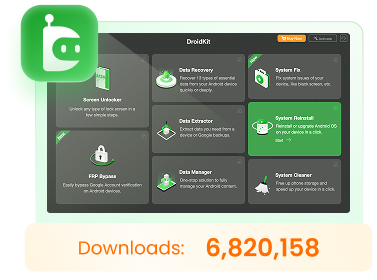
This is where a dedicated tool like DroidKit Data Extractor becomes highly relevant. Instead of falsely promising an impossible internal memory scan, DroidKit acts as a safe, guided desktop bridge to your Google Account. If you have lawful access and your credentials, it allows you to see what was synced before the reset and pull those specific files to your computer.
DroidKit – Unlock Android Screen in 1 click
Easily recover data, fix system issues, and optimize your Android performance.
How to extract surviving data using DroidKit:
1. Check Prerequisites: Ensure you know the Google Account credentials that were actively linked to your Android phone before the reset.
2. Open DroidKit: Launch the software on your computer and select the Data Extractor module (specifically the “From Google Account” option).
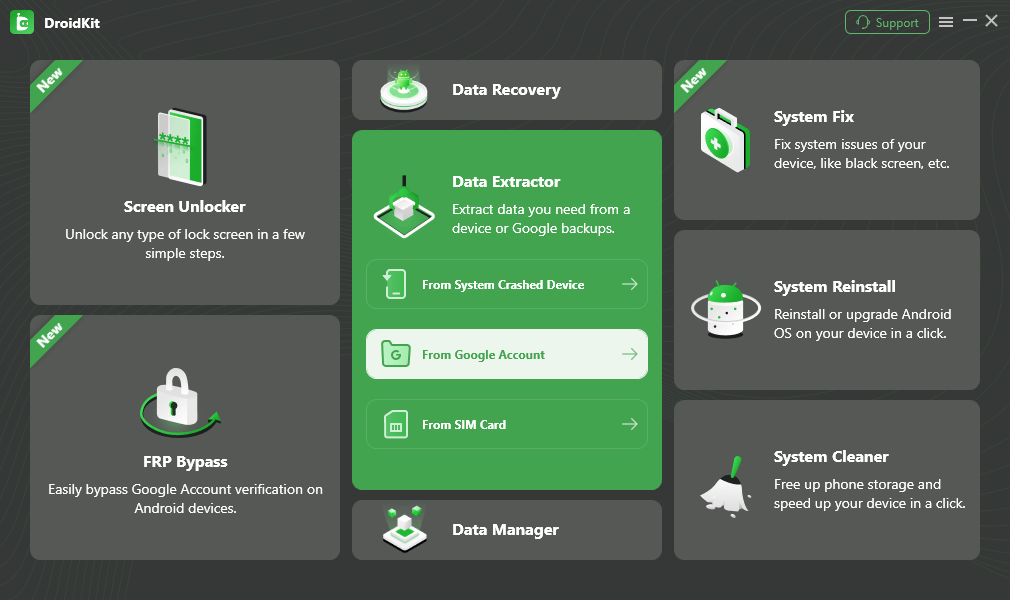
3. Sign In Securely: Follow the on-screen prompts to log into your Google Account with proper authorization.
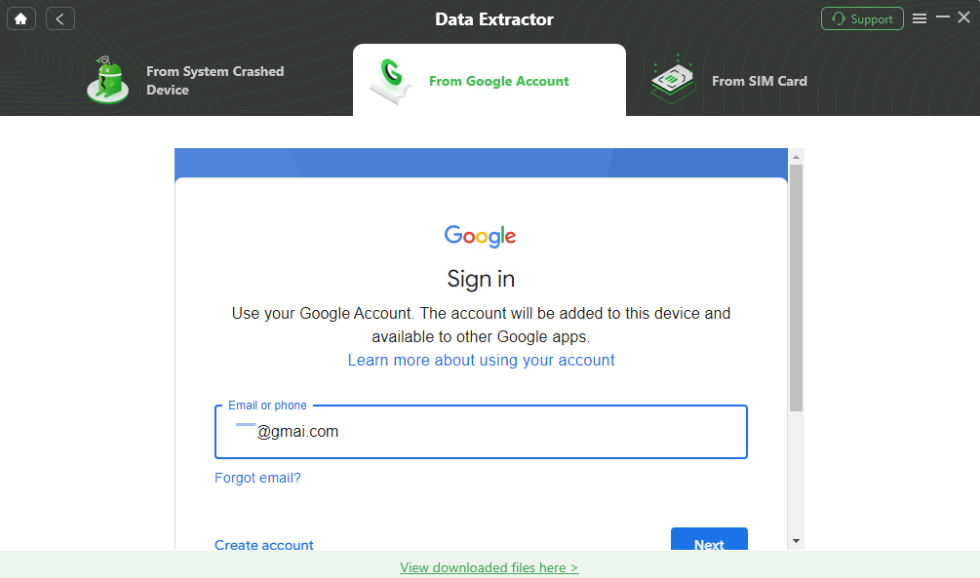
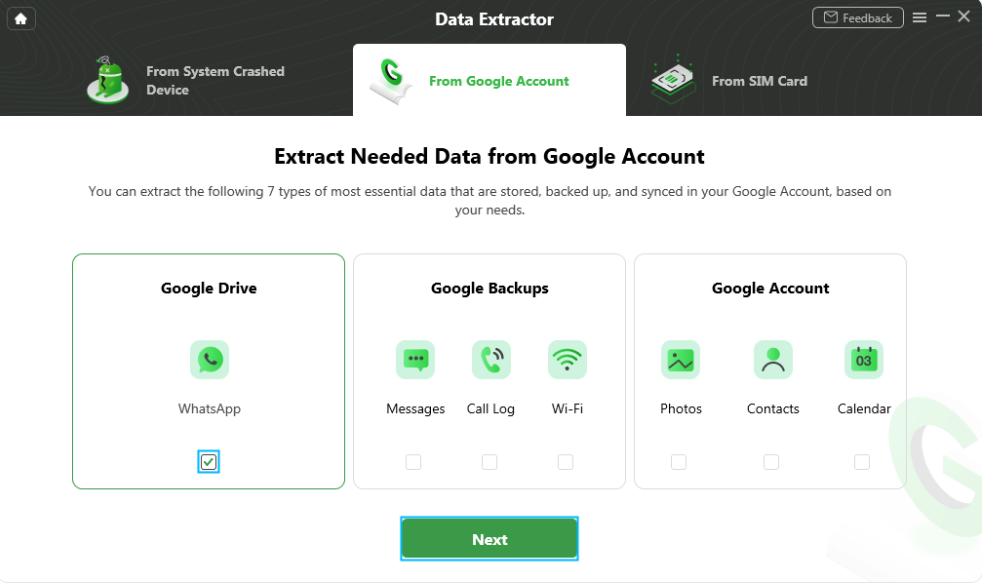
4. Scan Synced Categories: Choose the data types you want to check (such as Google Photos, Contacts, or WhatsApp backups) and let the tool safely scan your cloud repository.
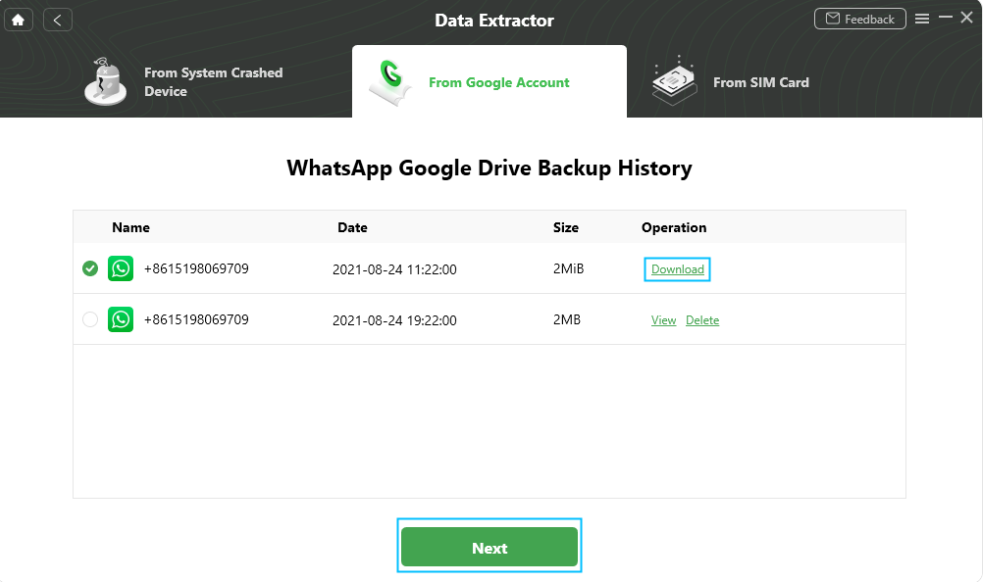
5. Preview and Extract: View the surviving files and download them directly to your computer.
DroidKit Data Extractor only works for data that was successfully synced or backed up to Google prior to the reset. It cannot recover files that only existed locally on the wiped phone.
Checking SD Cards for Surviving Data
If your Android phone had a MicroSD card installed during the factory reset, you have a strong secondary chance of recovery.
Factory resets are designed to wipe the internal storage. Depending on the phone brand and the specific settings you chose when confirming the reset, external SD cards are often left completely untouched. Even if files were deleted from the SD card in the process, standard data recovery principles still apply—with one crucial technical condition.
Crucial Technical Caveat: Portable vs. Internal Storage
Before attempting recovery, you must consider how the SD card was formatted prior to the reset:
- Portable Storage (Default): If your SD card was used normally to store media and transfer files between devices, it was not encrypted by the phone’s system. Your files are likely safe or recoverable.
- Adoptable Storage (Internal Storage): If you specifically formatted the SD card to act as “internal storage” to install apps, Android extended the phone’s master encryption key to the card. In this scenario, the factory reset destroyed the key for the SD card too, meaning its data is permanently scrambled alongside your phone’s internal memory.
If you suspect files might be on an SD card formatted as portable storage, here is the proper recovery workflow:
- Remove the card immediately: Do not save new files, take new photos, or download apps to the SD card. You must prevent any accidental overwriting of surviving data.
- Connect it to a computer: Use an SD card reader to connect it directly to your PC or Mac.
- Scan for files: Because the files were not encrypted by the destroyed master key, this is the one scenario where a local scan works. You can use DroidKit Data Recovery to deeply scan the unwiped SD card for fragmented photos, videos, and documents.
DroidKit Data Recovery is strictly for scanning external SD cards or phones that have NOT been factory reset. It cannot scan the wiped internal memory of your reset device.
Frequently Asked Questions About Android Factory Resets
Q1: Can data be recovered after a factory reset on Android?
No, data cannot be recovered directly from the phone’s internal memory after a reset. Because the reset destroys the encryption key, the physical data is permanently scrambled. Recovery is only possible if the data was synced to a cloud service (like Google) or stored on an untouched external SD card.
Q2: Is it possible to recover photos after a factory reset without a backup?
Honestly, no. If the photos were stored entirely on the device’s internal storage and never synced to Google Photos, a PC, or an SD card, they are mathematically impossible to retrieve once the encryption key is deleted.
Q3: Can professional data forensics recover data after a factory reset?
Even top-tier forensic software cannot read internal memory after a modern Android factory reset. While forensic experts can extract physical 1s and 0s from the flash chip, those numbers are entirely encrypted. Without the master key destroyed during the reset, they cannot be deciphered into actual files.
The Bottom Line on Post-Reset Data Recovery
Losing irreplaceable data is a painful experience, and the internet is full of deceptive claims that try to exploit that panic. The bottom line is simple but harsh: a factory reset on a modern Android phone destroys the encryption key, making local internal data recovery technically impossible.
Do not waste your time or money downloading software that promises a “deep local scan” of a wiped device.
Instead, focus entirely on the two legitimate workarounds left to you. Check any SD cards that were in the phone (provided they weren’t formatted as internal storage), and more importantly, check your cloud backups. If you had an active Google Account on your phone, there is a strong chance your contacts, messages, and photos were quietly syncing in the background.
To safely check and extract whatever data survived in the cloud without needing to reset your phone all over again, a modular Android toolkit like DroidKit provides a secure, guided desktop workflow to pull your files directly from your Google Account. It’s the honest, authorized alternative to deceptive recovery tools.
DroidKit – Unlock Android Screen in 1 click
- Bypass FRP lock on Samsung, Xiaomi, Redmi, OPPO, POCO, Motorola, Lenovo, VIVO devices without Password.
- Remove all types of lock screen on Android devices without password.
- Fix system issues for Samsung, Xiaomi, Redmi, devices safely.
- Transfer, back up, and manage all Android data in 1 handy place.
More Related Articles


 DroidKit