What Happens After Too Many Wrong Passcode Attempts on iPhone?
Too many wrong passcode attempts iPhone can lead to an iPhone disabled or unavailable state. As lockout increases, access is restricted to protect data. If you forget the passcode, you may need to erase iPhone after passcode attempts and restore from backup using iCloud or computer recovery solutions safely.
Too Many Wrong Passcode Attempts Can Lead to Full Lockout
After too many wrong passcode attempts, an iPhone may move from short waiting periods to a stricter lockout screen such as Security Lockout or iPhone Unavailable. If you are not confident about the passcode, stop entering guesses.
The safest next step is to look at the exact message on the screen:
- A timer means you may be able to wait and try again.
- iPhone Unavailable means access is restricted after failed attempts.
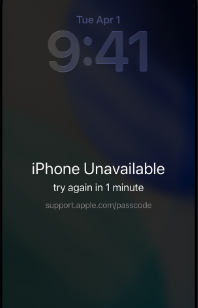
- Security Lockout means the device has entered a stronger lockout state.
- An erase option means recovery may be possible from the device, but data will be removed.
Wrong passcodes are treated as a security risk because the iPhone is protecting encrypted local data. Once you no longer know the passcode, the recovery path usually becomes erasebased.
The Lockout Progression: Delay Timer to iPhone Unavailable
The exact screen and timing can vary by iOS version and device state, so avoid relying on a single universal attempt count. What matters is the progression: iOS starts limiting attempts, then may require longer waits, and eventually may block normal access.
A practical way to understand it:
| Stage | What it feels like | What you should do |
| Early wrong attempts | You can still try again | Slow down and confirm the passcode |
| Delay timer | You must wait before trying | Wait only if you know the correct passcode |
| iPhone Unavailable | Normal access is blocked | Stop guessing and check recovery options |
| Security Lockout / erase required | Device access cannot continue normally | Prepare for erase or restore |
This progression exists to prevent unlimited passcode guessing. Restarting the phone or changing time settings does not remove the lockout logic.
Why the Passcode Protects More Than the Lock Screen
The iPhone passcode helps protect the keys used to secure local data. That is why a forgotten passcode cannot simply be “recovered” like a website password.
When you enter the correct passcode, the device can unlock access to the protected data. When the wrong passcode is entered too many times, iOS slows or blocks further attempts. If the passcode is truly forgotten, removing the lock means resetting the device access state, which erases local data.
This explains two common frustrations:
- Apple Account recovery does not reveal your iPhone screen passcode.
- A screen unlock tool cannot preserve unbackedup local data when removing a forgotten passcode.
Your backup becomes the most important recovery factor.
What You Should Do Before the Lockout Gets Worse
If the iPhone still shows a timer and you think you know the passcode, wait until the timer ends and enter the code carefully once.
If you do not know the passcode, use this checklist instead:
1. Stop entering guesses.
2. Check whether you have an iCloud backup or a computer backup.
3. Confirm you know the Apple Account used on the iPhone.
4. Decide whether you can use the onscreen erase option.
5. If not, prepare to restore with Finder or iTunes.
6. If the manual recovery path is confusing, consider a guided desktop unlock workflow.
If the screen is cracked or entering touches by itself, repair or stabilize the screen before making more attempts. Ghost touch can quickly push the phone into a worse lockout state.
Official Recovery Paths After Lockout
Official recovery generally means erasing the iPhone and setting it up again. Depending on what is available on your screen and computer, you may use the device’s erase option, Finder on Mac, or iTunes on Windows or older macOS systems.
Before starting, make sure you understand the consequences:
- The iPhone will be erased.
- You may need the Apple Account used on the device during setup.
- You can restore data only from an available backup.
- If Activation Lock appears after erase, you need the linked Apple Account or official ownership help.
Do not start a restore unless your cable, computer, and internet connection are stable. Interruptions can create extra recovery problems.
Using AnyUnlock for a Guided Screen Unlock Workflow
AnyUnlock can help when you need a guided way to remove an iPhone screen lock from a computer. It is designed for users who forgot the passcode, have an unavailable or disabled iPhone, or do not want to manually handle each recovery step.

AnyUnlock – One-stop iOS Unlocker
What if you get locked out of your iPhone? Or what if you forgot your Apple ID and its password? No worries, AnyUnlock unlocks any iOS lock for you with 1 click. No technology required. Only 3 steps.
The practical flow is simple:
1. Connect the locked iPhone to your computer.
2. Open AnyUnlock and choose the screen unlock workflow.
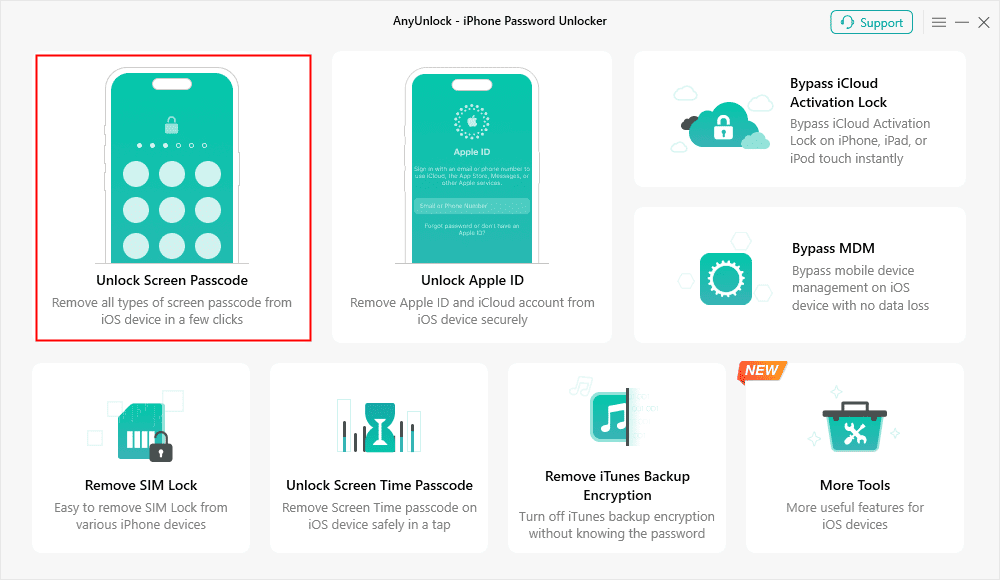
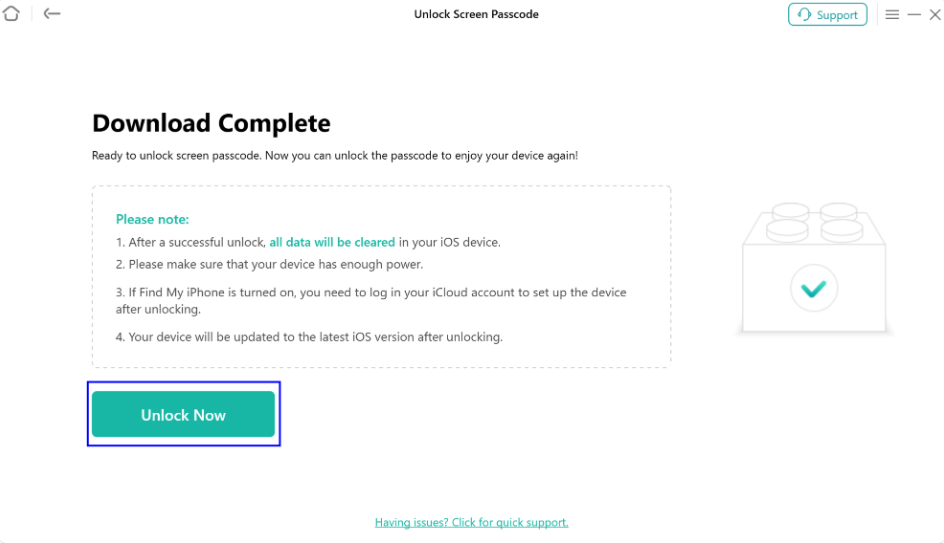
3. Read and accept the data erase notice.
4. Follow the guided process until the lock is removed.
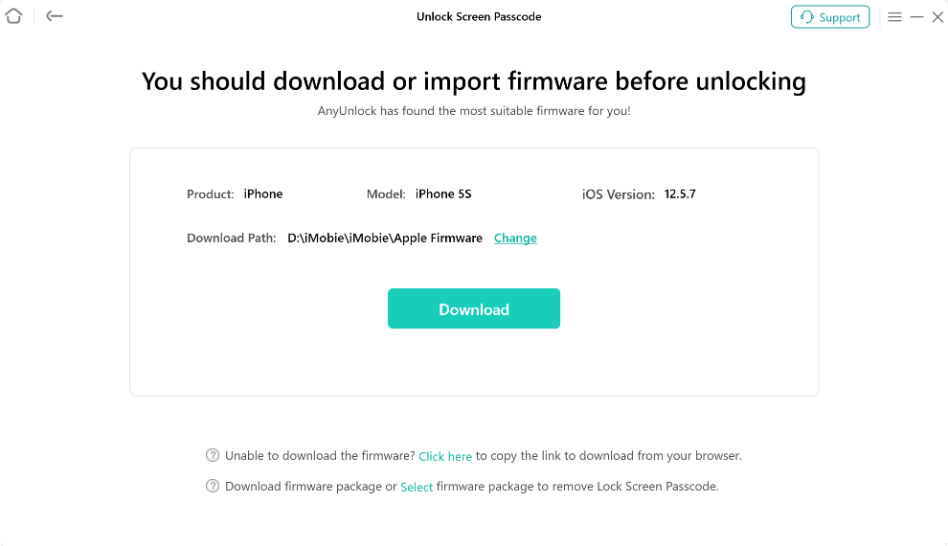
5. Set up the iPhone again.
6. Restore from iCloud or computer backup if available.
This is not a nodataloss passcode recovery. Removing a forgotten screen passcode erases the iPhone. The value of a guided workflow is clarity and process control, not preserving unbackedup data.
FAQ
How many wrong passcode attempts lock an iPhone?
The visible lockout behavior can vary by iOS version and device settings. Rather than relying on a fixed number, watch the screen message and stop guessing once delays or lockout warnings appear.
Can I unlock the iPhone if I remember the passcode later?
If the screen still allows another attempt after a timer, yes, enter the correct passcode carefully. If the device has moved to an eraseonly state, you may need recovery instead.
Does Security Lockout mean my data is gone?
Not immediately. But if you no longer know the passcode, the recovery path usually requires erasing the device. Your backup determines what data you can restore.
Can Apple tell me my old passcode?
No. The screen passcode is not something Apple can simply reveal to you. Recovery usually means resetting or erasing the device.
Can AnyUnlock remove the lock without data loss?
No. For screen passcode removal, the iPhone is erased. You can restore data afterward only if you have a backup.
What if my child entered too many wrong passcodes?
Stop further attempts, wait if a timer is shown, and use the correct passcode only when you are sure. If the passcode is forgotten, prepare for erase and backup restoration.
Final Takeaway
Too many wrong passcode attempts trigger iPhone lockout because iOS is protecting encrypted local data. Stop guessing early, check your backup, and choose a recovery path based on the screen message and whether you still know the correct passcode.
AnyUnlock – Unlock Any iOS Password
Quickly and easily unlock your iPhone/iPad/iPod touch from various locks such as screen lock, MDM lock, iCloud activation lock, Apple ID, iTunes backup password, and more.
Free Download for all windows & 100% safe
Free Download for all mac & 100% safe
Free Download 100% Clean & Safe



Wanda Norris is a junior author in iMobie specializing in iOS tips and solutions. She keeps a close eye on every iOS update to provide practical, easy-to-understand guides that help users solve problems and master their Apple devices.
Product-related questions? Contact Our Support Team to Get Quick Solution >
