The Ultimate Used iPhone Security Checklist Before You Buy
Before buying a used iPhone, complete three critical checks: verify the IMEI isn’t blacklisted, confirm Find My and Activation Lock are disabled, and watch the seller perform a factory reset to the Home Screen. These quick steps help avoid stolen, locked, or unusable devices and can save you hundreds of dollars.
If you are meeting a seller and only have a few minutes, do not hand over any cash until you have completed these three non-negotiable checks. Skipping these exact steps is how the vast majority of second-hand buyers end up with a scammed, stolen, or permanently bricked device.
Here is your immediate quick-check summary:
- Verify the IMEI Status: Dial *#06# to find the IMEI number. Run it through a free online IMEI checker to ensure the phone is not blacklisted or reported stolen.
- Ensure Find My and Activation Lock Are Off: Check the Settings app to verify no Apple ID is actively signed in. If the previous owner’s account is still attached, you will be locked out.
- Witness a Successful Factory Reset: Ask the seller to erase the device in front of you and walk through the initial “Hello” screen setup up to the Home Screen. This proves the phone is not hiding a hidden lock.
Taking three minutes to perform these checks will save you hundreds of dollars. Read on for the exact step-by-step instructions on how to perform these checks and what to do if you miss one.
Phase 1: Physical Hardware and Battery Health Checklist
Before diving into the software, you need to verify that the physical hardware and battery are actually in good condition. You do not need specialized diagnostic tools for this—just your eyes, hands, and the native apps on the iPhone.
Use this physical checklist when evaluating the phone in person:
- Inspect for Physical Damage: Check the screen for hairline cracks, inspect the camera lenses for deep scratches, and look inside the SIM card tray. If you see a red indicator inside the SIM slot, the phone has suffered water damage and you should walk away.
- Test All Hardware Buttons: Press the volume up and down buttons, the power button, and flip the physical mute/silent switch on the side. Make sure they click responsively and register on the screen.
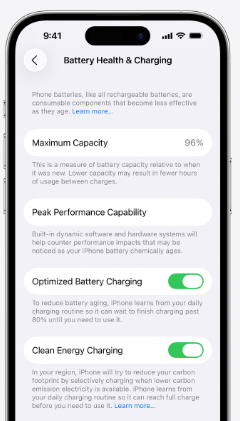
- Check Battery Health: Navigate to Settings > Battery > Battery Health & Charging. Look at the “Maximum Capacity” percentage. Anything below 80% means the battery is significantly degraded and will likely need to be replaced soon. Factor a battery replacement into your purchase price.
- Test Audio and Ports: Open the native Voice Memos app. Record yourself speaking into the bottom microphone, then play it back to test the bottom speakers. Finally, bring a power bank and a charging cable to ensure the charging port works cleanly without wiggling.
Phase 2: Security Checks for Activation Lock, MDM, and SIM Lock
Once the physical hardware checks out, you must verify that the software is completely unrestricted. A phone that looks brand new is useless if it is tied to an old owner, managed by a corporation, or locked to a specific carrier.
Assuming you have the unlocked phone in your hands, follow these steps using standard Apple settings:
1. Check for Activation Lock (Apple ID): Open the Settings app. At the very top, verify that there is no name or Apple ID signed in. It should say “Sign in to your iPhone.” If a name is there, the device is tied to their iCloud account and Activation Lock is active.
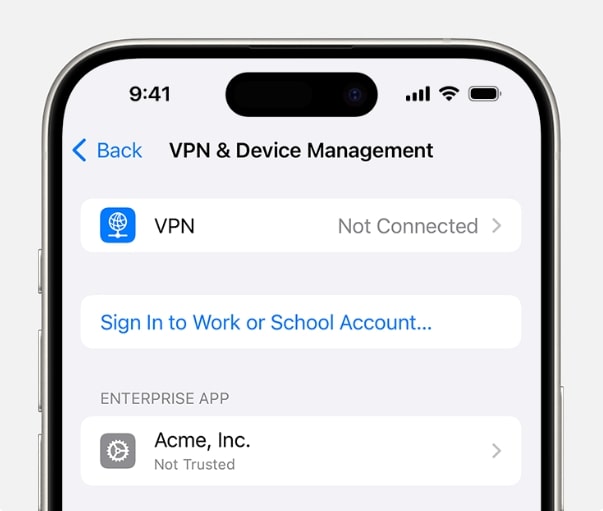
2. Check for Mobile Device Management (MDM): Go to Settings > General > VPN & Device Management. If you see an unexpected profile installed, or if the top of the main Settings page says “This iPhone is supervised and managed by [Company],” do not buy it. It belongs to a school or business.
3.Check for SIM/Carrier Lock: Go to Settings > General > About. Scroll down to the “Carrier Lock” section. You want to see the words “No SIM restrictions.” If it lists a specific carrier, the phone will only work on that network.
The Crucial Difference: Carrier Lock vs. IMEI Blacklist
One of the most common mistakes second-hand buyers make is confusing a Carrier Lock with an IMEI Blacklist. Understanding the difference is critical, as one is a minor inconvenience while the other leaves you with an unfixable paperweight.
Here is how to tell the difference before you hand over your cash:
| Feature | Carrier Lock | IMEI Blacklist |
|---|---|---|
| Definition | The iPhone is functionally fine but technically restricted to one specific cellular network (e.g., AT&T or T-Mobile). | The iPhone’s unique ID has been flagged globally because it was reported lost, stolen, or has unpaid carrier bills. |
| Symptom | The phone says “SIM Not Supported” when you insert a different carrier’s SIM card. | The phone might accept the SIM card, but will say “No Service” and cannot make calls or use cellular data. |
| Fixability | Can often be resolved by contacting the original carrier (if paid off) or using supported imei unlock software. | Unfixable. An IMEI blacklist is a hard limit enforced by global telecom databases. No consumer software tool can legally “un-blacklist” a phone. |
How to protect yourself: Before paying, find the IMEI in Settings > General > About (or dial *#06#). Enter that number into a free online IMEI checker. If the result shows the device is “Blacklisted,” walk away immediately.
The Ultimate Test: Force a Factory Reset In-Person
Even if the Settings app looks clean, some sophisticated scammers can hide MDM profiles, jailbreak the device to spoof “unlocked” statuses, or mask an Activation Lock.
The ultimate peace-of-mind test is to force a factory reset in front of the seller. If they refuse, consider it a massive red flag and cancel the transaction.
Here is how to perform this foolproof method:
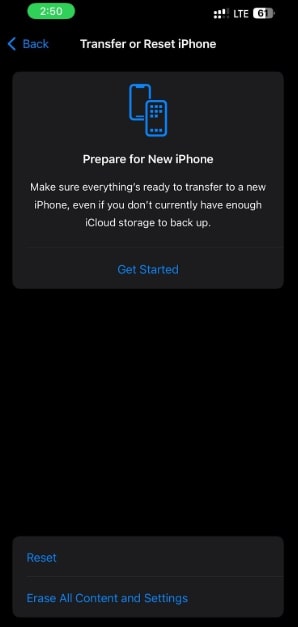
1. Request the Reset: Ask the seller to go to Settings > General > Transfer or Reset iPhone > Erase All Content and Settings.
2. Watch the Process: Ensure the phone actually reboots and displays the Apple logo with a loading bar.
3. Navigate the Setup: Once the “Hello” screen appears, take the phone and go through the initial setup steps yourself.
4. Connect to Wi-Fi: You must connect to a Wi-Fi network (or a personal hotspot) during setup. This is when the iPhone checks Apple’s servers for locks.
5. Look for Red Flags: If the phone asks for a previous owner’s Apple ID (Activation Lock) or displays a “Remote Management” login screen (MDM), hand the phone back.
6. Verify Success: If you successfully activate the phone and reach the blank Home Screen without any account prompts, the device is genuinely safe to buy.
What to Do If You Already Bought a Locked Used iPhone?
It is incredibly frustrating to get home with a “new” used iPhone, reset it, and suddenly discover an Activation Lock or Remote Management screen. When the seller goes ghost and ignores your messages, panic usually sets in.
If you missed the checks and are stuck with a locked device, here is the troubleshooting flow you should follow:
- Attempt an Official Refund: If you purchased the phone through a platform with buyer protection (like eBay, Swappa, or Back Market), immediately open a dispute for an item “not as described.” Platform guarantees usually side with the buyer for locked devices.
- Contact Apple Support (If Eligible): Apple Support can remove Activation Locks, but they strictly require the original proof of purchase from the first owner (with the serial number on the receipt). Since second-hand buyers rarely have this, this path is often a dead end.
- Understand the Dead-End Scenario: If the seller is a scammer, the platform offers no protection (e.g., a cash deal on Facebook Marketplace or Craigslist), and Apple cannot verify ownership, you are officially stuck.
When official paths fail, you are left looking for a third-party software recovery approach. It is important to know that while software tools can help authorized users bypass MDM profiles, SIM locks, and some Activation Locks, no tool can fix a blacklisted IMEI. If the phone is just software-locked, you do have options, and you can research a frpfile icloud bypass tool or similar utilities to see what fits your specific scenario.
Tool-Assisted Recovery: Using AnyUnlock for Post-Purchase Locks
If you lawfully purchased the device but the seller is unreachable and official Apple paths are blocked, you can use a guided desktop toolkit like AnyUnlock to attempt recovery. AnyUnlock is designed to handle specific post-purchase software locks on supported iOS devices, giving buyers a way out of an otherwise hopeless situation.
Depending on the specific lock you are facing, here is how the AnyUnlock workflow operates:
- Identify Your Lock and Choose the Module: Open AnyUnlock on your computer and select the module that matches your issue (e.g., “Bypass iCloud Activation Lock”, “Bypass MDM”, or “Remove SIM Lock”).
- Review Compatibility and Connect: Connect your iPhone via USB. AnyUnlock will check if your specific device model and iOS version are supported for that module.
- Follow the On-Screen Workflow:
- For Activation Lock: The workflow will guide you through the bypass process. Note that support depends heavily on the specific device model and current iOS version.
- For MDM Bypass: AnyUnlock serves as one of the top mdm removal tools iphone buyers can use. It will remove the local Remote Management profile so you can use the phone. Keep in mind this is a local bypass; if you factory reset the phone in the future, the MDM screen may reappear.
- For SIM Lock: The tool will bypass carrier restrictions on supported models, allowing you to use a different carrier network (provided the phone is not IMEI blacklisted).
- Regain Access: Complete the guided steps to access your Home Screen and use your legally purchased device.

AnyUnlock – One-stop iOS Unlocker
What if you get locked out of your iPhone? Or what if you forgot your Apple ID and its password? No worries, AnyUnlock unlocks any iOS lock for you with 1 click. No technology required. Only 3 steps.
AnyUnlock is strictly intended for lawful, owned, or authorized device recovery. It cannot un-blacklist a phone or fix IMEI database restrictions.
Frequently Asked Questions About Buying Used iPhones
How do I know if a used iPhone is stolen?
The fastest way is to find the IMEI number (dial *#06#) and run it through a free online IMEI checker. If the carrier database reports the phone as “Blacklisted,” it has been reported lost, stolen, or has unpaid bills.
How do I check for Activation Lock before paying?
The only foolproof way is to factory reset the phone in person and connect it to Wi-Fi. If it reaches the “Hello” screen and lets you activate the device to the Home Screen without asking for a previous owner’s Apple ID, the Activation Lock is off.
What is MDM and how do I check for it?
MDM stands for Mobile Device Management. It is used by companies and schools to control devices remotely. You can check for it by going to Settings > General > VPN & Device Management. Forcing a factory reset will also trigger the “Remote Management” login screen if MDM is active.
How do I check if the iPhone is carrier unlocked?
Go to Settings > General > About and scroll down to “Carrier Lock.” If it says “No SIM restrictions,” the phone is unlocked and can be used on any cellular network.
What should I do if I bought a used iPhone and it’s locked?
First, try to get a refund through the marketplace platform or contact the seller. If you have the original first-owner receipt, contact Apple Support. If all official paths fail and you legally own the device, you can use tool-assisted software recovery paths like AnyUnlock for specific software restrictions, though they cannot fix blacklisted IMEIs.
Final Thoughts: Buy Smart and Stay Secure
Buying a second-hand iPhone is an excellent way to save money, but it requires vigilance. By following the pre-purchase security checklist—physically checking the hardware, verifying the IMEI status, and forcing an in-person factory reset—you can confidently avoid scams and bricked devices.
Prevention is always your best security strategy. Take the extra three minutes to verify the phone’s status before you hand over any money. However, if you do find yourself in a situation where you missed a check, the seller is unresponsive, and you are stuck with a restricted device, remember that a guided software toolkit like AnyUnlock can offer a practical way to bypass software locks and regain access to your lawfully owned phone.
AnyUnlock – Unlock Any iOS Password
Quickly and easily unlock your iPhone/iPad/iPod touch from various locks such as screen lock, MDM lock, iCloud activation lock, Apple ID, iTunes backup password, and more.
Free Download for all windows & 100% safe
Free Download for all mac & 100% safe
Free Download 100% Clean & Safe



Wanda Norris is a junior author in iMobie specializing in iOS tips and solutions. She keeps a close eye on every iOS update to provide practical, easy-to-understand guides that help users solve problems and master their Apple devices.
Product-related questions? Contact Our Support Team to Get Quick Solution >
