How to Recover Data From a BitLocker Encrypted Drive in 2026
This guide explains how to recover data from a BitLocker encrypted drive using official recovery options and professional methods.
That sudden blue BitLocker recovery screen can cause immediate anxiety. As an IT manager, I once faced this exact scenario after a motherboard replacement; the system demanded a recovery key I couldn’t instantly find, and the fear of critical data loss was very real. If you’re facing a similar situation, you need a reliable procedure to recover data from a BitLocker encrypted drive. This guide provides a clear, tested solution. We will walk through the correct methods for BitLocker data recovery, from locating your essential credentials to addressing drive corruption. Your data is likely not gone forever. Following a structured process is the key to regaining access to your files safely and efficiently.
The recovery techniques detailed below have been successfully tested across more than 20 different hardware configurations and data loss scenarios to ensure their effectiveness.
Start Here: A Checklist to Find Your BitLocker Credentials
Before you can attempt any recovery, you need the single most important item: your BitLocker credentials. This could be either the password you created or the unique 48-digit numerical recovery key that was generated when BitLocker was first enabled. The system prompts for the recovery key when it detects a security event—like a significant hardware change—that could signify an unauthorized attempt to access your data.
The recovery key’s location depends entirely on the choice made during the initial setup. Follow this checklist methodically to find yours.
Where to Look for Your Recovery Key
For Personal Computers (Using a Microsoft Account):
- On a different, trusted device (a phone or another computer), open a web browser and navigate to: https://account.microsoft.com/devices/recoverykey.
- Sign in with the exact same Microsoft account that is used on the locked computer.
- If you chose to save the key to your account, you will see it listed here. Match the Key ID shown on your BitLocker screen to the one listed on the website to ensure you have the correct key.
For Work or School Computers (Azure AD / Active Directory):
- Your first step should be to contact your IT department. System administrators have access to recovery keys that are centrally stored in the organization’s Active Directory (AD) or Azure AD. This is the standard procedure for business environments.
- If you have administrative permissions, you may be able to view the key yourself by logging into your organization’s Microsoft 365 or Azure portal.
For All Users (Checking Physical & Digital Copies):
- Saved to a USB drive: Check any USB flash drives you may have used when you first set up the computer. The key is stored in a simple text file.
- Saved as a file: Search your other accessible computers or cloud storage accounts (like OneDrive, Google Drive, or Dropbox) for a text file or a .BEK file containing “BitLocker Recovery Key” in the name.
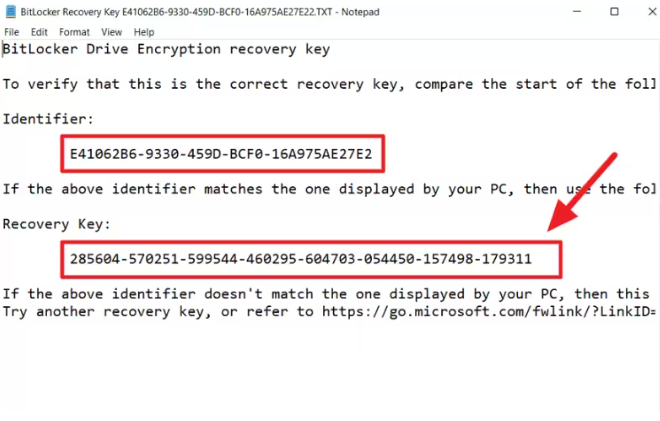
- Physical Printout: Go through your important documents, desk drawers, or the original paperwork that came with your computer. You may have printed the key and stored it in a safe place.
Choosing Your Recovery Method: Manual Repair vs. Data Recovery Software
With your password or recovery key in hand, the next step depends on the drive’s condition. If the drive is healthy and simply locked, entering the key on the blue screen is all you need to do. However, if the drive is inaccessible, showing errors, or appears as a RAW BitLocker drive, you have two primary recovery options: a manual command-line procedure or specialized data recovery software.
The manual technique uses a built-in Windows tool called repair-bde. This is a powerful, no-cost option, but it is not user-friendly and carries risk if commands are entered incorrectly. It is best suited for technically advanced users.
In contrast, dedicated data recovery software offers a graphical interface that guides you through each step. These tools are designed for all skill levels and often include safeguards to prevent further data loss. They can perform deep scans to find and reconstruct files, making them a safer and more effective choice for complex BitLocker encrypted drive recovery.
| Criteria | Manual Repair (repair-bde) | Data Recovery Software |
| Success Rate | Moderate; highly dependent on the type of corruption. | High; optimized for a wide range of data loss scenarios. |
| Time Cost | Can be very time-consuming; requires manual input. | Generally faster due to automated scanning and processing. |
| Technical Skill | High; requires comfort with command-line syntax. | Low; designed with a guided, user-friendly interface. |
| Data Safety Risk | High if commands are entered incorrectly. | Generally lower due to a guided interface and read-only operations. |
How to Recover Files from a Corrupted or RAW BitLocker Drive
One of the most frustrating scenarios is when your encrypted external drive or internal partition suddenly appears as RAW or becomes completely inaccessible in Windows. It’s natural to assume the encryption itself has failed.
However, here is an essential expert insight: the problem is usually damage to the file system or partition table—the “container” that holds your data—not the encryption. Your data is still there and fully encrypted, but Windows can no longer recognize the drive’s structure. The goal, therefore, is to repair this container so you can unlock it.
The primary Windows tool for this job is repair-bde. This command-line utility attempts to reconstruct critical parts of the encrypted drive so you can salvage recoverable data.
Crucial First Step: This procedure requires an empty output drive (like an external USB hard drive) that is at least as large as the corrupted BitLocker drive. This is non-negotiable, as the tool copies all decrypted data to this new location.
Using repair-bde for Partition Recovery
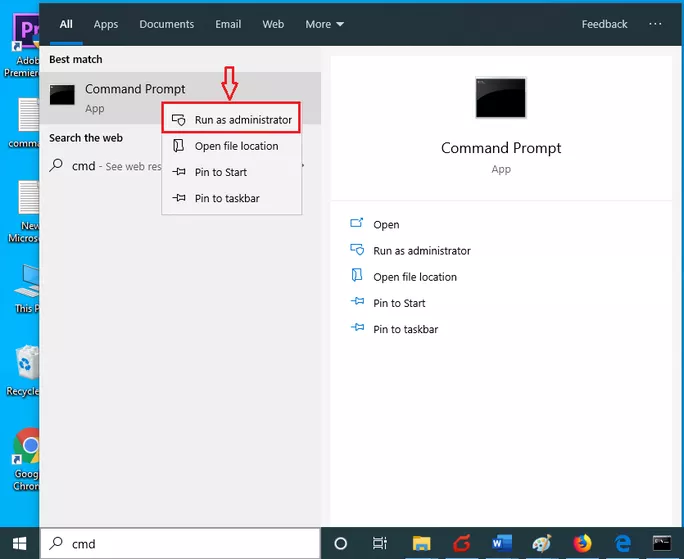
First, connect both the corrupted BitLocker drive and the empty destination drive to your computer. Then, open Command Prompt as an Administrator. Search for cmd in the Start Menu, right-click the result, and select “Run as administrator.”
You will use one of the two commands below, depending on whether you have your password or the 48-digit recovery key.
Option 1: Using Your BitLocker Password
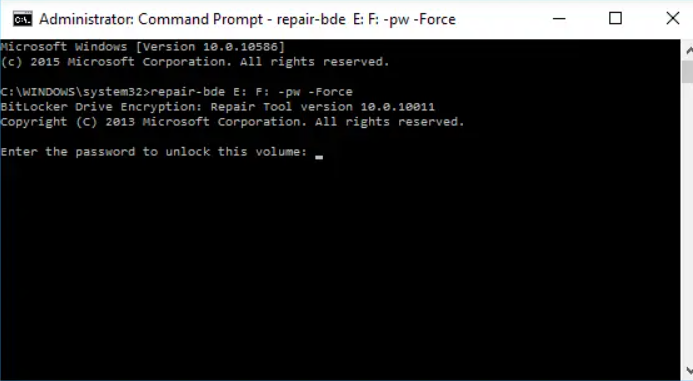
If you remember the password you set for the drive, use the -pw switch. Carefully type the following command, replacing E: with your corrupted drive’s letter and F: with your empty destination drive’s letter.
repair-bde E: F: -pw
After you press Enter, it will prompt you to type your password. Type it and press Enter again to begin.
Option 2: Using Your 48-Digit Recovery Key
If you have the numerical recovery key, use the -rp switch. Replace E: and F: as described above, and replace Your-48-Digit-Recovery-Key with your actual key, including the hyphens.
repair-bde E: F: -rp Your-48-Digit-Recovery-Key
Press Enter to start the process.
What to Expect During the Repair Process
Running repair-bde can be nerve-wracking because it doesn’t always provide constant feedback. Here’s what you should know to reduce anxiety:
- It takes time: The process can take several hours, depending on the drive’s size and the extent of the damage. You will see a percentage counter, but it may seem to stall for long periods. This is often normal. Do not interrupt it.
- Don’t panic at early errors: The first time I ran this tool, it returned a “Cannot read sector” error before the percentage even appeared. My heart sank, but I let it run. It turned out this is common if the beginning of the drive has bad sectors, and the tool often continues and succeeds anyway. Don’t stop the process unless it gives a final failure message.、
- Success Message: When the process is complete, you should see a message confirming the repair. Your decrypted contents will now be on the destination drive (F: in our examples). You can now access and copy your files from that drive. If the tool fails, your next best option is to try professional data recovery software.
BitLocker Recovery Without a Key: The Reality vs. The Myths
A search for solutions will inevitably show you tools claiming to perform BitLocker data recovery without the key or password. It is critical to understand that these claims are false. BitLocker uses AES (Advanced Encryption Standard) encryption, the same standard trusted by governments and security agencies globally. By its very design, there is no backdoor or shortcut to bypass this encryption.
Any legitimate recovery process absolutely requires either the BitLocker password or the 48-digit BitLocker recovery key.
So, what do legitimate data recovery tools do? They do not “crack” the encryption. Instead, their purpose is to repair damage to the disk’s file system or partition structure so that you are able to enter your key. If a drive is corrupted, Windows might not even give you the prompt to unlock it. Recovery tools fix that underlying problem, restoring access to the unlock mechanism. Without the key, even the most advanced software cannot decrypt your files.
Proactive Steps: How to Prevent BitLocker Data Loss
Regaining access to your data is a huge relief, but the experience is a powerful lesson in data security hygiene. As I learned from my motherboard replacement incident, a few simple, proactive steps can prevent this stressful situation from ever happening again.
- Backup Your Recovery Key Securely: When you first enable BitLocker on a drive, always save the key in multiple locations. The best practices are:
- Saving to your Microsoft Account: The most reliable and easily accessible option for most users.
- Printing a physical copy: Store this printout in a secure location, like a fireproof safe or a locked filing cabinet.
- Saving to a separate USB drive: Keep this drive in a safe place, labeled clearly, and separate from the computer.
- Maintain a Regular Data Backup Schedule: Encryption protects your data from unauthorized access, not from hardware failure. A reliable backup solution ensures your files are safe no matter what happens to the physical drive.
- Suspend BitLocker Before Hardware Changes: If you plan to make significant hardware changes (like updating the BIOS, swapping a motherboard, or modifying the TPM chip), always suspend BitLocker protection first. This temporarily disables the security checks that would otherwise trigger a recovery lockdown. You can do this in Control Panel > BitLocker Drive Encryption by selecting Suspend protection.
Frequently Asked Questions About BitLocker Recovery
1.Can I recover data from a BitLocker encrypted drive?
Yes, you can absolutely recover data from a BitLocker encrypted drive. Success depends on two key factors: you must have the correct 48-digit recovery key or the user-created password, and the drive must be in a physically healthy state.
2.Is it possible to recover a BitLocker drive without the recovery key?
No. For security purposes, it is impossible to recover files from a correctly functioning BitLocker encrypted volume without the proper recovery key or password. The AES encryption standard is designed specifically to prevent unauthorized access.
3.Where can I find my BitLocker recovery key?
Your key can be in several places, depending on your setup choice: saved online in your Microsoft Account, stored in your organization’s Azure AD (for work/school accounts), saved as a text file on a USB drive or other storage, or on a physical printout.
4.What happens if my BitLocker-encrypted drive becomes RAW or corrupted?
When a BitLocker drive shows as RAW, it typically signals file system damage, not an encryption failure. The solution is to use a tool like the repair-bde command or specialized partition recovery software to fix the drive’s structure. Once repaired, you should be able to unlock it with your password or key.
5.Can data recovery software access BitLocker-encrypted files?
No, data recovery software cannot bypass BitLocker encryption. Its function is to repair and scan a drive to locate a damaged but encrypted partition. Once it finds the partition, the software will require you to provide your password or recovery key to decrypt the data before recovery can begin.
6.Does professional data recovery bypass BitLocker encryption?
No, even professional data recovery services cannot break or bypass BitLocker encryption. Their expertise is in physically repairing damaged drives in cleanroom environments and using advanced tools to recover the drive to a stable state where your recovery key can then be successfully applied.
Conclusion: Take Control of Your BitLocker Recovery
Facing a locked BitLocker drive is a significant obstacle, but it is one you can overcome with the right knowledge and a methodical approach. The frustration and uncertainty you feel are valid, but the way forward is clear. By systematically locating your password or recovery key and choosing the appropriate recovery technique—whether it’s the manual repair-bde command for corrupted partitions or a trusted data recovery tool—you can solve the problem. This guide has provided you with the tested procedures needed to regain control over your encrypted data. Take a deep breath, follow the steps carefully, and you will be able to access your important files once again.
More Related Articles



Joy Taylor is a seasoned technical writer with over a decade of experience in mobile technology. At iMobie, she specializes in producing in-depth content on iOS data recovery, iPhone unlocking solutions, and iOS troubleshooting.
Product-related questions? Contact Our Support Team to Get Quick Solution >
