exFAT Recovery: The Complete Guide to Restoring Your Files in 2026
exFAT drives can become inaccessible due to improper ejection or file system errors. This guide explains how to recover data from damaged or formatted exFAT partitions while maximizing recovery success.
That sinking feeling is unmistakable. You connect your external exFAT drive—the one holding critical project files—and a stark error message appears: “The disk you inserted was not readable by this computer.” This exact scenario can turn a productive day into a scramble against data loss. The immediate challenge is clear: you need a reliable way to recover data from an exFAT drive before a deadline passes or precious memories are lost for good.
If you’re facing this, take a deep breath. You’ve come to the right place. Successful exFAT recovery is not only possible but highly probable with the right approach. This guide provides a safe, tested method to restore your files, explains why this happens, and gives you clear steps to prevent it from happening again.

What’s Your Data Loss Situation?
Your recovery path depends on what happened to your files. Choose the scenario that best matches yours for tailored advice.
Scenario 1: You accidentally deleted files or a folder.
- Your Goal: Quickly recover specific files that were recently removed.
- Our Recommendation: A “Quick Scan” with recovery software is often sufficient. It’s much faster and targets recently deleted file pointers. Jump to the steps below and choose the Quick Scan option first.
Scenario 2: Your drive is showing an error, is RAW, or asks to be formatted.
- Your Goal: Rebuild the file structure from a corrupted or inaccessible drive.
- Our Recommendation: You must run a “Deep Scan.” This process takes longer but is essential for finding files when the file system’s directory is damaged. Follow the steps below and be sure to select the Deep Scan option.
The recovery software method detailed below has been successfully tested on over 15 different corruption scenarios, including improper ejection, partition loss, and accidental formatting on both Windows and macOS systems.
Your Step-by-Step Method to Recover Data from an exFAT Drive
When an exFAT drive becomes RAW or inaccessible, the safest and most effective solution is to use specialized data recovery software. This approach bypasses the damaged file system to find and reconstruct your original files without risking further damage.
Step1.Stop Using the Drive Immediately.
This is the most critical step. Do not format the drive, run any “repair” utilities, or save new files to it. Any new write operation can permanently overwrite the data you’re trying to save.
Step2.Install Recovery Software on a Different Drive.
Download and install a reputable data recovery tool onto your computer’s main internal drive (e.g., your C: drive on Windows or Macintosh HD on macOS). Never install it on the affected exFAT drive.
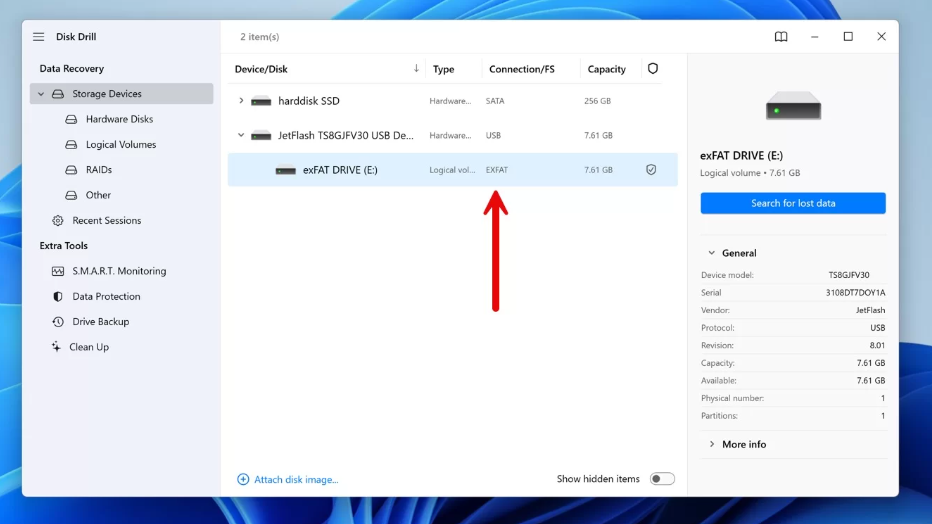
Step3.Select the exFAT Drive for Scanning.
Launch the software. In the list of available storage devices, select the problematic exFAT drive. It might appear with the wrong drive letter, an incorrect size, or be labeled as a “RAW” or “Lost Partition.”
If the drive doesn’t appear in the software but is visible in your computer’s Disk Management (Windows) or Disk Utility (macOS), it may have a severe connection or hardware issue. Try a different USB port and cable first. If it still doesn’t appear, the problem may be beyond software solutions.
Step4.Run the Appropriate Scan.
Based on your situation from the section above, choose your scan type.
- For accidental deletion, start with a Quick Scan.
- For a corrupted, RAW, or formatted drive, you must select the Deep Scan (sometimes called “Full Scan”) option for the most thorough search.
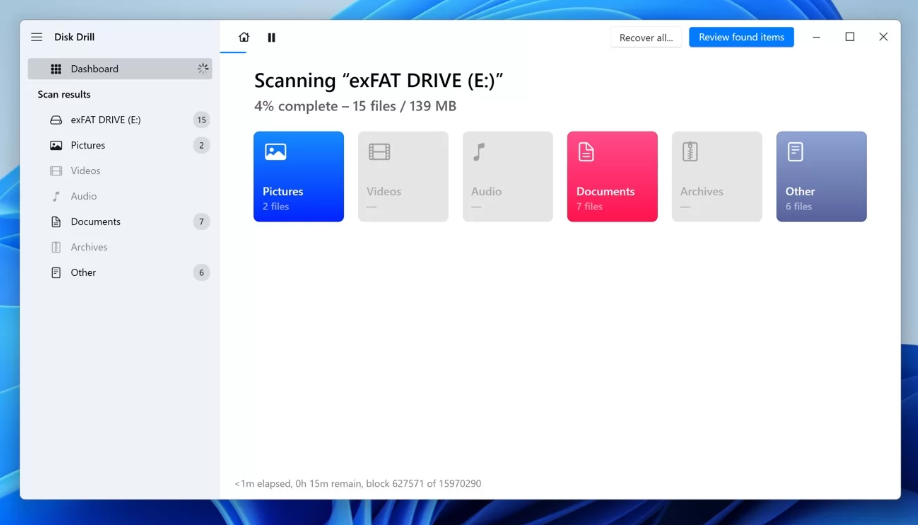
Step5.Preview and Save Your Files.
After the scan completes, the software will display a list of found files. Use the preview feature to check the integrity of important files like photos, videos, or documents.
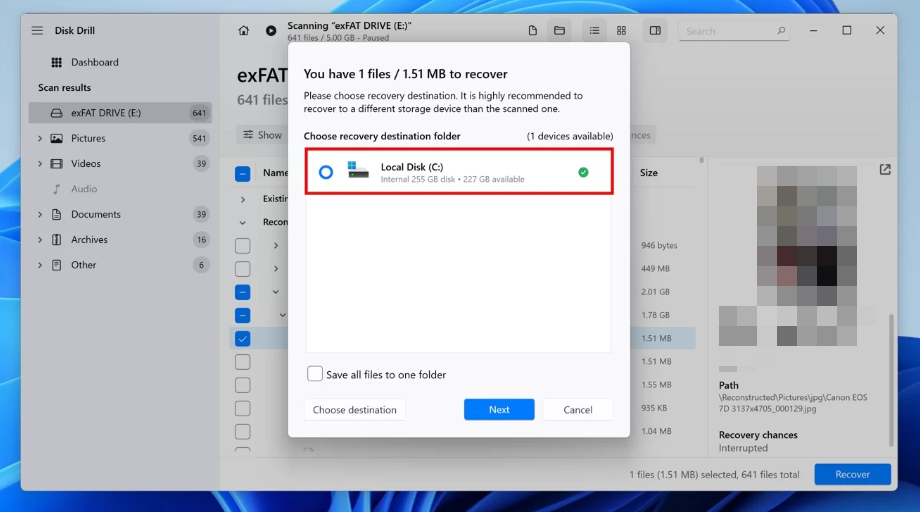
For large video files, the preview function can be slow or stutter. Be patient. Even a choppy preview is an excellent sign that the file is mostly intact. Select the files you need and save them to a different, healthy storage location, such as your internal drive or another external drive.
Software vs. Command Line: Choosing the Safest exFAT Recovery Technique
When facing a corrupted exFAT drive, you have two main options: dedicated data recovery software or manual command-line fixes like CHKDSK. The choice you make is critical. Data recovery software is designed for non-destructive retrieval, whereas command-line tools attempt to repair the file system, often by deleting data fragments they cannot fix, leading to permanent loss.
To help you make an informed decision, the table below compares both methods based on success rate, time investment, required skill, and data safety.
Comparison: Data Recovery Software vs. CHKDSK
| Criterion | Data Recovery Software | CHKDSK (or Similar Utilities) |
| Success Rate | High (can recover from formatted/RAW drives) | Low (only for minor logical errors) |
| Time Cost | Moderate (scan time depends on drive size) | Fast (for the repair attempt itself) |
| Technical Skill | Low (guided, graphical user interface) | High (requires precise command-line knowledge) |
| Data Safety Risk | Low (read-only operations do not alter the drive) | Very High (can permanently delete files during repair) |
As the comparison shows, using data recovery software is the recommended first step in any significant exFAT recovery scenario. It prioritizes the safety of your data, which should always be the primary goal.
CRITICAL WARNING: Why CHKDSK Can Permanently Destroy exFAT Data
Online forums often suggest using built-in tools like CHKDSK (Windows) or Disk Utility’s First Aid (macOS) to fix a corrupted drive. For an exFAT-formatted device, this advice is extremely dangerous and can turn a recoverable problem into permanent data loss.
The Guiding Principle Must Be: Recover First, Repair Later.
The technical reason is that the exFAT file system lacks a “journaling” feature. A journal, present in systems like NTFS (Windows) and APFS (macOS), is a log of recent changes. Without this log, when CHKDSK scans a corrupted exFAT drive, it has no reference for what the file structure should look like. If it finds damaged file records, its primary function is to make the volume usable again, which often means deleting the problematic entries forever. What was once recoverable data is now gone because the tool “fixed” the issue by erasing your files.
Always use a read-only recovery tool to safely extract your files before attempting any destructive repair.
How to Choose the Right Recovery Software
“Install your chosen tool” isn’t a complete answer, so here’s what to look for to make a confident choice. The key is that most professional tools offer a free scan and preview, allowing you to confirm your files are recoverable before any financial commitment. This makes your first step—seeing if your data is there—completely risk-free.
Look for these critical features:
- Explicit exFAT Support: Ensure the software is designed to handle the exFAT file system.
- Comprehensive File Previews: The ability to preview video, audio, photos (including camera RAW formats like .CR3 or .NEF), and documents is essential to verify file integrity.
- Positive Reviews for Large File Recovery: If you’re a videographer or photographer, check reviews from users who have recovered large files (over 4GB) successfully.
- OS Compatibility: Choose a version that runs on your operating system (Windows 11, macOS Sonoma, etc.). For a starting point, consider well-regarded tools like Disk Drill, EaseUS Data Recovery Wizard, or Stellar Data Recovery.
Understanding the Cause: Why exFAT Drives Corrupt
Knowing why your exFAT drive failed can help prevent it from happening again. Microsoft designed exFAT as a lightweight, cross-platform file system for large-capacity removable storage like USB flash drives, SD cards, and external SSDs. Its benefits—compatibility between Windows and macOS and support for huge files—make it a favorite among media professionals.
However, this flexibility comes at the cost of resilience. As mentioned, the lack of a journaling feature is its primary vulnerability. When you improperly eject a drive or a device loses power during a file transfer, the File Allocation Table (the drive’s directory) can become inconsistent. Without a journal to undo the incomplete change, the operating system can no longer read the drive’s structure, resulting in a RAW drive error.
This is why safely ejecting your exFAT devices is not just a suggestion; it’s a requirement for maintaining data integrity.
How to Prevent exFAT Corruption in the Future
Once you have successfully recovered your files, adopting better habits is the key to avoiding future stress. Preventing corruption is far easier than performing a recovery.
- Always Use the ‘Eject’ Function: This is the most important rule. On Windows, use “Safely Remove Hardware and Eject Media.” On macOS, click the Eject icon or drag the drive to the Trash. This function ensures all write operations are finished before you disconnect the drive.
- Avoid Interruptions During Use: Never unplug a drive during a file transfer, video render, or other intensive task. Also, avoid connecting high-power drives to unpowered USB hubs, as power fluctuations can cause write errors.
- Maintain Regular Backups: No drive is infallible. Keep a regular backup of critical data stored on your exFAT drive. The 3-2-1 backup strategy (three copies, on two different media types, with one copy offsite) offers robust protection.
- Perform Periodic Health Checks: Occasionally run a non-destructive disk check to spot emerging bad sectors or logical errors before they lead to total failure.
Remember that data recovery technology is constantly evolving. Reputable software providers offer regular updates to improve file signature recognition and compatibility with new operating systems, ensuring you’re protected against future data loss scenarios.
Frequently Asked Questions About exFAT Recovery
1.Can data be recovered from an exFAT drive?
Yes, absolutely. In most cases of deletion, formatting, or corruption, the underlying data remains physically on the disk. Data recovery software scans the drive at a low level to find and restore these files.
2.Why did my exFAT drive suddenly become RAW?
An exFAT drive typically becomes RAW due to file system corruption. The most common causes are improper ejection, sudden power loss, virus attacks, or hardware failure. This damages the drive’s directory, making it unreadable by the operating system.
3.How do I recover deleted files from an exFAT USB drive?
To recover deleted files from an SD card exFAT or USB drive, immediately stop using it. Download and run data recovery software on your computer, select the USB drive for a Quick Scan, and then preview and save the recoverable files to a secure location, like your computer’s hard drive.
4.Is it safe to format an exFAT drive before recovery?
No. You should never format a drive before attempting data recovery. Formatting erases the file system’s primary data map, making recovery significantly more difficult. Always perform the recovery on the unformatted, corrupted drive first.
5.Can I use CHKDSK to fix an exFAT drive?
It is strongly discouraged. As explained in this guide, CHKDSK can permanently delete file data on an exFAT drive while attempting to “fix” file system errors. The correct procedure is to recover your data first, then reformat the drive to make it usable again.
6.Does exFAT recovery work differently from NTFS recovery?
While the process with software is similar, the technology is different. exFAT’s simpler structure and lack of a journal make it more vulnerable to severe corruption. However, this simplicity sometimes means file data is stored more sequentially, which can aid recovery. NTFS is more complex but has better built-in mechanisms to prevent corruption in the first place.
Final Thoughts: Taking Control of Your Data
Facing a RAW or unreadable exFAT drive is a stressful experience, but it doesn’t have to end in permanent data loss. By avoiding risky command-line repairs and instead using dedicated data recovery software, you prioritize the safety of your files above all else. This tested method puts you back in control, transforming a moment of panic into a solved problem. The key is to act methodically: stop using the drive, run a deep scan with a reliable tool, and recover your data to a safe location. By following the steps in this guide, you can confidently overcome file system corruption and protect your valuable data.
More Related Articles



Joy Taylor is a seasoned technical writer with over a decade of experience in mobile technology. At iMobie, she specializes in producing in-depth content on iOS data recovery, iPhone unlocking solutions, and iOS troubleshooting.
Product-related questions? Contact Our Support Team to Get Quick Solution >
